
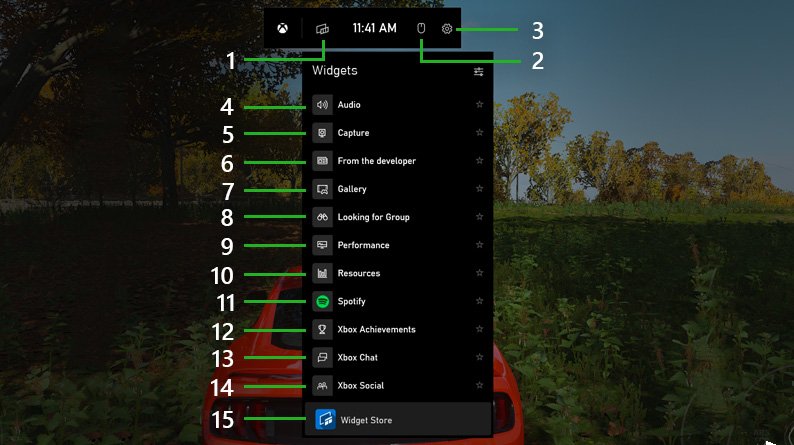
Press the Windows key and the G key simultaneously to pull up game bar.
Ever found yourself mid-game wanting to quickly capture a highlight or adjust your audio settings? You’re not alone! Many gamers wonder how to pull up game bar, that convenient overlay Windows provides. It’s actually much simpler than you might think.
This handy tool gives you easy access to recording, screenshots, and performance monitoring. Instead of fumbling through menus, you can bring up game bar with just a quick key combination. Knowing this one shortcut can greatly enhance your gaming experience.

How to Pull Up Game Bar: Your Guide to Easy Access
Okay, let’s talk about the Game Bar! It’s like a secret toolbox built right into your Windows computer, and it’s packed with cool stuff for gamers. Whether you’re playing a super exciting adventure game, a fast-paced racing challenge, or just having some fun with your friends online, the Game Bar is there to help. But sometimes, it can feel like a little hiding wizard, and you might be wondering, “How do I get it to show up?” Don’t worry, it’s actually super easy! In this guide, we’ll show you all the different ways to make the Game Bar appear, and we’ll also explore all the amazing things you can do with it. Get ready to become a Game Bar pro!
The Quickest Way: Using the Keyboard Shortcut
The fastest and most common method for opening the Game Bar is by using a special keyboard shortcut. Think of it like a secret code that tells your computer, “Hey, show me the Game Bar!” This shortcut is a combination of two keys pressed at the same time.
The Windows Key + G Combination
Here’s the magic combo: Press the Windows key (it looks like a little window and is usually near the bottom left of your keyboard) and the G key at the same time. It’s like playing a mini piano chord! When you press these keys together, the Game Bar should pop right up on your screen. It usually appears right in the middle or near the top, depending on your settings. This is the most widely used method and you’ll probably find yourself using it a lot.
Tips for Success:
- Make sure you press both keys down at the exact same time. If you press one then the other, it might not work.
- If you don’t see the Game Bar after trying the shortcut, don’t worry! We have more ways to get it to show up. Just keep reading.
Alternative Ways to Show the Game Bar
Sometimes, for various reasons, the keyboard shortcut might not work perfectly. That’s okay! Your computer is like a Swiss Army knife; there are always other ways to achieve the same thing. Let’s take a look at a few of them.
Through the Start Menu
Your start menu is like the hub of your computer. It’s where you go to open all your programs and find your settings. And, yes, you can also access the Game Bar here! Here’s how:
- Click the Start button. It looks like the Windows logo, and you’ll find it in the bottom left corner of the screen.
- Scroll through the list of your programs, or simply type “Xbox Game Bar” into the search box at the top.
- Click on “Xbox Game Bar” to open it. Just like that, the Game Bar appears!
From the Settings Menu
The Settings menu is like the control panel for your entire computer. You can change all sorts of stuff in there, including how the Game Bar works. Here’s how to get there:
- Click the Start button, and then click the Settings icon (it looks like a little gear).
- In the Settings window, click on “Gaming.” (You might need to scroll down to find it.)
- On the left side of the window, select “Xbox Game Bar.”
- Now, on the right, you will see a toggle switch. Make sure the switch that says “Enable Xbox Game Bar” is turned on. If it’s not, turn it on!
- You can also see the keyboard shortcut for opening the Game Bar, and even change it if you want!
Sometimes, turning the Game Bar off and then on again in the settings can fix any minor issues that might prevent it from showing up.
Troubleshooting: Why Isn’t My Game Bar Showing Up?
Sometimes, things don’t work exactly as we expect them to. If you’ve tried the above methods and your Game Bar still refuses to show up, don’t get frustrated! Here are a few common problems and how to fix them.
Game Bar is Disabled
The most common reason why the Game Bar won’t open is because it is turned off in settings. Sometimes, an update or settings change can cause it to be disabled without you even noticing. The solution is easy, follow the above steps in “From the Settings Menu” to make sure the “Enable Xbox Game Bar” toggle is set to “On”.
Game Bar May Not Be Compatible
The Game Bar is designed to work with most games and applications, but sometimes, older games or specific programs might have issues with it. If the Game Bar isn’t showing up while you’re playing a specific game, it could be because that game isn’t compatible. There isn’t always a fix for this; sometimes the Game Bar just will not work with that specific game or application.
Outdated Graphics Drivers
Graphics drivers are special computer programs that help your computer display pictures and games. If these drivers are out of date, they might cause issues with the Game Bar. To update your graphics driver:
- Click the Start button.
- Type “Device Manager” in the search box and click on it.
- In the Device Manager, click on “Display adapters” to see a list of your graphics cards.
- Right-click on your graphics card and select “Update driver.”
- Then select “Search automatically for drivers” and let your computer find and install the most recent drivers.
- Restart your computer for the changes to take effect.
Conflict With Other Programs
Sometimes, other programs running on your computer can cause conflicts with the Game Bar. If you have any overlay programs running (like those that show frame rates or voice chat), they could potentially stop the Game Bar from working correctly. Try closing these programs one by one to see if it solves the issue.
Operating System Issues
Occasionally, your Windows operating system might have glitches or bugs that stop the Game Bar from working. The first solution is to restart your computer, as this fixes many small problems. If this doesn’t help, check for any Windows updates that might be waiting to be installed.
- Click the Start button, and then click the Settings icon.
- Click on “Update & Security.”
- Click “Check for updates” and let Windows install any necessary updates.
- Restart your computer.
Game Bar App is Broken
Sometimes, the game bar app itself is broken. If none of the above steps have worked, you may need to reset or reinstall the Xbox Game Bar app.
- Click the Start button, and then click the Settings icon.
- Go to “Apps” then “Apps & Features”.
- Find “Xbox Game Bar” in the list.
- Click on it and then select “Advanced Options”.
- Click “Reset”. If that does not work, try “Uninstall”.
- If you uninstalled it, you can reinstall it from the Microsoft Store.
What Can You Do With The Game Bar?
Now that you know how to open the Game Bar, let’s explore the fun things you can do with it! It’s like a superhero utility belt for your games.
Capturing Screenshots and Videos
The Game Bar has awesome built-in tools to take pictures and record videos of your game play! No more need for extra apps. These are easy to use. The “Record that” feature allows you to capture the last few moments of the game, which is great when you do something awesome and don’t have the video rolling. To do this:
- Open the Game Bar during the game.
- Click the button with a camera icon to take a screenshot. The image will be saved in your “Captures” folder.
- Click the button that looks like a circle to start recording a video. Click it again to stop the recording. Your video will also be saved to your “Captures” folder.
- Click the button that looks like a circle with a dot to use “Record that”.
The Game Bar makes it easy to share your best gaming moments with your friends and family.
Checking Performance Stats
Want to see how well your game is running? The Game Bar gives you all the information you need, such as how much processing power and memory the game is using. This can help you see if your computer is struggling and may need a boost. Here’s how to access it:
- Open the Game Bar during the game.
- Find and click the “Performance” button or widget. It shows you a chart with performance statistics.
- Look at the CPU (brain) and GPU (graphics card) readings. If they are too high, your game might slow down.
Controlling Audio and Voice Chat
The Game Bar also makes it easy to control the game’s sound and chat with your friends online. You can adjust the game’s volume, your microphone, and the voice chat volume. This helps you make sure you can hear the game and your friends. Here’s how:
- Open the Game Bar during the game.
- Find the audio section. This shows you the sound levels of the game, your mic, and voice chats.
- Adjust the sound levels to make sure you can hear everything.
Using the Xbox Social Features
If you have an Xbox account, you can connect it to the Game Bar and use all of the Xbox social features, including checking your friends list, sending messages, and joining parties. Here’s how to use the social features:
- Open the Game Bar during the game.
- Click on the “Xbox Social” widget to see your friends list, send messages, and join parties.
- Invite your friends to your game or chat with them while you play.
Customizing the Game Bar
The Game Bar is also customizable. This means you can move, resize, and even hide the different parts of it (also called widgets). You can place them where they work best for you on your screen. To change the settings of each widget:
- Click on the “Widget Menu” at the top of the game bar.
- Click the pin icon on the widget you would like to pin. The widget will stay there even when the game bar is not open.
- Click the X button to close a widget.
- Click and drag the edges of the widget to resize it.
With these tricks, you can make the Game Bar work perfectly for your gaming needs.
The Game Bar is a very useful tool that enhances the gaming experience. Knowing how to bring it up quickly and use its features can make your gaming sessions more enjoyable. From capturing your best moments to connecting with your friends, the Game Bar has it all. Now you know everything you need to use it like a pro.
Xbox Game Bar Tutorial: Capture and Share
Final Thoughts
Pressing the Windows key + G is the simplest method. This shortcut immediately displays the game bar. Alternatively, you can find the game bar through the start menu.
Locate the settings and then gaming options, making sure the game bar is enabled. The methods for ‘how to pull up game bar’ are easy to remember. This process improves your gaming experience. Remember the shortcut, it is must.

