
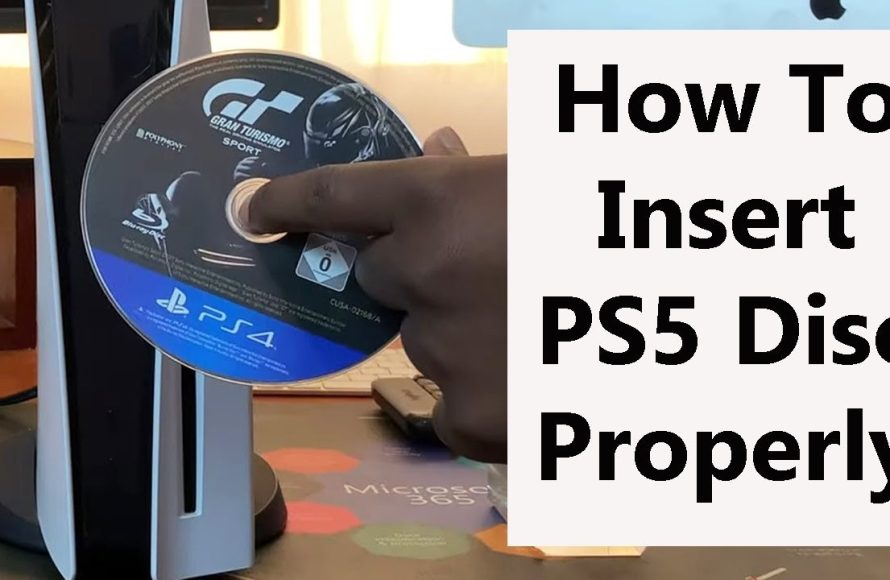
To put games in PS5, you can either insert a physical disc into the console’s disc drive or download digital games from the PlayStation Store.
So you’ve got a brand new PS5, and you are eager to dive into some gaming action. But perhaps you’re a bit unsure about how to put games in PS5. It’s a simple process, and I am here to guide you.
Whether you have physical game discs or prefer digital downloads, the PS5 offers straightforward methods for installing your favorite titles. We will go over both the physical and digital installation processes so you can get gaming in no time!

How to Put Games in PS5: A Complete Guide
Getting new games onto your PlayStation 5 is a key part of the fun! Whether you’re using a physical disc or downloading a digital copy, understanding the process ensures smooth gameplay. This guide will walk you through all the different ways you can add new games to your PS5 and start playing. We’ll explore using game discs, downloading from the PlayStation Store, and even using external hard drives.
Using Physical Game Discs
The most classic way to install a game is by using a physical disc. If you purchased a game on a Blu-ray disc, here’s how to get it playing on your PS5:
Step 1: Locate the Disc Drive
First, find the disc drive on your PS5. The PS5 has a disc slot on the front of the console. It’s a long, thin opening and it’s usually located on the right side of the console, if you are facing it directly. The disc drive is only available on the standard PS5 model. If you have the Digital Edition, you won’t have a disc drive and will have to rely on digital downloads. Make sure the console is powered on.
Step 2: Insert the Game Disc
Hold the game disc by its edges to keep the surface clean. Make sure the label is facing up (it’s the side with all the writing and picture on it). Gently slide the disc into the disc slot until you feel it click into place. The PS5 will pull the disc in completely once it senses it. If you accidentally insert the disc with the wrong side facing up, the PS5 will not pull it in. Just take it back out and reinsert it correctly.
Step 3: Wait for the Installation to Begin
Once the disc is inside, your PS5 will recognize the game. The PS5 will start reading the disc and begin the installation process automatically. You’ll see a progress bar or notification on your screen that shows how the installation is progressing. The game will also likely show up on your home screen under “Games”.
Step 4: Launch the Game
After the installation finishes, the game icon will become available on your game home screen. Just select it with your controller, and hit the “X” button to start playing. The PS5 might ask to download an update if an update is available for your game. You should download these updates to ensure you have the best gaming experience.
Here are some important things to remember when using game discs:
- Keep your discs clean: Fingerprints, smudges, and scratches can sometimes cause issues. Handle the discs carefully and only hold them by their edges.
- Don’t force the disc: If the disc doesn’t slide in easily, double check you’ve inserted it label side up.
- Leave the disc inside: The disc has to stay in the console while you are playing the game. The PS5 needs the disc to check that you own the game.
Downloading Digital Games from the PlayStation Store
If you have the digital edition PS5 or if you prefer to download your games directly, you’ll be using the PlayStation Store. This online store allows you to purchase and download games right to your console. Here’s how it works:
Step 1: Access the PlayStation Store
Turn on your PS5. Make sure you are connected to the internet. On the main menu, find and select the “PlayStation Store” icon. It’s usually located on the top bar of your home screen. Press the X button on your controller to open the store.
Step 2: Find the Game
Once you’re in the PlayStation Store, you can look for the game you want to buy. You can browse through categories like “New Releases,” “Top Charts,” and “Sales.” You can also use the search bar at the top of the screen to type in the name of the game you’re looking for. Use the left thumb stick on the controller to navigate the store. You can also use the direction keys on your controller.
Step 3: Purchase the Game
Once you find the game you want, select it to view its page. On the game’s page, you will see details, trailers, screenshots, and reviews. Select the “Add to Cart” or “Buy” button. Follow the on screen prompts to purchase it. You’ll need to have a payment method linked to your PlayStation account. Common options include credit cards or PlayStation Store gift cards. The price will be listed before you confirm the purchase. After confirming the purchase, you will have the game in your library.
Step 4: Download the Game
After purchasing the game, it might start downloading automatically. If it doesn’t start automatically, go back to the main PS5 menu, find the game in your “Game Library”. It will likely have a download icon. Select the game, then select “download”. The progress will be shown in a download menu screen. The time to download depends on how big the game is and the speed of your internet connection. Keep your PS5 on and connected to the internet until the download finishes.
Step 5: Play the Game
Once the download is finished, the game will be ready to play. The icon will be available on your game home screen. Select it and hit the X button to start your game.
Here are some tips for downloading digital games:
- Check your storage: Make sure you have enough space available on your PS5 hard drive before you download any large games.
- Be patient: Large games can take a long time to download, especially if your internet connection is slower.
- Use rest mode: You can put your PS5 in rest mode while downloading a game and it will keep downloading even when the console appears to be off.
Managing Your Game Library
After installing or downloading games, your game library is the place to find all your games. Here is some helpful information about navigating and managing your game library:
Accessing Your Game Library
From the PS5 home screen, you will see a row of icons at the top of the screen. Select the one that says “Game Library”. This opens a list of all your purchased and installed games, as well as any games you’ve been playing recently. In the library you will see every game in your account regardless of whether the game is downloaded and installed or not.
Navigating Your Library
- Installed Games: On the left side of the screen, you will see a few options. Select “Your Collection”. Under “Your Collection”, you will see all games currently installed on your PS5.
- Your Games: Under the “Your Collection” section, you will find another list labeled “Your Games”. This list shows all the games in your PlayStation account, regardless of whether they are installed or not.
Managing Game Storage
PS5 consoles come with a specific amount of storage space for games, save data, and media. You may eventually run out of space especially with the size of newer games. Here are some things you can do:
Deleting Games
If your PS5 is full, you will need to delete some games to make space for more. It is easy to delete games. Go to the “Your Collection” section of your library. Find the game you want to remove. Select the game with your controller, then press the “Options” button. A menu will appear. Select “Delete”. Confirm the deletion. The game will be deleted from your system. Don’t worry – you can re-download it or reinstall it later, if needed.
Using External Hard Drives
If your internal storage gets full, you can use an external hard drive to store and play PS4 games. Note: PS5 games cannot be played directly from external storage, however, they can be stored on an external drive to free up space on your internal storage.
To use an external drive for PS4 Games:
- Get an external USB hard drive. It needs to be a USB 3.0 drive. For best performance, it should also be a solid-state drive (SSD).
- Plug it into one of the USB ports on the back of your PS5.
- The PS5 will ask you to format the drive for use. Follow the on-screen instructions.
- After formatting, you can now move PS4 games from your PS5 to the external hard drive and play them directly from the drive.
To store PS5 games on an external drive:
- After formatting an external hard drive you can go into your settings menu.
- Go to storage, then console storage.
- Here you can select “Games and Apps”.
- You will be given an option to select an external storage to transfer games onto.
Troubleshooting Common Problems
Sometimes, you might run into problems while trying to install or download a game. Here are some common issues and how to fix them:
Disc Issues
- PS5 won’t read the disc: Make sure the disc is inserted correctly. Check the disc for any scratches or smudges. If the disc is damaged, you might need to clean it carefully or replace it. Restart your PS5.
- Installation stops midway: Try cleaning the disc carefully and re-inserting it. If that doesn’t work, it may be a problem with the disc itself. You may need to take it back to the store where you bought it.
Download Issues
- Download stops or is very slow: Check your internet connection. Make sure your PS5 is connected to Wi-Fi or using an ethernet cable and connected to the internet. Close any unnecessary apps that might be using your internet bandwidth. If the problem still occurs, try restarting your router.
- Not enough storage: Check the storage on your PS5. Delete any unnecessary games or apps to make space. You can also use an external drive as discussed previously.
- Download error: Check to make sure you have enough funds on your Playstation account. If you still have a problem after that, there may be an issue with the PlayStation network. Wait a while and try the download again.
Other issues:
- Game won’t launch: Restart your PS5. If the problem persists, try reinstalling the game.
- Game crash: If the game frequently crashes, there may be an issue with the game software itself, try searching online or checking a game’s forum for troubleshooting or try contacting the game’s customer support.
If the troubleshooting steps above do not work, please contact Sony’s Playstation support team.
Putting games onto your PS5 is easy, and there are different ways to do it depending on your preferences. Whether you use game discs or download games from the PlayStation Store, following these steps will make sure you can start playing all your favorite titles. Remember to manage your storage space, keep your discs clean and enjoy the fun of new games!
How To Insert Disc In PS5 – Full Guide
Final Thoughts
To load physical games, insert the disc into the console’s disc slot. The PS5 will read the game, and it will appear on your home screen. For digital games, you must purchase and download games from the PlayStation Store.
You can also access and download games from your PlayStation Plus library if you are a subscriber. The process of how to put games in ps5 is quite simple; disc or digital download, then play!

