
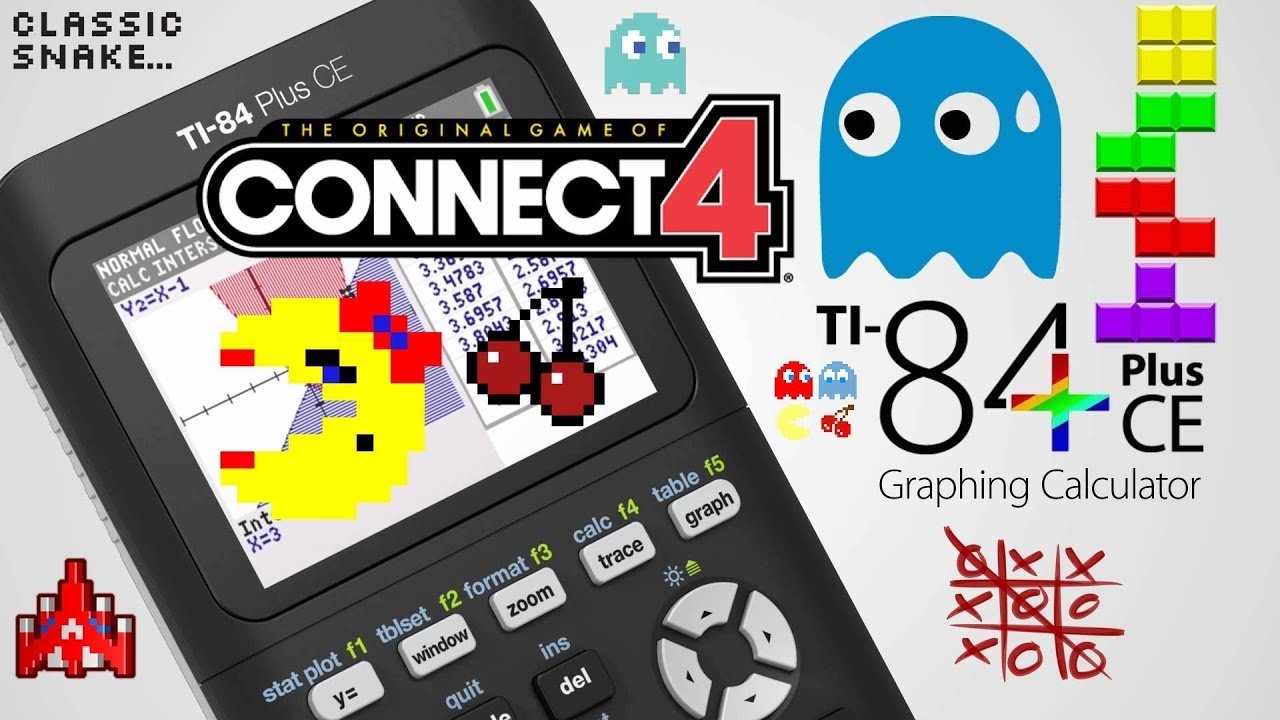
To put games on a TI 84 Plus CE, you’ll need to connect it to your computer using a USB cable, then use TI Connect CE software to transfer game files.
Ever wished you could do more with your trusty TI-84 Plus CE calculator than just math? Many users wonder how to put games on a TI 84 plus CE to make those long classes a bit more interesting. This guide will show you a very simple process to get some basic entertainment on your calculator during some boring lectures.

How to Put Games on a TI-84 Plus CE
Ready to make your math class a little more fun? The TI-84 Plus CE calculator isn’t just for solving equations; it can also play games! Yes, you heard right. You can have a little bit of entertainment during those long study halls or even when you’re taking a break. This guide will show you, step-by-step, how to get games onto your calculator. It’s easier than you might think!
Understanding TI-84 Plus CE Games
Before we jump into the “how,” let’s talk about what kind of games we’re dealing with. These aren’t like the games you play on your phone or console. TI-84 Plus CE games are usually simpler, often in black and white, and they focus more on gameplay than fancy graphics. They’re created using special coding languages that the calculator understands, like z80 assembly or TI-BASIC. It’s important to know that TI-84 Plus CE games are usually pretty small in size, because the calculator doesn’t have a huge memory. You might find puzzle games, strategy games, and even some versions of classic games. Think of them like retro video games you can carry in your pocket. When thinking about adding games to your calculator, it’s helpful to think about the file types involved. The TI-84 Plus CE mainly uses files with extensions like .8xg, .8xp, and sometimes .8xv. Knowing these can help you know that you are downloading the correct kind of file.
Finding Games for Your TI-84 Plus CE
The first step is finding games! Luckily, there are websites dedicated to sharing games for TI calculators. A simple web search for “TI-84 Plus CE games” will give you some websites with game download options.
Here are a few pointers when you’re searching for games:
- Look for Reputable Sites: Stick to websites that are known for providing safe downloads. Check online reviews or ask other users for recommendations. Be wary of websites that ask for personal info or seem untrustworthy.
- Check Game Compatibility: Make sure the game you want is specifically for the TI-84 Plus CE. Some games are designed for older models and may not work properly. Look at the game description or any notes on the download site.
- Read User Comments: Before you download a game, read what other users are saying. Did it work well for them? Did they find any issues? This can help avoid any problems later on.
After you have found a game, you must download it to your computer. Most games are in ZIP format, so you need to extract the game files. Once extracted, you will see files ending in .8xg, .8xp, or .8xv . These are what we need to transfer to our TI-84 Plus CE.
What You Need to Get Started
Before we get to transferring, let’s make sure you have all the tools you need. Here’s what you’ll need:
- Your TI-84 Plus CE Calculator: Make sure your calculator is charged!
- A Computer: You’ll need a computer to download the games and transfer them to your calculator. Any computer with internet access will work.
- A USB Cable: This is the special cable that connects your calculator to your computer. It’s usually a USB type A to Mini-USB type B cable. It looks like a USB on one end and a smaller version of USB on the other. You may already have this cable because it’s the same one that is used to charge a calculator, if that is how you charge yours.
- TI Connect CE Software: This free software from Texas Instruments is what we’ll use to get the games from your computer to your calculator. This software is essential, so make sure you download it before proceeding. You can get it on the Texas Instruments website.
Installing TI Connect CE
The TI Connect CE software acts as a bridge between your computer and calculator. You need this to transfer files. Here’s how to set it up:
- Go to the Texas Instruments Website: Search for “TI Connect CE download.” You should find a page from Texas Instruments with the download link.
- Download the Correct Version: Be sure to choose the correct download for your operating system (Windows or macOS).
- Run the Installer: Double-click the file you downloaded and follow the on-screen instructions. Usually, you will need to click a few “Next” buttons, accept the agreement, and it will install to your computer.
- Launch TI Connect CE: Once installed, open the TI Connect CE program. It should show a main screen with options. It’s a good idea to keep this program open during the transfer process.
Connecting Your Calculator to Your Computer
Now that we have the necessary software, let’s connect your calculator. This step is pretty straightforward.
- Plug in the USB Cable: Take the USB cable and connect the Mini-USB end to the port on the top of your calculator.
- Plug the Other End Into Your Computer: Plug the other end of the USB cable into a USB port on your computer.
- Turn On Your Calculator: Make sure your calculator is turned on so your computer can find it.
After plugging in the cable, your computer should recognize your calculator as a device. If you have any issues, try unplugging and plugging it back in, or try a different USB port on your computer.
Transferring Games to Your Calculator
Now comes the exciting part: getting the games on your TI-84 Plus CE! Follow these steps carefully to avoid problems.
- Open TI Connect CE: If it’s not open already, launch the TI Connect CE program.
- Find the “Send to TI Device” Option: Look for a button or option that says something like “Send to TI Device” or “Transfer Files.” The software has a simple interface, so it’s easy to find.
- Select the Game Files: A new window will open allowing you to browse your files. Go to where you saved the game file (.8xg, .8xp, or .8xv).
- Choose the Game Files: Select the game files that you want to send to the calculator. You can usually select multiple files.
- Send the Files: Click the “Send” button. The files will begin transferring. Don’t disconnect the calculator while the files are transferring.
- Wait for Completion: The program will show you the progress of the transfer. Wait for the transfer to complete, it usually only takes a few seconds. Do not disconnect the cable until it’s done.
- Safely Disconnect: Once the transfer is finished, it’s safe to disconnect the USB cable from the calculator and your computer.
Finding and Playing Your Games on the Calculator
After transfering the files, you are ready to play! Here’s how you can get your games running:
- Turn On Your Calculator: Make sure your calculator is on.
- Press the PRGM Button: Locate the “PRGM” button, which stands for “Program,” usually it’s near the center of the calculator’s buttons.
- Choose Your Game: A list of programs will appear on the screen. Use the arrow keys to scroll through the list. The name of the game you transferred should be there.
- Press ENTER: When the game you want is highlighted, press the ENTER button.
- Play the Game!: You might be asked to press ENTER or a number button again. This starts the game and lets you play!
- Exit the Game: Usually, there’s a button or series of button presses to exit the game and go back to the main calculator menu. Sometimes that’s by pressing “ON” or “2nd” then “Quit.”
Tips for a Smooth Experience
Having games on your calculator should be fun. Here are some tips to make sure your experience is the best it can be.
- Keep Your Calculator Charged: Games can use up battery power, so make sure your calculator is fully charged before you start playing.
- Don’t Download Too Many Games: Your calculator’s memory isn’t unlimited. Stick to the games you really enjoy to avoid running out of space.
- Check Game Instructions: Some games might have their own special instructions or controls. Check the game description or a README file before you play.
- Organize Your Games: As you get more games, you can delete the ones you no longer play, to keep your program menu organized.
- Troubleshooting: If a game doesn’t work, check the game’s page on the download site for notes or help. Some games may have some bugs. Usually, the best step is to transfer the game again, or make sure the game is compatible with the TI-84 Plus CE.
Deleting Games from Your Calculator
Sometimes, you might want to delete some games to make room for new ones. Here’s how you can remove games you no longer want.
- Press the MEM Button: You can find the “MEM” button usually located by the “2nd” button. Press it.
- Choose “Mem Mgmt/Del”: After pressing the “MEM” button, there will be a menu. Use the up or down arrow keys, until “Mem Mgmt/Del” is highlighted and press “ENTER”
- Select the Type of Files: This will show options such as RAM and Archive. Choose “RAM” then press “ENTER”
- Select the Programs: A list of all programs (including games) will show up on the screen. Use the up and down arrow keys to highlight the program you would like to delete.
- Press the “DEL” Button: Once you have chosen a game, press the “DEL” button. You will see that the selected program has been deleted, and the list of programs will update.
Remember that deleting programs in “RAM” does not affect any games that were stored in “Archive.” Deleting programs stored in archive has similar steps, but you will choose “Archive” from the memory management menu, instead of “RAM.”
Having games on your TI-84 Plus CE can make learning more fun and offer some entertainment during downtime. By following these steps carefully, you can add games to your calculator without much difficulty. Just remember to use reputable websites for game downloads and always be mindful of your calculator’s memory. Have fun, and enjoy the games!
How to Put Games on the TI 84 Plus CE
Final Thoughts
Transferring games to your TI-84 Plus CE involves connecting it to your computer via USB. You will need compatible game files, often with extensions like “.8xg” or “.8xp”. Use the TI Connect CE software to send these files.
The software guides you through the process of sending programs. Ensure your calculator is on and correctly recognized by your computer. Make sure the files transfer properly.
To summarize, how to put games on a ti 84 plus ce requires specific files and the TI Connect CE program. Following these steps ensures you can quickly start enjoying games on your calculator.

