
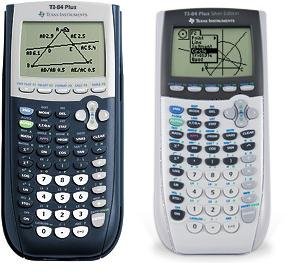
To put games on a TI-84 Plus, you need to connect it to a computer, use TI Connect software, and transfer the game files (.8xg or .8xp) to the calculator’s memory.
Want to add some fun to your math class? It’s surprisingly simple to learn how to put games on a ti 84 plus. This guide will show you how to get classic games like Tetris or simple puzzles directly on your calculator.
You might think it’s complicated, but we’ll walk you through each step clearly. Get ready to entertain yourself between equations and graphing!

How to Put Games on a TI 84 Plus
So, you’ve got a TI 84 Plus calculator, and you’re thinking, “This thing can do way more than just math!” You’re absolutely right! Your calculator can be a surprisingly fun little gaming device. But, how do you actually get those games onto it? Don’t worry, it’s not as complicated as it might seem. Let’s dive into the world of TI 84 Plus gaming!
Understanding the Basics: TI 84 Plus Games
Before we start loading up your calculator, let’s talk a little about the types of games you can play. Most games for the TI 84 Plus are simple, often text-based or using very basic graphics. Think old-school video games from way back. They won’t have the flashy animations of your phone, but they’re still fun and can be a great way to pass the time during a boring class (though, maybe pay attention to your teacher first!).
Game File Formats
Games for the TI 84 Plus usually come in two main file formats:
- .8xg Files: These are the most common type of game file for TI calculators. They are executable programs that your calculator can run.
- .zip Files: Sometimes, games are bundled in a .zip file. This usually means the game might contain multiple files, or instructions in a text file. You will need to extract the contents of the .zip file, often using a computer, to find the actual .8xg game files.
Remember, always download game files from safe and trustworthy websites to avoid getting any nasty viruses on your computer, which, although won’t affect your calculator directly, can affect the computer you use to transfer the files.
Gathering Your Supplies
Before you begin, make sure you have everything you need. This process is straightforward, but you’ll need a few things. Here’s a checklist:
- Your TI 84 Plus Calculator: Obviously! Make sure it is charged up, so you don’t have to stop mid-transfer.
- A Computer: You’ll need a computer with internet access to find and download the games. Both Windows and macOS computers work fine.
- A TI Connectivity Cable: This special cable connects your calculator to your computer. It usually comes with the calculator. If you do not have it, you can find it online, or in some office supply store.
- TI Connect CE Software: You’ll need this software on your computer. It’s a program from Texas Instruments (the makers of your calculator) that helps you transfer files between your computer and the calculator. You can download this from Texas Instrument’s website.
- Game Files: Finally, you’ll need some game files! We will talk about where to find them in the next section.
Finding Games
Finding games for your TI 84 Plus is actually not too hard. A lot of websites have dedicated collections of calculator games. Here are some places where you might find them:
- TI Calculator Fan Sites: Many websites are run by calculator enthusiasts, and they will have sections dedicated to game downloads. A quick search of “TI-84 Plus Games Download” should give you many results. Always check these sites and see if they have reviews of the games or a rating system. This will give you an idea of what games are fun to play and good to download.
- YouTube Tutorials: Sometimes, people make YouTube videos showing off games that they have. These are a great place to find out which game you want to play. Often they have a link to the game files in the video description.
- Online Forums: Check out forums about calculators. Many users share their games and talk about new releases.
When looking for games, pay attention to the game descriptions. Some games are just for the TI 84 Plus, while others are for the TI 84 Plus CE (a newer, color version). Double-check to ensure you are downloading games for the correct calculator. If a game for the TI 84 Plus CE does not work on your TI 84 Plus, it’s probably not compatible.
Some websites offer many games. It may help to look at ratings, comments, or reviews to see what games other people have enjoyed. This way, you can spend less time browsing and more time playing!
Installing TI Connect CE Software
Before you can transfer games, you need to install the TI Connect CE software on your computer. Here’s how you do that:
- Visit the Texas Instruments Website: Go to education.ti.com and look for the “Downloads” section.
- Find TI Connect CE: Look for TI Connect CE download link and choose either Windows or macOS, depending on the computer that you use.
- Download the Software: Click on the link to begin the download process.
- Install the Software: Find the downloaded file on your computer. Double click the file and follow the on-screen instructions to install the software.
Once the software is installed, you can start it up. You should be able to see a screen that says “No Device Connected.” This is normal. We will connect your calculator in the next section.
Connecting Your Calculator
Now that you have the software installed, it is time to connect your calculator to your computer. Here are the steps:
- Plug in the Cable: Connect one end of the TI connectivity cable to your calculator and the other end to a USB port on your computer.
- Turn on Your Calculator: Make sure your TI 84 Plus is powered on.
- Check the Software: In the TI Connect CE software, you should see your calculator listed as connected. If the software does not recognize your calculator, try unplugging it, and plugging it back in. Also try restarting the software. If that does not work, try another USB port on your computer.
If your calculator still isn’t showing up, make sure you’ve installed the correct software version and that the cable is not damaged or broken. Once your calculator is connected, we can move onto the file transfer process.
Transferring Games to Your TI 84 Plus
Okay, this is the exciting part. Here’s how to send those games to your calculator:
- Open TI Connect CE: Launch the TI Connect CE software on your computer.
- Select “Send to Device”: In the software, look for an option like “Send to Device” or “Device Explorer”. Click on this option.
- Choose Game Files: In the file browser that appears, find the .8xg game files you downloaded earlier. Select the game files that you want to send. You can select more than one game at a time by holding down the shift or control key when clicking on a file.
- Send the Files: Click the “Send” button or the equivalent to begin the file transfer. The software will send the game files to your calculator. You can look at the progress bar and see how much time the transfer will take. The time needed depends on the size of the file, and the speed of the USB connection. Some files might only take seconds to transfer, and others could take longer.
- Confirmation: The software should show a message when the file transfer is done. This will confirm that the game file(s) are successfully on your calculator.
If you get an error message during the transfer, try to unplug the calculator, plug it back in, and restart the program. You may need to close the program, and unplug the calculator, plug it back in, and then restart the program again.
Accessing and Playing Your Games
You’ve successfully transferred the games. Awesome! Now, how do you play them?
- Press the “PRGM” Button: Turn on your TI 84 Plus calculator. Find and press the “PRGM” button. It is usually located in the upper left corner of the calculator keyboard.
- Select the Game: A list of programs will appear. These are all the .8xg files you have on your calculator. Use the up and down arrow keys to highlight the name of the game that you want to play.
- Press “Enter”: With your desired game highlighted, press the “Enter” button.
- Run the Game: After you press enter, the name of the game will appear on the calculator screen. Press enter again, and the game will start running.
Some games have instructions that will show on the calculator screen when you start a game. Be sure to look at those for information on how to play the game.
Troubleshooting Common Issues
Sometimes, things don’t go as planned. Here are some common problems and how to fix them:
The Calculator Is Not Recognized By the Software
- Check the Cable: Make sure the cable is securely plugged into both the calculator and your computer. Try using a different USB port on your computer, or try using a different USB cable.
- Restart Everything: Close the TI Connect CE software, unplug your calculator, plug it back in, and restart the software. This usually fixes the issue, as it re-establishes the connection.
- Driver Problems: Sometimes, your computer might not have the correct drivers installed for your calculator. You can check the TI website to see if they have any updated drivers you can install for your computer.
Game Doesn’t Appear on the Program List
- Double-Check the File Type: Make sure the game file is a .8xg file. Sometimes, people download the .zip file, instead of opening it to find the .8xg file. If you downloaded a .zip file, you must first extract the .8xg files from the zip, before transferring them.
- Resend the File: Try to send the game file to your calculator again. Maybe the first transfer did not work correctly. You can also try to transfer another game to see if that one shows up. If it does, then you might have had a corrupted file.
- Calculator Memory: Your calculator has limited storage, sometimes it’s full. If you have too many programs on your calculator it may not show the new games. You can delete some old programs using the “MEM” function to free up space.
Game Doesn’t Work or Craches
- Compatibility: Make sure the game you downloaded is compatible with the TI 84 Plus. Some games are only for the TI 84 Plus CE or other calculator models.
- Corrupted File: Maybe the game file was damaged during download. Try re-downloading it from the website, or try another website that has the same game.
- Calculator Problems: Sometimes, it’s just the game. Some games are not well-made and will not work properly. Try playing some of the most common games as a benchmark test.
Enjoy Your Games!
Now that you know how to add games, you have turned your boring calculator into a way to play games. Have fun with it!
Remember, that the games for the TI-84 are quite simple, and they are not meant to compete with full computer games or console games. However, they can still be a great way to pass the time. There are many games to choose from, so explore the world of calculator games and have fun.
How to Put Games on the TI 84 Plus CE
Final Thoughts
Transferring games requires a computer, a TI-84 Plus calculator, and a linking cable. You must first obtain the game files which usually come in .8xg format. Then, use TI Connect CE software to send these game files to your calculator.
Connect your calculator to your computer via the cable. Open TI Connect CE, locate your game files, and select ‘Send to Calculator’. These actions explain how to put games on a ti 84 plus. Enjoy your new gaming experience!

