
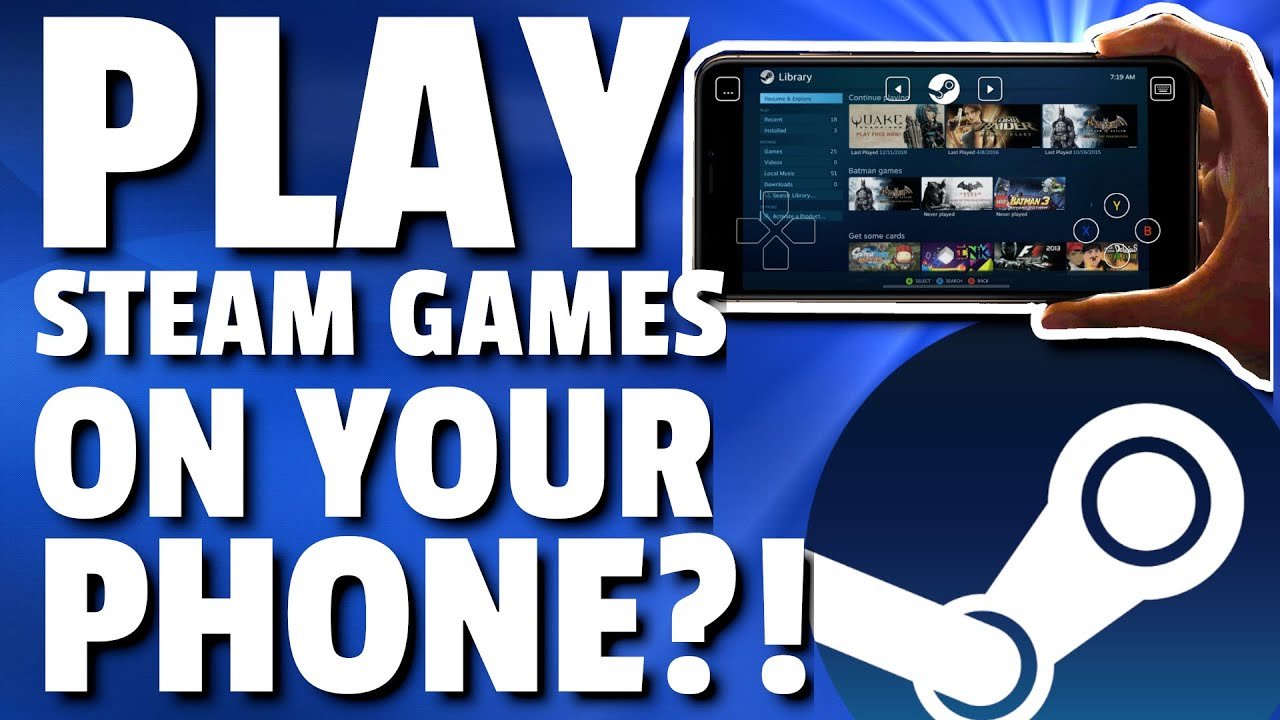
Yes, you can play your Steam games on your phone using the Steam Link app, provided your phone and computer are on the same network.
Ever wondered, “can i play my steam games on my phone?” It’s a question many gamers ask, dreaming of taking their PC library on the go. Well, the good news is, you absolutely can! Steam has made it possible with their handy app.
This app allows you to play your computer games remotely. You are not actually running the game on your phone but rather the game runs on your PC and transmits the video feed to your phone. This means you need a good Wi-Fi connection for a smooth experience.

Can I Play My Steam Games on My Phone?
The idea of playing your favorite Steam games on your phone sounds like a dream, right? Imagine being able to continue that epic adventure or intense racing game while waiting in line or relaxing on the couch, without being chained to your computer. Well, the good news is, it’s totally possible! You don’t have to leave your gaming life behind just because you’re on the move. Let’s dive into the world of mobile Steam gaming and see how you can bring your PC library to your pocket.
How Does It Work? The Magic Behind Mobile Gaming
Playing Steam games on your phone isn’t about directly installing PC games on your Android or iOS device. Instead, it relies on something called game streaming. Think of it like watching a movie; the movie file isn’t stored on your phone, it’s being sent (or streamed) to your phone, and what you see is a video of the movie. Game streaming works similarly, but with a twist. Your computer does all the heavy lifting, running the game, and then sends a video of the gameplay to your phone. Your phone then sends your commands (like button presses or taps) back to your computer.
This means that your phone doesn’t need to be super powerful to handle complex PC games. It needs a stable internet connection and the right app. The processing is all done on your PC. So, even if you have an older phone, there’s a good chance you can play games from your Steam library on it, assuming your computer can run those games well.
What You Need to Get Started
Before you start trying to play your favorite PC games on your phone, let’s make sure you have all the essential pieces in place. Here’s a checklist of what you’ll need:
Hardware Requirements
- A computer that can run your Steam games well: Your computer needs to be powerful enough to smoothly run the games you want to play. If your computer struggles to play a game, it won’t stream well to your phone either.
- A stable internet connection on your computer: A good and fast internet connection is very important. Your PC sends the game video to your phone over your network, so a reliable connection is necessary for smooth gameplay, with minimal lag (delay) and interruptions.
- A stable internet connection on your phone: Same as your computer, you need a stable and fast internet connection for a smooth experience. It can be either Wi-Fi or mobile data, but both should be strong and stable.
- A smartphone or tablet with the Steam Link app: The app is the bridge between your computer and your phone. It’s available for both Android and iOS devices. It’s the key to getting your game on the go.
- Optional: A Bluetooth controller: While you can use on-screen touch controls, a Bluetooth gamepad (like an Xbox or PlayStation controller) gives you a more authentic and comfortable gaming experience. This is especially helpful for games with many controls.
Software Requirements
- The Steam client: Make sure you have the Steam client installed on your computer and that you’re logged into your account.
- The Steam Link app: You will need this application, this can be found on the app stores.
Setting Up Steam Link: Step-by-Step Guide
Okay, let’s walk through how to set everything up to start playing those Steam games on your phone. This process might sound difficult, but really, it is quite simple once you get the hang of it.
Step 1: Download and Install Steam Link App
First, head to the App Store (for iOS users) or the Google Play Store (for Android users) on your phone or tablet. Search for “Steam Link” and download the app. Once the download is complete, open the app.
Step 2: Connect to Your Computer
Make sure that your PC is switched on, and that it is connected to the same network as your mobile device. Inside the Steam Link app on your phone, it will try to find your computer. Your PC needs to be turned on and Steam also needs to be running for the Steam Link to see it. Once it finds your computer, select it.
Step 3: Pair Your Devices
The Steam Link app will show a code. A box will show on your PC screen to enter the code on your computer. Enter the code shown on your phone. This will link your devices together.
Sometimes, there are network problems. Steam Link might have some trouble discovering your computer, but don’t panic. It usually tries again, and can connect. Or you can manually enter the IP address if the app cannot find your PC.
Step 4: Start Streaming Your Games
After a successful connection, the app will display your Steam library. Now, you can just select any game from your Steam library and start playing them. The game will be running on your computer, while your phone displays the game.
Step 5: Configure Your Controls
The game controls can be selected by tapping the screen, or you can connect a bluetooth controller. Both ways of playing work well, and its up to what you like best.
Performance: What to Expect
The quality of your mobile Steam gaming experience depends on many factors. Let’s go through the main things you should keep in mind:
Network Connection
As we mentioned earlier, your network connection is the single most important thing for a smooth experience. For an amazing experience, you need a high-speed and stable Wi-Fi or cellular network. A laggy or weak connection will result in stuttering and high delay times. A 5 GHz Wi-Fi connection is always preferable to 2.4 GHz, because it is generally faster and has less interference. If your Wi-Fi isn’t the best, you could try using the ethernet cable, it might improve things for you.
Computer Performance
Your PC needs to be able to handle the game you want to play on it without any problems. If your computer is struggling with the game, the mobile streaming will suffer too. So, make sure the game plays well on your PC first, before trying to stream it to your phone.
Controller Choices
Using a physical controller, such as a bluetooth controller, gives a better gaming experience for a lot of games. You can still use the touch controls on your phone, however they don’t work as well for fast-paced action games. It comes down to your personal preferences and the type of game you’re playing.
Display and Input Lag
There will always be some small delay between your button press and the action on the screen. This delay depends on your network connection and the game you are playing. Most of the time, the delay is very small and does not affect the game very much. But in faster-paced games, it could be a problem.
Tips for a Better Mobile Gaming Experience
Now that you know how to set things up and what to expect, let’s look at some tips to improve your mobile gaming experience.
- Close other running apps: Close any other apps on your PC and phone while you are gaming. This will help ensure your game has more resources for the smoothest possible gaming experience.
- Use headphones: For the best gaming experience, use headphones. It will make the gaming experience more immersive, and the sound will be much better than from your phone’s speakers.
- Experiment with controller settings: Some games will need a bit of tweaking to get controls perfect on your Bluetooth controller. Sometimes you may need to adjust button layouts or sensitivity.
- Adjust streaming quality: Steam Link lets you adjust the streaming quality. If your connection is struggling, try reducing the resolution or video settings.
- Keep your devices updated: Make sure that both your computer and mobile device have the newest software updates. This will ensure the best compatibility and performance.
Limitations and Challenges
While playing Steam games on your phone is very fun and interesting, it’s important to know about some of the downsides you might face.
Battery Life
Streaming games will use up your phone’s battery faster than usual. Always have a power bank with you, or keep your phone plugged in if you are going to play for an extended amount of time.
Mobile Data Usage
Streaming high-quality games can use up your data quickly. This might be an issue if you do not have unlimited data on your phone plan. Make sure you are aware of the potential costs if you plan on gaming on the go.
Input Lag and Stability Issues
Sometimes, you can encounter delay problems, or game freezes, especially if your internet connection is not stable. This is usually not a problem, but be prepared that you might have some lag sometimes.
Not All Games are Ideal
Some games are just not suitable for touch controls or playing on a small screen. Very fast games might be a little harder to play. You will find out which games work best on your phone as you play, it really depends on the type of game.
Alternative Apps for Mobile Streaming
Steam Link is not the only game streaming app out there. Other apps and services provide a similar experience. Here are some alternatives worth checking out, but please remember, Steam link is usually the best option for most people.
Moonlight
Moonlight is an open-source streaming option, it usually works very well. It needs an NVIDIA graphics card on your computer. It is well-known for its low latency and good streaming quality.
Parsec
Parsec is another very popular streaming app. It is known for its low delay, and is used by professional gamers too. Parsec is used for both streaming and playing with other people in multiplayer games.
Cloud Gaming Services
Cloud gaming services like Xbox Game Pass Ultimate, Nvidia GeForce NOW, and Google Stadia allow you to play games on your phone without needing a powerful computer. They host games on their powerful computers, and you play the game streamed to your phone. These services usually have a monthly fee. They are very convenient but usually cost extra money. They work slightly differently to Steam Link. For cloud gaming services, the games are not installed on your PC. It uses servers at their own locations.
Playing Steam games on your phone opens up a new world of possibilities. It allows you to enjoy your favourite games anytime, anywhere. While it might not be perfect, it definitely offers a great and convenient way to bring your PC games to your mobile device. Remember that a stable internet connection is key, and your phone and computer need to be powerful enough for a comfortable and smooth experience. With a little bit of setup, you can play all of your Steam games on your phone without any problems at all.
How To Play STEAM Games on Android or IOS
Final Thoughts
So, can i play my steam games on my phone? Yes, you can play many Steam games on your phone using Steam Link. The app connects to your computer and sends the game to your phone.
Your home network’s performance is key. A stable, fast Wi-Fi connection is a must for a good experience. This provides smooth gameplay with minimal lag.
Therefore, playing on your phone is possible. You simply need the right setup. Enjoy your Steam library wherever you are.

