
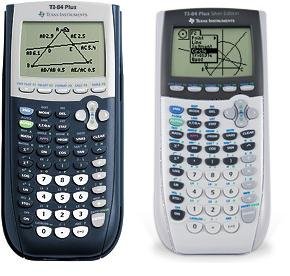
You can put games on a TI-84 calculator by transferring files using a USB cable and a computer with the necessary software, typically a TI Connect program.
Ever wondered how to put games on your TI-84 calculator? It’s actually quite simple once you know the process. Many students use their calculators not just for math, but also for some quick gaming fun between classes.
Transferring games requires a computer, the TI Connect software, and a compatible game file. It opens up the possibilities for entertainment beyond equations. The ability to add games makes your calculator a bit more versatile.

How to Put Games on TI 84 Calculator
So, you’re looking to spice up your math class with some fun? You’ve come to the right place! The TI-84 calculator isn’t just for solving equations; it’s also a secret gaming machine. Yes, you heard that right! You can play all sorts of cool games right on your trusty calculator. This guide will walk you through exactly how to get games onto your TI-84. It might seem a little complicated at first, but don’t worry, we’ll go step-by-step, making it easy peasy.
Understanding the Basics
Before we dive into getting games, let’s understand a few important things. Your TI-84 isn’t like a computer or a phone. It doesn’t use apps or install programs in the same way. Instead, it uses special files called “programs” that contain the game code. These programs are written in a special language that the calculator can understand. We need to get these program files onto your calculator. It’s like transferring a song to your phone, but instead of a song, it’s a game!
What You’ll Need
To start, you’ll need a few things:
- Your TI-84 Calculator: This is pretty obvious! Make sure it’s charged or has fresh batteries.
- A Computer: You need either a Windows or Mac computer to download and transfer the game files.
- A TI Connectivity Cable: This cable connects your calculator to your computer. It’s usually a USB cable with a special connector on the calculator end.
- TI Connect CE Software: This free software is what lets your computer talk to your calculator. You can download it from the Texas Instruments website.
- Game Files: These are the actual game program files you’ll be sending to your calculator. We’ll talk about where to find these later.
Finding Games for Your TI-84
Now, where do you find these game files? They aren’t available in any official app store like on your phone. Instead, they exist as .8xp files (or .83p for older models) that you download from various online communities and forums.
Where to Search
Here are some places to start your search:
- TI-Calculator Fan Sites: Websites dedicated to TI calculators often have sections for games. Look for a “programs” or “downloads” area. Some great resources are ticalc.org and cemetech.net. These sites have been around for a long time, and have lots of games available.
- Calculator Forums: Forums about TI calculators often have users sharing games they have created. Check out the TI community pages on Reddit or other forums related to electronics and calculators, sometimes users posts game files and tutorials.
- YouTube Tutorials: Sometimes users making how-to video on YouTube link game files in the description below the video.
Types of Games You Can Find
You’ll find all sorts of games for your TI-84. Here are some examples:
- Puzzle Games: These include things like logic puzzles and number games, which are great for thinking.
- Platformers: Think side-scrolling adventure games where you jump and run. They are like your favorite video game heroes but in simplified graphics on the calculator.
- Strategy Games: These games involve planning your moves and thinking ahead, similar to chess but using simplified calculator style.
- Arcade Games: These include classic arcade games like Snake, Pac-Man, or Tetris (or close versions of these) that are quite popular on calculators.
Important Things to Remember When Downloading
When looking for games, keep these things in mind:
- File Type: Make sure the file is a .8xp or .83p file. These are the file types that your TI-84 can read. Don’t download .exe files or any other file type which are not supported.
- Safety First: Only download files from trusted websites. Be careful when downloading files from unknown sources as the files might be corrupted or might contain a virus.
- Read the Instructions: Some games might require specific setup instructions to work properly. Make sure to read any information provided with the game.
Installing TI Connect CE Software
Before you can send any games, you need to install the TI Connect CE software on your computer. This software acts like a bridge between your computer and your calculator. It is available for both Windows and macOS.
Steps to Download and Install TI Connect CE
- Go to the TI Website: Head to the official Texas Instruments website. Search for “TI Connect CE download”.
- Select Your Operating System: Choose the version that matches your computer (Windows or Mac).
- Download the Software: The download will start. It might take a few minutes depending on your internet connection.
- Run the Installer: Once the download is complete, find the file on your computer and run the installer. Follow the on-screen instructions.
- Complete the Installation: When the installation is done, the software will be ready to use.
Connecting Your Calculator to Your Computer
Now it’s time to connect your calculator to your computer using your TI connectivity cable. The cable plugs in to your computer’s USB port and then the other end goes in to the calculator port which is usually located at the top.
Steps to Connect Your Calculator
- Plug in the Cable: Connect one end of the cable to the calculator and the other end to a USB port on your computer.
- Turn On Your Calculator: Make sure your TI-84 is turned on.
- Open TI Connect CE: Launch the TI Connect CE software on your computer.
- Detect Your Calculator: The software should automatically detect that your calculator is connected. If it doesn’t, there might be a problem with the cable or the USB port, so try again. You might have to select the correct device in the software’s menu.
Transferring Game Files to Your TI-84
With your calculator connected, you’re now ready to send the game files. This involves using the TI Connect CE software to move the downloaded game files to the calculator’s memory.
Steps to Transfer Game Files
- Open TI Connect CE: Launch the TI Connect CE software.
- Find the “Transfer” Option: There will be an option to transfer files. Look for an icon or menu item that says “Send to Device” or something similar.
- Select the Game Files: In the file selection dialog that opens, navigate to the folder where you saved the downloaded game files (.8xp or .83p files). Select the game you want to transfer.
- Start the Transfer: Click the “Send” or “Transfer” button. The software will then start transferring the selected game to your calculator.
- Wait for Completion: The transfer process may take a few seconds or longer depending on the size of the game file. Be patient and do not disconnect the cable while files are transferring.
- Verify the Transfer: After the transfer is complete, the software will show a message confirming it. Also, check your calculator screen which may indicate that a file has been received and now stored in its memory.
What to Do if the Transfer Fails
If the file transfer fails, don’t panic. Here are some possible reasons and solutions:
- Incorrect Cable: Make sure you are using the correct TI connectivity cable. Check that it’s properly plugged in to both calculator and computer.
- Software Issues: Sometimes the TI Connect CE software can have problems. Try closing and reopening the software. Sometimes you might have to reboot the computer to completely restart software.
- Calculator Issues: Ensure your calculator is turned on and has sufficient battery power. Try switching off the calculator and switch it back on again.
- Corrupted File: There might be an issue with the game file. Try downloading the game again from a different source.
Running Games on Your TI-84
Once the games have been transferred to your calculator, you’re ready to play. Accessing and playing games is different than pressing the button on your video game consoles.
Steps to Run Your Game
- Press the “PRGM” Button: On your calculator, press the “PRGM” button (which is short for Program). This button opens the program list.
- Select Your Game: Use the up and down arrow keys to scroll through the list of programs until you find the name of the game you transferred. Press the “ENTER” button when the game name is highlighted.
- Press “ENTER” Again: After selecting a program, press “ENTER” button again to run the game.
- Follow the Game Instructions: The game will usually display its own set of instructions on how to play. These instructions will tell you which calculator buttons you use to move, jump, or shoot.
How to Navigate Game Menus
Many calculator games use very simple menus, and don’t have high-end animations like you see on normal console games. But you will still have to navigate through them.
- Arrow Keys: You’ll usually use the arrow keys to move up, down, left, and right through the game’s menus.
- “ENTER” Button: The “ENTER” button is often used to select options or start a game.
- Other Buttons: Some games may use other buttons like the “CLEAR” or “MODE” buttons for special actions. Pay attention to the on screen instructions for what each button does in the game.
Tips for a Better Gaming Experience
Here are some extra tips to help you have more fun with your calculator games:
- Keep Your Batteries Charged: Nothing’s more annoying than your calculator dying mid-game. Make sure you have fresh batteries, or your calculator is charged.
- Adjust the Contrast: If the game screen is too dark or light, try adjusting the contrast of your calculator’s display. Usually, you can do this by pressing the 2nd key and then the up or down arrow keys.
- Experiment with Different Games: There are so many cool games for your TI-84. Don’t stop with just one! There are thousands of free games.
- Share With Friends: Show your friends how to play games on their calculators and have fun together.
- Be Responsible: Don’t play games during tests or when your teacher is giving a lesson. Find the right time to enjoy them. You don’t want to get in trouble!
So, there you have it! Playing games on your TI-84 calculator is actually quite simple once you know all the steps. Remember to find your games from reliable resources, install TI Connect CE, and be careful while downloading files. Now it’s time to enjoy some retro-style gaming fun right on your calculator!
How to Put Games on the TI 84 Plus CE
Final Thoughts
Transferring games to your TI-84 calculator requires a computer, the TI Connect CE software, and a compatible game file. Connect your calculator using the USB cable. Then use the software to send the game to your device.
Remember to find games that are specifically made for the TI-84 model. ‘How to put games on ti 84 calculator’ involves getting the correct file and using the software. It’s quite simple once you have the necessary components. The process is generally quick and easy.

