
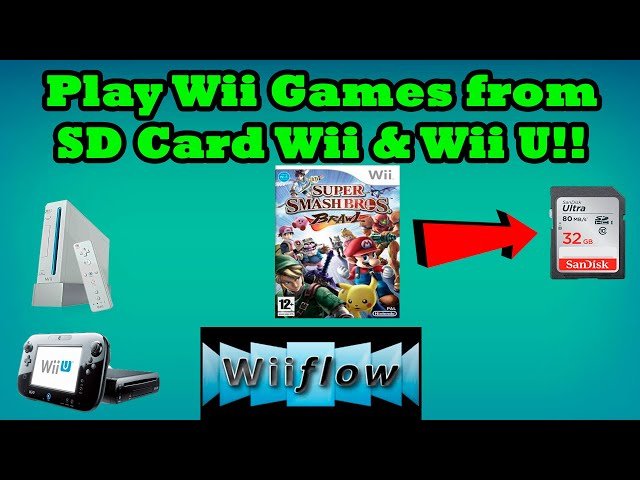
You can put games on your Wii with an SD card by installing the Homebrew Channel and then using a USB loader application to load game backups stored on the SD card.
Want to play your favorite Wii games without needing the original discs? It is possible! Many people wonder how to put games on wii with sd card, and it actually involves just a few steps. First, you need to get your Wii ready with some specific software.
This process involves installing the Homebrew Channel, which allows you to use homebrew software. Then, a USB loader application manages the games stored on your SD card. Enjoy playing your favorite games without the hassle.

How to Put Games on Wii with SD Card
So, you want to play some awesome games on your Nintendo Wii using an SD card? That’s a great idea! It lets you have a whole library of games without needing a bunch of discs. It’s like having your favorite toy store right inside your Wii! This guide will walk you through all the steps, making it easy even if you’re not a tech wizard. We’ll cover everything from getting your Wii ready to putting the game files on your SD card, and finally, playing them. Let’s get started!
What You Need Before You Begin
Before we jump into the fun part, let’s gather all the things you will need. It’s like gathering all your LEGO bricks before you start building. Here’s what we need:
- A Nintendo Wii console: This is the star of the show! Make sure it’s in good working order.
- An SD card: This will hold all the game files. A 2GB SD card is usually enough for many games, but bigger cards can hold even more. A good quality SD card is important for smooth game play.
- A computer: You’ll use your computer to download the game files and put them on the SD card. Any computer with internet access will work.
- Software for loading games: This is what makes the Wii understand the games on the SD card. We’ll talk about this more later. A homebrew app is usually needed for this purpose.
- Game files (ISO or WBFS format): These are the actual game files. You can get these from a game disc or use other methods that are not illegal.
- A way to connect your SD Card to your computer: Most laptops have an SD card slot, but if yours doesn’t, you might need a USB adapter.
Preparing Your Wii
Now that you’ve gathered all your materials, let’s get the Wii ready. This is like setting up your play area before you start playing. Usually, you’ll need to install something called the Homebrew Channel on your Wii. This channel acts like a gateway to run different software and games from the SD card.
What is the Homebrew Channel?
Think of the Homebrew Channel like a special door on your Wii. It allows you to run programs that aren’t normally allowed by Nintendo. It’s totally safe, but Nintendo doesn’t officially support it. It is essential for loading games from an SD card.
How to Install the Homebrew Channel
The steps to install the Homebrew Channel can seem tricky, but if you follow each step carefully, it will be a simple process. This method involves a game called “Lego Indiana Jones” and a little bit of know how with a computer and an SD card. Please make sure that you understand the risks involved with installing unofficial software and proceed with caution.
- Get the necessary files: You’ll need to find a specific set of files online for the “Lego Indiana Jones” exploit. These files are usually called “Letterbomb” or “Indiana Pwns”. Make sure you download these from a trusted website.
- Format your SD card: Insert your SD card into your computer. Open File Explorer on your Windows computer or Finder on your Mac and find the SD card. Right-click on the SD card and choose “Format”. Make sure the format is set to “FAT32”. This is the type of format that Wii can understand.
- Copy the files to SD card: Once formatted, open the SD card and copy the necessary files you downloaded in step 1 to the SD card.
- Get the HackMii Installer: You will also need to download and place the HackMii installer to your SD card.
- Get your Wii’s Mac Address: In your Wii, go to settings in the Wii menu. Then select Wii Settings and then select Internet and finally select Console Information to get your MAC address.
- Insert the SD card into your Wii: Turn off your Wii and then insert the SD card into the SD card slot at the front of the console.
- Start your Wii and Load the game: Turn on your Wii. And start the Lego Indiana Jones game. If you have followed all the steps correctly the exploit will run and will start the Homebrew Channel installer.
- Install the Homebrew Channel: Follow the on-screen instructions to install the Homebrew Channel and other needed software like BootMii.
After the Homebrew Channel is installed, you’ll see it in your Wii Menu. It looks like a bubble with a bunch of icons inside. This is your gateway to loading games from the SD card. Remember, this process might have different variations depending on which guide you are using, so it is important to follow instructions carefully from trusted sources and tutorials.
Finding Game Files
Now, let’s talk about getting game files. Game files are like the digital versions of your favorite games. They are usually in formats called ISO or WBFS. You can’t just copy games from a disc onto your SD card. You will need to make the digital copies from your physical discs, or use other methods that are not illegal. The process of getting the games is different for each method, so you need to do your own research.
Understanding ISO and WBFS files
- ISO files: These are like a perfect copy of a disc. They’re a bit bigger and take up more space on your SD card.
- WBFS files: These are special files created by software. They are smaller and save space, but you might need specific software to use them.
Preparing Your SD Card
Time to get our SD card ready. This is like organizing your toys before you start playing with them. We want to make sure everything is in its place and easy to find.
Formatting the SD Card
Formatting is a way of cleaning up your SD card, making sure it’s ready to store the game files. Before putting files on your SD card, it is always best to format it to make sure there are no errors. Make sure the SD card is set to FAT32 file system.
Creating a “wbfs” Folder
On your SD card, you’ll need to create a folder called “wbfs”. This is the place where all your game files will live. It’s like your game library folder. Make sure all the game files are directly put inside this “wbfs” folder.
Transferring Games to SD Card
Now, the moment we’ve been waiting for! Copying the games to your SD card. This is like putting your toys in the right spot on the shelf.
- Connect your SD card to your Computer: Make sure your SD card is connected to your computer with an SD card reader or an adapter.
- Open your SD card: Open file explorer or Finder on your computer, and find your SD card.
- Drag and Drop Game Files: Take the game files you have (ISO or WBFS) and drag them into the “wbfs” folder you created earlier.
- Eject the SD card: Once the game files have finished copying, safely eject the SD card from your computer. This ensures you don’t corrupt your files.
Loading Games on Your Wii
Finally, let’s play those games! It’s like opening up the toy box to get to the fun.
Using USB Loader GX or similar
After you have installed the Homebrew Channel, you need software to load the games from the SD card. Usually a Homebrew software called USB Loader GX is the software of choice, but there are other loaders also like CFG Loader. You can place this software in the “apps” folder on your SD card. Let’s get into how to load the games.
- Insert the SD card into your Wii: With all the games now on the SD card, put the SD card into the Wii SD card slot.
- Start the Homebrew Channel: Turn on your Wii and go to the Homebrew Channel.
- Select USB Loader GX: Find the icon for USB Loader GX (or your loader) and select it.
- Choose a game: The software will display the games you have placed in the “wbfs” folder. Select the game you want to play.
- Enjoy the game: Now, just start playing! Have fun and enjoy your gaming experience!
Troubleshooting Common Problems
Sometimes, things don’t go as planned. It’s okay! Let’s go through some problems you might have and how to solve them.
Game Doesn’t Show Up
If the game doesn’t show up, double-check these things:
- Is the game in the correct “wbfs” folder?
- Is the game in ISO or WBFS format?
- Is your SD card formatted as FAT32?
- Does your loader support the game format you are using? Some loaders only support specific game formats.
Game Freezes or Crashes
If the game keeps freezing or crashing, try the following:
- Make sure your SD card is a high-quality card. Sometimes, old or damaged SD cards can cause problems.
- Check if the game file is corrupted. You might need to get another version of the game.
- Try a different loader. Some loaders work better with some games.
- Some games have specific loader settings that need to be adjusted. Try different settings.
Other Errors
If you are getting other error messages, you might have some issues with the Homebrew installation or incorrect software. Recheck the steps of the software and make sure you have installed the needed files.
Tips for a Smooth Experience
Here are some extra tips to make sure your game loading experience is smooth and enjoyable.
- Use a good quality SD card: A high quality SD card is less prone to errors and can make game loading a lot smoother.
- Keep your software updated: Make sure to download the newest versions of Homebrew software, so they have the best compatibility and features.
- Back up your games: It’s a good idea to keep a copy of your games on your computer, just in case something happens to your SD card.
- Double check all the instructions: The steps might seem complicated, but if you follow each instruction carefully, the process is actually very simple.
Loading games onto your Nintendo Wii via an SD card can be a rewarding and great way to enjoy a large collection of games without dealing with game discs. With the right tools and guidance, you’ll soon be playing all your favorite Wii games on one simple little SD card! Remember to always proceed with caution and try to get the games with legal methods, to respect the game developers.
How to Play Downloaded Wii Games from SD Card! [Wii & Wiiu] (WiiFlow Tutorial 2023)
Final Thoughts
Successfully transferring games to your Wii using an SD card involves formatting the card correctly, placing game files in the appropriate folders, and then using a homebrew application to play them. Follow the specific steps carefully, which often include installing the Homebrew Channel first.
Remember that proper game file format and placement are key for the console to recognize them. This method for how to put games on wii with sd card is quite popular among Wii users who enjoy playing backups or homebrew content.

