
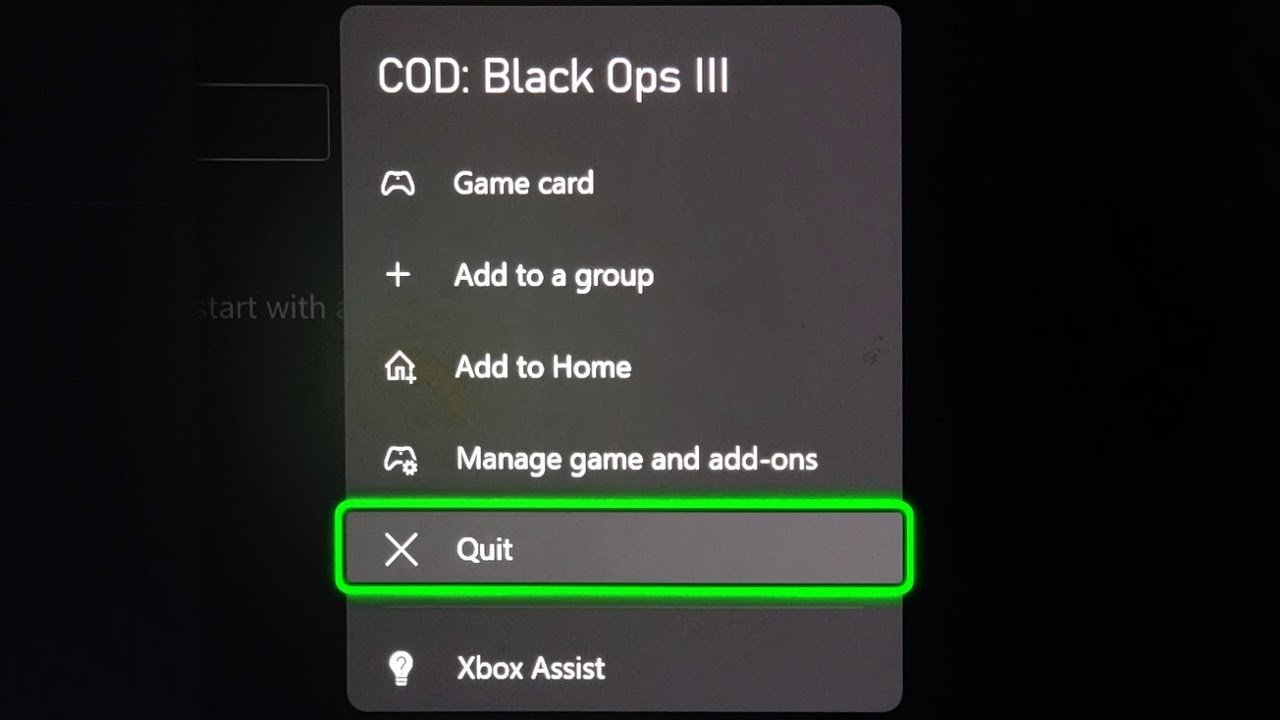
To quit a game on Xbox, press the Xbox button on your controller to open the guide, then highlight the game and press the menu button (three horizontal lines) and select ‘Quit’.
Ever found yourself wanting to switch gears mid-game? Maybe you’re done for the night or ready for a fresh title. Knowing how to quit a game on Xbox isn’t always obvious, and can actually be quite frustrating if you’re not sure how.
This simple process can save you time and keep your Xbox running smoothly. It is a vital skill for every Xbox player. Don’t worry, it’s easier than you might think.

How to Quit a Game on Xbox: A Complete Guide
Okay, so you’ve been battling dragons, racing cars, or building amazing worlds on your Xbox, and now it’s time to take a break. Maybe dinner’s ready, or you need to get some homework done. No problem! Quitting a game on your Xbox is super easy, but there are a few ways to do it. Let’s explore all the options, so you always know the best way to close out your gaming session.
The Simple Way: Using the Xbox Button
The most common way to quit a game on your Xbox is by using the big, glowing Xbox button on your controller. This button is like your Xbox’s home button, and it’s your key to navigating the system’s menus quickly. Here’s how it works:
Steps to Quit with the Xbox Button
- Press the Xbox Button: While you’re in the game, press the Xbox button on your controller. This will bring up the guide menu.
- Navigate to the Game: In the guide menu, you will see your game highlighted.
- Select and Close the Game: Press the Menu button (the one with three horizontal lines) on your controller. This will open another menu. From there, select ‘Quit’.
- Confirmation: The system may ask you to confirm if you really want to quit. Just select ‘Yes’ or ‘Quit’ to close the game.
That’s it! The game will close, and you’ll be back on the Xbox dashboard where you can choose another game, app, or just chill out.
Why Do You Need to Quit Properly?
You might be thinking, “Why can’t I just turn off the console?” Well, while that might seem like the quick way, it’s not always the best for your game and your Xbox. Here’s why:
- Saving Your Progress: Most games need a little time to save your progress. If you abruptly shut down, you might lose some of the game’s progress, like completing a level, finding some rare treasure, or ranking up.
- Preventing Game Issues: If a game is running when you shut off the console, it might cause problems with loading correctly when you play it next time. Quitting properly makes sure everything is saved and closed in order.
- Keeping Your Xbox Happy: Properly closing games can also help your Xbox run more smoothly over time. It’s like telling your Xbox, “Okay, I’m done playing this game,” so it can get ready for the next thing you want to do.
Using the Guide Menu to Switch Games
Sometimes, you might not want to completely quit a game but just jump to another one. Xbox makes this easy too! This is similar to quitting, but you’ll be launching something else instead.
Steps to switch the game using guide menu
- Press the Xbox Button: While in the game, press the Xbox button on your controller.
- Select a New Game: Use the controller to navigate through the guide menu to select the game you want to play next.
- The Original Game: You might be asked if you want to quit the current game. Choose ‘Yes’ or ‘Quit’ to proceed to launch the new game, or your current game might be automatically suspended.
- New game Launch: The new game you selected will now begin to load.
This is a quick way to switch between games without going all the way back to the Xbox dashboard each time.
Using the Xbox Dashboard to Quit a Game
Sometimes, you might have already returned to the dashboard and now want to close the game that was still running in the background. This is very simple.
Steps to Quit via the Dashboard
- Go to the Dashboard: If you aren’t already there, press the Xbox button to go back to the Xbox dashboard.
- Highlight the Game: You’ll see a tile on the dashboard that represents the game you were playing. It might be highlighted as “currently running”.
- Press the Menu Button: Press the Menu button on your controller while the game tile is highlighted. This will bring up another menu.
- Select ‘Quit’: Select ‘Quit’ to close the game.
The game will then be closed, and you’ll see the game tile on the dashboard not active.
Understanding Quick Resume
Xbox has a super helpful feature called Quick Resume. This amazing feature lets you switch between recently played games and then quickly continue from where you left off without any loading screens. It is an excellent function to save time.
How Quick Resume Works
- Pausing Games: When you switch to another game without quitting the first one, Xbox saves the state of your original game, and it becomes suspended.
- Returning to the Game: You can return to this suspended game within a few minutes and pick up right where you left off.
- Limited Slots: You can have a few games in this paused state at a time, but not too many. Older games might drop out of the resume queue if you play too many new titles.
Quick Resume is a great feature for when you’re quickly jumping between games or just taking a break without fully quitting. Just remember that this is only a temporary suspension, so you’ll still need to quit the game properly when you’re completely done with it for now.
When to Use Quick Resume and When to Quit
It’s good to know when to use Quick Resume and when it’s better to fully quit a game.
Quick Resume is Great When:
- Taking a Short Break: When you’re just going to get a snack, or quickly do some chores and be back soon.
- Switching Between a Few Games: If you enjoy playing a couple of games at a time, then Quick Resume is perfect for you.
- You Want Instant Gameplay: It can save you a lot of time in loading screens.
Quitting Properly is Better When:
- You’re Done Playing for a While: If you know you won’t be playing this game again for a few hours or days, it’s best to quit it.
- You’re Experiencing Bugs: If the game is acting strange or not responding correctly, quitting and restarting can help.
- You want to Clear Memory: If you want to be sure you clear up all resources and memory usage for your console.
Troubleshooting Issues
Sometimes, games might not quit properly. Here are a few things you can do if you face such issues.
Game Not Quitting
- Try Again: Sometimes you just need to repeat the steps to quit again, and this time the game will quit.
- Restart the Xbox: If your game is really stuck, you can restart your Xbox. To do this, hold the Xbox button on your controller and then choose restart. This may resolve the game issue.
- Check for Updates: Sometimes, issues happen with the older game version, so it is better to check if there are any updates available.
- Check internet connection: If it’s an online game and the game isn’t closing, you can check if the internet is properly connected and working.
If you are still experiencing issues, you may also consult the official Xbox support page, or get assistance from someone who is more familiar with gaming.
Keeping your Xbox Running Smoothly
Regularly quitting games the right way can help your Xbox run its best. Here are a few extra tips for your console:
Tips for Xbox Care
- Keep it Cool: Make sure your Xbox has good airflow around it, so it doesn’t overheat.
- Update Software: Keep your Xbox system software updated for the best gaming experience.
- Manage Storage: Occasionally clear out older games and apps you no longer play so your Xbox doesn’t run out of storage space.
So, now you know everything about quitting games on your Xbox. Whether you’re switching between titles, taking a break, or calling it a day, you’ve got the know-how to close out games correctly and keep your gaming experience smooth. Happy gaming!
Xbox Series S/X: How to Close / Quit Games & Apps
Final Thoughts
To close a game, press the Xbox button to open the guide. Then, highlight the game and press the menu button. Select the ‘Quit’ option to properly close the game and return to the dashboard. This action ensures the game is not running in the background.
Remember, correctly quitting saves resources. This process is the definitive method for ‘how to quit a game on xbox’. Always follow this method. You will improve your overall experience using Xbox.

