
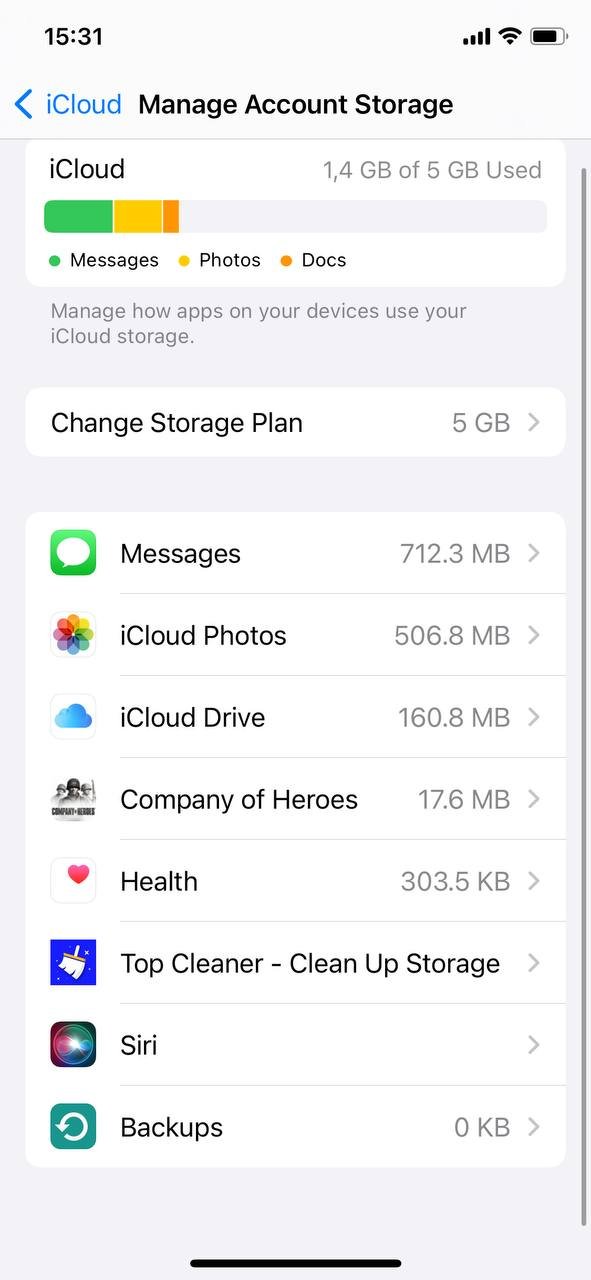
To remove a game from iCloud, navigate to your device’s settings, then your Apple ID, and then iCloud. From there, manage storage and find the game’s data to delete.
Have you ever found your iCloud storage filling up faster than you expected? Often, game data can be a major culprit, especially if you have several games that you frequently play. This can lead to annoying pop-ups and a need to clear up some space.
It’s a common concern, and that’s why we’re here to help you with a quick guide on how to remove a game from iCloud. It’s simpler than you think, and you’ll be freeing up precious storage in just a few steps. So, let’s get started and reclaim your iCloud space.

How to Remove a Game From iCloud
Ever felt like your iCloud storage is getting too full? Games, with their fancy graphics and lots of data, can take up quite a bit of space. If you’re looking to free up some iCloud space or just don’t want a particular game’s data stored anymore, you’ve come to the right place! Removing a game from iCloud is not as hard as you might think. This article will help you understand how to manage your iCloud game data effectively, and also help you understand how much space those games take up in your iCloud.
Understanding iCloud Game Saves
Before we dive into the how-to, it’s important to understand what’s actually happening when games use iCloud. When you play a game on your iPhone, iPad, or even Mac, the game often saves your progress, settings, and other important data. This data can be stored locally on your device, but many games also offer the option to save that data to iCloud. This lets you pick up where you left off on a different Apple device, which is super handy! This is called iCloud game saves, and it’s different from the game app itself.
The data stored in iCloud for a game might include:
- Your progress in the game (level, scores, achievements)
- Game settings (sound, controls, graphics)
- Any in-game purchases you have made
- Customizations you have created for your character or world
It’s important to know that removing a game from iCloud doesn’t remove the game from your devices. You will still have the game installed and can still play it if you want. It only affects the saved data stored in iCloud. Now, let’s learn how to remove this game data from iCloud.
Managing iCloud Storage for Games on iPhone and iPad
The primary way to remove a game’s data from iCloud is through your device’s iCloud settings. This process is pretty similar on both iPhones and iPads, making it easy to manage. Here’s how to do it:
Steps to Remove a Game from iCloud on iPhone/iPad:
- Open the Settings app. Look for the gray gear icon on your home screen and tap it.
- Tap your name at the top. This will open your Apple ID settings.
- Tap iCloud. You’ll find this option below your name and Apple ID information.
- Tap Manage Account Storage or iCloud Storage. The wording may be slightly different depending on your iOS version, but it’s usually pretty clear.
- Tap on “Backups”. You’ll see a list of devices that are backing up their data to iCloud.
- Tap on the device. You need to remove the app game data from.
- Look for the game you want to remove. You’ll see a list of apps using iCloud. Scroll down the list until you find the name of the game you want to remove the data from.
- Tap the game. You will now see an option to delete the game data.
- Tap Delete Data. A popup will appear asking you to confirm your decision. Tap ‘Delete’ again to remove the game’s data.
What happens when you delete game data?
When you delete a game’s data from iCloud, all your saved game progress, scores, and settings stored in iCloud will be removed. If you start playing the game again, it will likely be as if you are playing for the first time, unless you have local saves on the device.
Important notes about deleting iCloud data:
- Deleting the game data from iCloud will not delete the game app itself from your device. You can still open the game and start a new game.
- Deleting the data may cause your game to lose progress across devices. If you played the game on multiple devices, your progress will only be on the device you are playing at the moment if the iCloud saves are not available.
- You may have to reconfigure in-game settings when you open the game again.
Understanding “Documents & Data”
In your iCloud storage settings, you may also see a section called “Documents & Data.” This can sometimes include game data as well. If you cannot find your game in the “Backups” list, then it is possible that your game data is being stored in the “Documents & Data” section instead. To check “Documents & Data”:
- Follow the steps above to go to Settings > [Your Name] > iCloud > Manage Account Storage.
- Tap on Documents & Data.
- Scroll down to find the game you want to remove, and then you can tap the delete button beside it to remove it from iCloud.
Removing Game Data from iCloud on a Mac
If you also play games on your Mac, the process to remove game data from iCloud is slightly different. Here’s how to do it on your Mac:
Steps to Remove Game Data from iCloud on Mac:
- Click the Apple menu. It’s the Apple logo in the top-left corner of your screen.
- Choose System Settings. Or, if you have an older version of macOS, it will be called System Preferences.
- Click your name. It is located at the top left corner. If you don’t see your name, click “Sign in with your Apple ID”.
- Click iCloud. You will see this option in the list on the left-hand side.
- Click “Manage” or “Manage Account Storage”. It will open the iCloud storage management window.
- Select “Backups”. Then you will see a list of the backup data, select the device that is storing the game data.
- Look for the game you want to remove. You will see a list of the app data being backed up to iCloud. Scroll to the game that you want to remove.
- Tap the game. It will bring you to another window.
- Tap Delete Data. You will have to confirm your decision before you can remove the app data from iCloud.
Important: Similar to iPhones and iPads, deleting game data on your Mac will not delete the game app itself. It only removes the saved data stored on iCloud.
Alternative Method: Removing Game Data through Game Center
Sometimes, game data is tied to Apple’s Game Center. Game Center is like a social network for games, allowing you to see your achievements and compete with friends. If you are having issues removing a game data from iCloud, here is a method to remove through Game Center:
Steps to remove game data through Game Center:
- Open Settings. Tap the settings app on your device.
- Scroll down to Game Center. It’s usually located in the settings list, tap on it.
- Tap on your Apple ID. Located at the top of the menu.
- Tap on iCloud Apps. It’s located in the middle of the menu.
- Find the game that you want to remove and tap it. Scroll through the list and find the game.
- Tap delete data. A popup will appear asking you to confirm your decision.
This method is more of a workaround, and it doesn’t always work for all games, however, it is worth a try if the methods mentioned above don’t work, since game center is linked to iCloud.
Why would you want to remove game data from iCloud?
There are several reasons why you might want to remove game data from iCloud:
- Free up iCloud storage. iCloud only offers a limited amount of free space, and game data can take up a big chunk, especially if you play a lot of games. Removing game data can create extra space for photos, videos, and other important documents.
- Start a game fresh. If you want to start a game over from the beginning, deleting the iCloud data will let you start on a clean slate without having to create a new Apple ID account.
- Avoid game syncing issues. Sometimes game syncs can cause issues across devices. For example, you may have made progress in a game on one device, and then the game might try to sync from another device and overwrite your progress. Deleting the iCloud data for the game can prevent these issues.
- Privacy Concerns. Perhaps you have stopped playing the game, and don’t like the game data to remain in the iCloud storage.
Important Considerations
Before you remove any game data from iCloud, think about these points:
- Double-check before deleting. Be absolutely sure you want to delete the data. Once you delete it, you may not be able to get it back.
- Local saves. Some games may also store data locally on your device. If you delete the iCloud data, your game might still have some progress locally. However, if you delete the game from your phone completely, local saves may be lost.
- iCloud syncing. If you play a game on multiple devices, deleting the data will affect those devices as well.
- Check for alternative saves. Some games may offer their own backup system that is not connected to iCloud. Explore the game’s settings to see if there are other ways to restore your data in case you delete from iCloud.
Tips for Managing Game Data
Here are some tips to help you better manage your game data:
- Regularly check iCloud storage. Keep an eye on how much space your games are taking up. This can be done by going to Settings > [Your Name] > iCloud > Manage Account Storage.
- Only save data for games you play frequently. If you have stopped playing a game, consider removing the data from iCloud.
- Manage saves through the game itself. Some games let you choose how and where your saves are stored. See if your game has these options in settings.
- Consider using cloud storage services. If you play games on other consoles or computers, it may be beneficial to utilize other storage services.
By following these tips, you can keep your iCloud storage organized and avoid running out of space.
Deleting game data from iCloud is a straightforward process, whether you are using an iPhone, iPad, or Mac. Just remember to double-check that you want to remove the data, and also keep in mind the implications of removing this data. If you follow the steps above, you should be able to keep your iCloud storage tidy and have more room for your photos and videos.
How To Delete Apps/Games From iCloud! (2023)
Final Thoughts
To remove a game from iCloud, you must manage your iCloud storage settings directly. Navigate to iCloud settings on your device. Then, locate and select the specific game you want to remove.
Find the ‘manage storage’ section. You will see a list of apps using iCloud. Deleting game data there will stop it syncing with iCloud. This action can save precious storage. The method for ‘how to remove a game from icloud’ is fairly straightforward.

