
‘You can remove ads in games for free by using airplane mode or employing ad-blocking apps, but some methods may require root access or a premium purchase.’
Annoying ads constantly interrupt your game? It’s a common frustration, and many players search for solutions. We understand that desire to play without constant interruptions. This article is designed to guide you, offering multiple methods that help you in this endeavor.
We will explore various options, from simple techniques to slightly more involved processes. The goal is to show you how to remove ads in games for free, letting you enjoy your favorite titles without those persistent interruptions. These methods will enable you to play games without ad pop-ups.

How to Remove Ads in Games for Free
Okay, let’s talk about something that bugs almost everyone who plays games on their phones or tablets: those pesky ads! They pop up at the worst times, right when you’re about to beat a level or get a high score. Sometimes it feels like they’re designed to make you want to throw your device across the room! But what if you could make them disappear without spending any money? Good news – you can! This guide will show you different ways to get rid of those game ads for free.
Understanding Why Games Have Ads
Before we jump into how to remove them, it’s important to understand why those annoying ads are there in the first place. Game developers, the people who make the games we love, often give their games away for free. But making a game takes time and money. Think of it like a lemonade stand. You give away lemonade for free, but you still need to pay for lemons, sugar, and cups. To keep making free games, developers show ads. These ads bring in money that helps them keep working on fun new things. It’s kind of like they’re getting paid every time you see an ad.
Different Types of Game Ads
Ads in games come in different forms, and knowing what to expect can help you better manage them:
- Banner Ads: These are the small, rectangular ads that often sit at the top or bottom of the game screen. They are usually not too disruptive, but they can get repetitive.
- Interstitial Ads: These are the full-screen ads that pop up between levels or after a game ends. They can be very annoying because they interrupt your flow and often have a countdown timer.
- Video Ads: These ads, which can be anywhere from a few seconds to over 30 seconds, force you to watch a video clip before you can continue. Some video ads offer rewards for watching them, like extra lives or in-game currency.
- Rewarded Video Ads: These are video ads where you choose to watch them in exchange for something in the game. These can be helpful but are still ads.
The Airplane Mode Trick
One of the simplest ways to get rid of ads is to use airplane mode. This works because most game ads require an internet connection to load. When you turn on airplane mode, you disconnect your device from Wi-Fi and cellular data, preventing ads from being downloaded and displayed.
How to Use Airplane Mode
Here’s a step-by-step guide:
- Start the game you want to play.
- Before you start playing or while it’s loading, swipe down from the top of your screen (on Android) or up from the bottom (on iPhone) to access your device’s control panel.
- Look for the airplane mode icon (it looks like an airplane) and tap it to turn it on.
- Now, try playing your game. Most of the ads should disappear.
Important Note: Airplane mode also prevents you from using internet-dependent game features. Some games might need an internet connection for save features or online play. You may need to turn airplane mode off in those cases.
Using a DNS Server for Ad Blocking
Another effective technique involves using a private DNS (Domain Name System) server that filters out ads. DNS servers translate website names into IP addresses, which your device uses to connect to servers. By using a special DNS server, you can stop ad requests from reaching your game app.
Setting Up a Private DNS on Android
Here’s how to do it on most Android phones:
- Go to your device’s settings.
- Tap on “Network & internet” or a similar option.
- Select “Private DNS.”
- Choose “Private DNS provider hostname.”
- Enter a DNS server that blocks ads, for example, dns.adguard.com or dns.nextdns.io.
- Tap “Save.”
Note: Different android versions might have slight variations in the exact wording, but the general process is the same.
Setting Up a Private DNS on iOS
Unfortunately, Apple doesn’t allow system-wide private DNS settings for cellular and Wi-Fi. There are app based DNS methods however these are not always the most user friendly or guaranteed.
Note: This will change your devices entire DNS and will effect every application you use. If you have any problems you can simply change it back to “Auto” in the private DNS settings.
Exploring Ad Blocker Apps
There are many ad blocker apps available on the Google Play Store and Apple App Store that can block ads in games. These apps work by intercepting ad requests and preventing them from loading. Remember to read app reviews before installing them. Some popular options include:
- Blockada (Android): This open-source app blocks ads across your entire device, not just in games. It is not available on the Google Play Store, so you’ll need to download it from their website.
- AdLock (Android and iOS): AdLock is a popular ad-blocking app that can filter ads on web pages and in-game apps.
- AdGuard (Android and iOS): AdGuard offers a feature-rich ad blocking experience, with options for filtering ads on specific apps and websites.
- Brave Browser (Android and iOS): The Brave browser has a built-in ad blocker that you can use to play games in the browser with ad blocking.
Important: Be careful with the apps you download. Some apps might not work as promised or might even contain harmful software. Always download from trusted sources.
How to use an ad blocker app
Here’s a general idea of how to use an ad blocker app:
- Download and install the ad blocker app from the Google Play Store or Apple App Store.
- Open the app and follow the instructions to set it up. This might involve allowing it to access your device’s VPN settings.
- Turn on the ad blocker.
- Open your game and see if ads have been blocked.
Using a VPN with Ad Blocking Features
Some VPN (Virtual Private Network) services also include ad blocking as part of their features. A VPN encrypts your internet traffic and hides your real IP address, and some have the ability to block ads as well. This can be an effective option, but usually, these are not free, and you will need to subscribe to the service. If you are already subscribed to a VPN and it has ad blocking this can be a solution.
How to use a VPN with Ad Blocker
- Download and install the VPN with ad blocking service app.
- Open the app and follow the instructions to set it up.
- Connect to a server.
- Turn on the ad blocker feature.
- Open your game and see if ads have been blocked.
Modifying Game Files (Advanced)
This is a more advanced technique, and it may not work for all games. Modifying game files can be a way to stop ads from loading if you are experienced with file editing. However, this can be tricky and carries risks.
Warning: Modifying game files can sometimes break the game or violate the terms of service. Be very careful and only proceed if you know what you are doing. This is not recommended for most users.
How to approach file modification:
- Find the Game Files: Use a file manager app to locate the game files on your phone or tablet. Usually, the app’s data is stored in a directory named after the game’s package name in the /Android/data or /Android/obb directories.
- Identify Ad Files: Look for files that look like they are related to ads. These files often contain names like “ad” or “ads”.
- Change or Delete Ad Files: You might rename the ad files to something else, or move them to a different location. Deleting files is not recommended because it might cause problems with the game.
- Restart the Game: Start the game again and see if ads are no longer loading.
Important: If the game has online components, these modifications are likely to not work. Online games usually retrieve ads from a remote server.
Playing Games in Browser with Ad Blockers
Many games have web-based versions, which can be played in your web browser, where you can use browser extensions to block the ads. If your favourite game has an online version and you can live without the app version this might be a very good option.
How to use a browser with ad blocker
- Download a browser like Brave or add an ad blocking extension like AdBlock or uBlock Origin to a browser like Chrome, Firefox, or Safari.
- Open your games web page within your browser.
- Play the game.
Turning Off Personalized Ads
While this won’t block all ads, turning off personalized ads can reduce the amount of ads you see. It means you will get generic ads instead of personalized ones which are based on what you have been looking at on other web pages or apps.
How to Turn Off Personalized Ads on Android:
- Open your device’s settings.
- Tap on “Google” or “Google Services.”
- Select “Ads.”
- Turn on “Opt out of Ads Personalization.”
How to Turn Off Personalized Ads on iOS:
- Open your device’s settings.
- Tap on “Privacy”.
- Select “Apple Advertising”
- Turn off “Personalised Ads”.
Using a Firewall App
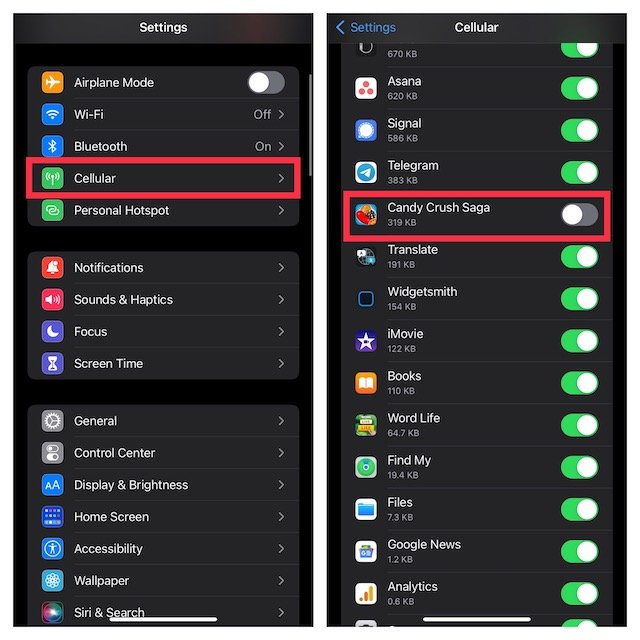
A firewall app can act as a gatekeeper for your device’s internet traffic. You can configure it to block specific games from accessing the internet, which, as we’ve discussed, will effectively block most in-game ads. This method requires more technical knowledge, and you need to configure it correctly. It may also prevent online play.
How to use a Firewall App:
- Download and install a firewall app from the Google Play Store. (There are not many Firewall apps on the iOS store.)
- Open the app and follow the instructions to set it up.
- Select the game you want to block from accessing the internet.
- Apply your settings.
The Free Trial Option
Some games offer a free trial period of their premium version, which usually comes without ads. If the trial period is long enough or the premium upgrade isn’t too expensive for you, you could consider it. For the duration of the free trial you will be ad free and can decide if you like the game.
Game Developers Might Provide Options
Sometimes, game developers include in-app settings that let you reduce or remove ads, maybe by paying a small amount to upgrade. This is the simplest way to get rid of ads in many games, but it is not free. If you’re willing to spend a little money, some games offer a “no ads” option for a few dollars. The price of this might depend on the game, and it might be a one-time purchase, or a subscription.
Patience and Understanding
While these methods are effective in removing ads, some will be better than others depending on your requirements. It is always worth remembering that developers do use ads to create free games. A little patience can go a long way. Sometimes, even if you block most of the ads, a few may still sneak through. By using the methods above we hope that you will see significantly less ads while gaming and will make your playing time more enjoyable!
Getting rid of those annoying ads in games doesn’t have to cost you a thing. By using a mix of these free methods—like airplane mode, using a private DNS server, or installing ad blocker apps—you can significantly reduce the number of ads that interrupt your gaming fun. Remember to always download apps from trusted sources and be careful when trying out the more advanced methods like modifying game files. Now, go enjoy your ad-free gaming!
Block Ads on ALL Games (FREE and FAST) #shorts
Final Thoughts
You can remove ads in games for free by using airplane mode. Another method involves utilizing ad-blocking apps that filter out ads at the system level.
Some modified game versions may also offer ad-free experiences. These versions can sometimes be found through third-party sources. Explore these options if you’re determined to figure out how to remove ads in games for free.

