
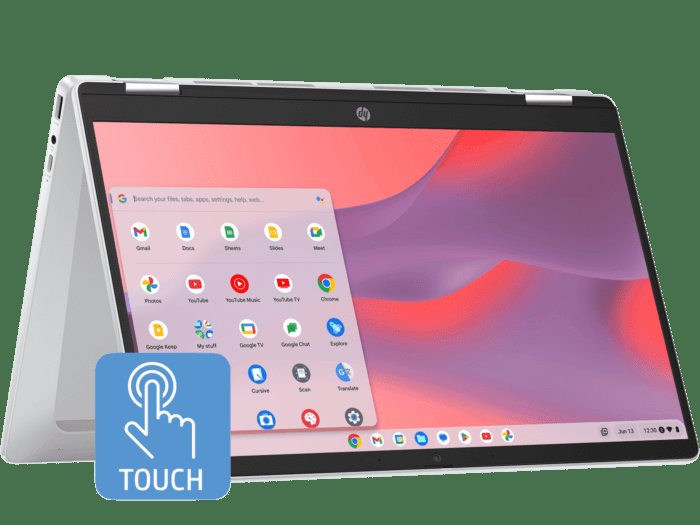
The process to remove the game store on an HP Chromebook x360 laptop involves disabling the Google Play Store, which will also remove access to the game store.
Many users have pondered how to remove game store on hp chromebook x360 laptop, and it’s a valid question given the device’s versatility. Sometimes the focus is on work or school, and games can be a distraction.
The good news is, that removing the game store is actually quite simple. You just need to disable the Google Play Store which is very easy to do on a Chromebook. This action eliminates access to not only games, but all android applications.

How to Remove Game Store on HP Chromebook x360 Laptop
It can be a bit of a puzzle when you want to remove something like a game store from your HP Chromebook x360. Maybe you’re trying to cut down on distractions, or perhaps you want to manage your space better. Whatever your reason, this guide will walk you through the steps. We’ll look at different game stores, how they get onto your Chromebook, and how you can remove them. We’ll also cover some tips and tricks that’ll help keep your Chromebook just the way you want it. So, let’s jump right in!
Understanding Game Stores on Chromebooks
Before we get to removing anything, it’s helpful to know what kind of “game stores” we’re talking about. On a Chromebook, you don’t typically find big programs like you might on a Windows computer. Instead, games come mostly from a few different places:
The Google Play Store
The most common source is the Google Play Store. If you have an Android phone, you’re already familiar with this. It’s the place where you get apps and games for Android devices. Your HP Chromebook x360 can run many Android apps, and these are usually installed through the Play Store.
Web-Based Games
Another place to find games is directly on the internet. Many games are designed to run right in your web browser. These are usually simpler games, and they don’t need to be installed. They’re accessed through a web address, like any other website. You can identify them by noticing they open in a new browser tab.
Chrome Web Store Games
There’s also the Chrome Web Store, where you can find extensions and apps that work with the Chrome browser. Some games are available here too. These usually run inside the Chrome browser window.
Removing Games from the Google Play Store
If a game came from the Google Play Store, the process to remove it is similar to how you’d remove an app from an Android phone or tablet. Here’s what you need to do:
- Find the App Icon: Click the circle at the bottom left of your screen. This opens your app drawer. Locate the icon for the game you wish to remove.
- Right-Click or Long Press: If you have a mouse, right-click on the game’s icon. If you’re using the trackpad, tap with two fingers, which is usually how you can right-click. If you are using a touchscreen, tap and hold the game’s icon for a moment.
- Select “Uninstall”: A menu will appear. Look for the option that says “Uninstall”. Click or tap this option.
- Confirm: A small window will pop up asking if you are sure you want to uninstall. Confirm your choice, and the game will be removed from your Chromebook.
Remember, this process removes the game from your Chromebook. If you wish to play it again later, you will need to reinstall it from the Google Play Store. So, before you remove it, make sure you won’t be wanting it anytime soon!
Removing Multiple Play Store Games
If you have multiple games that you want to remove, the steps to remove them are the same, but you might find this a faster way:
- Open the Play Store: Click on the circle at the bottom left of your screen. Then, find the icon for the Play Store and click on it.
- Go to ‘Manage apps & device’: In the Play Store window, click on your profile picture (top right of the screen), and then select “Manage apps & device”.
- Select ‘Manage’: There is a manage option in middle of the page, where you can check which apps are installed.
- Select the Games: You can select multiple games from there.
- Uninstall Selected Games: You can select ‘uninstall’ option from the above of the page and click uninstall.
Removing Web-Based Games
Since web-based games don’t install onto your computer, you won’t find them in the app drawer. However, they might be saved in your browser’s history, or bookmarked.
Clearing Browser History
Clearing your browser history will remove the record of those websites from your browsing history. Here’s how to do this:
- Open Chrome: Click on the Chrome browser icon.
- Open Menu: Find the three dots at the top right of your browser window. Click on them to open the menu.
- Select “History” and then “Clear Browsing Data”: Hover over the word ‘History’ and then click on ‘Clear Browsing Data’.
- Choose Time Range: Pick the time period you want to clear data for. ‘All time’ is a good choice if you want to remove all records of these games.
- Select “Browsing History”: Make sure ‘Browsing History’ is ticked. You can also pick to clear other things like cookies and cache, but that’s not needed for this.
- Click “Clear Data”: This button will delete your browsing history for the chosen time range.
Now, any web games you played will not show up in your browser history anymore. If you have any shortcut for the games on your browser you will also have to remove those manually.
Removing Bookmarks
If you have bookmarked a game website, you need to remove the bookmark. Here’s how:
- Open Chrome: Go to your Chrome browser.
- Open the Bookmarks Menu: Click on the three dots in the top-right of the browser window to open the menu. Then go to Bookmarks and hover over the ‘Bookmarks Manager’ option to open it.
- Find the Game’s Bookmark: Browse through your bookmarks till you find the bookmark of the game you want to remove.
- Remove Bookmark: Once you have found the right bookmark, you can click on the three dots to open the context menu, and select ‘delete’ to remove the game bookmark.
Removing Games from the Chrome Web Store
Games from the Chrome Web Store are managed like browser extensions or apps. These can be removed through the Chrome browser’s settings.
Steps to remove the Chrome Web Store Games
- Open Chrome: Go to your Chrome browser.
- Access Extensions: In your Chrome browser, type “chrome://extensions” in the address bar and press Enter. Alternatively, you can click the three dots in the top right corner of the browser, select “More tools”, then click on “Extensions”.
- Find the Game: Scroll through the list of extensions to find the one related to the game you want to remove. Games sometimes have names that sound like games and sometimes don’t! So, look carefully.
- Remove the Extension: Find the ‘Remove’ button next to the game and click on it. It will pop up a small window to confirm if you really want to remove. Click remove again and it will be uninstalled from the browser.
Managing App Access and Permissions
Sometimes, you might not want to remove the game completely, but you may want to control the access that they have. You can manage the permissions granted to installed apps through Chromebook settings.
How to Control App Permissions
- Open Settings: Click the circle at the bottom-left of your screen and then click the gear icon to open Settings.
- Go to Apps: In the left menu, you will see the ‘Apps’ option, click on it.
- Select “Manage your apps”: From the ‘Apps’ menu, click the ‘Manage your apps’ option.
- Select the Game: A list of apps will appear on the right. Find the game you want to manage and click on it.
- Manage Permissions: You can change permissions that the game has. For example, you can prevent it from using the camera or location.
Troubleshooting Common Issues
Sometimes, you might have a game that you cannot remove by following the above steps. Here are some things you can try:
- Restart Your Chromebook: Restarting can sometimes fix issues. Click on your profile picture in the bottom right of your screen, click the power button and then click ‘restart’.
- Check for Updates: Make sure your Chromebook is updated. Go to Settings, then ‘About Chrome OS’ in the left panel, and then click the ‘Check for Updates’ button.
- Seek Help: If the above steps did not work, you may need help from a technical professional. You can contact HP support, or a technical professional you may know.
Tips for Keeping Your Chromebook Game-Free
If you want to keep your Chromebook free of games, here are some tips that may help you:
Parental Controls
For children’s accounts, you can use parental controls on Google Family Link. It lets you block games from being downloaded. This can help prevent kids from using games on their Chromebooks. You can find more information on how to set up parental control in Google website.
Be Mindful of Web Browsing
Pay attention to the websites you visit. Many websites can offer free online games, which can become a distraction. Being careful with your browsing can help keep the games away.
Be Mindful of your Chrome Web Store downloads
You might have installed games as extensions or apps from Chrome Web Store and may forget about it. Always check your Chrome extension and app pages to remove the ones you don’t need.
Removing games from your HP Chromebook x360 doesn’t have to be complicated. Knowing where the games come from will help make it easy to remove them. With the steps above, you can keep your Chromebook organized and exactly how you want it. Whether you’re focusing on schoolwork or just want to tidy up your space, you now have the tools to manage the games on your Chromebook!
How to Get Google Play Store on Chromebook (EASY!)
Final Thoughts
Removing the game store involves disabling the Google Play Store through your Chromebook settings. This action also removes all installed Android apps. Then, you navigate to settings, find “Google Play Store,” and simply turn it off.
Doing this will effectively achieve the task of ‘how to remove game store on hp chromebook x360 laptop’. This process is straightforward and quickly changes the functionality of your device.

