
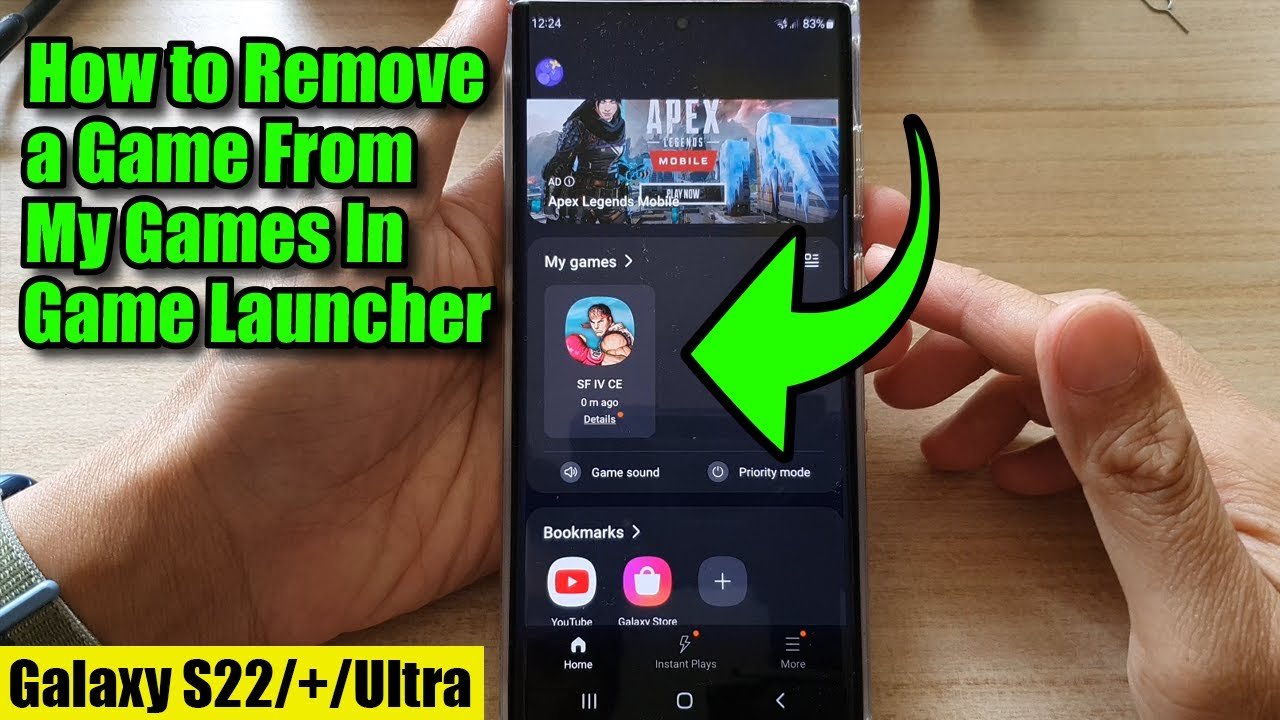
To remove games from your phone, you can typically either drag the game icon to the uninstall option on your screen or go into your phone’s settings, find the apps section, select the game, and then choose the uninstall option.
Is your phone feeling a bit cluttered with games you no longer play? Maybe you need more space or are trying to cut down on screen time. Learning how to remove games from my phone is a simple process that can make a big difference.
You can free up valuable storage and keep your device organized. This easy task only takes a few moments, and we’ll guide you through the straightforward steps.

How to Remove Games from My Phone
It’s time to take control of your phone and say goodbye to those games that are taking up too much space or too much of your time. Whether you’re trying to free up storage for pictures, want to focus more on schoolwork, or simply want to reclaim your phone, removing games is a lot easier than you might think. This guide will walk you through exactly how to delete games from both Android phones and iPhones.
Different Ways to Delete Games from Your Phone
There isn’t just one way to remove a game from your phone, thankfully! You have multiple methods depending on your preference and the type of phone you have. Let’s look at some of them:
Deleting Games Directly From the Home Screen
This is often the easiest and quickest method. Think of your home screen as the main place where you see all your app icons.
For Android Phones
1. Find the game icon: Look for the icon of the game you want to delete on one of your home screens.
2. Tap and hold: Press your finger on the game icon and hold it for a second or two.
3. Drag it: A menu will appear. Look for options like “Uninstall”, “Remove”, or even a trash can icon. Drag the game icon to this option.
4. Confirm: Your phone will probably ask you to confirm that you want to remove the game. Tap “OK” or “Uninstall.” And just like that, the game disappears!
For iPhones
1. Find the game icon: Locate the game you wish to remove.
2. Tap and hold: Touch and hold your finger on the game icon until a menu appears or the icons start to jiggle.
3. Tap the “x” or minus button: If the icons start to wiggle, you’ll see a small “x” or minus sign on the corner of each app icon. Tap on the “x” or the minus sign on the game you want to remove.
4. Confirm: Your iPhone will ask if you want to delete the game. Tap “Delete” to get rid of it.
Uninstalling Games Through the App Drawer or App Library
Sometimes, games aren’t on your home screen. They might be hiding in the app drawer (on Android) or in the App Library (on iPhones).
For Android Phones
1. Open the app drawer: Swipe up from the bottom of your home screen. This will bring up a list of all the apps on your phone.
2. Find the game: Scroll through the list until you locate the game you want to remove.
3. Tap and hold: Just like before, press your finger on the game icon and hold it until a menu appears.
4. Uninstall: Tap “Uninstall” or drag the icon to the “Uninstall” option.
5. Confirm: Verify that you want to uninstall the game.
For iPhones
1. Access the App Library: Swipe left multiple times from your last home screen page to get to the App Library.
2. Find the game: You can either scroll through the organized folders or use the search bar at the top of the screen to find the game.
3. Tap and hold: Press your finger on the game icon.
4. Delete: From the menu, choose “Delete App.”
5. Confirm: Verify that you wish to delete the app.
Deleting Games Through Your Phone’s Settings
Another way to remove games is through your phone’s settings. This method is useful if you prefer to manage your apps from a central location.
For Android Phones
1. Open Settings: Find the Settings app icon and tap it. It looks like a gear or cog.
2. Go to Apps or Application Manager: Find the section that says “Apps”, “Applications”, or “Application Manager” in your Settings menu.
3. Find the game: Scroll through the list of apps until you find the game you want to remove.
4. Select the game: Tap on the game’s name or icon.
5. Uninstall: On the game information page, you’ll see an “Uninstall” button. Tap it.
6. Confirm: Verify that you wish to uninstall the game.
For iPhones
1. Open Settings: Tap the Settings app on your home screen.
2. Go to General: Scroll down and tap “General.”
3. Go to iPhone Storage: Tap “iPhone Storage” within the General settings.
4. Find the game: Scroll down and find the game that you want to remove.
5. Select the game: Tap the name of the game.
6. Delete: Tap “Delete App.”
7. Confirm: Verify that you want to delete the game.
Why Removing Games Can Be Good for You
It’s not just about storage space! Removing games can have some really positive effects on your life:
More Time: Those minutes you spend playing games add up. When you remove games, you’ll find you suddenly have more time for other activities like reading, playing outside, or spending time with family and friends.
Improved Focus: It’s easy to get lost in a game and ignore things you should be doing, like homework. Deleting games can help you concentrate better on important tasks.
Reduced Distractions: Games can be tempting when you are trying to do something else. Removing them reduces these distractions.
More Phone Storage: Games can take up a lot of space on your phone. When you delete them, you get more space for important things like pictures, videos, and documents.
Managing Game Data and Progress
Before deleting any games, there is some information you should be aware about.
Game Data
What is Game Data? Game data is all of the progress, levels, and high scores you have achieved while playing a game. This includes things like how far you’ve progressed, any special items you have collected, or any characters you’ve customized. It is important to realize what this information is and how it might be saved.
Where is it Stored? Game data is stored in different places. Sometimes, it is saved directly on your phone. Other times, it is stored on the game maker’s servers.
What Happens When You Uninstall? When you uninstall a game, the data stored on your phone gets removed. If the game uses an online account, your progress is usually saved. But it is not always the case, so make sure to check first.
Saving Your Game Progress
Cloud Saves: Many games now use “cloud saves,” where your progress is saved online. To use this, you will likely need an account with the game. If a game uses cloud saves, your game progress may still be available if you reinstall the game.
Linking Accounts It is a good idea to ensure your game progress is linked to an account before you uninstall the game. This way you can rest easy knowing your progress is safe.
Backing Up Data: Some games let you back up your data manually. If your game has this feature, it’s a good idea to use it before you remove the game. This ensures you have a backup just in case.
What if I Change My Mind?
Reinstalling: If you decide you want to play a game again, you can always go to the Google Play Store (Android) or the App Store (iPhone) and reinstall the game.
Getting your data back: if you had backed up your data or used cloud saves your game progress might be restored when you reinstall the game. If you did not back up your data or use cloud saves, you will likely start the game from the beginning.
Tips for Removing Games Efficiently
Here are a few extra tips that can make removing games even easier.
Batch Removal: If you have multiple games to remove, you can delete them all at once. Just go through the app drawer or your phone’s settings and uninstall them all one after the other. This saves time over deleting one at a time.
Create Folders: On your home screen, you can create folders for the games you do not want to play often but wish to keep on your phone. This will keep them out of sight and out of mind.
Use the Search Function: If you have a lot of games on your phone and do not know where the game is located, the search function is a great tool to use.
Android: Use the search bar in the app drawer.
iPhone: Use the search bar in the App Library or from the home screen.
Parental Controls: If you want help controlling what games are on your phone, you can ask your parents or guardians for assistance. They can use parental controls to manage games.
Organize Regularly: Try to go through your phone and remove games you aren’t using or don’t want anymore. Doing this regularly keeps your phone clean.
Be Mindful of Game Types: If you know you have trouble with games that have particular addictive aspects, you should be extra aware when installing a new game.
Removing Pre-Installed Games (Bloatware)
Sometimes your phone comes with games you didn’t ask for, often called “bloatware.” These can be a pain and hard to remove but there are ways to remove them.
Dealing with Bloatware on Android
Check for Uninstall Option: Some pre-installed games can be uninstalled like normal apps using one of the methods described above. Check to see if you have this option.
Disable Instead of Uninstall: If an app can’t be uninstalled, see if you can disable it. This will stop it from running and free up space on your phone but it will still be installed.
1. Go to your phone’s Settings and then to “Apps”.
2. Find the app you wish to disable.
3. Tap the Disable button.
4. Confirm you wish to disable the app.
Use a Third-Party Tool: Some apps can help you remove bloatware but be careful as these might contain viruses. Only use apps that are safe and well reviewed by others.
Consider a Factory Reset: As a last resort, you can factory reset your phone, but you’ll lose all your data so you’ll need to back it up before this. A factory reset wipes your phone of all its data and will remove most bloatware.
Dealing with Bloatware on iPhones
Offload Instead of Uninstall: iPhones do not come with pre-installed games like some Android phones. However, they may include apps you do not use. To remove them, you can “Offload” these apps. This will remove the app from your phone but keep the data. You can later reinstall the app and get all the data back.
1. Go to your phone’s Settings, then to General, and then to iPhone Storage.
2. Find the app you wish to remove.
3. Tap the “Offload App” button.
4. Confirm that you wish to offload the app.
Why Games Might Come Back
Occasionally, deleted games might seem to reappear on your phone. This can be frustrating, but there are reasons for it:
Automatic Reinstallation: Some phones have an option for automatically reinstalling apps you deleted. This can happen when you are restoring your phone data, or when an app you use is connected to a deleted game.
Phone Updates: Sometimes, when your phone has an update, the game or app may be reinstalled. It’s a good idea to remove them again if this happens.
Play Store/App Store Updates: Sometimes updates to the app store can reinstall apps, you may need to remove them again.
Family Sharing: With Apple’s Family Sharing program, apps can be shared with other family members. If someone else is using your account or is family sharing with you, they might reinstall the app.
By understanding all of these methods and nuances, you will be well prepared to remove games from your phone. Remember that getting rid of games is only one part of the process. Managing your time and screen use habits are also important aspects of managing your mobile phone.
Deleting games from your phone might seem like a small action, but it can make a big difference in your day-to-day life. More free time, less distractions, and extra storage are only a few of the benefits. Hopefully, with this information, you can now take control of your phone and your time.
how to remove or hide games in Android phone (remove instant apps)
Final Thoughts
To remove games from your phone, simply find the app icon on your home screen or app drawer. Long-press the icon, and a menu will appear.
Select the ‘Uninstall’ or ‘Remove’ option; this process will delete the game and its data. Confirm your choice.
Different phone brands might have slight variations, but the general process remains consistent. Now you know how to remove games from my phone. It is quite simple and this must help you manage your device.

