
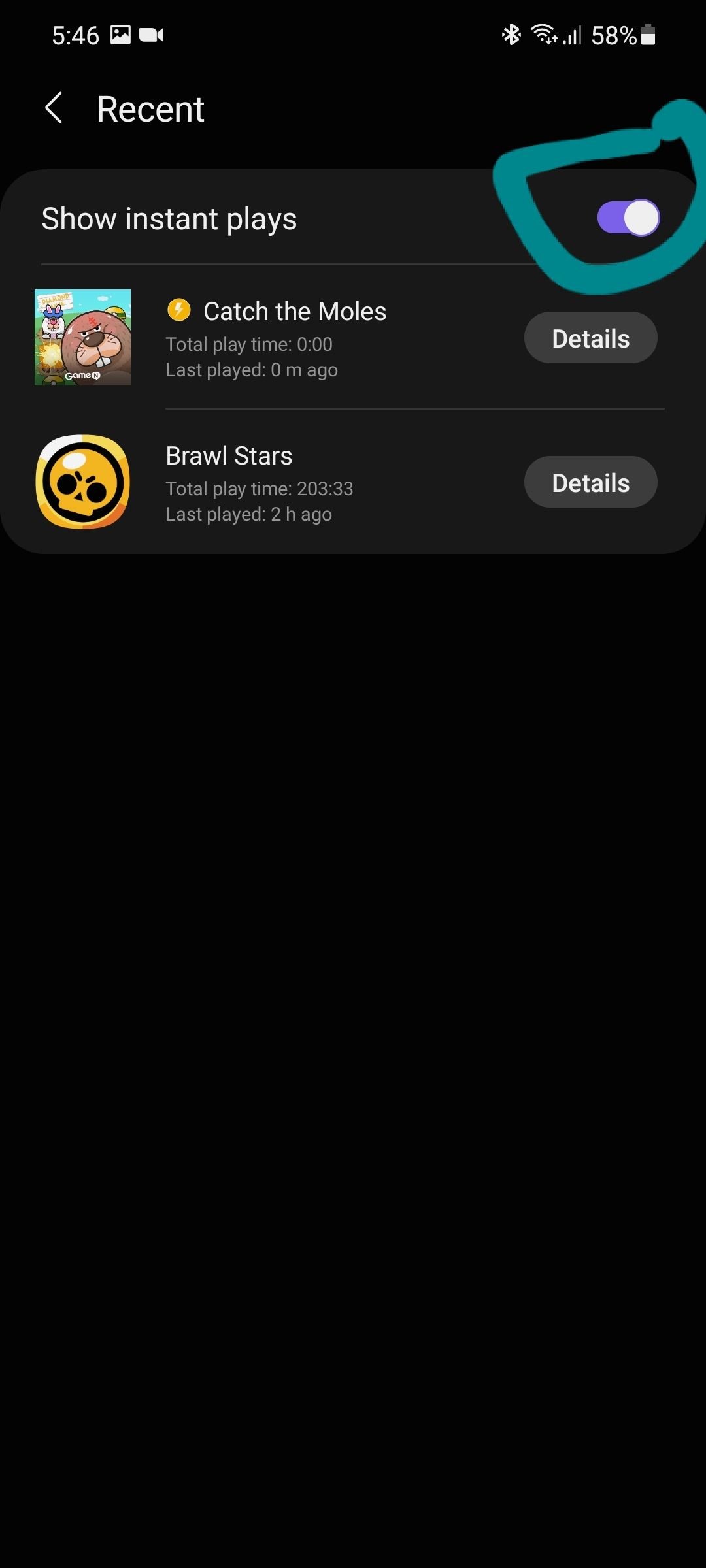
To remove instant play games from a game launcher, navigate to the launcher’s settings or library and find the option to uninstall or hide them.
Frustrated with those instant play games cluttering your game launcher? They often feel like unwanted additions, don’t they? If you want to tidy things up, you’re not alone. Many users seek a way to personalize their gaming experience.
The good news is, it’s often a straightforward process. Learning how to remove instant play games from game launcher can bring back that clean, organized feel. Let’s take a look at how you can achieve that.

How to Remove Instant Play Games from Your Game Launcher
Okay, so you’re here because those instant play games in your game launcher are starting to feel a bit… well, annoying, right? Maybe you accidentally tapped on one and now it’s showing up all the time. Or perhaps you’re just trying to keep things tidy and only want the games you really play. It’s totally understandable! These little instant games can be fun at first, but they can quickly become clutter. The good news is, you’re not stuck with them. We can absolutely get rid of them. This guide will walk you through exactly how to remove those instant play games from your game launcher, no matter what kind of device you are using. Let’s dive in!
Understanding Instant Play Games
First, let’s talk about what exactly these instant play games are. They’re usually small, simple games that you can play right away without having to download or install anything big. They are designed to be quick and easy to access, hence the name “instant play.” Many game launchers include these to let you try out new games or have a quick gaming session. While that can be nice sometimes, it’s not always what you want. They can take up space in the launcher, making it harder to find the games you actually want to play. So, what kind of game launchers often have these instant play games? Well, you’ll usually find them on:
- Android game launchers, which are often part of manufacturer customizations (like Samsung’s Game Launcher or Xiaomi’s Game Turbo) or come from the Play Store.
- Some web browsers offer instant play games sections (like built-in mini game centers), but that’s less common.
These instant play games use a type of technology that allows them to be streamed and played directly within the launcher without installing them on the device. This feature is intended to be convenient, but sometimes, it gets in the way. You might even find that you are using much more data without knowing it.
Why Remove Instant Play Games?
Now, why bother removing these instant play games? There are several reasons why you might want to remove them from your game launcher:
Clutter and Organization
Instant play games can quickly clutter your game launcher. If you are anything like me, you like a clean and organized launcher, so it’s easy to find your favorite games. Too many instant play games can make it difficult to navigate and find the games you actually care about. Getting rid of those extra icons can make your launcher look much cleaner.
Saving Storage Space
Even though instant play games don’t take up lots of storage, they sometimes download little bits of data for the games. While the impact on your device’s storage may not be huge, removing them can free up a little bit of space. It helps prevent the launcher from getting too bogged down with unnecessary files.
Reduced Data Usage
Some instant play games load in the background, and this can consume your data, especially if you have a limited data plan. If you don’t even play these games, it’s kind of annoying when they use data for no reason. Removing them can help reduce data consumption and avoid unexpected charges.
Focus and Productivity
These instant play games can be distracting. Seeing them in your launcher might tempt you to waste time. If you are trying to focus or be productive, removing them can help you stay on track and not get drawn into quick game sessions.
Personal Preference
Sometimes you just don’t like how they look or you simply don’t want them there. Your launcher should be set up how you want it. Removing these games gives you more control over your experience.
How to Remove Instant Play Games from Android Game Launchers
Most of the time, the process for getting rid of instant play games in your launcher is pretty straightforward. However, it might look a little different depending on your device’s brand and the specific game launcher app. Let’s look at the most common methods.
Method 1: Disabling Instant Play Directly (If Available)
Some game launchers have an option that allows you to turn off the instant play feature completely. This is the easiest solution if it’s an option for you. Here’s how to check and use this method:
Steps to Disable Instant Play
- Open Your Game Launcher: Find the game launcher app on your phone and open it. The icon usually looks like a controller or a group of games.
- Find the Settings: Look for a settings menu, it might be represented by a gear icon (⚙️) or three dots (⋮), or labeled “Settings”. It can often be in the top-right corner or in the launcher’s menu.
- Look for Instant Play Settings: Once you are in the settings, you are looking for a section related to instant play. This could be named “Instant Games,” “Quick Play,” “Play Now,” or something similar.
- Toggle the Feature: If there is a toggle (switch) or a checkbox, turn it off. This should disable the feature, meaning that instant games won’t appear anymore in your launcher.
- Confirm Your Changes: You may have to save or confirm the changes, or they might be saved automatically. Return to your main game launcher screen and the instant play games should be gone.
Method 2: Removing or Hiding Individual Instant Games
If you don’t see an option to disable instant games completely, you might be able to remove or hide them one by one. This approach is a little more hands-on but can be useful if you just want to tidy things up without getting rid of all the instant play games.
Steps to Remove Individual Instant Games
- Open Your Game Launcher: Open your game launcher just like before.
- Find the Instant Game You Want to Remove: Look for the instant play game that you would like to get rid of.
- Long-Press or Tap and Hold: Instead of tapping on the game, press down on the game icon for a couple of seconds. A menu should pop up.
- Look for the Remove or Hide Option: The menu that appears should have options like “Remove,” “Hide,” or “Uninstall”. Tap “Remove” or “Hide” to remove the game from your launcher.
- Confirm: Sometimes you may need to confirm that you want to remove the game. If it asks, make sure to select “OK” or “Yes.”
- Repeat: Do this for each instant game you want to remove.
Note: The “Hide” option is not always a permanent removal. It might just keep the games from showing up on your main screen but they are still there. The “Remove” option, on the other hand, usually gets rid of the instant game from the launcher.
Method 3: Clearing Game Launcher Data and Cache
If the above methods don’t work, clearing the game launcher’s data and cache might help. This can reset the launcher to its default settings and get rid of any instant play game information it has stored.
Steps to Clear Launcher Data and Cache
- Open Your Device Settings: Find the Settings app on your phone, and open it.
- Go to Apps or Application Manager: Look for the “Apps,” “Applications,” or “Application Manager” section in the settings. This is where you see a list of all the apps on your phone.
- Find Your Game Launcher: Scroll through the list and find your game launcher app, then tap on it to see its settings.
- Go to Storage: Tap on “Storage” to see the storage options for the game launcher.
- Clear Cache: Look for the “Clear Cache” option, and select it to remove cached data.
- Clear Data (if Necessary): If clearing the cache does not work, you might need to tap on “Clear Data” or “Clear Storage.” (Warning: This will reset the game launcher, which can affect any customizations you made. You may need to set up the launcher again after doing this, or re-organize your games. It’s recommended to try clearing cache first before clearing data.)
- Restart Your Phone: After you clear the cache or data, restart your phone. Then open the game launcher again. The instant play games might be gone.
Method 4: Uninstalling the Game Launcher (Extreme Case)
If none of the other steps work, you can uninstall the game launcher, if it’s an app that you downloaded. This is a last resort. Keep in mind, if the launcher is part of the phone’s manufacturer software (like Samsung’s Game Launcher), it might not be possible to uninstall it completely. Instead, it might only allow you to disable or revert to the factory version.
Steps to Uninstall (If Possible)
- Find the Game Launcher App: Locate the game launcher app on your app screen or in the Play Store.
- Tap and Hold: Long-press on the game launcher icon, and a menu should pop up.
- Select Uninstall: If an “Uninstall” option appears, tap on it.
- Confirm: Confirm that you want to uninstall the app.
- Use a Different Launcher: If you prefer having a game launcher, you can download a new one from the Play Store that suits your needs and that does not come with instant play games.
What to Do if Instant Games Keep Coming Back
Sometimes, after doing all of these things, instant play games may reappear. Here are a few extra tips:
- Check for Updates: Make sure your game launcher app is updated to the latest version. Sometimes a software update can fix issues. Check the Play Store to see if there are any updates.
- Look for Automatic Downloads: Some game launchers might automatically download instant play game data even when you’ve disabled the feature. You might need to check settings to prevent this from happening. You may need to look for options like ‘automatic install’ or similar settings.
- Consider Third-Party Launchers: If your default launcher just keeps pushing instant games on you, try out a different game launcher from the Play Store. There are plenty of customizable options that may not have those instant games built in.
How to Avoid Instant Play Games in the Future
Once you have removed the instant play games, you might want to know how to stop them from reappearing. Here are some easy ways to avoid them:
- Avoid Tapping on the Ads: Often, instant games show up as ads within the game launcher. Be careful when you’re just tapping on stuff quickly because you could accidentally start a game.
- Be Careful with Pop-Ups: When using your game launcher, some pop-up screens can tempt you to check out a new game. Don’t tap if you see the word ‘instant’ or ‘play now’.
- Keep an Eye on Launcher Settings: Regularly check your game launcher’s settings to make sure that the instant play features are turned off.
- Read Game Launcher Updates: Sometimes, game launchers add features in updates. It’s good to quickly skim what is new after an update. Pay attention to anything mentioning ‘quick play’ or ‘instant games’ and take action to turn them off if needed.
By taking these actions, you’ll have a cleaner, less cluttered game launcher without those pesky instant play games popping up all the time.
So there you have it – all the ways you can remove instant play games from your game launcher. With a little bit of patience, you can keep your launcher clean and focus on the games you actually enjoy. Remember that the exact steps might look slightly different depending on your specific phone, but the ideas are all pretty much the same. Now, go have fun with the games you choose to play!
No more instant plays | Samsung Gaming hub 7.0.10.2 to 6.0.11.1 revert to the old version
Final Thoughts
You can remove instant play games from game launcher by accessing the settings. Find the ‘Instant Play’ section within the app. Then, you’ll usually find options to manage or delete these games.
The process may vary slightly depending on your specific game launcher. Generally, selecting the game and choosing ‘remove’ or ‘uninstall’ will delete it. This is the process of how to remove instant play games from game launcher.

