
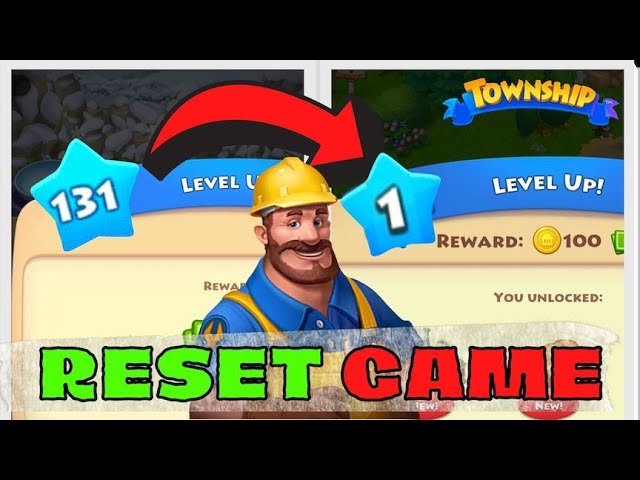
Unfortunately, you cannot directly reset your Township game progress. You can, however, start a new game on a different device or by using a new social media account to connect to the game.
Have you ever wanted a fresh start in Township, perhaps to try a different layout or focus on new strategies? Many players wonder about how to reset township game, especially when they want to replay the early stages of building their dream town. The game itself doesn’t offer a direct reset button, which can be a bit frustrating.
But don’t worry, there are a few workarounds you can use if you want to begin your township journey again. It mostly involves a little setup, but it is very doable. Let’s explore the options available to you.

How to Reset Township Game: A Complete Guide
Have you ever felt like starting your Township journey all over again? Maybe you made some choices you now regret, or perhaps you simply want the thrill of building your town from scratch. Whatever the reason, resetting your Township game can be a great way to refresh your experience. But, unlike some other games, Township doesn’t have a simple “reset” button. So, how do you actually do it? This guide will walk you through all the methods, explaining each step clearly and simply.
Understanding Township’s Save System
Before we jump into resetting, it’s helpful to understand how Township saves your progress. The game primarily uses a cloud-based save system linked to your social media accounts (like Facebook) or your Google Play/Game Center account. This means your town isn’t just stored on your device; it’s stored online. This is great for playing on different devices, but it adds a wrinkle to resetting. When you start the game, it usually pulls up your last saved town. So, to reset, we basically need to trick the game into thinking it’s a brand new start. Let’s explore the ways we can do this.
Method 1: Starting Over with a New Social Media Account or Google Play/Game Center
The most straightforward way to reset Township is to use a completely new social media profile or a fresh Google Play/Game Center account. This ensures the game sees you as a brand-new player and starts you with a blank canvas.
Steps for Facebook Reset
If you originally connected your game to Facebook, here’s what you need to do:
- Create a new Facebook Profile: You’ll need a completely separate Facebook account. Don’t worry, it doesn’t have to be a profile you’ll use regularly, you can make a new one just for your Township game. You can name it “Township Game Account” or something similar.
- Uninstall Township: Remove the Township game from your phone or tablet. This step is crucial for clearing any cached data.
- Install Township: Re-download and install Township from the app store.
- Start the Game: Open the Township game. The game will prompt you to log in using a social media account. Choose to connect with the new Facebook profile you made.
- Begin Anew: The game should now present you with a tutorial and allow you to build your town from level one.
Things to Consider When Using a New Facebook Account:
- Remember Your Login Details: Make sure you keep a record of your login details for this new Facebook account. You will need them if you wish to play on other devices or need to reinstall.
- Privacy Settings: Adjust privacy settings on your new Facebook account as you see fit, but it is best to set it to private if you are using it for only playing the game.
Steps for Google Play/Game Center Reset
If you’re using an Android device or iOS device with Game Center, you can use a different Google Play or Game Center account for your reset. The process is similar to the Facebook method:
- Add a New Google Account (Android) or Apple ID(iOS): You can add a new account in your device’s settings. You don’t need to use it for other purposes.
- Uninstall Township: Delete the Township game from your device.
- Install Township: Reinstall Township from Google Play Store (Android) or App Store (iOS)
- Start the Game: When you launch Township, it will ask which account you want to link it to. Select the new Google or Game Center account.
- Start from Scratch: You are now ready to begin a new Township game from the beginning.
Important Things about Using New Google Play/Game Center:
- Account Security: Make sure that this account is secure because you will be using this for a long term.
- Switching Accounts: In the device’s settings, you can switch between multiple Google or Game Center accounts to access different saved games of Township.
Method 2: Using the Device Settings To Reset The Game Data
Another way to reset your game is to clear the game’s data directly through your device’s settings. This method is sometimes effective, but keep in mind that if your progress is linked to a social media or Google/Game Center account, it might simply reload your old saved town.
Steps for Android Devices
- Go to Settings: Open your device’s settings application, usually represented by a gear icon.
- Find Apps or Application Manager: Look for a section called “Apps” or “Application Manager.” It might be labeled slightly differently depending on your device.
- Select Township: Scroll through the list and locate the Township app.
- Clear Data and Cache: Inside the Township app settings, find options for “Clear Data” and “Clear Cache.” Tap on “Clear Data” to erase the game data, then tap “Clear Cache.”
- Start the Game: Launch Township again. If it is not linked to social media, this will present you with a new game, but if it is linked, it might restore your game from the cloud.
Things to Consider When Clearing Data on Android
- Potentially Unsuccessful: If the game is connected to Facebook or Google Play, this might not work and the game might load up your old saved data.
- Other Settings: Sometimes clearing the cache can affect other apps on the device, so double check other apps before proceeding.
Steps for iOS Devices
On iOS devices, the process to clear data is a bit different.
- Open Settings: Go to the Settings app on your iPhone or iPad.
- Go to General: Scroll down and tap “General.”
- Select iPhone Storage: Tap on “iPhone Storage” (or “iPad Storage”).
- Find Township: Look through the list and select the Township game.
- Offload App or Delete App: You’ll see two options: “Offload App” and “Delete App.” For a complete reset, you will want to choose “Delete App” as offloading may keep some data.
- Reinstall Township: Go to the App Store and reinstall Township.
- Start the Game: Launch Township. This will likely present you with a new game, but it will pull up your saved game if it was connected to Game Center.
Important things to know when deleting app on iOS:
- Potentially Unsuccessful: Like with Android, if your game is linked to Game Center, it may load the old saved game.
- Other Settings: Usually deleting a game doesn’t affect other apps, but keep an eye on it.
Method 3: Contacting Playrix (Township’s Developer)
If none of the above methods work, or if you encounter a specific problem you can contact Playrix (the developer of Township) directly. They have a support team that can assist you with issues like resetting your progress or other related concerns.
Steps to Contact Playrix Support
- Open Township: Start the Township game.
- Access Settings: Tap the gear icon to open the game settings.
- Find Support: Look for a “Support” or “Help” button.
- Contact Support: Write a message explaining that you would like to reset the game. They might ask for your account details so have them at hand when contacting them.
- Wait for a Response: The support team may take a day or two to respond to your request. Follow their instructions if they provide you with a method to reset your game.
Things to Consider when Contacting Playrix Support:
- Response Time: Support may take a couple of days to respond, so be patient.
- Not Guaranteed: While Playrix will likely assist, it may not always be possible to reset your progress as they have set their game for cloud-based data saving.
Why Would You Want to Reset Township?
You might wonder why someone would want to start over after putting so much time into a game. Here are some common reasons:
- Making Mistakes: Early in the game, you might have made decisions about how you built your town or which items you focused on. You can always fix it, but some players may want a fresh start to apply what they’ve learned from their first game.
- Bored of Current Progress: Sometimes, you just want to do something new. Starting over can give you a renewed sense of purpose and fun.
- New Strategy: You might have a different gameplan this time around and it’s easier to start from scratch than trying to change your existing town.
- Account Issues: If something went wrong with your save file, starting over may be the easiest option for some people.
Tips for a Successful Reset
If you decide to reset your Township game, consider these tips to make the most of your new start:
- Plan Ahead: Think about the types of crops, factories, and community buildings you want to focus on this time.
- Learn from Mistakes: Think back to mistakes you made the first time around. What would you do differently?
- Join a Cooperative: Playing with other people can make the game more enjoyable and you will progress quickly when playing together.
- Be Patient: Starting from the beginning takes time, so settle in and enjoy the process of building your town again.
These are most common ways to reset your Township game. While there isn’t a direct “reset” button, these methods allow you to start a brand-new town. Pick the method that works for you, follow the steps and get ready to enjoy your Township adventure from the beginning. Have fun rebuilding your perfect town!
Township How to RESET GAME? | Restart Level 1
Final Thoughts
Resetting Township varies by platform. For Android or iOS, clear game data in device settings. This removes your progress. Reinstalling the app might also help. Remember, this action is permanent, and you will start over.
Therefore, the method for ‘how to reset township game’ involves either deleting app data or reinstalling, leading to a fresh game. Be aware that all progress gets wiped, requiring a new beginning. This is your option for a complete reset.

