
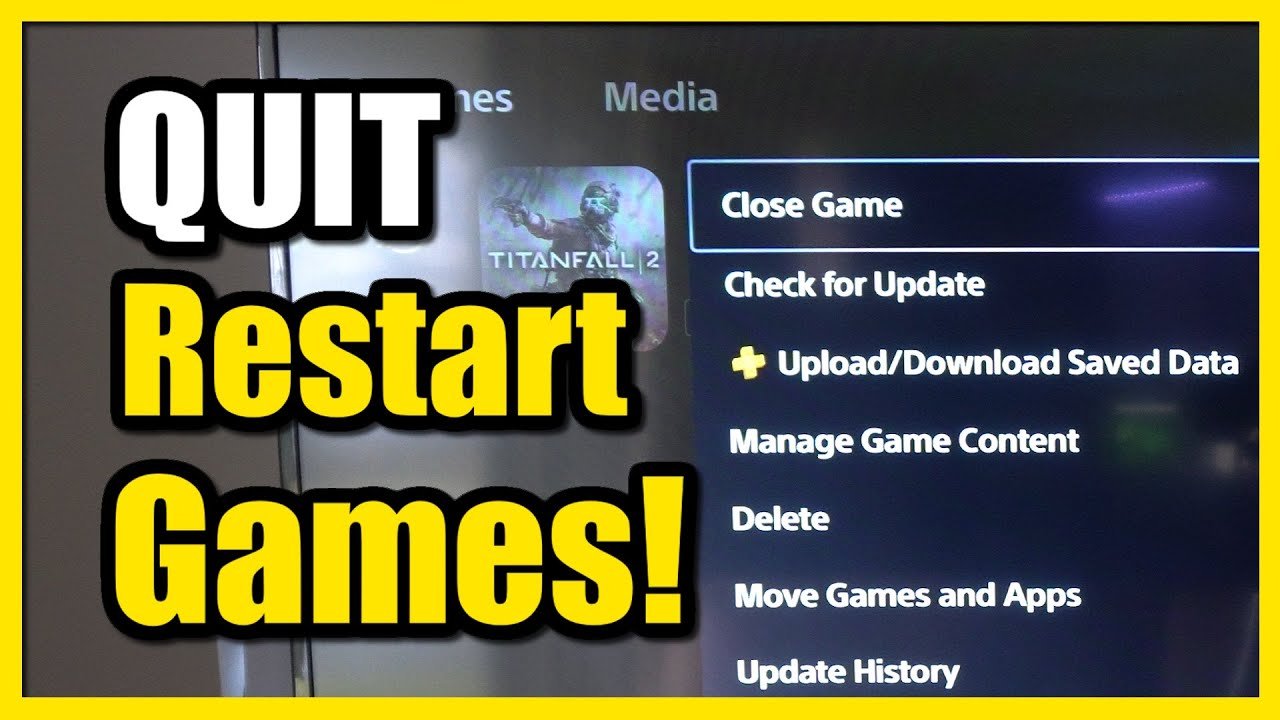
To restart a game on PS5, close the game by pressing the PlayStation button, navigating to the game on the home screen, pressing the options button, and then selecting ‘Close Game’.
Frustration can set in when a game glitches or you simply want a fresh start. Knowing how to restart a game on PS5 is essential for smooth gaming. This straightforward process gets you back in action quickly, allowing you to easily manage your gameplay. It’s a simple task with quick results.
Sometimes, you might need to reset for technical reasons or just to experience the initial game sequence again. You don’t need complex settings. The method for how to restart game on PS5 ensures that the game closes effectively and cleanly.

How to Restart a Game on PS5: Your Complete Guide
Have you ever been playing an awesome game on your PlayStation 5, and things just didn’t go as planned? Maybe your character got stuck, or the game started acting funny. Whatever the reason, sometimes you just need a fresh start. Restarting your game can fix a lot of little problems and get you back to having fun. This guide will show you all the different ways you can restart a game on your PS5, so you can get back to playing without any hassle!
The Simple Way: Using the PS Button
The easiest way to restart a game on your PS5 is by using the PS button on your controller. This button is the one in the middle with the PlayStation logo. It’s your gateway to lots of helpful menus and functions. Here’s how to use it to restart your game:
Closing the Game Application
1. Press the PS Button: When you are in the game, press the PS button. This will bring up the Control Center at the bottom of your screen. You’ll see the game icon that you are currently playing.
2. Highlight the Game: Use the directional buttons (D-pad) or the left stick on your controller to move the highlight over the icon of the game you want to restart. Usually it’s the one right in the middle of your Control Center.
3. Press the Options Button: Once you have highlighted the game, press the Options button on your controller. This is the little button with three horizontal lines on the right-hand side of the touch pad. It’ll make a menu pop up on the screen.
4. Select ‘Close Game’: From the menu, choose the option that says ‘Close Game’. Use the D-pad or stick to move down to the option, and press the ‘X’ button to select it. This will completely close the game.
5. Restart the Game: After you closed the game, use the ‘X’ button to select the game again from your game library or home screen. It will start back up just like the first time, giving you that fresh start.
This method is great because it’s fast and easy. It’s like turning off a light and turning it back on – a quick and simple restart.
Restarting from the Quick Menu
The quick menu is another way to manage your game without fully going back to the PS5 home screen. This is also a very simple and easy process for any user:
1. Access the Quick Menu: Press the PS button on your controller just like we did in the first step. This time, you’ll notice it brings up a menu bar at the bottom of your screen, usually called control center. From there, you should see the active games tab and that’s the game you are currently playing.
2. Highlight and Select the Game: Just like before, highlight the game icon and press the ‘Options’ button on your controller. A new menu will appear.
3. Choose ‘Close Game’: Once again select the option saying ‘Close Game’ and press ‘X’ button. It will completely close the game and take you to the control center.
4. Restart the Game: Select the game again from your game library or home screen using the ‘X’ button. This will start the game back up again, and you will now be able to enjoy the new start in game.
When a Simple Restart Isn’t Enough: Power Cycling Your PS5
Sometimes, games get a little extra glitchy, or your PlayStation 5 might be acting strange. A simple restart might not fix it, and that’s when a power cycle can help. A power cycle is like giving your PS5 a complete reset. Don’t worry, you won’t lose your game saves, but it’ll clear out any temporary problems.
How to Power Cycle Your PS5
1. Turn Off Your PS5: First, fully power off your PS5. You can do this by pressing the PS button on your controller, going to the Power option, and then selecting ‘Turn Off PS5’. Wait for the power light on your PS5 to turn completely off. This may take a few seconds.
2. Unplug the Power Cord: Once your PS5 is completely off, unplug the power cord from the back of the console or from the wall outlet. This is really important. It’s what cuts the power completely and allows your console to fully reset.
3. Wait for a Minute: Wait for at least 60 seconds. This waiting time allows all the electricity to drain out and completely reset the system’s memory.
4. Plug it Back In: After waiting, plug the power cord back into your PS5 and the wall outlet.
5. Turn Your PS5 Back On: Now, press the power button on your console or press the PS button on your controller to turn your PS5 back on. It might take a little longer to start up than usual, but that’s normal.
6. Restart Your Game: Once your PS5 is up and running, select your game again from the game library and start playing. This power cycle should help in solving issues related to the game.
Power cycling your PS5 is like giving it a good rest. It helps in solving the problems that normal restart might not be able to solve. It’s a safe and helpful way to get your games running smoothly again.
What About Save Data?
When you restart a game on your PS5, you don’t have to worry about losing your game progress. The PS5 uses save data that’s stored separately from the game itself. This means that even if you close the game or power cycle your console, your saved progress is still there, ready to go when you restart the game.
Where is Saved Data stored
Your game saves are usually stored in your PS5’s internal storage. The PS5 also saves data on the cloud. Here’s how it works:
- Automatic Upload: When you finish playing a game, your save data is automatically backed up to the PlayStation Network (PSN) cloud.
- Reloading Saves: When you restart a game, the saved data automatically reloads from storage or the cloud. This way, you don’t have to start from scratch every time.
Managing Save Data Manually
Sometimes, you might want to manage your save data manually. For example, if you want to start a new game from the beginning and keep your old save. Here’s how you can check the save data for a particular game:
- Go to your PS5 home screen.
- Select Settings from the top right corner (it looks like a little gear).
- Go to the Saved Data and Game/App Settings menu.
- Choose Saved Data (PS5).
- Then go to Console Storage to find games stored directly on your PS5.
- Select the game you are trying to manage save data for and you will be able to delete the save if you want.
Don’t worry, your saved game progress is usually safe, even when you have to restart a game on your PS5. You don’t have to start over if something goes wrong with your game.
When to Restart a Game
Knowing when to restart your game can save you a lot of time and frustration. Here are some common situations when you should think about restarting your game on your PS5:
Common Reasons for Restarting
- Game Glitches: When your character gets stuck in a wall, or the screen freezes.
- Lagging or Slow Performance: When your game starts to run very slowly or choppy.
- Audio Issues: If you can’t hear game sounds, or the sounds are glitching.
- Menu Bugs: If you can’t navigate the game menus correctly.
- Just a Fresh Start: If you want to replay a level or part of the game.
Restarting your game is a basic but very powerful way to fix many common issues. It’s a good first step when you have problems.
Troubleshooting: When Restarting Doesn’t Work
What if you have tried everything, and restarting the game still doesn’t fix the problem? There are a few extra steps you can take to try and solve the issue.
Steps to Follow if Restarting Game Doesn’t Fix the issue
Sometimes, restarting your game on the PS5 doesn’t resolve the underlying issue. If that happens, here are some additional troubleshooting tips:
- Check for Game Updates: Sometimes game issues can be caused by bugs that the developers already have fixed. Go to your game library, highlight the game, press the Options button, and then select ‘Check for Updates’. If there’s an update, make sure you download and install it.
- Restart Your PS5: Even if you did a simple restart of the game before, sometimes restarting the whole console can do more. Follow the steps for power cycling mentioned earlier.
- Check your Internet Connection: If you are playing an online game, make sure your internet connection is stable. You can test it by going to your PS5 Settings, then to Network, and then selecting ‘Test Internet Connection’.
- Clear Game Cache: This option will remove all the temporary files the game uses. To do this, power off your PS5 and unplug the power cord for at least 30 seconds, as described before.
- Reinstall the Game: If the problem still persists, you might need to uninstall and then reinstall the game. This will remove any corrupt data and give a fresh install. Do this by highlighting the game, pressing the Options button, selecting ‘Delete’, then installing the game again from your library or disc.
- Contact Support: If nothing seems to work, it might be a problem with the game itself. You can contact the game developer’s support team or PlayStation support for help.
These troubleshooting steps will hopefully get your game working as it should. Don’t give up, usually one of these steps will do the trick!
Tips for a Smooth Gaming Experience
Here are some tips and tricks to keep your games running smooth on your PlayStation 5:
- Keep Your PS5 Clean: Make sure that the vents on your PS5 aren’t blocked. Dust can cause the console to overheat and underperform, which can also affect your game’s performance.
- Close Unused Games and Apps: Having multiple games and apps open at the same time can slow things down. Close any apps you are not using.
- Update Your PS5 System Software: Make sure that your PS5 has all the latest updates. This can fix the bugs and improve the console’s performance. Go to Settings, then System, then System Software, and then Software Update.
- Use Headphones: If you are using a microphone with a speaker, that can cause issues with the game’s audio. Headphones can reduce this problem.
- Clear Cache Regularly: Clearing your PS5 cache regularly can help keep it running smoothly. Follow steps above for power cycling.
By taking care of your PS5 and using these tips, you’ll experience fewer problems with games and have much better gaming time.
Restarting a game on the PS5 is an important skill for any gamer. Knowing the different ways to do it can save you time and hassle. Whether you use the PS button, quick menu, or power cycle your PS5, you now have the tools you need. Remember to keep your console updated, clean and managed well, so you can always have the best possible gaming sessions. Happy gaming!
How to Reset PS5 Games & Delete Game Progress (Easy Method)
Final Thoughts
To restart a game on your PS5, press the PlayStation button to access the Control Center. Highlight the game, press the Options button, and select “Close Game.” Then, simply relaunch the title from the home screen.
Alternatively, you can close the game via the Activities cards. Select the ongoing game’s card and close it via the options menu. This is another method for how to restart game on PS5. These quick steps will allow you to easily restart any of your games.

