
To restart Xbox Game Bar, close it completely from the taskbar or Task Manager, then simply relaunch it using the Windows key + G shortcut.
Is your Xbox Game Bar acting up? Maybe it’s not responding, or certain features aren’t working correctly. It can be annoying when that happens. You might find yourself needing to know how to restart Xbox Game Bar to resolve these kinds of hiccups.
Thankfully, the process is pretty straightforward. You don’t need any special technical knowledge. Just a quick close and relaunch of the application should get things back on track. This simple fix can often solve minor glitches.

How to Restart Xbox Game Bar: A Simple Guide
Okay, so your Xbox Game Bar is acting a bit wonky? Maybe it’s not opening, the widgets are frozen, or it just feels sluggish. Don’t worry, it happens! The good news is that restarting the Xbox Game Bar is usually a quick and easy fix. Think of it like giving your app a little nap so it can wake up refreshed and ready to go. This guide will walk you through all the different ways to get your Game Bar back in tip-top shape. We will cover several methods, making sure that one of them will certainly help you get back into gaming without interruption. We will cover the most common problems you might face while using the Xbox Game Bar, making this the ultimate guide to get the Xbox Game Bar working again. So, let’s get started!
Why Might You Need to Restart Xbox Game Bar?
Before we jump into the “how,” let’s chat about the “why.” Understanding why the Xbox Game Bar might need a restart can help you spot problems earlier next time. Here are some common reasons:
- Freezing or Lagging: Sometimes, the Game Bar gets overwhelmed, especially if you have multiple apps or games running at once. This can cause it to freeze or respond very slowly.
- Not Opening: You press the Windows key + G, but nothing happens. This can be frustrating, but it’s a common issue.
- Widget Issues: Some of the widgets, like the performance monitor or the chat, might stop working or show incorrect data.
- Audio Problems: You might experience issues with voice chat or game audio through the Game Bar.
- Background Processes Conflict: Sometimes, other software running on your computer can interfere with the Game Bar, causing it to malfunction.
- Software Bugs: Occasionally, a bug within the Xbox Game Bar software can lead to these problems. Restarting can help clear these errors.
Method 1: Using Task Manager to Restart Xbox Game Bar
The Task Manager is your best friend when it comes to managing running apps on Windows. It allows you to see all the processes running in the background and to close them if necessary. Using Task Manager to restart Xbox Game Bar is a very simple and effective method. Here’s how:
Step-by-Step Instructions
- Open Task Manager: The quickest way is to press Ctrl + Shift + Esc all at the same time. You can also right-click on the Windows taskbar and select “Task Manager” from the menu.
- Look for the Xbox Game Bar Process: Once Task Manager is open, click on the “Processes” tab. You’ll see a list of everything that’s running on your computer. Scroll down until you find “Xbox Game Bar”. Sometimes it might also be named something like “GameBar.exe”, so keep an eye out for both.
- Select and End the Task: Click on “Xbox Game Bar”. After that click the “End Task” button. This will close the app. Do not worry, this will not delete it, or harm your PC.
- Restart Xbox Game Bar: Now that you have closed it from the task manager, you can re-open it. Press the Windows key + G at the same time and that should open Xbox Game Bar again.
That’s it! The Task Manager method is simple and usually fixes the issue. Now that you have learned the first method, let’s move on to the next method.
Method 2: Restarting Through Windows Settings
Windows Settings offers another way to manage your apps, including the Xbox Game Bar. This method is useful if you can’t easily find the Game Bar process in the Task Manager. It’s also a good way to clear the app’s temporary data which can sometimes fix issues. Here is how to do it:
Step-by-Step Instructions
- Open Windows Settings: Click on the Windows Start button and then click on the gear icon, which is the Settings button. Alternatively, you can press the Windows key + I at the same time.
- Go to Apps: Once settings opens up, click on “Apps.” You may see different categories or section in the setting menu, but you need to find “Apps”.
- Find the Xbox Game Bar: You may see a list of all the apps installed on your system. On the Apps & Feature menu, use the search box, or scroll down the list of apps until you find “Xbox Game Bar”.
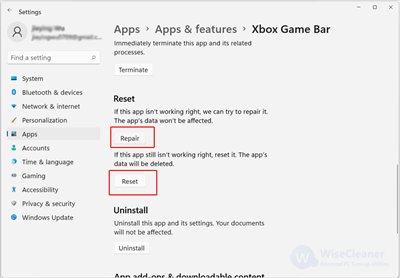
- Advanced Options: Click on the three dots next to the Xbox Game Bar entry and select “Advanced options”. In some Windows version you can directly click on the app name and the option will be displayed right away.
- Terminate the App: Look for the “Terminate” button and click on it. This will close the Xbox Game Bar.
- Reset the App (Optional but Recommended): Next, you will see “Reset” button, clicking on it will reset the settings of the app, including its data. This is a good step to ensure the app is functioning correctly and may resolve more persistent problems.
- Restart Xbox Game Bar: Now that you’ve terminated and reset the app, you can now re-open it. Press the Windows key + G at the same time and that should open Xbox Game Bar again.
By using the advanced options in Windows settings, you have more control over managing the Xbox Game Bar. This method is great for a clean start. Let’s proceed to the third method.
Method 3: Using the Xbox Console Companion App
Sometimes, the issues with the Xbox Game Bar might be linked to its companion app, the Xbox Console Companion app. Restarting the Xbox Console Companion can help refresh the connection between the two. Here’s how to do it:
Step-by-Step Instructions
- Open the Xbox Console Companion App: Click the Windows Start button and type “Xbox Console Companion”, and click on the result. You can also find the app in the list of applications.
- Sign In If Needed: You may need to sign in with your Microsoft account if you haven’t done so already. If you were already signed in, then you can move to the next step.
- Close the App: The easiest way to close it is to right click the app on the task bar and select “Close Windows” option. Alternatively, you can also close the app from the task manager as we have learned in the first method.
- Restart the App: Now re-open the Xbox Console Companion app, same as step 1.
- Restart Xbox Game Bar: Now that you have restarted the Xbox Console Companion app, you can now try re-opening the Xbox Game Bar by pressing the Windows key + G.
This method is particularly useful if you think there might be a connection problem between the two apps. Now, let’s move on to the next solution.
Method 4: Reinstalling the Xbox Game Bar
If all the previous methods fail, then there is a possibility that the Xbox Game Bar has some serious problem that cannot be solved by just simply restarting the application. Sometimes, reinstalling the application is the ultimate solution, this will clear any corrupted files associated with the game bar, and will give the game bar a fresh start. Here’s how to do it:
Step-by-Step Instructions
- Open Windows Settings: Same as the Method 2, open windows settings by clicking on the Windows Start button and then click on the gear icon, or by pressing Windows key + I.
- Go to Apps: Same as the Method 2, click on “Apps.” You may see different categories or section in the setting menu, but you need to find “Apps”.
- Find the Xbox Game Bar: Same as Method 2, you may see a list of all the apps installed on your system. On the Apps & Feature menu, use the search box, or scroll down the list of apps until you find “Xbox Game Bar”.
- Uninstall: Click on the three dots next to the Xbox Game Bar entry and select “Uninstall”. Then, you will be asked to confirm, select uninstall again.
- Reinstall the App: After uninstalling, you need to re-install the app. Open the Microsoft Store application by clicking on the Windows start button and then selecting the store application.
- Search for the Xbox Game Bar: Inside the Microsoft store application, search for “Xbox Game Bar” and click on the correct search result.
- Install the App: Click on “Install” and wait for the download and installation to complete.
- Restart Xbox Game Bar: Now that you have re-installed the app, you can now try re-opening the Xbox Game Bar by pressing the Windows key + G.
Reinstalling the Xbox Game Bar ensures a clean install, removing any possibly problematic files or configurations. Let’s look into our next method.
Method 5: Check for Windows Updates
Outdated system software can also cause problems with various apps, including the Xbox Game Bar. Checking for and installing Windows updates can resolve many issues and help keep your computer running smoothly, including the Xbox Game Bar. Here’s how:
Step-by-Step Instructions
- Open Windows Settings: Click on the Windows Start button and then click on the gear icon, or by pressing Windows key + I.
- Go to Update & Security: Click on “Update & Security”.
- Check for Updates: Click the “Check for updates” button. Windows will start looking for any available updates.
- Install Updates: If any updates are found, download and install them. You may need to restart your computer for the update to finish installing.
- Restart Xbox Game Bar: After installing the updates and restarting your computer (if required), try opening the Xbox Game Bar by pressing Windows key + G.
Keeping your Windows up to date not only fixes errors but also adds some cool new features. Now we will move on to the last method.
Method 6: Checking Xbox Game Bar Settings
Sometimes, the Game Bar might be disabled in settings, or its shortcut might be different. Double-checking the settings can help you identify these issues and fix them. Here’s how:
Step-by-Step Instructions
- Open Windows Settings: Click on the Windows Start button and then click on the gear icon, or by pressing Windows key + I.
- Go to Gaming Settings: Click on “Gaming”.
- Go to Xbox Game Bar Settings: On the left sidebar, click on “Xbox Game Bar”.
- Check if it’s Enabled: Check if the toggle switch under “Enable Xbox Game Bar” is set to “On”. If it’s off, slide the switch to “On”.
- Check the Shortcuts: Below the option for the enable Xbox Game Bar, there will be options to change the shortcut for opening the Game Bar. Make sure the shortcut is set to “Windows + G”, and if not, then click on the field and type the correct keys.
- Restart Xbox Game Bar: Now that you have ensured the settings are correct, try to open the Xbox Game Bar by pressing Windows + G.
By going through the settings, you can verify the Xbox Game Bar is enabled and properly configured. This will also allow you to customize the shortcut key, if needed.
Troubleshooting Tips for More Complex Issues
If you’re still having trouble after trying all these methods, don’t worry, here are some more in depth troubleshooting tips that can assist you:
- Check your graphics drivers: Outdated or corrupted graphics drivers can cause problems with Game Bar. You can update them through your graphics card manufacturer’s website (like NVIDIA, AMD or Intel).
- Close other background apps: Sometimes, other software can interfere with the Xbox Game Bar. Close unnecessary apps and try again.
- Run a system file check: The system file check utility can help you find and repair missing or corrupted files in your computer. To run the tool, open command prompt in administrative mode, and type in “sfc /scannow” and then press enter.
- Temporarily disable your antivirus or firewall: These can sometimes block the Game Bar. Disable them temporarily to see if that is causing the problem. Remember to re-enable them right after your check.
- Check if the Game Bar is not disabled by Group Policy: Group Policy in Windows can be configured to disable the Xbox Game Bar. If you are on your personal computer, it is unlikely that it is disabled through Group Policy, but if you are using a work computer, then it is something to check.
- Restart Your Computer: Sometimes just a simple restart of your computer can fix a variety of problems, including issues with the Xbox Game Bar.
These tips should help you isolate and fix the most complex issues. Remember to try each step methodically.
Restarting the Xbox Game Bar, while sometimes frustrating, is a fixable problem with the right tools and information. By using the different methods that we have explored together today, you can easily resolve any issue with your Xbox Game Bar. The key here is to be patient and try one thing at a time to make sure you can isolate the problem and fix it in the correct manner. By keeping your system up to date and understanding all the settings, you will minimize the chance of the Game Bar having issues again. With the right strategy, you will be back to gaming and enjoying all that the Xbox Game Bar has to offer in no time! And remember, if all else fails, there are a lot of support communities and forums where you can get help, so don’t be afraid to ask!
How to Reset the Xbox Game Bar to Default on Windows 10/11
Final Thoughts
To restart Xbox Game Bar, simply close it by right-clicking its icon in the system tray, then select ‘Close Window’. Alternatively, you can end the ‘Xbox Game Bar’ process in Task Manager.
After closing, relaunch it by pressing the Windows key + G. This action should reload the program. Understanding how to restart xbox game bar can resolve many common issues.

