
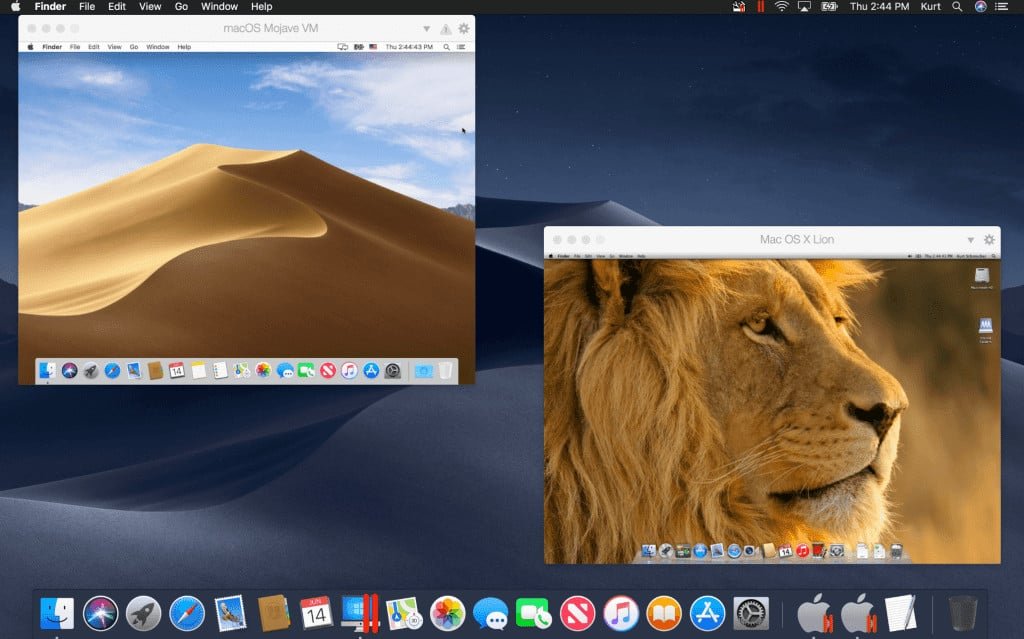
Unfortunately, macOS no longer natively supports 32-bit applications. You would need to use a virtual machine running an older macOS version or a compatibility layer like Wine to run 32-bit games on Mac.
Are you trying to play some of your old favorites on your Mac and find they won’t launch? It is a common issue since macOS dropped support for 32-bit applications. Many classic games are built on this architecture, presenting a challenge for modern Mac users.
This means that you’ll need to find a workaround if you want to play these titles. Don’t worry, there are solutions available. This article will guide you through the necessary steps to show you exactly how to run 32 bit games on mac.

How to Run 32-bit Games on Mac
Alright, so you’ve got this awesome old game, maybe something you loved playing as a kid, or a hidden gem you just picked up. But when you try to fire it up on your Mac, you get that dreaded message: it’s a 32-bit application and macOS doesn’t want to play nice anymore. It can be frustrating, but don’t give up on your gaming dreams just yet! Apple stopped supporting 32-bit applications with the release of macOS Catalina, which means all the games built on that older architecture just don’t run natively on the newer operating systems. Let’s dive into some ways you can still enjoy those classic games on your modern Mac.
Understanding the 32-bit Problem
Before we get into the solutions, let’s quickly understand why this is an issue. Think of it like this: computers speak different languages. 32-bit games were written using a set of instructions that older Macs understood. New Macs, especially those with macOS Catalina and later, use a more advanced “language” (64-bit). Imagine trying to read a book written in hieroglyphics when you only know the alphabet! Your computer just can’t understand the old game’s instructions. This change was for performance and security reasons, and although it benefits new applications, it does leave some of our cherished old games behind.
The Virtual Machine Solution: A Time Machine for Games
One of the most effective methods for playing 32-bit games on a Mac is by creating a virtual machine. What exactly is a virtual machine? Think of it as a computer within your computer. It allows you to run an older version of macOS that still supports 32-bit applications. It’s like having a time machine that takes you back to a compatible environment. We will use virtualization software like VirtualBox or Parallels Desktop to get the job done. Here is how you go about it:
Using VirtualBox (Free)
VirtualBox is a free and open-source option for creating virtual machines. Here is how you can use it to play your favorite 32-bit games:
- Download VirtualBox: Head over to the VirtualBox website and download the version that matches your operating system. Install it just like any other application.
- Find a macOS Install File: You will need a macOS installer from an older version of macOS like Mojave, which still supports 32-bit applications. You can find these files online or if you have an older Mac lying around you can try extracting the install file from that. Make sure that you trust the source before downloading the installer.
- Create a New Virtual Machine: Open VirtualBox and create a new virtual machine. Choose macOS as your operating system and assign enough resources for the VM. Generally, 4GB of RAM and 20-40GB of storage should be enough for running your game.
- Install macOS: Boot the virtual machine from the macOS installer you downloaded. The installation process is pretty much the same as installing on a real Mac. Follow the on-screen prompts.
- Install Your Game: After the VM has installed the older version of macOS, install your 32-bit game within this virtual environment. You may need to copy the installer from your main system over to your virtual machine.
- Enjoy! Run your game inside the VM. You might need to make sure that graphics drivers are configured correctly.
While VirtualBox is free, it can be a bit complex for less tech-savvy users. It also may not provide the best performance depending on your Mac’s hardware and game requirements. But it’s a great starting point for those who want a free solution.
Using Parallels Desktop (Paid)
Parallels Desktop is a commercial virtualization software and is a more user-friendly option. It typically offers better performance and easier setup compared to VirtualBox, but it comes with a cost. If you are looking for a smoother and simpler experience, it might be a worthwhile investment. Here’s how it generally works:
- Purchase and Install Parallels: Download a free trial or purchase Parallels Desktop from their website. Installation is straightforward.
- Create a New VM: Parallels usually has a user-friendly wizard to walk you through creating a new virtual machine. Select macOS as your OS and choose your installer file.
- Install the Older macOS: The software will install the older macOS version into the virtual machine.
- Install and Play Your Game: Once the VM is ready, install your 32-bit game inside it and begin playing.
Parallels Desktop is known for its great integration and performance. It also provides tools to easily copy files between your host system and virtual machine. If you don’t want to spend time fiddling around with advanced options and settings, this is the simpler option. However, remember that it’s a paid program, so make sure it fits your budget.
Using Wine to Run 32-bit Games
Wine is a compatibility layer. It is free, open-source software that lets you run Windows applications on macOS and Linux without the need for a Windows operating system. While the primary purpose of Wine is running Windows software, with some work, some of your 32-bit Mac games will work in Wine as well. Think of it like a translator for software. However, note that not every 32-bit Mac game will run successfully using Wine.
How to Use Wine to Run Games
Here are the steps to get started with Wine for playing your 32-bit games:
- Download Wine: Head to the Wine website and get the version of Wine that is compatible with your Mac operating system. Install it using the instructions provided. You may want to consider using a Wine manager like WineBottler, Crossover or PlayOnMac. These tools make it easier to use Wine.
- Set up a “Prefix”: Wine uses a “prefix,” which acts like a separate Windows environment. You will have to create a separate prefix for your 32-bit games.
- Install the Game: Use Wine to run the game’s installer and install the game into the prefix.
- Configure as Necessary: Some games might require some manual tweaks such as installing other software or changing settings. Check online resources and forums for specific solutions for each game.
- Run Your Game: After the installation and configurations are complete, run the game using Wine.
Wine can be a very powerful tool, but it also can be quite complicated. Compatibility can vary dramatically from game to game, and you might need to do some research and tweaking to get things running correctly. But this free option is definitely worth investigating if you don’t want to set up virtual machines.
Game Porting: The Hope for Official Support
Sometimes, if enough people want a particular game to run on modern Macs, the developers might actually create a new version called a port. This involves rewriting the game so it’s compatible with 64-bit architecture. While it’s not something you can personally do, keeping an eye out for updates from game developers is important.
Checking for Updates
- Developer Websites: Keep an eye on the official game developer’s websites and news forums for any announcements about a possible 64-bit port.
- Gaming News Outlets: Look for news about game ports on gaming websites.
- Online Communities: Stay active in online communities and forums dedicated to older games.
This isn’t a guaranteed solution, but it is something worth keeping an eye out for. If the game has a dedicated fan base, there is a higher likelihood of it receiving support in the future. Sometimes developers might partner with companies like Aspyr Media who specialize in porting older games to new platforms.
Dual Booting: An Older Solution
Dual booting allows you to have two operating systems installed on your Mac and you can switch between them when you boot your computer. It might seem a bit complex, but it is an option. For example, you could install an older version of macOS (like Mojave) on a separate partition on your hard drive. This lets you boot your computer into the old system, where you could run your 32-bit games. Here’s how this usually works:
How to Set up Dual Booting
Setting up dual booting is a bit more involved, so only try this if you are comfortable with some of the technical steps:
- Back up Everything: Before you make changes to your hard drive, create a full backup of all your files to an external drive.
- Partition your Hard Drive: You need to create a new section or “partition” of your hard drive for the old macOS version. You can do this with Disk Utility.
- Install the Older macOS: Boot your Mac from the USB drive where you have an older macOS version installer, select the newly created partition, and install that version.
- Switch Between Systems: When you start your Mac, you can choose which operating system to load. You will select the older one when you want to play your 32-bit games.
Dual booting will allow for native game performance. However, it also requires a bit of tech skills. You will also have to restart your computer and switch operating systems each time you want to play a game. It can be a cumbersome process, but it is an option that can work, if you know how to use it. Always back up your system before making changes like these. It is also possible that this is not recommended for most users because it is not very user friendly.
Compatibility Considerations for Old Games
It’s not just about 32-bit vs. 64-bit. Some older games might have other compatibility problems even if you manage to get them running. Here’s what you should keep in mind:
- Graphics Compatibility: Your newer Mac’s graphics card might not perfectly match the needs of an older game, resulting in glitches, crashes, or incorrect graphics.
- Sound Issues: Some games may not work well with modern sound drivers.
- Resolution and Display Problems: Older games were often designed for older screen resolutions and can display stretched or improperly scaled images on newer displays.
- Input Problems: Older games may not recognize or function properly with modern mice, keyboards, or game controllers.
You might need to do some trial and error and look for specific compatibility tips online. Often, players have faced these kinds of issues before and have posted how to solve them in forums and message boards.
Finding the Game Files
Another step to consider is obtaining your game files. If you have the original CDs or DVDs, then you are all set, and you can copy the files to where they need to be. If, however, the game is only available through digital downloads, you might have to rely on different websites.
Purchasing and Downloading
- GOG.com: GOG (Good Old Games) is a website specializing in selling older games. The games are often configured for modern operating systems, and sometimes a version that will be compatible with MacOS. It is a good resource for getting older games in a safe, legal way.
- Other Reputable Websites: Some other websites sell older games and it is important to ensure you are downloading from a reputable source to avoid malicious software or viruses.
If you cannot find a game from reputable sources, it may be necessary to use methods that are more questionable, for example, from game abandonware sites. Remember to always be aware of where you are getting your files from. You should always be careful to only download files from sites that you trust.
Troubleshooting Tips
Running older games on a modern machine can be tricky. It’s not always smooth sailing, and you may run into some common errors. Here is a quick troubleshooting guide that can help:
Common Issues and Solutions
- Game crashes: Sometimes the game might crash due to incompatibility. Make sure your system and virtual machine or Wine setup has enough resources. Check the game’s forums for any known issues and workarounds.
- Graphics problems: If you get graphical glitches, try adjusting your virtual machine’s graphic card configuration. You can also try changing the game’s settings or the graphics drivers inside the virtual machine.
- Sound problems: Verify that sound output devices are set up correctly in your virtual machine or Wine settings. You might also need to try installing some third-party sound drivers.
- Game not launching: If a game won’t start at all, double check all of the configuration settings, read any online support materials and forums, or try different configurations.
The specific steps to resolve these issues can vary, so you need to be patient and try all the different options to get things working the way they are supposed to.
Playing 32-bit games on a modern Mac takes a bit of effort, but the enjoyment of playing these classic games makes it worthwhile. Whether you are a fan of old school gaming or just curious to check out what old games were like, it is absolutely achievable. Using virtual machines or Wine, and sometimes even with some configuration, you can still have those gaming experiences that you remember. Always ensure you use legal methods to obtain the games you want to play, and be careful with the websites you visit. With a bit of work and patience, you can get all those old classic games up and running on your new machine.
How to play 32-Bit / Unsupported Steam Games on Mac OS Catalina | Easiest Method
Final Thoughts
To play older 32-bit games on modern macOS, you’ll need a workaround. The primary solution is using virtualization software like Parallels or VMware. These tools let you run an older macOS version within your current system, which still supports 32-bit applications.
You must install the game inside the virtualized environment. This lets you bypass the compatibility issues of modern macOS. This method is effective, though it does require some setup and resources. Therefore, how to run 32 bit games on mac depends on setting up this virtual system.

