
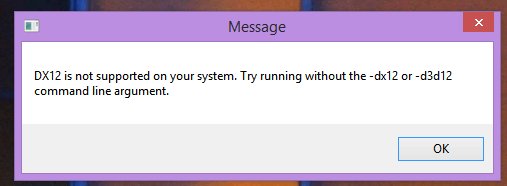
Games that lack direct support for DirectX 12 may run using older DirectX versions like 11 or even 9, often through emulation or compatibility layers.
Struggling to get your favorite game running because it demands DirectX 12, but your system doesn’t quite support it? Many older titles and even some newer ones can still work, though it requires a bit of effort. Understanding how to run a game without dx12 opens up a world of gaming possibilities.
You might need to use specific compatibility settings within Windows or rely on third-party software that can mimic the necessary environment. These workarounds aren’t perfect, but can often provide a playable experience.

How to Run a Game Without DirectX 12
DirectX 12 (often called DX12) is a special set of instructions that helps your computer’s video card and games work together smoothly. It’s like a super-fast translator that lets games look their best and run quickly. But what if a game doesn’t use DX12, or what if your computer can’t handle it? Don’t worry, there are ways to play those games too! This article will explore different methods to run games without relying on DirectX 12. We’ll cover older versions of DirectX, using special wrappers, and even tweaking your game settings.
Understanding DirectX and Its Different Versions
Before we dive into how to bypass DirectX 12, let’s talk about what DirectX actually is. Think of it as a bridge between your computer’s hardware (like your video card) and the software (like the games you play). It allows these parts to communicate effectively, ensuring the game runs properly and looks good. There are many versions of DirectX, and games are often built to use a specific one.
The Evolution of DirectX
DirectX has been around for a long time, and it has improved quite a bit over the years. Here’s a quick rundown of some important versions:
- DirectX 9: This was a very common version for many years, and you still find older games that use it.
- DirectX 10 and 10.1: These versions brought some improvements, but they weren’t as widely used as others.
- DirectX 11: This was a significant upgrade and was the standard for many games before DirectX 12 became popular.
- DirectX 11.1 and 11.2: Minor iterative improvements over the standard DirectX 11.
- DirectX 12: The newest version, offering the best performance and features, but not all games use it yet.
Many games are still developed with DirectX 11 in mind due to its wide support and stable nature. Sometimes, game developers will offer the option to choose between DX11 or DX12. However, if your game only supports DX12 or your PC can’t run it, we need other options. Let’s explore them.
Why Games Might Not Use DirectX 12
You might wonder why a game wouldn’t use the latest technology like DirectX 12. Here are a few reasons:
- Older Games: Games created years ago were made for older versions of DirectX. They would require a lot of work to update to DX12.
- Hardware Compatibility: Some older computers and video cards may not be able to handle DirectX 12, making it hard to make the game work for everyone.
- Development Time and Cost: Adding support for a new version of DirectX takes time and money, so developers may choose to stick with what’s easiest for their project.
- Game Engine Limitation: Some game engines are built around older DirectX versions, and they might not be easily changed to DX12.
- Developer Choice: Sometimes, a developer might feel that DirectX 11 or other options offer a good balance between performance and compatibility, even though DX12 is out.
Understanding these reasons can help you know why you sometimes encounter a game that doesn’t support DX12.
Running Games with Older DirectX Versions
The most common way to play games without DX12 is by using older versions of DirectX. Many games that don’t specifically require DX12 will still run with DX11 or even DX9. Here’s how you might approach this:
Checking the Game’s Requirements
Before trying anything, make sure you know what DirectX version your game needs. You can usually find this in the game’s system requirements, either on the game’s box, on its store page, or a support website. Look for words like “DirectX 11,” “DirectX 9,” or “DirectX 12.”
If your game’s system requirements say it needs a version lower than DX12, it will likely work fine without any adjustments, assuming that your operating system and video card support the required DX version. If you have Windows 10 or 11, you probably already have DirectX 12, but it will also support older versions too. However, sometimes even if the game can use DX12, it may also have a switch within the game’s graphical options that lets you force the game to use DirectX 11, for example.
Finding the Option to Select a Different DirectX Version in Games
Many games that support multiple versions of DirectX will give you an option to select your version. This setting might be found:
- In the Game’s Options Menu: Look for graphics or video settings, where you may see a drop-down menu or radio buttons to choose the API (like DX11 or DX12).
- In a Launcher: Some games have a launcher program that appears before the game starts. This program may include settings that will let you specify a DirectX version.
- In a Configuration File: Some games let you edit configuration files (usually plain text). You could manually change the game’s settings in these files if other options aren’t available.
Here’s an example of what you might find in a game’s settings:
Graphical Options:
Graphics API: [Dropdown Menu]
Options: DirectX 11, DirectX 12, Vulkan
In this case, if you are having problems with DirectX 12, selecting DirectX 11 is an easy fix.
Using DirectX Wrappers
Sometimes, games might not have a built-in way to switch between DirectX versions, or you might have a game that absolutely requires an older version and you don’t have it on your system. In these situations, you might be able to use something called a DirectX wrapper. These are programs that pretend to be a specific version of DirectX, even if your system doesn’t have that version installed or the game needs an old version.
How DirectX Wrappers Work
A DirectX wrapper acts as a translator or middleware between the game and your graphics card. It accepts the game’s calls for a specific DirectX version, and converts it to a compatible format that the installed version of DirectX on your system can use. This can sometimes allow old games to run on newer systems and also provide flexibility to some games that were specifically built for DirectX 12.
Common Types of DirectX Wrappers
Here are some examples of DirectX wrappers:
- D3D9 Wrapper: This is used to make games that require DirectX 9 run on systems that only have later DirectX versions. Sometimes the opposite is true, and a wrapper can convert DX9 calls into DX11 or DX12.
- DXVK: This is a special wrapper that translates DirectX 9, 10, and 11 calls into Vulkan (another graphics API). It is generally used on Linux systems running Windows games using compatibility layers like Wine, but there are rare situations where this can help with Windows-only problems.
- dgVoodoo2: Another very popular wrapper mainly used to translate older DirectX (and even Glide) calls to DX11 and DX12. This wrapper is a very popular option for many gamers, and can be particularly useful for very old titles that use outdated graphics technology.
How to Use a DirectX Wrapper
Here’s a general idea of how to use one:
- Find a wrapper: Look online for a wrapper that is compatible with your game and your system. Make sure to download it from a trusted source.
- Download the Files: Download the ZIP archive and extract the required files to a safe location on your computer.
- Copy the Wrapper Files: Take the files for your specific game from the folder and copy them into the game’s install directory. This is usually the place where the .exe file that runs the game is located.
- Run the Game: Run the game as normal. The wrapper should now take over the DirectX calls.
It’s very important to remember that using wrappers can sometimes cause problems, so always keep backups of the game and be sure to download files from safe locations to avoid viruses or malware.
Tweaking Game Settings
Sometimes, the problems you face aren’t because of a game using a specific version of DirectX but due to the hardware not being able to handle the game. If a game isn’t running smoothly, you might want to try adjusting its settings. Here’s how:
Reducing Graphics Settings
Often, reducing the graphics settings can help a game run more smoothly and use the DirectX 11 (or older) functionality. These options are usually located in the game’s settings menu under graphics. Some settings that are good to try changing are:
- Resolution: Lowering the resolution makes the game less demanding for your video card.
- Texture Quality: Setting texture quality to a lower option can help with performance.
- Shadows: Turning off or reducing the quality of shadows can improve the frame rate.
- Anti-Aliasing: Turning anti-aliasing off or lowering the setting will also boost the performance.
- Effects: Turning down visual effects like bloom or motion blur will also help
Experiment with different settings to find a good balance between performance and visual quality.
Updating Your Video Card Drivers
Sometimes, the latest game won’t run very well because you have old driver software for your video card. Drivers are like little helpers that let your video card and games work together well. It is really good to make sure you always have the newest drivers from NVIDIA, AMD, or Intel. Usually they can be downloaded from their websites. Older video card drivers can cause games to not run correctly or even crash, and this can sometimes make it look like there’s a DirectX problem.
Updating Windows and DirectX
Although we are talking about running games without DirectX 12, keeping Windows updated can still be very helpful. In Windows, you will find the option to check for updates in the Settings App. It’s very important to install the updates because these can include important security fixes, performance improvements, and updates to DirectX libraries. Windows also installs the latest versions of DirectX in the background when you update, so keeping up to date ensures you have the best chance of a game working as smoothly as possible, even if the game is not using DirectX 12 directly.
Troubleshooting Common Issues
Even with all these tips, sometimes games might still have problems. Here are some things to check:
- Game Crashes: If your game crashes often, make sure your video drivers are up to date. Also, try lowering your game’s graphics settings.
- Slow Performance: If the game runs slowly, try lowering the resolution and other graphics settings. Closing other programs can also help.
- Error Messages: If you get error messages, write down exactly what they say and search online for solutions. There are many websites that deal with these specific issues, and they might even provide specific fixes.
- Missing DLL files: Sometimes games can fail to start or produce an error message due to files missing. In this case, you can usually use the search function of the internet to find the specific missing DLL, and copy it to the game folder or the Windows “System32” directory.
Remember, some games might not work perfectly without DirectX 12 because they were not made to work that way. It’s always good to test and try different solutions and use common sense to resolve the problems.
Running a game without DirectX 12 can seem tricky, but with the right knowledge, it’s manageable. Whether you’re using an older version of DirectX, a special wrapper, or tweaking your game’s settings, there are always ways to get your games to work. Remember to always check the game’s requirements and make sure to update your drivers. By following these steps, you can enjoy your games regardless of whether they use DX12 or not. Good luck, and have fun playing!
How to fix DX12 for all games | Quick Guide
Final Thoughts
To run a game without DX12, you often need to find launch options or configuration files. For older games, this means looking for an option to force DirectX 11 or even older versions. Sometimes, compatibility modes within Windows will do the trick.
The specific steps vary game by game, so research based on the game title is essential. You might also consider using a third-party launcher to manage graphics settings more granularly. This method shows how to run a game without dx12 when a game isn’t working correctly.

