
To run iso games, you’ll typically need an emulator compatible with the game’s console, then load the ISO file into the emulator.
Ever stumbled upon an old game in ISO format and wondered how to play it? It can feel a bit confusing at first. You might have the files, but getting them running takes a couple of steps.
This guide explains the process for those curious about how to run iso games. We will clarify everything. Soon you’ll be diving into classic gaming.

How to Run ISO Games: A Complete Guide
So, you’ve got an ISO game file and you’re ready to dive into some gaming fun! But what exactly is an ISO, and how do you get it running? Don’t worry, it’s not as complicated as it might sound. Think of an ISO file like a digital copy of a game disc, all packed up into one file. This guide will walk you through everything you need to know, from understanding what ISO files are to playing your games on different devices.
Understanding ISO Files
Before we get into running those games, let’s talk a little about what an ISO file actually is. Imagine you have a physical game disc, like a CD or DVD. An ISO file is basically a perfect copy of all the data on that disc, saved as a single file. It includes all the game data, folders, and everything else that makes the game work. It’s like taking a snapshot of the entire disc. People use ISO files to back up their games, share them digitally, and play games without needing the original disc. This is handy because it prevents wear and tear on the original disc and makes it easier to organize games.
Why Use ISO Files?
- Convenience: You don’t need the actual disc to play the game.
- Backup: You can keep a digital backup of your games.
- Sharing: Easier to share games with others (while adhering to copyright laws, of course).
- Disc Preservation: Your original game discs stay safe from scratches and damage.
Now that you know what an ISO file is, let’s talk about how to run them.
Running ISO Games on a Computer
Playing ISO games on your computer is quite common and straightforward once you know the steps. There are a couple of ways to do it, depending on what type of game it is and what you’re comfortable using.
Using Disc Emulation Software
Disc emulation software is like a virtual CD or DVD drive that your computer recognizes as a real disc drive. It reads your ISO file as if it were the game disc itself. This is one of the most common ways to run ISO games. Here’s how:
Step 1: Download and Install Emulation Software
First, you’ll need to download and install a disc emulation program. Some popular options include:
- Daemon Tools Lite: A very popular, free tool with good features.
- Alcohol 120%: A powerful tool, with a free trial but it is a paid software
- PowerISO: Another powerful tool with a free trial and later can be purchased.
Go to the website of your chosen software and follow the instructions to download and install it on your computer.
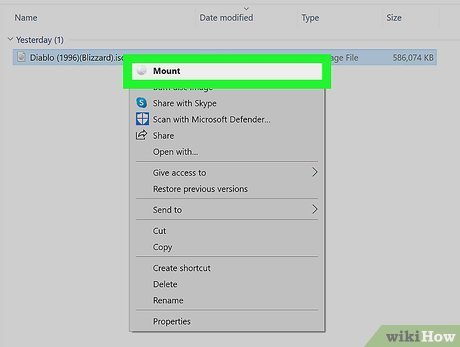
Step 2: Mount the ISO File
Once your emulation software is installed, you need to “mount” the ISO file. This tells the software to act like the ISO is a real disc in your virtual drive.
- Open your emulation software.
- Find the option to “Mount,” “Add Image,” or something similar.
- Browse to the location where you saved your ISO file and select it.
- The software will create a virtual disc drive, and the ISO will now be loaded.
Step 3: Run the Game
Now, your computer thinks there’s a real game disc in a drive. Just go to “My Computer,” “This PC,” or “File Explorer” and find the new virtual drive created by your emulator. Open it like any other drive, and you will see the game files and should find the setup or game executable (.exe) file and run the game.
Using Virtual Machines
Virtual machines (VMs) are programs that allow you to run an entire operating system inside of your current operating system. If you have an old game that doesn’t work on your newer computer, this is a great way to get it working.
Step 1: Install Virtual Machine Software
Some popular virtual machine software include:
- VirtualBox: Free and easy to use.
- VMware Workstation Player: A free version of VMware with advanced features.
Download and install one of these on your system.
Step 2: Create a New Virtual Machine
Open your VM software and create a new virtual machine. You’ll need to:
- Choose the operating system (OS) your game needs (e.g., Windows XP for an old game).
- Set the amount of memory (RAM) and disk space for the virtual machine.
- Create a virtual hard drive.
Step 3: Install the OS
Next, you’ll need to install the operating system within your virtual machine. You’ll typically need an ISO of the operating system or installation CD, for Windows, Linux, etc. follow the on-screen prompts to install it on the virtual machine. Once done with it, update it if necessary.
Step 4: Install the Game
Finally, once the OS is working, you can mount your game’s ISO file to a virtual drive (like using emulation software, see above) inside the virtual machine and install the game. Then, you can run the game from within the virtual machine as normal.
Running ISO Games on Gaming Consoles
Running ISO games on gaming consoles is a bit different than on a computer. It often involves “homebrewing” or modding the console, which allows you to run unauthorized software, including ISO games. The process is different for each console, and it can be a bit complex and carry risks.
Nintendo Consoles
Nintendo Wii
To run ISO games on the Nintendo Wii, you usually need to:
- Install the Homebrew Channel: This gives you access to homebrew applications.
- Install a USB Loader: This allows you to load ISO games from a USB drive.
- Format an external drive: You need an external hard drive that is formatted to be compatible with your Wii.
The installation process can be complex, and you need to be very careful to avoid damaging your console. There are many online tutorials, make sure you follow them step by step if you are a beginner.
Nintendo Switch
The Nintendo Switch also supports homebrew, although it’s more complicated. It generally involves:
- Hacking the Console: Using exploits or a modchip to allow custom software.
- Installing Custom Firmware: This lets you run unofficial software.
- Installing ISO loaders: Applications that can read ISO games files stored on an SD card.
Switch hacking is very complex and carries risks such as system damage or console bans by Nintendo. Only proceed if you are aware of the risks.
PlayStation Consoles
PlayStation 2
Running ISO games on a PlayStation 2 typically involves:
- Modding the Console: This includes using modchips or custom software loaders like FreeMcBoot.
- Loading games from a USB drive or hard drive: Storing the game ISO files.
PS2 modding is very common and many tutorials are available online. You may require to purchase some additional hardware like modchip or a memory card with the custom software.
PlayStation 3
PS3 ISO games can be run using custom firmware. This can be done by:
- Installing Custom Firmware (CFW): Replacing the official firmware with one that supports homebrew.
- Using a Multi-Man or other managers: Applications to load and manage ISO files.
PS3 modification can be risky and may carry the risk of system damage or bans from PlayStation Network. You should only proceed if you understand the risks involved.
Xbox Consoles
Original Xbox
Running ISO games on the original Xbox requires:
- Modifying the Console: This typically involves using a modchip or software exploit.
- Loading ISOs from a hard drive: Storing the game ISO files on an internal hard drive.
The original Xbox has a robust homebrew community. There are many tutorials to follow to help you with installing software, such as CoinOps.
Xbox 360
For Xbox 360, you might need to:
- Install Custom Firmware (CFW) or use a Reset Glitch Hack (RGH): This lets you run custom software.
- Use a game manager: Load ISO files from a USB drive.
The process is similar to the PS3. You will require a modified console and need to be careful not to damage the console.
Ethical Considerations and Legal Aspects
It’s important to keep in mind the legal and ethical aspects of using ISO games. Creating and using ISO backups of games you own is typically considered fine, as long as you have a license for the game. However, sharing or downloading ISO files of games you do not own is generally illegal and could lead to legal issues. It’s always best to buy your games and use ISO files only for your personal backups. Support game developers by purchasing their titles and enjoy your gaming.
Troubleshooting Common Issues
Sometimes you might run into problems when trying to run ISO games. Here are some common issues and how to fix them:
Game Doesn’t Run or Crashes
- Compatibility Issues: Make sure your computer or virtual machine meets the system requirements of the game.
- Outdated Software: Ensure your emulation software or virtual machine is up to date.
- Corrupted ISO File: Try redownloading the ISO file to ensure it’s not damaged.
- Graphics Drivers: Update your computer’s graphics drivers.
Emulation Software Problems
- Software Conflict: Turn off other programs that are running and see if they are the cause.
- Missing Files: Make sure you have all the necessary files in your program folder.
- Reinstall: Try uninstalling and then reinstalling the program.
Virtual Machine Problems
- Insufficient Resources: Make sure your computer has enough RAM, CPU power, and storage for the VM.
- Incorrect Configuration: Go through the configuration settings to make sure everything is correct.
- VM Software Issues: Ensure your VM software is working properly and it has all needed drivers.
When using emulators, you may see graphical glitches, slowdown, or other minor problems; often these are due to emulation being an imperfect representation of the original system. Experimenting with different emulation settings may help, but in some cases there is no perfect fix.
Running ISO games can seem complicated at first, but it’s really just a process of understanding how they work and using the right tools. By following this guide, you’ll be able to enjoy your games on a variety of platforms, whether it’s on your computer or a gaming console.
How To Install and play .iso games on a Windows PC
Final Thoughts
To play ISO games, you generally need an emulator appropriate for the console the game belongs to. You load the ISO file through the emulator. The emulator then interprets the game data.
Correct configuration of the emulator is must for proper gameplay, like graphics and controller settings. Make sure you have the legal right to use the ISO files before running them. Following these steps helps you to run iso games.

