
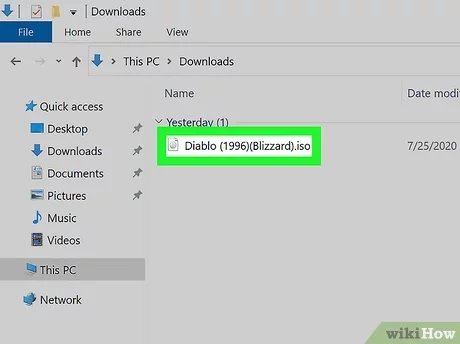
To run PC ISO games, you need to mount the ISO file using a virtual drive software, then install and play the game as usual.
Ever found yourself with a game in ISO format and wondered how to get it going? It’s a common question, and the good news is, it’s simpler than you might think. This article will quickly guide you on how to run PC ISO games, without any hassle.
We’ll cover the basics, like needing software to emulate a disk drive. Then, you’ll see how to actually get your game up and running. Let’s jump straight into it and get you playing.

How to Run PC ISO Games
Okay, so you’ve got a PC game in an ISO file, and you’re itching to play it. But, how exactly do you get it going? It’s not like popping a disc into a drive. Don’t worry; it’s actually pretty simple once you know the steps. Think of an ISO file like a digital copy of a game disc. It holds all the game’s data, ready to be used. We’ll walk through the process step-by-step so you can get back to gaming in no time. Let’s get started!
Understanding ISO Files
Before we dive into running the game, it’s useful to understand what an ISO file actually is. Imagine you have a CD or a DVD – that’s like a physical container holding the game. An ISO file is like taking a perfect picture of that disc; it’s a digital snapshot. It contains all the data on the disc, including the game files, and it’s stored as a single file. These files often end with the extension “.iso.” They’re commonly used for backing up game discs, sharing games online (though you should always own a legal copy!), and installing older games without having to use the original disc.
Tools You’ll Need
To run your ISO game, you will need a few key tools. These tools are basically software programs that help your computer understand and use the ISO file. Think of them as translators that help your PC read the game files stored in the ISO. Let’s look at them:
- Disk Image Mounting Software: This is perhaps the most important tool you’ll need. Disk image mounting software makes your computer think that the ISO file is an actual disc inserted into your disc drive. It creates a virtual disc drive that “holds” your ISO game. Popular options include:
- Daemon Tools Lite: This is a widely used, free program. It works well and is easy to understand.
- PowerISO: This is another popular option that offers both a free trial and a paid version with more advanced features.
- WinCDEmu: A simpler, lightweight option that is also free to use.
- Virtual CloneDrive: A free tool known for its speed and simplicity.
- Game Installation Files: Inside the mounted ISO, there will usually be game installation files (like setup.exe). This is how you start the game installation.
These programs are easily found online, just be sure to download them from the official websites. Download from trusted sources to avoid unwanted software or viruses.
Mounting the ISO File
Alright, you have your disk image mounting software now, it’s time to get that ISO game ready! Here is how to do it step-by-step:
- Install Your chosen mounting software: Run the setup file for the software (like Daemon Tools Lite or PowerISO), and follow the on-screen prompts. It’s like installing any other program. Be sure to pay attention during installation to avoid installing any unwanted software that may be offered.
- Open the mounting program: Once installed, launch the disk image mounting program. The program window will usually appear showing any mounted drives or an option to add/mount a new ISO image.
- Select your ISO file: In your mounting software, there will be an option to ‘Mount,’ ‘Add,’ or ‘Open’ an image file. Choose this option, then navigate to where your ISO file is stored on your computer. Select it and confirm your selection.
- Observe the Virtual Drive: After selecting the ISO, the software will create a virtual disc drive. This drive will appear in ‘This PC’ or ‘My Computer’ just like a real disc drive with a disc inserted. You’ll notice that the name of the drive might change to represent the game you mounted, for example it can be name as “Game Name (E:).”
If you don’t see any new drive in “This PC” after mounting it, you can double check if the mounting software shows a mounted drive. if it does, then there might be a drive letter conflict with other drives already connected to your pc. change the drive letter from the software option or from Disk Management.
Congratulations! Your ISO game is now virtually mounted, and your computer thinks the game disc is right there in your disc drive.
Installing the Game
With your ISO file mounted as a virtual disc, we’re ready to install the game itself. This part is very similar to installing a game from a real disc. This can be also considered as part of the general procedure for ‘how to run pc iso games’, so follow these steps:
- Open the Virtual Drive: Go to ‘This PC’ or ‘My Computer’ and find the virtual disc drive created by your mounting program. Double-click on it to open it.
- Find the setup or install file: Inside the virtual drive you’ll see files and folders just like if it were a real disc. Look for a file that’s called setup.exe, install.exe, or something similar. Sometimes it can also be found in a folder named “setup” or “install”.
- Start the installer: Double click on the setup file to start the installation process.
- Follow the on-screen instructions: The game’s installer will guide you through the installation process. This process is very similar to the way you install any other software. It might ask you about the installation folder, what components you want to install, and other preferences.
- Complete the installation: Once the installer is done, it should tell you that the installation is complete. There might be options to launch the game directly, or you might need to find the game on your start menu or desktop.
Sometimes, you might be required to install additional files or components for the game to run correctly, like DirectX or Visual C++ Redistributable. The installer normally takes care of it, and if not the game usually provides all necessary files for the install. If you get error during the install, read the error carefully for what file or dll is missing. then search the missing file name on internet and install it separately.
Running the Game
Now that your game is installed, let’s get to the fun part – actually playing it! Here’s what to do:
- Find the Game Shortcut: Usually, the installer will create a game shortcut on your desktop or in your start menu. Look for it there.
- Launch the Game: Double click on the shortcut to start the game.
- Configure the Game Settings: When you start a game for the first time, you might want to take a look at its setting, adjust its graphic setting as per your pc performance and adjust sound and control settings to your liking.
That’s it! If everything went well, your game should now be running smoothly. Congratulations! You now know how to run PC ISO games.
Troubleshooting
Sometimes, things might not go exactly as planned. You might run into a few problems when trying to run your PC ISO game. Here are some common issues and what to do about them:
Game Doesn’t Start
If your game doesn’t start or you receive an error message after launching it, try these solutions:
- Run as Administrator: Sometimes, games need special permission to run correctly. Right-click on the game shortcut and select “Run as administrator”. This gives the game the required administrative rights.
- Compatibility Mode: Older games may not work correctly with newer versions of Windows. Right-click on the game shortcut, go to “Properties,” and then to the “Compatibility” tab. From here, you can choose an older version of Windows (like Windows 7 or XP) to run the game in compatibility mode.
- Check System Requirements: It is always best to check system requirement of the game before installation. Make sure your computer meets the minimum requirements for the game. If your computer is not powerful enough, the game will not run properly or at all.
- Reinstall the game: Some times, due to some unknown reason, files may be corrupted or installation process failed to install some important file. Reinstalling the game can solve this issue in most cases.
Installation Errors
If you get errors during the installation process, check these things:
- Check the ISO: Make sure you have a complete and not damaged ISO file. Corrupted or bad ISO will give you error. You can verify the ISO file using hash verification tools that come with the game. If that’s not available re-download the ISO file from reliable source and compare the size of the file with others.
- Disk Space: Make sure that you have enough space on your hard drive. Games need space for both installation and running smoothly. Check system requirement to see how much space a game requires.
- Anti-virus: Sometimes, anti-virus programs can interfere with installation. Temporarily disable your anti-virus during install, and enable it back after the installation. Always do this at your own risk if you have doubt about the game source.
Sound and Graphics Problems
Having trouble with sound or graphics? Try these:
- Update Drivers: Make sure your video and sound drivers are up to date. Old or missing drivers will often cause problems. You can find the latest driver for your graphic card from their manufacturers website, like from Nvidia, AMD or Intel. You can update the sound driver from device manager in the Windows OS.
- Game Settings: Adjust the game’s sound and graphics settings from the in-game menu. Lowering the graphic setting might help in increasing performance and help resolving some visual issues.
- DirectX Version: Ensure that the game is compatible with the version of DirectX installed on your computer. Sometimes game installs the correct DirectX version during game install, but sometimes you might need to manually install it for the game to work properly.
Important Notes About Game ISOs
Before we end, let’s keep a few important things in mind:
- Legality: Make sure you own a legal copy of any game you’re running from an ISO. Downloading or sharing pirated games is against the law. Make sure to only mount game backups which you already own.
- Reputable Sources: When getting game ISOs, be sure to download them from trusted sources. Downloading them from unknown sites can expose you to malware or viruses. Only use trusted forums or groups to get the games.
- Virtual Drives and Conflicts: Some times the virtual disc mounting software can conflict with other programs, be sure to unmount the disc and close the software if you are not using them. Also, some mounting programs can interfere with physical drives if they are not set up properly.
Running PC ISO games might seem complex at first but with the correct tools and following the step by step instructions, it’s actually straightforward. With this guide, you can now confidently mount, install, and play your favorite games. Remember to always get your games from legal sources and have fun gaming!
How To Install and play .iso games on a Windows PC
Final Thoughts
To run PC ISO games, mount the ISO image using software like Daemon Tools. Then, navigate to the mounted drive and begin the game’s installation. This will often require a valid CD-key, if needed.
After installation, you might need a crack or a specific patch to play without the original disc. How to run pc iso games involves understanding this additional step to bypass copy protection. Ensure you download from reputable sources.

