
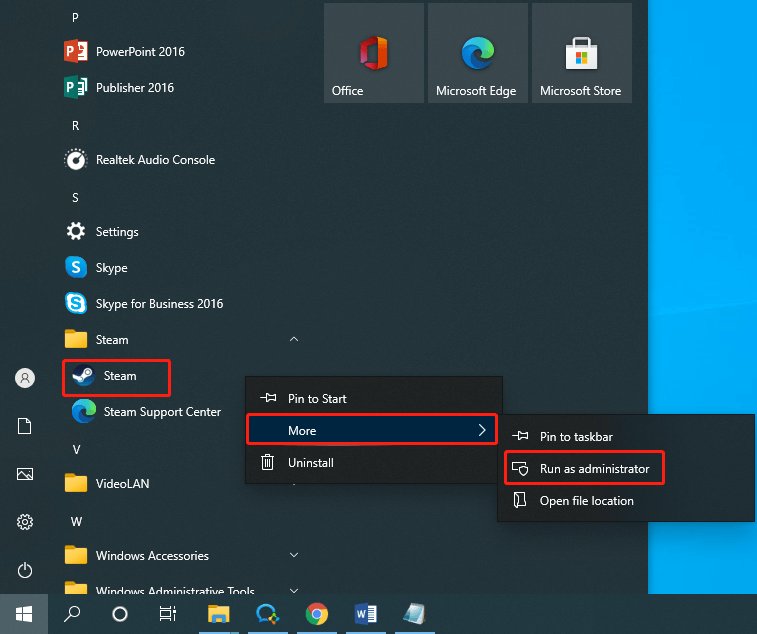
To run a Steam game as administrator, right-click the game’s executable file (.exe) and select “Run as administrator.”
Ever encountered a game glitching or refusing to save? Often, this happens because the game lacks necessary permissions. Knowing how to run Steam game as administrator can resolve these issues. It grants the game elevated access, potentially fixing compatibility problems and save file errors.
This simple tweak can sometimes mean the difference between a smooth gaming experience and a frustrating one. Let’s explore this quick solution and get you back in the game.

How to Run Steam Game as Administrator
Sometimes, games need special permission to work correctly on your computer. It’s like when you need to ask a grown-up before you can use certain things! This special permission is called “running as administrator.” When a game runs as administrator, it can access all parts of your computer needed to function properly, which helps prevent common problems like game crashes or errors. We’ll show you how to give your Steam games this extra power in a simple, easy-to-understand way.
Why Run a Steam Game as Administrator?
You might wonder, “Why can’t games just work normally?” Well, modern computers have security features that sometimes block games from doing everything they need to do. Here are some common reasons why running as administrator can help:
- Accessing Game Files: Games often need to save settings, load new levels, or update their own files. If they don’t have permission, these processes can be blocked. Running as administrator helps the game write and change these files without getting stopped.
- Fixing Compatibility Issues: Some older games might not be fully compatible with newer versions of Windows. Giving these games administrator rights can sometimes trick them into working correctly, letting you play even the classics!
- Preventing Game Crashes: When a game tries to access parts of your computer it doesn’t have permission for, it can sometimes crash or freeze. Administrator mode can help prevent these unwanted interruptions.
- Installing Mods: If you love to use mods to change your game, they also sometimes need administrative permissions to work their magic. Giving your game admin rights can enable you to install and play those fun mods without error.
- Dealing with Antivirus Conflicts: Sometimes your computer’s antivirus software can get a bit overprotective and mistake game files for bad software. Administrator mode can often help games and antivirus software play nicely together.
Running a game as administrator is not a magic fix for every problem but is a good first step when you face some problems with your games.
How to Run a Specific Steam Game as Administrator (Permanent Method)
If you have a game that often has problems, you can make it always run as administrator. This method makes it so you only have to set it up once and it will always run with these special permissions. Here’s how to do that:
Step-by-Step Guide
- Find the Game’s .exe File: First, you have to find where the game is saved on your computer. The easiest way to do this is through Steam. Go to your Steam library, find the game you want to run as administrator, right-click on it, and select “Properties.”
- Locate the Local Files Tab: Once the Properties window opens, click on the “Local Files” tab at the left menu. This tab helps you manage the files of the game.
- Browse Local Files: Next click the “Browse…” button on that page. This button will open a new folder with all the game’s files. Inside this folder, find the game’s main file, which usually ends in “.exe”. It is the file that actually starts your game. Sometimes, game’s names might be different than the name shown on Steam, so please make sure you are choosing the correct file.
- Right-Click and Choose Properties: Right-click on the .exe file and from the menu choose the “Properties” option. This opens a new window with lots of settings.
- Go to the Compatibility Tab: Click on the “Compatibility” tab in the new properties window. You’ll find a section of settings on how your game interacts with windows.
- Check the “Run this program as an administrator” Box: Find and click the box labeled “Run this program as an administrator”. This tells your computer to give the game extra permission.
- Click Apply and OK: Now, click the “Apply” button at the bottom of the window, then click “OK”. This saves the settings.
Now every time you start this game through Steam or directly through the .exe file, it will have administrator permissions. You won’t have to go through these steps again unless you want to change the settings. This is called ‘permanently run Steam game as administrator’ method.
How to Run a Steam Game as Administrator (Temporary Method)
If you just want to try running a game as administrator once without changing any permanent settings, you can use this simple method. This is handy if you are not sure if you need those extra permission every time you want to play the game and want to just try once.
One-Time Launch as Admin
- Find the Game in Your Library: Open Steam and go to your Library where you keep all your games.
- Right-Click the Game: Locate the game you want to play and right-click on it. A list of options will show up.
- Choose Run as Administrator: From the list, find and click the “Run as administrator” option. This will start your game with those needed extra permissions.
This method only gives the game admin rights for that one time. The next time you start the game, it will not run as administrator unless you repeat these steps, or use the permanent method described before. This temporary way is a great option for testing if admin rights fix your problem without needing to make permanent changes.
Potential Issues and What to Do
While running games as administrator can fix many problems, sometimes it may cause other things. Here are some possible things that might happen and some advice on how to fix them:
- User Account Control (UAC) Pop-ups: When you run a game as administrator, Windows might show a pop-up asking if you are sure you want to do that. This is just a safety feature and is normal. Just click “Yes” to continue. If it keeps showing up, you might need to check your user account settings.
- Game Saves not working: In rare cases, giving a game administrator permissions can cause it to save your progress in a place where you cannot access it. This usually happens if the game tries to save in a restricted folder. If you lose your game saves after running as an administrator, try to find the save folder. The best method to prevent this is to always ensure you are making backups of your game saves.
- Conflicting Software: If the administrator mode does not help, it could be something else causing the problem. Sometimes, certain programs running in the background might interfere with your games, such as antivirus software that is being too sensitive. Try temporarily disabling any background apps to see if it helps.
- Game not Starting: If your game does not start even when you run it as an administrator, there may be a different problem. Make sure your game meets the minimum system requirements and check for any available game updates.
Other Ways to Troubleshoot Game Issues
If giving your game administrator rights doesn’t fix the problem, there are other things you can try to make your games run more smoothly. Sometimes, it may not be the game itself that is the issue, but rather something wrong with your computer or game settings.
Checking for Updates:
Games and Windows get updates often that can fix bugs and improve how well they run. Here is how you can make sure everything is up-to-date:
- Update Windows: Go to the Windows Settings, then click on Update & Security. Look for the Windows Update section and click the button that says “Check for Updates.” If there are any updates, make sure you install them.
- Update Game Drivers: Graphics card drivers often get updates that improve game performance. Make sure your drivers are current by going to the website of your graphics card maker such as NVIDIA, AMD or Intel.
- Update Steam: Steam automatically updates but sometimes might require a restart to finish installation. Just restart the app if it prompted any update.
- Update Game Files: Check if there are any updates for the game that are available in your Steam library.
Verifying Game Files
Sometimes, game files can get corrupted which can lead to crashes and errors. Thankfully, Steam can help you verify all the game files and download any needed fixes automatically.
- Go to Library: Locate the game in your Steam library.
- Right-Click and Select Properties: Right click the game and click the ‘Properties’ option.
- Local Files: Go to the ‘Local Files’ section.
- Verify Game Files: Click the ‘Verify integrity of game files…’ button. Steam will now start checking for any missing or damaged files. If it finds anything wrong, it will automatically download and fix them.
Compatibility Mode
Sometimes, older games may need extra help to work properly on newer versions of Windows. You can use compatibility mode to help older games work as intended.
- Locate the Game .exe File: Follow the steps shown before on ‘How to Run a Specific Steam Game as Administrator’ section, until the point where you find the .exe file for the game.
- Open the Properties Window: Right click on the .exe file and open ‘Properties’ option.
- Navigate to the Compatibility Tab: Choose the Compatibility tab and find “Compatibility Mode” section.
- Run in Compatibility Mode: Click on the box next to “Run this program in compatibility mode for:” and select an older version of Windows from the dropdown. Try different versions until you find the one that works best with your game.
- Click Apply and OK: Click apply and ok buttons to save your changed settings.
Closing Extra Apps
Sometimes, having lots of apps running in the background can slow your computer and cause problems with games. Close any unnecessary apps to help your computer focus on running the game.
- Check Task Manager: Press Ctrl+Shift+Esc to open Task Manager. From here, you can see a list of all the programs running on your computer.
- Close Unnecessary Programs: Select any apps that you don’t need and click “End task” to close them. Make sure to not close any essential Windows services.
By trying these troubleshooting methods along with running your game as an administrator, you are more likely to have a smoother, more enjoyable game play. Running a game as administrator is a helpful trick, but sometimes there are other things you need to explore to make your games work flawlessly. It’s always a good idea to keep your system up-to-date and explore other solutions if this method doesn’t resolve all of your game issues.
Remember, if you still encounter problems, there are plenty of resources available online, such as Steam forums and the game’s official support pages. Usually, someone else has experienced the same issue and there is probably a solution available!
How To Run Steam Games As Administrator
Final Thoughts
To run a Steam game as administrator, simply right-click the game’s shortcut or executable file. Then select “Run as administrator” from the context menu. This action grants the game necessary permissions, potentially fixing issues like game crashes or save errors.
Alternatively, you can set the game to always run as administrator. Go to the properties of game’s executable file, choose “Compatibility” tab and check “Run this program as an administrator”. This way you always run the game with required rights. The method is effective for fixing most games that need administrator rights.
In summary, ‘how to run steam game as administrator’ involves either a one-time right-click execution or setting persistent administrator privileges. This will help games function smoothly.

