
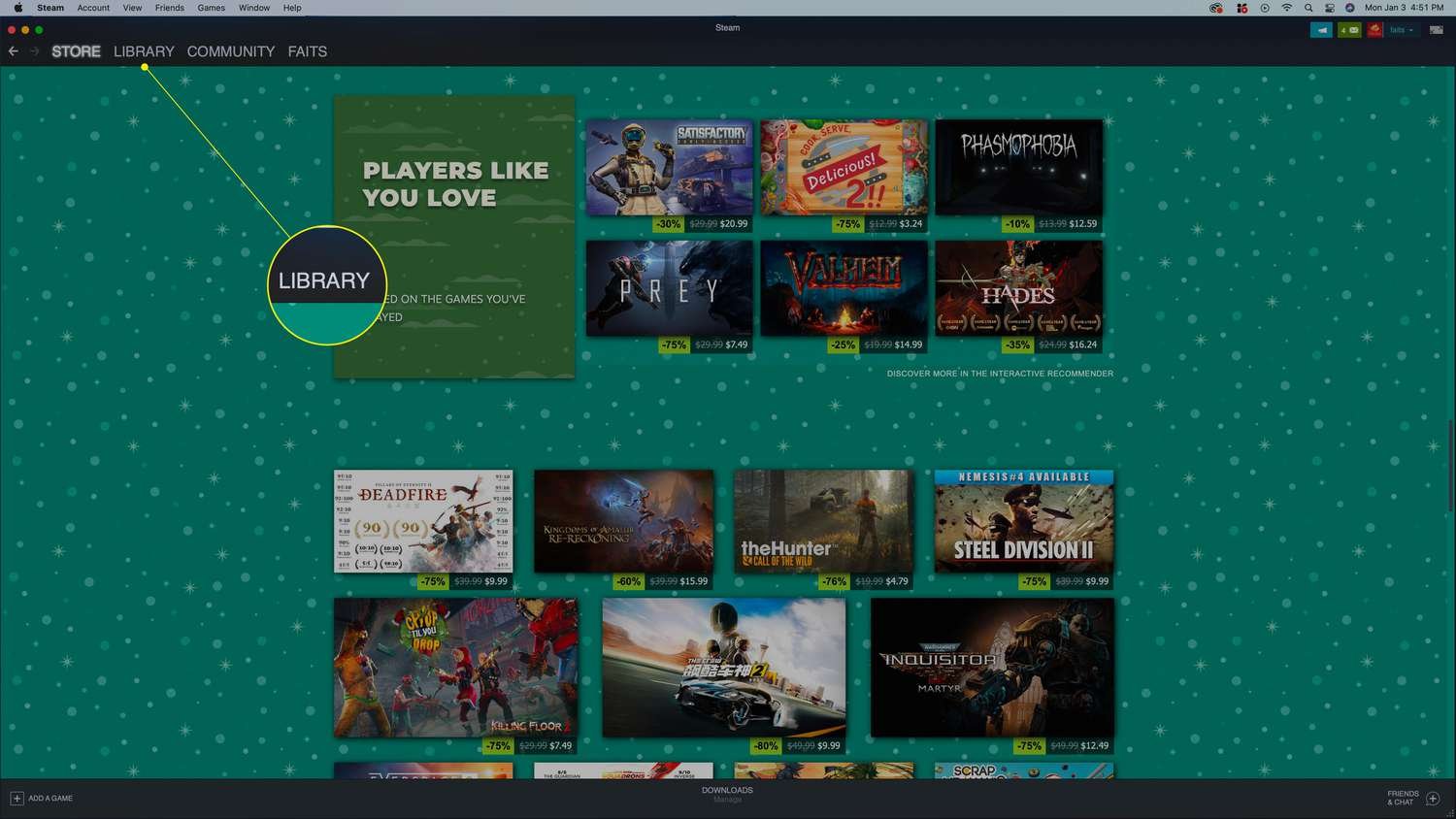
To run Windows Steam games on a Mac, you’ll primarily need to use compatibility solutions like Boot Camp, CrossOver, or virtual machines.
Ever wanted to play that awesome Windows-only Steam game on your Mac? It’s a common desire for many. The good news is, you aren’t completely out of luck. There are ways to enjoy these titles, and we’re going to show you how to run Windows Steam games on mac effectively.
You can explore different methods, each with their pros and cons, like using software that creates a virtual Windows environment. Or you could even install Windows directly on your Mac. We’ll explain the primary methods to get you gaming on your Mac.

How to Run Windows Steam Games on Mac
So, you’re a Mac user with a burning desire to play those awesome Windows-only Steam games? You’re not alone! Many Mac gamers face this challenge, but thankfully, there are ways to bridge the gap. While Macs and Windows PCs use different operating systems, several clever techniques can get your favorite games running on your Apple computer. This guide will walk you through the most popular and effective methods, making it easier for you to enjoy your Steam library.
Understanding the Challenge: Why Can’t I Just Play Windows Games on Mac?
The main reason you can’t directly play Windows Steam games on a Mac is because of something called compatibility. Think of it like two different languages; Windows games are written using a code that Macs don’t understand natively. This code difference is due to the underlying operating system: Windows uses, well, Windows, while Macs use macOS. Each operating system is designed differently, so programs built for one typically won’t run on the other without some help. Just like you wouldn’t expect a book written in Spanish to be easily understood by someone who only speaks English, games built for Windows need some kind of translator to work on a Mac.
Method 1: Using Boot Camp Assistant
Boot Camp Assistant is a tool that Apple provides for free. It allows you to install Windows directly on a separate part of your Mac’s hard drive. This way, when you boot your computer, you can choose to start up with either macOS or Windows. This approach offers the best game performance, because you are running Windows natively on your computer hardware.
How to Use Boot Camp Assistant:
- Check Compatibility: Before you start, ensure your Mac is compatible with Boot Camp. You can find this information on Apple’s support website. You also need enough hard drive space for both macOS and Windows. Apple usually suggests at least 64GB for Windows, but 128GB or more is better if you plan to install several games.
- Download a Windows ISO: You’ll need a Windows ISO file. This is like a digital copy of the Windows installation disc. You can purchase a license and download the ISO from Microsoft’s website. You can download the windows 10 or windows 11, but make sure that the ISO you’re downloading should be compatible with your machine.
- Run Boot Camp Assistant: Go to your Applications folder, then Utilities, and open Boot Camp Assistant. It will guide you through the process of creating a Windows partition and installing the operating system.
- Follow the Instructions: Boot Camp Assistant will help you to divide your hard drive, then install Windows on the new partition. Make sure you follow the instructions carefully. It will guide you through formatting the new partition.
- Install Windows Drivers: After Windows is installed, you will need to install the drivers. Your Mac needs drivers that will allow Windows to know how to work with its parts, like the keyboard, mouse, and trackpad. Don’t worry, the boot camp assistant will automatically detect your windows version and install the drivers accordingly.
- Install Steam and Games: Once you have Windows installed, you can download and install Steam, then install your favorite Windows games.
Advantages of Boot Camp:
- Excellent Performance: Games run very smoothly as the computer hardware is working directly with the Windows operating system.
- Full Windows Compatibility: Because you’re running Windows natively, virtually any Windows application or game will work correctly.
- No emulation overhead: Unlike other methods that simulate Windows, you won’t experience as much of performance degradation.
Disadvantages of Boot Camp:
- Requires a restart: You have to restart your computer each time you want to switch between macOS and Windows.
- Disk Space: Boot Camp requires you to split your hard drive, using space that is otherwise available to macOS.
- Complicated setup: The setup process can seem intimidating if you’ve never done it before.
- Windows license: You will need to purchase a windows license to use Boot Camp.
Method 2: Using Virtual Machines (VMs)
Virtual machines are software programs that let you run an entire operating system inside a window on your main operating system. Think of it as running a complete Windows computer inside your macOS. Popular virtual machine software includes Parallels Desktop, VMware Fusion, and VirtualBox. This is a good option if you don’t want to restart your computer and just need to run Windows-specific application on the go.
How to Use Virtual Machines:
- Choose a VM Software: Research and choose a VM software that fits your budget and needs. Parallels Desktop and VMware Fusion are paid options that offer better performance and features, while VirtualBox is free and open-source.
- Install the VM Software: Download and install the chosen VM software onto your Mac.
- Create a New Virtual Machine: Follow the software’s instructions to create a new virtual machine. You’ll be asked to select an operating system, you have to choose Windows, and then allocate resources like memory and hard drive space. You will need a Windows ISO file in this step.
- Install Windows: The VM software will guide you through the installation of Windows inside the virtual machine.
- Install Steam and Games: Once Windows is installed, you can download and install Steam and your games.
Advantages of Virtual Machines:
- Run Windows and macOS at the same time: This is one of the biggest benefit; you don’t have to restart your computer to switch between operating systems.
- Easier setup than Boot Camp: Setting up a virtual machine is generally faster and easier compared to Boot Camp.
- Take snapshots: Most virtual machine softwares allow you to take snapshots of your virtual machine, which you can use to revert back to your previous state.
Disadvantages of Virtual Machines:
- Lower Performance: Games usually run slower inside virtual machines than if you used Boot Camp. Virtual machines use your computer resources to run both operating systems, so performance suffers.
- Resource Intensive: Virtual machines require a lot of RAM and processing power, so it’s important to make sure that your Mac has enough resources.
- Paid Software: Most high-performance virtual machine softwares are paid.
Method 3: Using Crossover
Crossover is another tool which lets you run Windows software on your Mac without using the actual windows operating system. It’s different from Virtual Machines or Boot Camp because it doesn’t install Windows on your computer. Instead, it acts as a “translator” by creating a Windows-like environment inside macOS. It translates the Windows game code to something your Mac understands, making the game think it’s running on Windows. This technique is known as compatibility layer.
How to Use Crossover:
- Purchase and Install Crossover: You will have to purchase a license for Crossover, as it is a paid software. Download and install Crossover on your Mac.
- Install the Application: Crossover provides an easy interface to install Windows application. You can use the provided functionality of Crossover to install Steam and other applications.
- Install Steam and Games: Once Steam is installed, you can download and install your games within the crossover environment.
Advantages of Crossover:
- No Windows OS required: You don’t need to have a Windows license or install a separate operating system.
- Better Performance than VMs: Crossover generally provides better performance compared to virtual machines, because it does not need to run a whole operating system in the background.
- Easy installation: Setup is very easy and not complicated.
Disadvantages of Crossover:
- Paid Software: Crossover is a paid software.
- Compatibility: Not every Windows application works perfectly. Some games might not work well or at all. You should always check the compatibility list before purchasing this software.
Method 4: Using GeForce Now (Cloud Gaming)
GeForce Now is a cloud gaming service from NVIDIA. It doesn’t run the game on your Mac but streams the game from powerful servers in the cloud. You play the game as you watch a live video stream. It’s like watching a live video stream, but the image you see on the screen are fully interactive.
How to Use GeForce Now:
- Check Requirements: First, you should check that your computer meets the requirements, and that your internet connection is fast and stable enough for streaming.
- Sign Up for GeForce Now: You need to sign up for an account on GeForce Now, they offer both free and premium options, each with different features.
- Download the GeForce Now App: Download and install the GeForce Now app for macOS.
- Log In and Play: Log in to your GeForce Now account, connect your Steam library, then select a game from your library to start playing.
Advantages of GeForce Now:
- No Powerful Computer Needed: Since the game is running on NVIDIA’s servers, you don’t need a powerful Mac to run games at high settings.
- Play on the Go: Because the games are on the cloud, you can start playing on your Mac and continue your session on another device.
- Easy to Setup: It’s very easy and quick to set up, you just need to download and install the app.
Disadvantages of GeForce Now:
- Internet Connection: You need very fast and stable internet to stream games smoothly. Lag or slow internet can affect your game performance.
- Subscription Fee: To get the best gaming experience, you will have to pay a subscription fee.
- Game Availability: You can’t play just any game, you need to have games in your steam library that are supported on GeForce Now, and also the availability of game titles may vary by region.
Choosing the Right Method
Choosing the best way to play Windows Steam games on your Mac depends on a few things like your budget, your technical skills, what game you want to play, and how important performance is. Let’s break it down:
- For Best Performance: If you want the highest performance and don’t mind restarting, Boot Camp is your top choice. It’s the most technically complex to set up, but it runs games almost as well as if you were using Windows computer.
- For Convenience: If you want to play games without the hassle of restarting and need easy setup, then Virtual Machines or Crossover are the best option. Virtual machines are easier to setup, but the performance is lower. Crossover is a good middle ground if you want easy setup with better performance.
- For Low-End Macs or Casual Gamers: If you don’t have a powerful Mac, or you are just a casual gamer, then GeForce Now is a great option. This allows you to stream games without putting too much stress on your mac.
Remember to always check the compatibility of a specific game with each method, as some games might work better with one method than the other. Before purchasing any software, you should try the free demo version to test if it works for you.
Finally, have some patience! Getting Windows games running on a Mac can take a little bit of effort, but it is worth the reward. Try each of these methods and see which one works best for you and your mac. Happy gaming!
This (Free) App Lets You Play Windows Steam Games on MacOS
Final Thoughts
Running Windows Steam games on your Mac involves using compatibility layers or virtual machines. These methods allow you to play titles not natively made for macOS. CrossOver offers a good solution, while virtualization software like Parallels works too.
Both options let you enjoy your favorite Windows-only games. Remember to check specific game compatibility beforehand. How to run Windows Steam games on Mac is achievable with proper setup.

