
Roblox automatically saves your game progress periodically and when you exit the game; there’s no manual save button.
Have you ever poured hours into building the perfect Roblox world, only to worry about losing it all? It’s a common concern, and understanding how to save a game in Roblox is crucial for any creator. Thankfully, the platform makes it simple. The game saves on its own, ensuring your efforts aren’t lost. This provides peace of mind when you’re deeply involved in creation.

How to Save a Game in Roblox
Saving your Roblox game is super important! It’s like saving your progress in a book or a video game. You wouldn’t want to lose all your hard work, right? In Roblox, saving your game ensures that all the cool things you’ve built, the scripts you’ve written, and the changes you’ve made are kept safe and sound. Let’s explore how you can do just that!
Understanding Roblox Saving
Before diving into the steps, let’s understand what saving a game actually means in Roblox. Think of your game as a big digital creation. You add parts, change colors, write code to make things move, and maybe even design your own cool characters. All of these actions are stored in your game file. When you save, you’re essentially telling Roblox to take a snapshot of your game at that moment and keep it safe. This way, the next time you open the game, everything will be just as you left it.
There are two main ways to save your work: saving to Roblox online, and saving a local copy to your computer.
Roblox Cloud Saving
Saving to Roblox’s cloud is like storing your game in a super safe online vault. This is the recommended way to save your game because it makes sure your game is available on all devices – whether you’re playing on a computer, phone, or tablet. When you save to the cloud, your game can be accessed by anyone you give permission to. Also, you can use it for collaborating on projects with your friends. It allows you to keep working on your game from different places. When you make an update, it will be stored in the cloud and the players will receive the update automatically.
Saving Locally
Saving locally means saving your game to your computer’s hard drive. It’s like keeping a copy of your game on your personal computer. This is useful for backing up your game so you have another copy of it, just in case there is any issue in cloud save. It is also useful if you want to copy one of your project files to a friend via a USB drive. It is not possible to access local game copies via other devices. Local saving is less preferred for game creators because it doesn’t allow for easy collaboration or sharing.
Step-by-Step Guide to Saving Your Roblox Game
Now, let’s get to the main part – how to actually save your game. It’s a simple process, and we will walk you through each step.
Saving to Roblox Online
This is the method most users will use, so let’s learn how it works:
- Open Roblox Studio: Start by opening Roblox Studio. This is the tool where you make and edit your games. You’ll see a screen with your current game open (or you can create a new game).
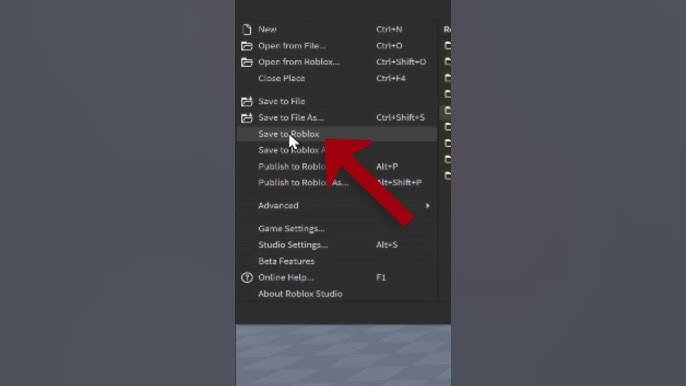
- Locate the File Menu: Look at the top left corner of the Roblox Studio window. You’ll see a “File” menu. Click on it.
- Choose “Publish to Roblox”: When you click “File”, a list of options will appear. You will see options like “Save” and “Save As”. You will see an option called “Publish to Roblox” or “Publish to Roblox As…”. Select this option.
- Create a New Game or Update an Existing One: If it’s a brand-new game, Roblox will ask you to give it a name, a description, and some other details. If you’ve already saved it before, Roblox will simply update the existing game, and you will need to overwrite changes to the previously uploaded game.
- Game Settings: When you are creating a game, you’ll see a window where you can make changes to your game. You can add information, like a picture that will be used as the game icon, the name, the description, the genres of the game, and more.
- Click the Publish Button: After filling the details, click the “Publish” button and you are done! Your changes will be uploaded to the game.
- Automatic Saving: Roblox also has an automatic save feature. This means that after every few minutes, Roblox saves your game automatically in the background while you are working. This helps in saving your game progress if, for example, there is a computer crash or power outage.
Important Tip: Always save your game to Roblox frequently while you are building. It’s like hitting the save button after writing a paragraph in a story. That way, you won’t lose your work if something unexpected happens!
Saving a Local Copy
While saving to the cloud is preferred, having a local copy as a backup is good practice. Here’s how you do it:
- Open the File Menu: Like with publishing to Roblox, go to the “File” menu in the top left corner of Roblox Studio.
- Select “Save As”: Instead of choosing “Publish”, this time, you’ll choose “Save As”. This will save the game as a local file.
- Choose a Location: A window will appear asking you where you want to save the file. Choose a place on your computer like your Desktop or a special folder for your game.
- Name Your File: Give your file a name, something easy to remember, like “MyFirstRobloxGame” or “CoolObby”.
- Click Save: Click the “Save” button and your game will be saved as a .rbxl file to your computer.
Keep in Mind: A local copy is only available on your computer. If you want to work on the game on another computer, you’ll need to bring the file over on a USB drive or use cloud services, like google drive, to make a copy. You will also need to open the file using Roblox Studio.
Important Considerations When Saving
Saving your Roblox game isn’t just about clicking buttons. There are some other things to keep in mind to ensure smooth game saving. Let’s go through a few:
Naming Your Game
Giving your game a clear, easy to understand and creative name is important.
When you are creating a new game you have to give the game a name. Make sure it’s something that tells people what the game is about or what is special about it.
Think of a title that’s catchy and relates to the game. For instance, instead of “My Game,” try “Crazy Maze Adventure” or “Parkour Fun”. This makes it easier for you to find and organize your projects when you are creating lots of different games, and it can also help other players find your game on Roblox. It also makes it more attractive and interesting for other people to play.
Describing Your Game
A good description is like a short story about your game.
When you upload your game to Roblox, write a description that tells people what is fun or interesting about your game.
Add a short, friendly description that explains what players can do in your game. Try to make your description engaging so that players can get interested in playing it. You can mention the main features and maybe some of the objectives or challenges they will face when playing your game.
Game Icons and Thumbnails
Icons and thumbnails are the first things people see about your game.
An appealing icon and thumbnail can catch someone’s eye and make them want to play your game. Make sure to take a nice picture for the icon and thumbnail to make your game look awesome! Make it a picture that is related to your game and is eye-catching.
Make them colorful and fun, showing off the best parts of your game.
Version Control
When you save over an existing game in Roblox, this can sometimes cause problems. For example, if you have updated a game and made a few mistakes in the updates, you might want to go back to the previous version of the game.
It is possible to revert back to previous saves in Roblox to undo errors and mistakes when creating the games. This can be useful when you are creating a game and you made a mistake and want to undo it. It is like having a digital back button. You can easily revert back to a saved version of the game in order to fix the mistake.
Troubleshooting Common Issues
Sometimes things don’t go as planned. Here are some common problems you might face when saving your game and how to fix them:
Game Not Saving
Sometimes you might have problems when you save the game. The Roblox servers might have some connection issue, or your Internet connection might not be working properly. If you find that your game is not saving correctly, check the following:
- Check Your Internet: Make sure your internet connection is stable. If your connection drops out, Roblox might not be able to save your game to the cloud.
- Roblox Server Status: Sometimes Roblox servers are busy or down. Visit the official Roblox website or other social media platforms to see if there are any issues.
- Try Again Later: If there is an issue, wait a bit and try saving your game again.
Lost Game Progress
It can be very frustrating if you accidentally lose your game progress. If you find that you have lost some game progress, then make sure that you do the following steps:
- Auto-Saves: Remember, Roblox has automatic saving features, so you should not lose too much progress. Most of the time, when you reopen the game, you will find that the game progress has been saved by auto-saves.
- Check Previous Versions: If the auto-save didn’t work, check the version history. You might be able to revert to an older saved copy of the game.
- Local Backups: If you made local copies of the game, check these to revert back to the saved copy.
Publish Errors
When you are publishing a game, you might sometimes get errors. Here is how you can fix these:
- Error Messages: Roblox will show specific error messages to explain the problem. Read them carefully, as they often tell you what you need to fix.
- Check for Errors in your Game: Sometimes there can be errors in the scripts of the game. Try to fix those errors and then publish your game.
- Roblox Updates: Sometimes the errors are due to Roblox updates. Wait until the updates are completed and try again.
Saving Permissions
If you are using group games or collaborating with other creators, there might be problems with saving permissions. If your game won’t save, check these:
- Group Settings: If the game belongs to a group, make sure you have the correct permissions to edit and save the game.
- Ask a Group Admin: If you don’t have the correct permissions, ask a group administrator for access.
Best Practices for Saving
To make sure your game-saving process is smooth and efficient, follow these best practices:
- Save Frequently: Save your game every few minutes while you are working on the game. If you add new things or change them, make sure that you save the game at regular intervals to not lose your work.
- Use Cloud Saving: Save your work in the cloud because it is secure, accessible via different devices, and has the version control features. This makes sure you can work on your game from any device, and have all the updates stored.
- Regularly Backup locally: Occasionally save a local backup of your game so that you have another copy of the game. This can be helpful in situations where there is a problem with cloud saves, and can ensure that you have another backup.
- Create descriptive names: Use names that describe your game. Try to use logical names, so that you know what the game is about. Use a specific naming convention so that you can recognize and easily locate different versions of the game.
- Test Before Publishing: Make sure you test the game completely before publishing. You can play the game yourself or ask friends to play it. This can help you find bugs and errors, so you can fix them before you upload the game.
That’s a great, comprehensive main body! Here’s the concluding paragraph, as per your instructions:
Saving your Roblox game correctly is the foundation of building awesome experiences. By understanding how to save both to the cloud and locally, using good naming conventions, and being aware of troubleshooting steps, you’ll ensure your creative work is always protected. Remember to save frequently, make use of Roblox’s versioning, and follow the best practices outlined above to make sure your Roblox game development is a success. Now that you know the steps to saving your games, keep creating and keep exploring the amazing world of Roblox.
How To SAVE Your Roblox Studio Games! | Roblox Studio
Final Thoughts
To save your Roblox game, you must use the ‘File’ menu and select ‘Save to Roblox’. Ensure you have proper permissions and your game is named appropriately.
Remember to regularly save your progress to avoid losing work. Saving frequently protects your creations.
This is how to save a game in Roblox. Choose the correct saving option to keep all your game details and progress safe and secure.

