
Fallout 76 automatically saves your game progress at regular intervals and after significant actions. You do not manually save in this game.
Worried about losing your precious loot and progress in the wasteland? It’s a common concern. Many players wonder about how to save game fallout 76. The game actually handles saving automatically.
You might not see a traditional ‘save’ option in the menus. Instead, Fallout 76 frequently records your progress. This system ensures you don’t lose too much playtime.
This method includes saves after completing quests, fast traveling, or other key actions. The game uses a cloud based saving system.

How to Save Game Fallout 76
Okay, let’s talk about saving your progress in Fallout 76. Unlike some older games, you don’t need to find a save point or press a special button. The game saves your progress automatically, pretty much all the time! This can be super handy because you don’t have to worry about losing hours of gameplay if something unexpected happens. But, there are a few key things you should know about how this system works. We’ll cover all the important parts to make sure you never lose your hard-earned loot and progress in the wasteland.
Understanding the Autosave System
Fallout 76 uses an autosave system. This means the game is constantly saving your actions as you play. You don’t have to think about it much, which is really convenient. However, understanding exactly when and how these saves happen can prevent some frustration. It’s not like the game saves every single step you take. Instead, it focuses on key moments and actions. These are often things like:
- Completing a quest or mission.
- Entering or leaving a building.
- Interacting with a workbench (crafting, modifying gear).
- Picking up or placing items in your C.A.M.P.
- Fast traveling to a new location.
- Reaching a significant checkpoint in an event.
- Leveling up your character.
These are just some common examples, and the game might save at other points, too. Think of it like this: anytime you do something important, the game is likely to create a new save point. You will see a small loading symbol in the bottom corner of the screen when a save is occurring. So, it’s not a bad idea to pay attention for this symbol once in a while.
Why Autosave is Important
The autosave system is crucial for several reasons. First, it protects your progress if your game crashes or your internet connection drops. You won’t have to start from way back – usually just a few minutes at most. Second, it’s a huge help for online multiplayer. Because the game has to keep track of a lot of player locations and actions all at once, this autosaving is needed to synchronize all the changes across the player base. If it wasn’t saving automatically, you would find the game unplayable!
What Doesn’t Get Saved?
While the autosave system is great, it’s essential to know what doesn’t get saved instantly. Knowing this will help you understand why it is so important to avoid closing the game without doing any action that triggers an autosave. Here are some actions that don’t necessarily prompt immediate saves:
- Small incremental movements around the map, or just running around.
- Minor inventory changes such as moving items from your inventory to your stash.
- Slight health changes or minor item durability loss.
What does this all mean? If you spend time organizing your inventory and then experience a game crash, you might lose some of that work. It’s also a good idea to travel or do some significant action to make sure the game saves your most recent changes.
The Importance of Server Stability
Since Fallout 76 is an online game, server stability plays a key role in the saving process. If the game servers have issues, this might cause some problems with the autosaving process. Sometimes, during these issues, a change you have made might not get saved correctly or at all. These server instability issues usually are temporary. If this happens, you usually will be able to play the game with no problems after restarting. But, it’s useful to be aware that the online nature of the game does introduce some potential issues.
Using Your C.A.M.P. to Trigger Saves
Your C.A.M.P. (Construction and Assembly Mobile Platform) is more than just a base – it’s also a handy way to trigger a save. Here’s how it works:
- Building: Adding or removing structures or objects in your C.A.M.P. usually triggers an autosave.
- Moving: Relocating your entire C.A.M.P. to a new spot will almost certainly save the game.
- Crafting: Using your C.A.M.P. workbenches for crafting or modifying is a good trigger for saving.
So, if you want to make sure you have a recent save, working on your C.A.M.P. is a solid strategy. It is also a good way to pass time while waiting for a public event to start.
Fast Traveling as a Save Trigger
Fast traveling is a very quick way to get to a new location, and it often results in an autosave. This happens when you fast travel to any location on the map, this includes places you already visited before or if you are just returning to your C.A.M.P. It’s another handy way to quickly initiate a game save without needing to find an in-game activity. It can also help you if you suspect you are experiencing a game bug. Fast traveling can often resolve many minor game glitches. Therefore, this is always a good thing to try.
How to know if a save has occurred
When the game automatically saves, you will see a small icon in the bottom right corner of the screen. The icon is a spinning circle and usually only appears for a second or two. If you see this symbol, you will know that the game has just saved your progress. This is another useful tool to know when you are playing. If you have made a bunch of changes, but have not seen the symbol, then you may want to do one of the actions we described to trigger a new game save.
Leveling Up Your Character
Another guaranteed way to make sure the game saves is by leveling up your character. When you gain enough experience and level up, you’ll be prompted to choose a perk card. This automatically triggers an autosave to make sure your new level and perk are securely recorded. It’s another easy way to make sure the game saves when you may be focused on a different activity.
Completing Quests and Events
Completing a quest or a public event will always trigger the game to autosave. So if you just completed a big event with tons of loot, you can be sure your gains are protected. It’s very good to know that these important moments are always backed up. This helps make sure you never lose out on rewards.
Why it’s Better Than Manual Saving
You might be wondering why Fallout 76 doesn’t use a manual save system like other games. There are a couple of important reasons. First, in a multiplayer game with many people moving and playing on one shared map, manual saves for everyone would make the system very complex. With everyone saving at different times, it could cause bugs and errors. Second, with the autosave system, the server is always trying to track all the data at all times to keep it accurate and synchronized. This makes the online play smooth and seamless. The constant autosaving ensures everyone’s game is mostly in sync with each other.
Minimizing the Risk of Lost Progress
Even with a generally reliable autosave system, you still need to take some simple precautions to minimize any risk of losing progress.
- Don’t suddenly close the game: If you have just finished a big activity, be sure you do something that triggers a save before you close the game.
- Keep a stable internet connection: The autosave system relies on a stable connection to the game servers. If your internet connection is often unstable, you may lose progress.
- Give the game time to save: When you trigger an autosave (for example by fast traveling), wait until you see the spinning circle disappear before starting a new task. This will make sure the save goes through correctly.
The Game’s Feedback
Fallout 76 does a decent job of providing feedback about the autosave process. The symbol will pop up whenever the game saves. As long as you’re aware of that icon and what it means, you will always be confident your data is protected. It may be helpful to pay attention to that symbol whenever you are playing so that you can have a better understanding of when exactly the game is autosaving.
How the Game Saves Different Elements
The autosave system covers a lot of different aspects of your gameplay. Here’s a detailed look at the major components that are constantly being saved:
Character Progression
- Level: Your current experience level is always saved.
- Perks: All of the perk cards you choose and use are saved.
- S.P.E.C.I.A.L. Points: The distribution of your S.P.E.C.I.A.L. points.
- Mutations: All your mutations (both positive and negative) are saved.
- Quests and Progress: The status of all your quests, including completed ones, are saved.
Inventory and Items
- Gear: Your weapons, armor, apparel, and other equipped gear.
- Aid Items: Stimpaks, food, drinks, and any other usable items.
- Junk: All the materials you collect for crafting.
- Ammo: All types of ammunition.
- Plans and Recipes: Any plans or recipes you have collected for crafting.
- Stash: Everything stored inside your stash box is also saved.
World State and Location
- Explored Locations: Locations you have previously visited are also saved.
- C.A.M.P. Configuration: How your C.A.M.P. is built and where it is located.
- World Changes: Any changes to your game world, based on your actions.
Other Things Saved
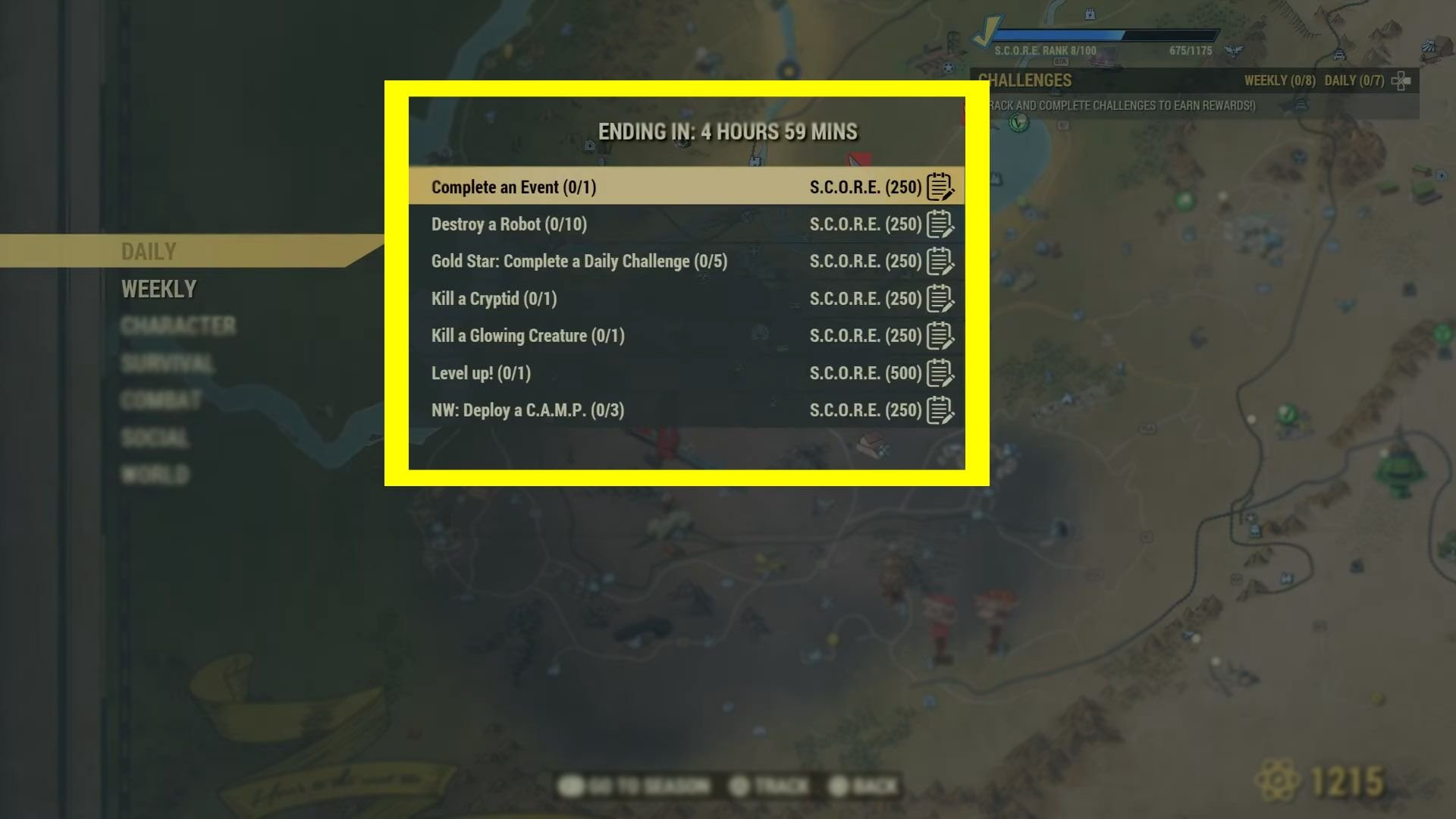
- Challenges: Progress made on any daily, weekly, or lifetime challenges.
- Faction Standing: Your reputation with different factions.
- Atom Store Items: Any items you purchased with atoms are saved to your account.
Saving in the Face of Bugs
It is possible that you will encounter a bug in Fallout 76. Here are some steps you can take if this happens:
- Try to fast travel somewhere.
- Do another activity that should trigger an autosave (like starting a crafting session).
- If none of those steps work, you should try restarting the game.
Final Thoughts
The autosave system in Fallout 76 is mostly very reliable. It does a good job of making sure you don’t lose progress. You don’t need to worry about saving the game all the time. As long as you remember what actions trigger saves, you should be in good shape. Just make sure you always check for the save icon every once in a while. This should make sure you don’t lose your progress from gameplay. And with that, you are ready to roam the Wasteland with less worry!
Fallout 76 | How to save your game!!!
Final Thoughts
Fallout 76 saves your progress automatically. The game uses a frequent autosave system. You do not need to manually save in Fallout 76. Your game progress saves regularly when performing actions.
This system is automatic, so you don’t need to worry about manual saving. The system ensures that you don’t lose significant progress. Therefore, focus on playing, and the system manages the saving.
To summarize, you don’t need any specific actions for ‘how to save game fallout 76’. The game handles it all. Trust the system to keep track of your progress.

