
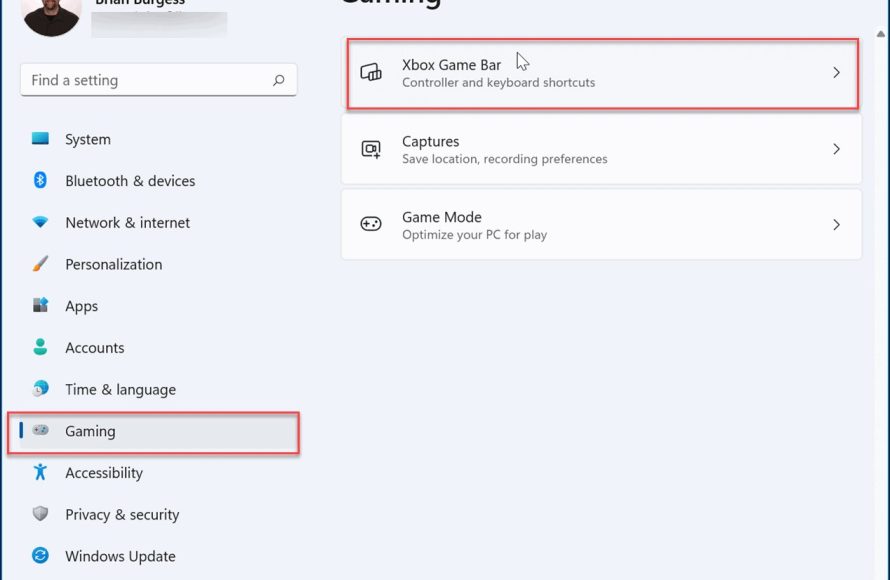
To turn off Game Bar Windows 11, navigate to Settings > Gaming > Xbox Game Bar and toggle the switch to “Off.”
Annoying pop-ups and unwanted overlays? You are not alone. Many users find the Windows 11 Game Bar intrusive during non-gaming activities. Luckily, it’s quite easy to disable it. This guide will quickly show you how to turn off game bar windows 11.
Follow the simple steps and you can regain control of your screen. The interruption of the game bar will be gone. Let’s get started with removing this element.

How to Turn Off Game Bar Windows 11
The Game Bar in Windows 11 is a handy tool. It helps you record your gameplay, take screenshots, and chat with friends while you play. But sometimes, it can get in the way. Maybe you don’t use it, or it pops up at the wrong time. If that’s the case, you might want to turn it off. Let’s explore how to do this in a few easy steps.
Understanding the Windows 11 Game Bar
Before we turn it off, let’s talk a little bit about what the Game Bar actually is. Think of it like a little toolbox for gamers. It gives you quick access to things like:
- Capturing Gameplay: You can record videos of your games or take pictures of the screen.
- Xbox Social: You can chat with your Xbox friends.
- Performance Monitoring: It shows you how well your computer is running while you play.
- Audio Settings: You can change the volume of your game and microphone.
While these tools are helpful for many players, they aren’t for everyone. Some users find that the Game Bar can cause their games to slow down or get in the way. Also, some people simply don’t use its features at all. If you fall into any of these groups, then turning it off may be a good idea.
Method 1: Turning Off Game Bar Through Settings
The easiest way to turn off the Game Bar is through the Windows 11 settings. This method is straightforward and doesn’t require any special technical knowledge. Here’s how you do it:
Step-by-Step Instructions
- Open Settings: Click on the Windows start button, it looks like a window in the bottom left corner of your screen. Then, click on the settings icon, which looks like a gear.
- Go to Gaming: In the settings window, find and click on “Gaming”. It has an Xbox controller icon next to it.
- Select Xbox Game Bar: On the left side of the Gaming window, click on “Xbox Game Bar”. This should be the first option.
- Turn off the Toggle: You’ll see a switch that says “Open Xbox Game Bar using this button on a controller”. Click the slider to the left to turn it off. The switch will change from “On” to “Off.”
That’s it! The Game Bar should now be turned off. It won’t pop up when you’re playing a game unless you turn it back on again. If you ever want it back, just follow these steps again and turn the switch back to the “On” position.
Other Game Bar Settings to Consider
While in the Gaming section of the Settings, you may also notice a few other options. You can turn off background recording which records gameplay in background. You can also customize the keyboard shortcut to open the Game Bar. You can choose to disable these options in addition to completely turning off the game bar
Method 2: Disabling Game Bar Using the Registry Editor (Advanced)
This method is a bit more advanced and involves changing settings in the Windows Registry. The Registry is like the brain of your computer; it contains all of the settings for your system. If you make a mistake while working in the Registry, it could affect your computer. Because of this, you should proceed with caution and make sure to follow these instructions carefully.
Before You Begin: Back Up Your Registry
Before making any changes in the Registry Editor, it’s really important to back it up first. This means you’ll save a copy of the current settings. If you make a mistake, you can easily put everything back the way it was. Here’s how to back up your registry:
- Open the Registry Editor: Press the Windows key, type “regedit,” and press Enter. You will see a User Account Control window asking if you want to allow Registry Editor to make changes, click “Yes.”
- Click File then Export: In the Registry Editor window, click on “File” in the top menu bar, and then select “Export”.
- Save the Backup: Give the file a name (like “RegistryBackup”) and choose a location you can easily find (like your Documents folder or Desktop). Make sure the “Export range” is set to “All,” then click “Save”.
Steps to Disable Game Bar Through Registry
Now that you’ve backed up your Registry, let’s go through the steps to turn off the game bar.
- Open Registry Editor: If you closed it, repeat the steps above to open it again.
- Navigate to the Correct Key: In the Registry Editor, you’ll see folders on the left side, these are called “keys”. You need to go to a specific key. Paste this path into the address bar, located just under the menu bar, and press Enter:
HKEY_CURRENT_USER\Software\Microsoft\GameBar - Find the Value: In the right pane of the Registry Editor, look for a value called “AppCaptureEnabled.” If this value doesn’t exist, create it. To create it, right-click in an empty area of the right pane, select “New,” and then select “DWORD (32-bit) Value.” Name it “AppCaptureEnabled”.
- Change the Value: Double-click on “AppCaptureEnabled.” A small window will pop up. In the “Value data” field, change the value to “0” (zero). Click “OK.”
- Close the Registry Editor: You’re all done. Close the Registry Editor. You need to Restart Your Computer For changes to take effect.
By changing the value of “AppCaptureEnabled” to “0”, you’ve effectively disabled the Game Bar. The next time you start a game, it won’t pop up unless you change this setting again.
Restoring the Game Bar using Registry
If you want to turn the Game Bar back on using the Registry, follow the same instructions above, except in the last step, set the value of “AppCaptureEnabled” to “1” (one) instead of “0” (zero). This will re-enable the Game Bar on your PC. Also, if you need to restore your registry, follow these steps:
- Open the Registry Editor using the same way as mentioned above.
- Click on “File” then select “Import”.
- Find your backup file and click “Open”.
Method 3: Turning Off Game Bar Services (Advanced)
This method is useful for users who want to completely disable all components of the Game Bar, including its background services. This method is quite advanced, and it’s recommended to have some technical knowledge and also back up your registry before proceeding with it.
Disabling Xbox Game Bar Services
To disable Game Bar completely, including its background processes, follow these steps:
- Open Services App: Press the Windows key, type “services.msc,” and press Enter. This opens the Services app.
- Find the Xbox Services: In the Services window, scroll down and look for services starting with “Xbox”.
- Disable each Xbox Service: You will need to do this for several Xbox related services. Right-click on each of these services (like “Xbox Accessory Management Service”, “Xbox Live Auth Manager”, “Xbox Live Game Save”) and then select “Properties”.
- Change the Startup Type: In the Properties window for each service, find the “Startup type” drop-down menu. Change it to “Disabled.”
- Stop the service: Under “Service status” click on the button “Stop” to stop the running service and then click “OK”.
- Repeat for Other Xbox Services: You’ll need to repeat the same steps for all the “Xbox” related services you want to disable.
- Restart Your Computer: For all changes to take effect, it’s essential to restart your computer.
By disabling these services, the Game Bar and other Xbox-related features won’t run in the background. This can help improve your computer’s performance and prevent the Game Bar from interfering with your games.
Enabling Xbox Game Bar Services
If you decide that you want the Game Bar and its related services active again, follow the same instructions above, but instead of selecting “Disabled” in the startup type, you should select “Automatic” or “Manual” from the drop down menu. After that, click the button “Start” under “Service status” and press “OK”. Finally, restart your computer for the changes to take effect.
When Should You Turn Off the Game Bar?
Now that you know how to turn it off, you might be wondering when it’s a good idea to do so. Here are some situations where disabling the Game Bar might be a good move:
- Performance Issues: If your games are running slowly or experiencing lag, turning off the Game Bar can free up some resources.
- Unwanted Overlays: If you find the Game Bar popping up when you don’t want it to, turning it off will stop that from happening.
- No Gaming: If you don’t play games on your PC, you probably won’t need the Game Bar.
- Compatibility Issues: Sometimes the Game Bar can clash with other software and cause problems. If that happens, turn it off.
- Personal Preference: Some users simply prefer to keep their system clean and streamlined, and disabling the Game Bar is one way to do that.
Checking if the Game Bar is Off
After you have tried one of the methods to disable the game bar, it’s a good idea to make sure that is really turned off. Here are ways to check that:
- Try to Open the Game Bar: While playing a game or using any app, press the Windows key + G keys on your keyboard which is default keyboard shortcut. If the Game Bar doesn’t appear, it’s likely turned off.
- Check Settings: Go back to the Gaming section in Windows Settings and double-check that the Game Bar toggle switch is in the “Off” position.
- Check Registry: Using the method provided previously, navigate to the
HKEY_CURRENT_USER\Software\Microsoft\GameBarkey. Check if the “AppCaptureEnabled” DWORD value is set to “0”. If it is, that means the Game Bar is turned off. - Check Services: Go to Services app, as mentioned in method three. And check if all the Xbox-related services are disabled.
Why Keep the Game Bar On?
Although you may want to turn it off sometimes, the Game Bar also offers a lot of useful features. If you’re a gamer, you might like:
- Recording Gameplay: It makes it easy to capture your best moments in games.
- Screenshots: Quickly take pictures of the game screen.
- Xbox Social Features: Connect with friends on Xbox.
- Performance Monitoring: Keep an eye on your game’s performance.
- Quick Settings: Adjust audio, volume, and other settings without leaving your game.
If you use these features often, you may want to keep the Game Bar on and only disable it if it is causing you problems.
Turning off the Game Bar in Windows 11 is usually a simple process. You can easily do it through Settings, but if you want a more complete change, you can use the Registry Editor or disable its background services. Remember that you can easily turn it back on whenever you need it. Depending on your needs and personal preferences, you can choose the method that works best for you. By following this guide, you’ll have full control over the Game Bar and ensure it’s not interfering with your computer’s performance or your gaming experience.
How To Turn Off Xbox Game Bar In Windows 11 – Full Guide
Final Thoughts
To disable the game bar, navigate to the Settings app. Select the “Gaming” section, then choose “Game bar”. Toggle the switch to the “Off” position. This effectively disables its features.
Alternatively, you can use the Registry Editor. Go to the path Computer\HKEY_CURRENT_USER\Software\Microsoft\GameBar. Find the DWORD entry named “AppCaptureEnabled” and set its value to 0. This change also turns it off.
In summary, disabling the Game Bar is simple. Both methods will effectively turn it off. Now you know exactly ‘how to turn off game bar windows 11’, and it is that simple.

