
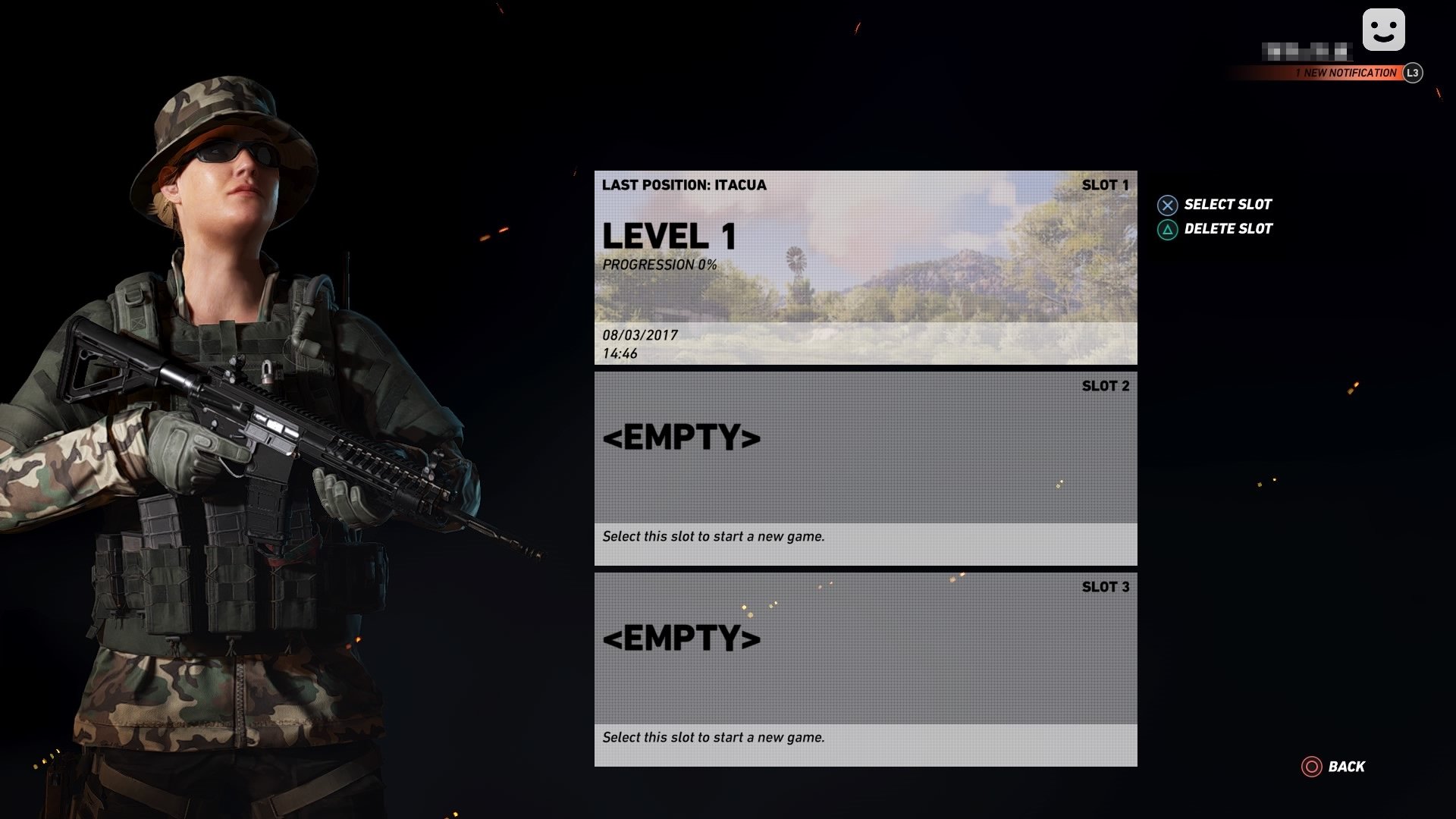
Saving progress in Ghost Recon Wildlands happens automatically. The game uses an autosave feature which frequently records your progress.
Worried about losing your hard-earned progress in the vast open world of Ghost Recon Wildlands? It’s a common concern, especially after a particularly challenging mission. Fortunately, the game has a system in place to make sure you don’t have to repeat everything. You don’t have to manually select an option on how to save game ghost recon wildlands.
The game uses an autosave feature that frequently keeps track of where you are, what you have collected, and your progress through the story. This means you can just jump into the game, accomplish your task, and trust that the game has got your back.

How to Save Game Ghost Recon Wildlands
Alright, Ghost Recon Wildlands fans! We all know that sinking feeling when you’ve just pulled off an epic takedown, only to have the game crash or the power go out. Poof! Hours of progress gone. Luckily, the game does a pretty good job of saving your progress, but there are some things you need to know so you don’t lose that sweet loot or all that hard work. Let’s dive into how saving works in Ghost Recon Wildlands and make sure you’re always covered.
Understanding Auto-Save in Ghost Recon Wildlands
The main way Ghost Recon Wildlands saves your game is through an auto-save system. It’s like a little guardian angel that’s constantly watching over your progress. Here’s what you need to know about it:
When Does the Game Auto-Save?
Ghost Recon Wildlands auto-saves your game in several key situations. You can count on it happening when:
- After Completing a Mission: This is the most reliable auto-save trigger. Once you’ve finished a mission objective, whether it’s taking down a cartel boss or gathering intel, the game will save.
- Entering or Exiting a Safe House: Safe houses are your base of operations. Each time you go into or come out of one, the game makes a save.
- Significant Map Progress: If you’ve moved a significant way across the map, discovered new locations, or found some cool loot, the game might auto-save.
- After Leveling Up Your Character: Earning new skill points is a big deal and the game saves after character levels up.
- After Collecting Important Items: When you find skill points or weapon parts, the game often auto-saves.
The Limitations of Auto-Save
While auto-save is great, it’s important to understand it’s not perfect. It doesn’t save every single action you do. For instance:
- Minor Exploration: The game won’t auto-save every time you pick up some resources or drive a short distance on your bike.
- During Missions: While it saves when you complete objectives, it might not save during a long mission, if there are multiple objectives.
Because of these limitations, you might lose a little progress if something unexpected happens. That’s why it’s helpful to understand other strategies.
How to Force a Save in Ghost Recon Wildlands
Sometimes, you just want to make absolutely sure your progress is saved. While there’s no button to manually save at any time, there are ways to force a save, especially if you can’t wait for the auto-save. Here are the most effective methods:
Fast Travel
Fast traveling is a quick way to jump to locations on the map you’ve already found. It also triggers an auto-save, meaning you can use fast travel as an alternative to force a save:
- Open your map.
- Choose any location you have already visited.
- Select the fast travel option.
Doing this makes the game auto save your progress. This tactic is particularly useful if you’ve just completed a challenging objective and don’t want to risk losing it.
Entering and Exiting Safe Houses
As mentioned, entering or leaving a safe house triggers a save. This is another effective and easily done method to save your progress. This is very simple to do, just go inside any safe house and come back out, it’ll trigger an auto save.
Understanding Save Game Locations
Ghost Recon Wildlands saves game data locally, meaning that the save files are stored on your console’s or your computer’s storage. It’s helpful to know where these are kept, especially if you’re trying to troubleshoot save issues.
PlayStation and Xbox Consoles
On PlayStation 4, PlayStation 5, Xbox One, and Xbox Series X/S, the save data is stored in the console’s system storage. You won’t see the save file as a typical file like you would on a PC. It’s all managed by the console operating system. If you need to back up your game data on a console, you can upload to the cloud if you have the service subscription or back up to a USB drive depending on your console’s specific settings. To manage your save files on PlayStation, for example, you would go to Settings > Application Saved Data Management.
PC Save Game Location
On PC, it’s a little different. Your Ghost Recon Wildlands save files are located in a specific folder in your user data directory. Usually, it’s located in the Uplay folder. Here’s a general idea of where to find it:
For Windows PC:
C:\Program Files (x86)\Ubisoft\Ubisoft Game Launcher\savegames\
Note: The folder with numbers ‘2444’ could be different, depending on the game’s version. Your “Uplay ID” will be a long string of characters, like an identification number. This is not your username, but an account ID.
Inside the ‘2444’ folder, you’ll find files called “save” along with other related files. You usually don’t need to mess around with these files unless you’re facing issues with saves, or trying to back up the files.
Troubleshooting Save Game Issues
Even with the auto-save system working as it should, some players may run into issues with their save files. This section will help you troubleshoot some common problems:
The Game Won’t Save
Sometimes, the game might just not save for some reason. This can be frustrating, so here are some things you can try:
- Restart the Game: This sounds simple, but sometimes restarting can fix saving issues. Close the game fully and then start it again.
- Check for Game Updates: Make sure your game is up to date. Sometimes, bugs can cause save issues and game updates fix them.
- Check Your Hard Drive Space: Make sure there’s enough space on your hard drive. The game needs enough free space to save properly.
- Check your Internet Connection: An unstable connection can also lead to issues. Make sure your internet is stable.
Save File Corrupted
A corrupted save file can cause all sorts of issues, from crashes to progress loss. This can happen if the game crashes during saving. If this happens, it’s a bit harder to fix but here are your options:
- Use a Backup Save: If you have backups, like on the cloud or a USB, you can try to restore them.
- Start a New Game: If none of the backups are working, the only option is to start a new game. This is obviously not ideal, but if the save is too corrupted, its unavoidable.
Cloud Saves
Most platforms these days offer cloud saves, which are very helpful. Here’s what to know:
- Enable Cloud Saves: In most cases, cloud saves are on by default. Make sure cloud saves are enabled for your gaming platform (such as Ubisoft Connect for PC, or PlayStation Plus for PlayStation).
- Accessing Cloud Saves: If you are playing a game on multiple devices, cloud saves can be a lifesaver. You will be able to start playing your game on another device where you have cloud sync enabled. When you load up the game on a second device, your latest cloud save can load allowing you to keep playing on that second device from where you were on the first device.
- Backing up Game Saves: You should always consider backing up game saves whether it be on cloud, or a separate usb device, always have back ups.
Tips to Avoid Save Game Issues
To ensure you’re not faced with save issues, try these tips:
- Always Save Before Closing the Game: Before you quit the game, fast travel or visit a safe house to force a save.
- Complete Missions Before Exiting: If you’re in the middle of a mission, try to finish it before you stop playing.
- Regularly Back Up Your Saves: If you play on PC, consider making a copy of your save files periodically, especially before any major updates.
By understanding how saving works in Ghost Recon Wildlands, and following some basic practices, you can avoid frustration and keep your gaming experience enjoyable. So go out there, take on the cartels, and keep those saves secure!
How To Save Progression In Ghost Mode – Ghost Recon Wildlands
Final Thoughts
Ghost Recon Wildlands automatically saves your progress frequently. The game utilizes an autosave feature for single player and co-op campaigns. This feature records your actions, and mission progress. You don’t manually save.
To ensure your save is successful, avoid abruptly closing the game. Let the game complete its autosave cycle. If you encounter problems, check your storage space and game settings. This is how to save game ghost recon wildlands effectively.

