
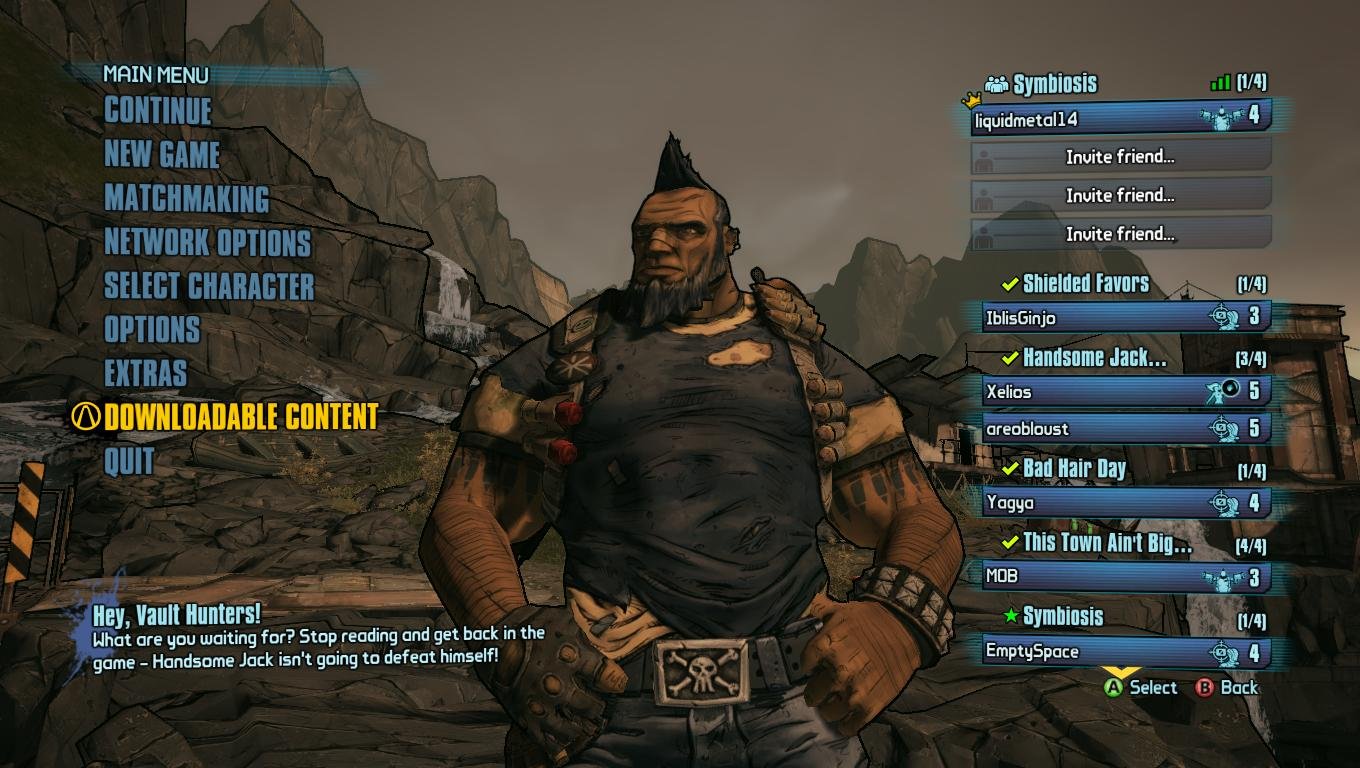
Borderlands 2 saves automatically at specific points, mainly after completing missions, entering new areas, and using fast travel stations.
Losing progress in any game is frustrating, especially in a loot-driven shooter like Borderlands 2. Knowing how to save game in Borderlands 2 correctly prevents these setbacks. The game relies on an autosave system so manual saves aren’t possible. This is key for enjoying your time on Pandora.
Borderlands 2 saves your game progress automatically. You don’t need to do anything extra. The game records progress after you finish quests, when you switch maps, or use fast travel.

How to Save Game in Borderlands 2
Hey Vault Hunters! So, you’ve been blasting through Pandora, collecting loot, and leveling up like a champ in Borderlands 2. That’s awesome! But what happens when you need to take a break, or your friend kicks you off their couch? You definitely don’t want to lose all that progress. Saving your game is super important, and thankfully, Borderlands 2 makes it pretty easy. Let’s get into all the different ways you can make sure your hard work stays safe and sound.
Understanding the Auto-Save System
Borderlands 2 has an auto-save feature that works behind the scenes. This means you don’t have to constantly worry about finding a save point. The game automatically saves your progress at certain key moments. These moments usually happen when:
- You enter a new area.
- You complete a mission objective.
- You use a fast travel station.
- You level up your character.
- You exit the game.
Think of auto-saving as a safety net. It’s always there to catch you if something goes wrong. It makes it so you don’t lose a lot of progress if your game crashes, or you accidentally close the window. This system is pretty reliable, so you can focus more on playing and less on worrying about saving.
How Auto-Save Works in Detail
The game’s auto-save function isn’t saving every single second, which would be overkill. Instead, it works on a trigger basis. When you move from one zone to another, for example, the game takes a snapshot of your current character progress (experience, items, and skill points). This snapshot is what is stored. This way, if you have to quit or have any technical issues, you can pick up from the beginning of that zone. When you complete a mission objective, like finding an item or talking to an NPC, the auto-save system does the same thing. It stores your character and game progression right at that moment. This is very useful because you don’t have to do the same task twice, in case you have to restart from the last save. The same principle applies to using a fast travel station or leveling up. The game is designed to be as convenient as possible, and the auto-save system is a vital element for this, making sure you don’t have to worry about losing progress.
Manual Saving in Borderlands 2
While the auto-save system is great, Borderlands 2 does not actually provide a way to manually save your game. Unlike many other games, you can’t press a button to create your own save file. You are relying mostly on the game’s auto-save, and the game saves when you exit. The game’s developers wanted to make gameplay as fluid as possible, without the need to constantly go to save points or open menus to save the progress. But keep in mind that this does not mean that you can lose the progress, as auto-save is there to save progress whenever you progress through key points in the game. So, even though there isn’t an actual way to save your game manually, there are ways to trigger an auto-save, which is good enough.
How to Exit the Game Properly
Exiting the game correctly is extremely important, and it’s the best way to make sure your progress is saved. To properly exit Borderlands 2 and force the game to save, follow these steps:
- Open the in-game menu. Usually, this is done by pressing the ‘Esc’ key on PC, the ‘Start’ button on PlayStation, or the ‘Menu’ button on Xbox.
- Navigate to the “Quit” or “Exit” option. This is typically found at the bottom or the side of the menu.
- Select the “Quit” option. The game will display a small message saying the game progress is being saved before exiting.
- Once the game is closed, your game progress is saved and ready for the next time you play.
This process will automatically save your game. Make sure not to force close the game. Always use the “Quit” menu item to make sure you don’t lose any progress. Forcing the game to close (like Alt+F4 on PC or closing the app via console) might result in the game not saving your latest progress. Be patient and give it time to finish saving before you turn off your system or computer. This way you won’t lose any loot or experience points you have gained since your last save point.
Tips and Tricks for Saving Progress
Even though you can’t manually save, there are still things you can do to make sure your game is always safely saved. Here are some tips and tricks to help you with saving your game in Borderlands 2:
- Enter New Areas Often: When you move from one area to the next in the game, the game triggers an auto-save. If you are about to enter a tough battle, walk into a different area nearby, and then come back to trigger an auto-save just before the fight. This ensures that if you have to restart the game, you don’t have to repeat the journey up to that point.
- Complete Missions in Segments: Since the game auto-saves after each mission objective is complete, try to focus on one objective at a time, instead of doing all the mission steps simultaneously. This helps break the mission into smaller parts. This will give you several auto-save points during the mission.
- Use Fast Travel: Using the fast travel system is another great way to auto-save, before you start a big mission or boss fight. Use the fast travel system before and after missions to generate extra save points.
- Level Up Frequently: If you reach the level up point, try to level up before exiting to trigger an auto-save.
- Always Quit Properly: We cannot stress this enough: always use the in-game menu to exit the game. Don’t just close the window. Doing it this way will make sure that the game saves your progress before quitting.
Doing all these tricks will allow you to minimize the amount of lost progress, in case something happens. These tricks help the auto-save system to become more efficient.
Troubleshooting Save Issues
Sometimes, things go wrong. Here are a few common issues players face with saving and some simple fixes:
Game Crashes
If your game crashes, that’s a real bummer. Game crashes can make you lose your progress, and it is never good. But Borderlands 2’s auto-save feature usually minimizes the lost progress. When the game crashes, simply restart it, and you will likely begin at the start of your current zone. Although you may lose a small amount of progress, it’s usually a small amount compared to losing your whole game progress.
Game Freezes
Freezes are also very frustrating. If your game freezes, it might not be able to auto-save before you restart the game. When your game freezes, try to wait a few minutes, it could become responsive again. If that doesn’t work, then restart the game, and it will automatically load the most recent save point. It’s important to remember that if it freezes frequently, make sure you check your hardware to make sure it meets the requirements of the game.
Lost Progress
If you suddenly find that some of your progress is gone, check if you closed the game properly. Force quitting can cause the game to lose the progress that was made since the last auto-save point. To avoid that, always use the quit option in the game menu. If you think there is something wrong with the game itself, try to check if the game is up to date.
Cloud Save Issues
If you are playing on a platform that uses cloud saves (like Steam, Xbox, or PlayStation), sometimes there might be a problem with the cloud sync. To fix this, check your internet connection and the platform’s servers. Sometimes the server might be undergoing maintenance. If there is an issue with your connection, fix your connection and retry the game. If there is an issue with the servers of your platforms, you can check to see if they are having server issues on their social media, and you can retry after they have fixed that issue. Usually, platforms handle this smoothly, but knowing this is important if you have problems with your saved games.
Understanding Save Data Locations
For players who like to dig a little deeper, it’s sometimes helpful to know where Borderlands 2 saves its data. This can be handy for making backups of your game saves or if you need to troubleshoot specific save-related issues. Here’s where you can typically find your save files:
PC
On PC, Borderlands 2 saves files in a local folder. Here’s the usual file path:
C:\Users\[Your Username]\Documents\My Games\Borderlands 2\WillowGame\SaveData\[Your Steam ID]
Inside this folder, you will find files with names like “save0001.sav,” “save0002.sav,” etc. These are your actual save files. The numbers increase with each new save slot. The easiest thing to do is to just copy this folder to a secure location as a backup. This backup can be very helpful if you have any issues with the save game in future. If you are making backups, close the game so that no new changes are written. Overwriting the current folder with a backup should be done after the game is closed.
PlayStation
On PlayStation, save data is stored in the console’s internal storage. You can access your save data using the console’s settings menu. From there, you can copy the files to a USB storage device as a backup. Since the console encrypts the data, this should be enough for any troubleshooting.
Xbox
On Xbox consoles, saved game data is kept on the console hard drive. Also, most save data is automatically stored on the cloud. If you are having problems with the saved games, you can try to sync your local data with the cloud data. Usually, the console takes care of this, so you don’t have to worry about this.
Knowing where your save data is located can help in some advanced troubleshooting. Just remember, if you have to mess with the files, proceed with caution. Always close the game before doing any file manipulation to avoid losing progress.
Additional Notes on Co-op Saving
Playing Borderlands 2 with friends is great fun, but how does saving work in multiplayer? It’s a little different compared to playing solo. When you are playing in co-op mode, the game saves the game progress of the host player. This means that the host’s game is saved according to the auto-save triggers we discussed above. However, the other players’ game progress are saved separately. It is important to know that when you are playing in co-op, you should exit with your character, and not force quit the game, to make sure the auto-save is triggered for that character.
When you are in co-op, progress, inventory, and experience are saved separately for each player. This means every player will save their game when the host triggers auto-save, but every player is saving their own character, and not the host character.
For example, imagine you are playing co-op and you gain a cool legendary weapon. If you leave the game properly, your character will have this weapon the next time you log in. However, if you force quit the game, or your internet has a problem, you might lose some of the progress. When playing in co-op, always be mindful to exit properly, and don’t lose the amazing loot you have gained. Always be in communication with your co-op players to make sure everyone is saving correctly.
So, there you have it! Everything you need to know about saving your game in Borderlands 2. It’s a pretty easy process once you get the hang of it. Remember, use the auto-save to your advantage, and most importantly, always quit using the game menu. Have fun exploring Pandora, and may your loot be legendary!
Borderlands 2 | How to download game saves.
Final Thoughts
Borderlands 2 saves automatically at certain points. You’ll see a saving icon appear on your screen. The game also saves when you travel to new areas.
If you want to ensure your progress is saved, simply quit through the menu. This will also save your game. Therefore, how to save game in Borderlands 2 is straightforward. Remember that the game handles the main saving process itself.

