
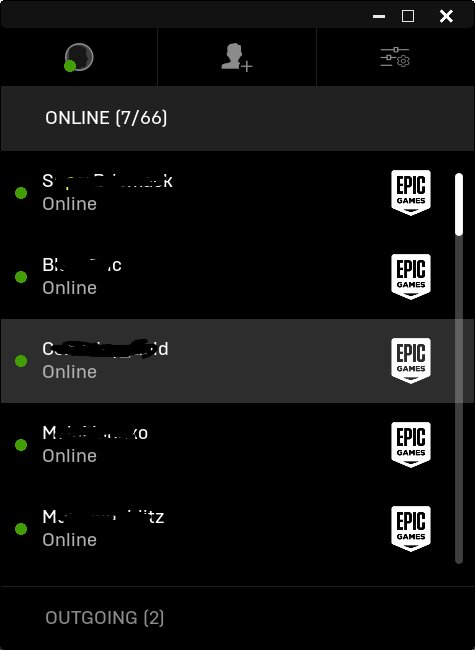
To see Epic Games friends on mobile, open the Epic Games app, tap the friends icon at the bottom, and your list will appear.
Want to connect with your gaming buddies on the go? It’s simpler than you might think to manage your friendships across platforms. This article will guide you through the straightforward process of how to see Epic Games friends on mobile. No complicated steps, just a quick and easy guide to keeping in touch.
The Epic Games app makes it easy to view your friend list. You can start and keep the social experience with mobile. It’s great for coordination with your friend’s gaming activities. Let’s get started right away!

How to See Epic Games Friends on Mobile
Hey there, gamers! Ever been itching to team up with your Epic Games buddies while you’re out and about? Maybe you want to see who’s online for a quick match of Fortnite, Rocket League Sideswipe, or another fun game? Well, you’re in the right place. Seeing your Epic Games friends on your phone isn’t always super obvious, but it’s actually pretty easy once you know how. Let’s dive into all the ways you can keep track of your gaming pals on your mobile device.
The Epic Games App: Your Central Hub
The main way to see your Epic Games friends on mobile is through the official Epic Games app. This app is your portal to all things Epic, including your friend list. If you don’t have it yet, head to the App Store (for iPhones) or the Google Play Store (for Android phones) and download it. Once you’ve got it installed, sign in with your Epic Games account, the one you use to play games like Fortnite or Rocket League on your PC or console.
Navigating to Your Friends List
After logging into the app, you’ll notice a few different sections. To see your friends, you’ll want to look for the “friends” icon. This is often represented by two little people or figures. Where this icon is located might change slightly depending on updates to the app, but it usually sits along the bottom navigation bar or on the main dashboard. Tap this icon, and your friends list should pop right up!
- Looking for the icon: It might look like two tiny people or silhouettes of heads. Sometimes, it is labeled with the word “friends.”
- Bottom bar location: Many times, you will find it in the bottom navigation bar.
- Dashboard location: Sometimes it might be on main dashboard, especially on first load.
What You’ll See on Your Friends List
Once you open your friends list, you will see several things:
- Online friends: Friends who are currently playing on any device are marked as online, typically with a green dot or another symbol beside their name.
- Offline friends: Friends not online will be listed below the online ones. They usually don’t have any indicators next to their names.
- Friend Status: For your online friends, you may even see what game they are currently playing. This helps you decide if you want to join their game or message them.
- Search Bar: A search bar is present to allow for searching for friends by their Epic Games usernames.
Using the In-Game Friend Interface on Mobile
Some Epic Games titles have their own in-game friends interface, which can also be accessed via mobile. This is useful if you are actively playing a game like Fortnite on your phone. Let’s explore how this works with a few examples.
Fortnite Mobile
Fortnite has a dedicated friend list available right in the game’s main menu. To access it on mobile:
- Launch the Fortnite app on your phone.
- After you’ve logged in, head to the lobby.
- Look for the icon at the top of your screen. The friends icon is located at top of screen right beside the game mode selection. it also may be indicated by a number. This is the social menu icon.
- Tap the social menu icon, and your friend list will be revealed.
Here you can view who is online, which game they are currently playing, and even send them game invites.
Rocket League Sideswipe
Rocket League Sideswipe also provides its own in-game friend interface. To see your friends:
- Open the Rocket League Sideswipe application.
- Go to the main menu.
- Tap the friends icon which is located at the top of the main menu.
- You can see your friend list displayed here and their online status.
You can see which friends are online, invite them to your party, or chat with them via the in game messaging system.
Adding New Friends on Mobile
Sometimes, you’ll want to add new friends to your Epic Games list. Here’s how to do that using your mobile device.
Adding Friends via the Epic Games App
The official Epic Games app allows you to add friends easily. Here’s how:
- Launch the app and go to your friends list section.
- Look for an “Add Friend” button. It is typically represented by a plus icon or labeled as “Add Friend.”
- Tap this button.
- Type in your friend’s Epic Games username in search bar and tap enter.
- If you located the correct user, tap “Add Friend” button.
- Your friend will receive a friend request notification, and they will need to accept it.
Adding Friends in Game
Within games like Fortnite or Rocket League Sideswipe, you can also add friends you’ve played with recently. This can be more convenient than using the Epic Games app if you are in game and playing with a new friend.
- Fortnite: You can typically add teammates or players you’ve just played with from the “Match Stats” or “Recent Players” tabs inside the game, accessible from social menu.
- Rocket League Sideswipe: After a match, you often have the option to send friend requests to the players you have just competed with through the post game menu.
Troubleshooting Common Issues
Sometimes, seeing your friends list might not go as planned. Here are some common issues and how to solve them.
My Friends List Isn’t Loading
If your friend list isn’t loading properly, try these steps:
- Check Your Internet Connection: A weak or unstable internet connection can prevent your friends list from loading. Make sure you are connected to Wi-Fi or have a stable cellular connection.
- Close and Restart the App: Sometimes, simply closing the app completely and reopening it can fix loading issues.
- Update the App: Make sure you have the latest version of the Epic Games app installed. Outdated versions can have bugs that may cause problems. Visit your device’s app store to update.
Friends Don’t Appear Online When They Are
If your friend is saying they’re online, but you don’t see the online indicator beside their username, try these steps:
- Have your friend Check their privacy settings: There is a possibility that your friend may have their privacy settings set to block your visibility. Ask them to check their visibility in privacy settings.
- Restart your game or app: Sometimes refreshing the application can resolve the discrepancy.
- Verify their online status: Confirm that your friend is online by checking their Epic Games username in the PC app or console version if available.
Friend Request Not Showing
If you sent a friend request and your friend says that they have not received it, try these troubleshooting steps:
- Ensure you have entered the correct username: Confirm that you have entered your friend’s username accurately when sending a friend request.
- Have your friend check spam or pending requests: sometimes friend request may get placed in pending request section. have your friend check all the section.
- Restart the Application: Sometimes, closing and opening application can resolve this problem.
Managing Your Friends List
Once you’ve got your friends list all sorted, you might want to manage it a bit. Epic Games gives you some options for doing this.
Removing Friends
To remove a friend from your list using your mobile device:
- Open the Epic Games app or the in game friends list of your choice.
- Locate the friend you want to remove.
- Tap the three dots/icon beside the user profile.
- Select the remove option.
This friend will be removed from your list.
Blocking Users
If there’s someone you no longer want to interact with, you can block them. Blocking prevents them from sending you messages or friend requests and ensures they cannot see your online status. To block someone:
- Open the Epic Games app or in game friend list of your choice.
- Find the friend you wish to block.
- Tap the three dots or more options beside the username.
- Select the block option.
This will block the user.
Benefits of Staying Connected
Staying connected with your Epic Games friends on mobile allows you to keep the fun going, even when you’re not at your computer or console. Here are just a few benefits:
- Staying in Touch: You can easily chat with your friends, plan gaming sessions, and stay updated on what everyone is playing.
- Joining Games Quickly: If you see a friend playing, you can quickly jump into their game when you return home.
- Never Miss Out: You won’t miss out on chances to play together even when you are out of the house.
Being able to see your Epic Games friends on mobile means that you’re never really out of the loop. You can manage your gaming life wherever you are.
By using the Epic Games app or the in-game social menus you can see your friends, send messages, join games, or add new friends. With this guide, you should have no problems keeping up with all your gaming buddies on your phone. This means that no matter where you are, you can stay connected and never miss a chance to play!
How To Add Friends on Epic Games Mobile [The Truth]
Final Thoughts
To see your Epic Games friends on mobile, use the Epic Games app. Navigate to the friends list within the app interface. This will show you all of your connected contacts.
Confirm your account is correctly logged in. Ensure you are using the same account used on other devices. This step is vital for proper syncing of your friend list.
So, remember that ‘how to see epic games friends on mobile’ involves using the official app and ensuring the correct account is logged in. The method provides an easy way to manage your contacts and connect with them.

