
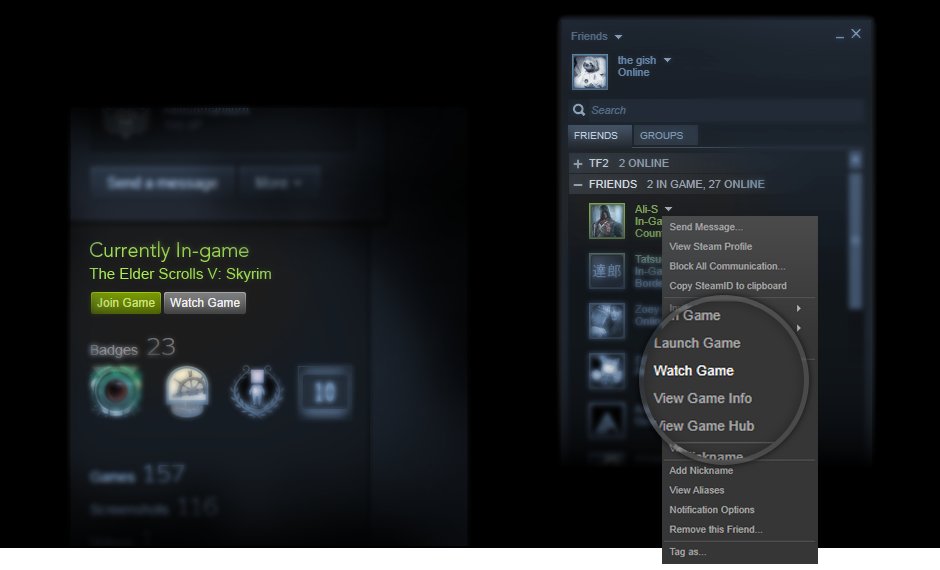
To see your friend’s games on Steam, navigate to their profile, and their owned games will be displayed below their profile information.
Ever wondered what your buddies are playing on Steam? It’s a common question. You might be planning a multiplayer session or just curious about their library. Luckily, it’s quite simple.
The process of how to see friends games on steam is quick. Knowing this lets you easily check if you have a game in common for co-op play. You can always find this information on their profile page.

How to See Friends Games on Steam
Want to know what your friends are playing on Steam? It’s a great way to find new games to try or join in on the fun. Steam makes it pretty easy to see what your buddies are up to, and this guide will show you all the ways to keep an eye on your friends’ gaming adventures.
Viewing Your Friends List
The first and most basic way to see what your friends are playing is by checking your friends list. It’s right there in the Steam client, and it’s your go-to spot for quick updates.
Finding Your Friends List
Open the Steam application on your computer. If you’re not logged in, go ahead and enter your username and password. Once you are logged in, take a look at the bottom right corner of the Steam window. You’ll see a small area labeled “Friends & Chat”. Clicking on it will open a separate window that shows all your Steam friends.
Interpreting the Friends List
In the Friends & Chat window, you’ll see each of your friends listed. Next to their name, you’ll see a status indicator. Here’s what those indicators mean:
- Online: Your friend is currently logged into Steam. If they’re in a game, you’ll see the game’s name displayed next to their username.
- In-Game: This status tells you exactly which game your friend is playing. The game title is always present, so you know what they are up to.
- Away/Busy: Your friend is logged into Steam, but they may not be at their computer or ready to play. They could be doing something else, maybe eating or doing work.
- Offline: This means your friend is not logged into Steam at this time. You won’t be able to see what they are playing until they come back online.
This is a very easy method to see what your friends are playing, but Steam provides additional layers of information and different places where you can see your friends games which can give you a better view of what they are up to!
Using the Steam Activity Feed
The Steam activity feed is like a social media feed, but just for Steam games. It’s a great place to see what your friends have been playing recently. You might see updates about new games they have bought, what achievements they have earned and how long they have played. It’s a different way to see what games might be interesting. Let’s explore how to use this feature.
Accessing the Activity Feed
To find your activity feed, look at the top menu in your Steam client. Click on “Community.” A drop-down menu will appear. From the menu choose “Activity.” This opens up the main activity feed where you can see your friends recent updates.
Understanding the Activity Feed
The activity feed is a chronological listing of actions performed by your friends. These actions will include:
- Game Purchases: You will see when your friends purchase new games. It’s a great way to find out about new titles you might not have known about.
- Achievements: If a friend earns an achievement in a game, it’ll show up in the activity feed. This can give you an idea of how well your friend is doing in their game.
- Playtime Updates: The activity feed sometimes shares updates on how long your friends have played games. This is useful if you are interested in how dedicated your friend is to a specific title.
- Reviews and Posts: If your friends write a review or post something on a game page, it can appear here as well. This can be really helpful to know how they like or dislike a game.
By regularly checking your activity feed, you can keep up with your friends’ gaming habits and see what they are really enjoying. It’s like having a personal game recommendation system from your closest friends.
Using Steam Broadcast
Steam Broadcast is a cool feature where you can actually watch your friends play games. It’s like having a personal Twitch stream right in Steam. This can give you a much deeper perspective on the game your friend is playing. This is more detailed than just seeing that someone is playing a specific game because you actually see them playing it.
How to Watch a Friend’s Broadcast
First, you need to know if your friend is currently broadcasting. The best way to check this is to go back to your friend’s list. If a friend is currently broadcasting, next to their name in the friend list, you’ll see a small icon which looks like a TV screen or a broadcast symbol. This symbol tells you that your friend is live.
Now click on the name of your friend who is broadcasting. A new small window will open. In this window, on the top you’ll see multiple different options and features, one of them will be titled ‘Watch Broadcast’. Clicking on “Watch Broadcast” will then open a new window that shows a live stream of their gameplay. It’s that easy!
Settings to be Aware of
Steam has some different settings related to broadcasting. Some settings might make it harder to watch a friend’s broadcast. Here are some of the settings that can affect you:
- Broadcast Privacy: Your friends can set their broadcasts to “Friends Only,” “Private,” or “Public.” If your friend’s broadcast privacy is set to “Private,” you won’t be able to watch it. Make sure to ask them to change it to “Friends Only” so you can watch them play.
- Broadcast Quality: Steam allows different settings for broadcast quality and might limit the broadcast quality depending on your friends’ settings. If your internet is not fast enough to watch the stream, then it might be laggy or stop working.
If you can’t watch a broadcast, talk with your friend. They may need to adjust their broadcast settings or have to troubleshoot internet issues on their end. It’s also worth keeping in mind that if your friend is having some network issues or a bad internet connection, their broadcast might also not work well. Broadcasting and watching broadcasts can be affected by different network conditions.
Using the Steam Mobile App
Did you know you can also see what your friends are playing on your phone? The Steam Mobile App brings all the functionality to your fingertips. This way, you can check what your friends are playing, even if you are not near your computer. This can be a really convenient way to check in on your friends and see what games might be trending.
Installing and Logging In
First, you will have to install the Steam Mobile App. It is available for both Android and iOS devices. You can find the app on the Google Play Store or the Apple App Store. Once installed, open the app and log in with your Steam account. It is the same username and password you use on your computer.
Navigating the Mobile App
Once you are logged in, you’ll find your friend’s list on the bottom of the screen. The friends list will look pretty similar to the friend list on the computer. By clicking on your friends, you will be able to see the same kind of status updates. The status updates on the mobile app work in the same way as they do on the computer. This makes it very convenient to find out what games they are playing when you are not near your computer.
- Online: Your friend is logged in. If they are in a game, you will see the game’s name.
- In-Game: It directly tells you which game they are playing.
- Away/Busy: Your friend is logged in, but they might not be available to play.
- Offline: This means your friend is not logged into Steam at all.
The Steam mobile app makes it really easy to check what your friends are up to, no matter where you are. You can easily see if they are online, if they are in a game, or even what game they are currently playing. This also includes viewing their Steam broadcast if they are live.
Joining Friends in Games
After seeing what your friends are playing, you might want to join them! Steam makes it very easy to join your friends in games, if the game allows it. This is a great way to play games together, explore the game world, or team up to complete challenges together.
How to Join a Game
The process to join your friends in games is pretty straightforward. First, see if your friend is in a game that allows you to join directly. Games like multiplayer games, coop games or specific team games generally will allow you to join them directly. This is one of the most amazing features of the Steam platform, so you should definitely use this if you want to play with friends.
If the game allows it, when you click on your friend, you will see the “Join Game” option. Clicking this option will make Steam attempt to join the game server that your friend is playing. Depending on the game, you might be directly dropped into the game, or have to join some kind of lobby to join your friend. Either way, the game will load up and you should be able to start playing with your friend.
Important things to remember
- Game Compatibility: Not every game has the feature to allow you to join a friend directly. Some games have separate servers and you have to coordinate with your friend to start the game. Some of the singleplayer games may not allow a join at all.
- Game Version: If you want to play with your friend, you will need to ensure that you have the same version of the game. Different game versions might cause issues with the game joining functions.
Joining your friends in games is a very simple process, and you can easily coordinate to play all kinds of different games with your friend. Remember that some games may have their own rules and requirements to join your friend in the game, so check the game settings if you have issues joining.
Troubleshooting Issues
Sometimes, you might have problems seeing what your friends are playing. Don’t worry; these issues usually have simple solutions. Here’s what to do if things aren’t working.
Checking Internet Connection
If you can’t see your friends’ status or games, check your internet connection. A bad connection can prevent Steam from updating information. Try restarting your router. If you are on a wifi connection, sometimes switching to ethernet can help if the wifi is unstable or slow. A stable internet connection is one of the most important things for Steam to work properly, so make sure to try and troubleshoot your internet if something is not working properly.
Steam Client Updates
Make sure your Steam client is up to date. Outdated clients can cause problems. Steam automatically updates itself, but it’s still good to check. You can also try to restart the client. You can do this by just closing the steam client entirely, and opening it back up. Sometimes this will force the Steam client to update itself if there is a new version available. You might need to do this a couple of times if Steam was behind a couple of versions.
Friend List Issues
If your friend list is not updating, try restarting your Steam client. This often fixes most bugs related to the friends list not updating. If that does not work, you can also try to remove the friend and add them back again, but this is generally not needed. This is an extreme method that can sometimes help to solve this issue.
Firewall and Antivirus Issues
Sometimes, firewalls or antivirus software might block Steam’s connection. If it’s a firewall issue, then Steam needs to be allowed through your computer’s firewall. If it’s your antivirus software causing the problem, you will have to add Steam as an exception in your antivirus software. Check your computer’s firewalls and antivirus software to make sure Steam is allowed. This is quite common if Steam is not working as intended.
By checking these common issues, you should be able to easily troubleshoot most of the issues you might be having. If issues persist, then you might need to contact Steam support, but usually restarting everything and checking your internet connection solves most of the problems.
Seeing what your friends are playing on Steam is easy and fun. From the basic friends list to broadcasts and mobile access, Steam offers many ways to stay connected and see what your friends are playing. By following these simple steps, you can keep up with their gaming adventures and easily jump into games with them. Enjoy exploring what your friends are playing and have fun gaming together!
How to Share Games on Steam 2024 – Steam Family
Final Thoughts
To see what your friends are playing, navigate to the “Friends” list. You can find it in the bottom right corner of your Steam client. A list of online friends appears, displaying their current game.
Clicking a friend’s name shows additional details. It might include if they allow you to join their game. This is the main method for tracking their game activity.
Therefore, knowing how to see friends games on steam is easy using the friends list. This simple procedure allows you to keep track. Knowing what your friends are playing is must to play together.

