
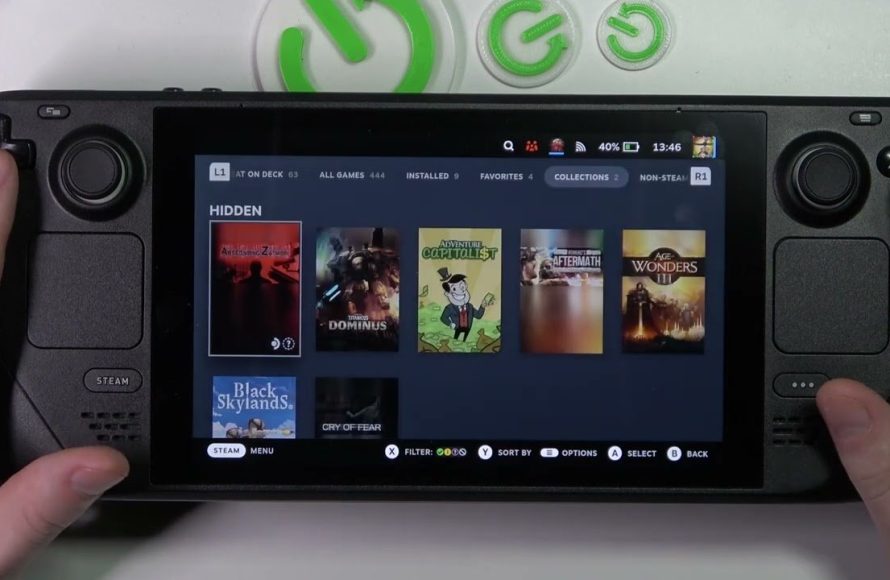
To see hidden games on Steam Deck, navigate to your library, click the filter icon, then select “Hidden” from the status filter.
Have you ever felt like your Steam Deck library held secrets? Perhaps you accidentally hid a game and now cannot find it. It’s quite simple, actually. Many users wonder how to see hidden games on Steam Deck. You can quickly reveal those titles you thought were lost with just a few clicks.

How to See Hidden Games on Steam Deck
Ever felt like your Steam Deck is keeping secrets? You might have games tucked away that you’ve forgotten about or intentionally hidden. The good news is, finding these hidden treasures is easier than you think! This guide will show you all the ways to reveal those games, giving you full access to your Steam library on your awesome handheld device. We’ll go through the simple steps, cover different reasons why games might be hidden, and help you manage your games like a pro. So, get ready to explore your full library!
Understanding Why Games Might Be Hidden
Before we jump into how to show hidden games, let’s talk about why they might be hidden in the first place. It’s not some complicated computer magic, often it’s something you or Steam did. Here are a few common reasons:
User-Initiated Hiding
Sometimes, we hide games ourselves! Maybe we were trying to declutter our library or hide games we don’t want others to see. It’s super easy to do, and sometimes we forget we did it. Think of it like putting toys away in a box and then forgetting which box they’re in!
Games Added Through Bundles or Keys
When you buy games in bundles, or get them through keys from other sites, Steam sometimes automatically hides them. This can happen when you have several games and haven’t yet played some of them. Steam might think you want to focus on the ones you usually play, so it hides the new ones. This helps keep your library neat but can be annoying if you don’t know where to find them.
Family Sharing
If you are sharing your Steam library with your family members, it is possible that the games may get hidden if someone on shared family account uses the hide option for particular games, or even if they choose to hide the games of yours. Steam tries to keep everyone’s library clean and to only show them the games that they play, or the games that they have not played.
Games No Longer Compatible
Sometimes, games that no longer work properly on the Steam Deck might appear hidden. This is often due to compatibility issues or because the game is very old. Steam may put these games out of sight as they aren’t really playable.
Games that you don’t want to keep in the library
Sometimes, we have certain free games or games that we no longer want to keep in the library, and we just want to keep it hidden to keep the library clean, there can be any reason to hide a game from library.
How to Unhide Games on Your Steam Deck
Now for the exciting part – bringing those hidden games back into the light! Here’s how to do it:
Using the Steam Deck’s Interface
The most straightforward way to see hidden games is directly through your Steam Deck’s interface. Here’s how:
- Turn on your Steam Deck: Make sure your device is powered on and you’re logged into your Steam account.
- Go to Your Library: From the main menu, select ‘Library’. It’s usually the second button from the left on the bottom menu.
- Access the Filters Menu: Look at the top of your Library screen, you’ll see a word “filter”. Press this to open a dropdown menu.
- Choose “Hidden”: Within that dropdown menu, you’ll see the option of “Hidden”, select it.
- See Your Hidden Games: Now you will see only the games that are hidden in your library.
- Unhide Specific Games: To bring a game out of hiding, select the game. Then, press the ‘Start’ button (the three horizontal lines). A new menu will appear; scroll to the bottom, and press “Manage.” Another menu will appear, select the option “Remove from Hidden” , and now the game is no longer hidden.
Using Big Picture Mode
Big Picture Mode is like using your Steam Deck with a TV interface. It can be a little different from the usual interface, but it works similarly when it comes to revealing hidden games:
- Enter Big Picture Mode: From the main Steam Deck interface, press the Steam button, and choose “Power,” then “Switch to Big Picture.”
- Go to Your Library: Select “Library” at the top.
- Access the Filters: You should see a filter icon (it looks like three horizontal lines and dots) in the upper right corner of your screen, Click or Press that.
- Choose “Hidden”: Now a menu will appear, here choose “Hidden”.
- View Hidden Games: This will show you all of your hidden games.
- Unhide Games: Click or Select the hidden game you want to unhide. Now press the options button (the three horizontal lines), press manage, and then press “Remove from Hidden”. The selected game will now be visible in your normal game list.
Using the Steam Desktop Client (on a PC)
You can also manage your hidden games from a computer if you have Steam installed there. This can be a good option if you like using a bigger screen and keyboard:
- Open the Steam Client: Start the Steam application on your computer and log in with your account.
- Go to Your Library: Click on ‘Library’ at the top of the window.
- Select “Hidden” filter: Look at the left side of the screen, and above the “Installed” section you will see a section where it says “Hidden”. Click that.
- See Your Hidden Games: Only the hidden games are now shown in your game list.
- Unhide Games: Right-click on the game you want to unhide, select “Manage,” and then select “Remove from Hidden.” The game will now be visible in the normal game list on your Steam Deck too.
Organizing Your Games
Now that you know how to find hidden games, here are some ways to keep your Steam library tidy so it’s easier to manage:
Creating Collections
Think of collections as folders for your games. You can group games by genre, like “Action Games,” “Strategy Games,” or by which console the game is from, like “Indie Games.” Here’s how to create them:
- Select a game.
- Press the ‘Start’ button.
- Press ‘Manage’, and then choose ‘Add to Collection’.
- Create a new collection or add it to an existing one.
Using Categories
Categories can be another way to group your games. It’s similar to collections but it uses a different interface. Here’s how to do it:
- Go to your Library on the Steam Deck
- Select any game, press the ‘Start’ button.
- Click “Manage” and select “Set Categories”.
- Choose the appropriate categories.
Using the Search Function
When you have many games, sometimes it is easier to just search for the game you want to play. Using the search bar in your Steam library can quickly find a game, rather than having to browse through everything you own.
Simply press the magnifier symbol on top right corner of your Steam library to search for specific games.
Sorting Your Games
You can sort your games by the date that you installed the game, the last time you played the game, the title of the game, and more. To sort the game, find the sort button above your games, and pick one of the many choices to sort the games.
Troubleshooting Common Issues
Sometimes, things don’t go exactly as planned. Here are a few issues you might run into and how to fix them:
Games Still Not Appearing
If a game still isn’t showing up even after you’ve tried unhiding it, it might be an issue with your internet connection, your account, or some internal Steam settings. Try logging out and back into your Steam account, and check if your Steam Deck has internet access.
Games are Not Compatible
Sometimes, a game may be hidden because it is not compatible with your Steam Deck, or with the current version of your system. Double-check the game’s page to see if there are any reported issues.
Steam Update Problems
Make sure that both your Steam Deck and the Steam application are updated to the latest version. Sometimes, an outdated version of Steam can cause these kinds of issues.
Restarting Your Steam Deck
If you are still having problems, a simple restart can fix many things. Just press the power button on your Steam Deck, then select “Restart”.
Finding your hidden games on the Steam Deck doesn’t need to be a mystery. By using the different methods we went over, you can manage all the games in your library. You can quickly access all the games you have purchased or acquired through bundles and keys. Remember that staying organized is key. Using collections, categories, and the search function will make your gaming life on the Steam Deck easier and more fun. So, go ahead, find those hidden games, and enjoy!
Steam Deck – How To Find Hidden Games
Final Thoughts
To see your hidden games, navigate to your Steam library. Click the “Games” dropdown menu. Then, select the “Hidden” option. This action displays all games you previously concealed.
You now know how to see hidden games on Steam Deck. This simple method makes finding those tucked-away titles quick. Remember, that’s how to see hidden games on Steam Deck.

