
‘You can block ads in Android games by using a VPN with ad-blocking capabilities, employing a dedicated ad-blocker app, or by purchasing the premium version of the game to remove ads.’
Annoying ads constantly interrupting your gameplay? It can be frustrating, right? Nobody enjoys being pulled out of a game by a video ad. Thankfully, there are solutions for this.
This guide will explore several ways to tackle this common problem. We will show you how to block ads in android games so you can finally enjoy your mobile gaming experience more. Get ready to say goodbye to those pesky interruptions!

How to Block Ads in Android Games: A Complete Guide
Ads in mobile games can be super annoying! They pop up at the worst times, interrupting your gameplay and making it hard to focus. But don’t worry, there are ways to get rid of them and enjoy your games without those pesky interruptions. This guide will show you several different methods to block ads on your Android phone or tablet, from simple tricks to more advanced techniques. We’ll cover everything from basic settings to useful apps. Let’s jump in and get those ads out of the way!
Understanding Why Ads Appear in Games
Before we start blocking them, let’s talk about why these ads are there in the first place. Many mobile games are free to download, and developers need to make money to keep making new games and improving the old ones. Ads are one of the main ways they do this. They’re basically showing you little commercials while you play. However, sometimes these ads can become excessive, which leads to the need to find ways to block them. Knowing this will help you understand that the goal is not to harm developers but to have a better experience with the games. Think of it as finding a balance between supporting game makers and enjoying the game without interruptions.
Types of Ads You’ll Encounter
There are a few different kinds of ads you’ll usually see while playing Android games:
- Banner Ads: These are the small ads that often appear at the top or bottom of the screen. They usually stay there during your game time.
- Interstitial Ads: These are the full-screen ads that pop up between levels, after a game over, or when you pause the game. These are the most disruptive and most annoying type.
- Video Ads: These ads play a short video, sometimes with an option to skip them after a few seconds. Many video ads also encourage to download the game or applications.
- Rewarded Video Ads: These are ads that give you in-game bonuses if you watch them completely. These are often optional and you get a reward such as game currency or booster.
Simple Ways to Reduce Ads
Let’s start with the easiest methods that don’t require any special apps.
Turning off your internet connection
The most straightforward way to stop ads from showing is to turn off your internet connection. When your device isn’t connected to Wi-Fi or mobile data, most games can’t load ads. This is a great solution for offline games, but it’s not useful for games that need the internet to play. Here’s how to do it:
- On Android Devices: Swipe down from the top of the screen to open the quick settings menu. Then, tap the Wi-Fi and Mobile data icons to turn them off.
Keep in mind that this also means you won’t be able to play online games or access other internet-based features until you reconnect. It’s a temporary solution, but very effective for offline single player games.
Using the Airplane Mode
Another similar way to play games without ads is by using Airplane mode. When airplane mode is on, it turns off all wireless connections including Wi-Fi, mobile data and Bluetooth. This is even simpler than turning off the internet connections one by one. Here’s how to enable it:
- On Android Devices: Swipe down from the top of the screen to open the quick settings menu. Then, tap the Airplane mode icon to turn it on.
Just like turning off Wi-Fi and mobile data, Airplane mode also stops internet-based functionalities. This also means you will not receive messages or any other notification that requires the internet. And you have to disable it if you want to use the internet again.
Using Ad Blocker Apps
If turning off your internet isn’t convenient, you can use ad blocker apps. These apps filter out ads from your device and work whether you are on the internet or not. They are very popular among android users who play games a lot. Let’s see some of the common ad blocker apps.
How Ad Blocker Apps Work
Ad blocker apps work by creating a “VPN” or local network on your device. They intercept and block network requests made by apps to ad servers. This stops the ads from reaching your device. These VPN connections are done locally and they do not send data to a remote server, which keeps your data safe. Also, these ad blockers are configured to block the most common and popular advertisement servers, so you can get an experience free from annoying ads. Many of these apps are free to use and easy to install, so they are a great choice for beginners.
Popular Ad Blocker Apps for Android
There are many ad blocking apps on the Play Store. Let’s explore a couple of popular choices:
- Block This! : This is one of the most popular ad blockers for Android devices. Block This! does not require root access and is very easy to set up. Just install the application, turn it on, and it does the rest for you. Block this! is popular because it works on all apps in your device. You just need to turn it on once, and it will take care of your ad blocking. This app is completely free and uses a VPN connection to block ads, so it has minimum impact on the device. It works well with various games and is easy to manage.
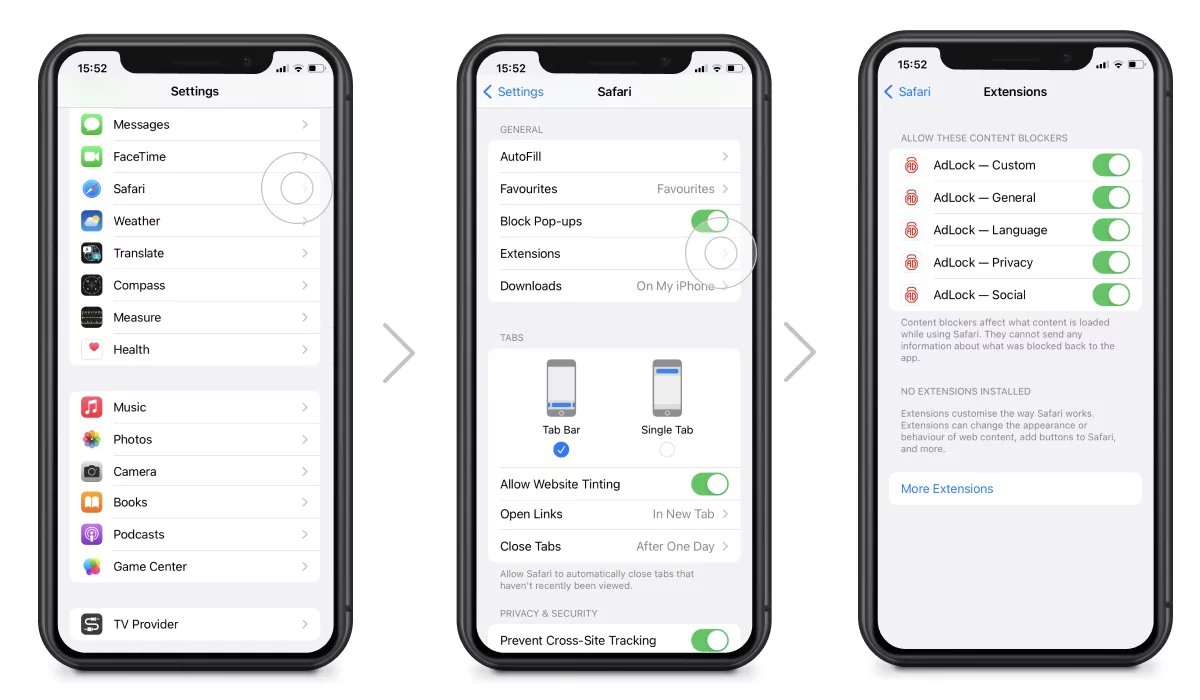
- AdLock: AdLock is another popular ad blocker for android games. AdLock offers both free and paid options. Like other ad blockers, AdLock also uses VPN connection to block the ads. The free version is very effective in blocking basic ads, but you can pay a fee for a better experience. It has features like blocking trackers and malware in addition to blocking ads. AdLock also provides customizable features which allows you to block ads selectively.
Installing and Setting Up an Ad Blocker App
Here’s a general guide on how to install and set up an ad blocker app, using Block This! as an example:
- Download: Go to the Google Play Store and search for “Block This!”. Tap “Install” to download the app.
- Open the App: After installation, open the app from your app drawer.
- Enable VPN: Most ad blocker apps use a VPN. Tap the big button in Block This! app to enable it. Android will ask for permission to allow the VPN. Allow the VPN to run.
- Start Playing: That’s it! The ad blocker is now running in the background. You can now start playing your games ad-free.
DNS-Based Ad Blocking
Another technique to block ads on your Android device is by using a custom DNS server. This method works by routing your internet traffic through a server that filters out ad requests. It’s a little more technical, but it can be very effective.
What is DNS and How Does It Work?
Think of DNS as the internet’s phone book. When you type a website address (like www.example.com), your device needs to find the corresponding IP address to connect to the server where the website is hosted. DNS translates the website name into the IP address. Ad blocking DNS servers redirect requests to ad servers to a dead-end which results in ads not loading.
Setting up a Private DNS
Here’s how you can set up a private DNS to block ads on your Android phone:
- Go to Settings: Open the Settings app on your Android device.
- Find Network Settings: Look for options like “Network & Internet,” “Connections,” or “Wi-Fi & internet” depending on your device.
- Go to Private DNS: Tap on “Private DNS.” It may also be under “Advanced settings”.
- Select Private DNS provider hostname: Select “Private DNS provider hostname”.
- Enter DNS Hostname: Type the hostname of the ad-blocking DNS you want to use. Some popular ad-blocking DNS server hostnames are
dns.adguard.com,dns.nextdns.ioordns.controld.com. - Save: Tap “Save” to apply the changes.
After saving the settings, your device will automatically use the private DNS server to resolve web addresses. This will prevent ads from showing in most apps and games. You can change the DNS server anytime from your settings.
Popular Ad-Blocking DNS Servers
Here are a few options for ad-blocking DNS servers:
| DNS Provider | Hostname | Notes |
|---|---|---|
| AdGuard DNS | dns.adguard.com | Popular and effective, good balance between ad blocking and performance |
| NextDNS | dns.nextdns.io | Highly customizable, with extra features and parental controls. Requires you to create a free account. |
| ControlD | dns.controld.com | Very powerful and customizable, but more complex to setup and use. |
Using Modded APKs
Modded APKs are altered versions of games. Often, modded apk creators modify a game to eliminate the ads completely. Using modded apks is a very effective way to block ads from specific games. However, it is important to consider some safety issues when using this method. Here are a few things to keep in mind when downloading and installing modded APKs.
Understanding Modded APKs
Modded APKs are modified versions of official game files. They are often created by third-party developers. They can eliminate ads and sometimes even enable other features, like unlimited in-game currency, but it is important to know that it is an unofficial version. These types of modifications are generally not allowed by the official game developers.
Finding Reputable Sources
It is important to be careful when downloading modded apks. You should only download these from safe sources because some malicious sites may contain viruses and malware in modded APKs. Avoid downloading the apks from untrustworthy sites. Before downloading you should always verify that the source is trustworthy. Some of the best sources for modded apk downloads are moddedapk.com, apkpure.com, revdl.com etc. These sites are some of the best for these types of downloads, but you should still be careful.
Installation Process
Here’s a general guide on how to install a modded APK:
- Download the APK: Go to the website where you want to download the game and find the modded APK. Click the download button to download the apk file.
- Enable “Install from Unknown Sources”: You will need to allow your Android device to install apps from sources outside of the Google Play Store. Go to Settings > Security > and turn on “Install from Unknown Sources.” The settings path may vary on different android devices. You will have to allow this option to install modded APKs.
- Install the APK: Find the downloaded apk file in your “Download” folder. Click on the apk file to install the modified game.
- Play the game: Open the newly installed game and enjoy it without ads.
Risks of Using Modded APKs
It is very important to know the risks when using modded APKs:
- Security Risks: Modded APKs might contain viruses or malware. Be careful about where you download from. Download them from trusted sources.
- Legality: Modded APKs are illegal and it violates the copyright rules.
- Game Instability: They might not work properly or can cause problems with your phone.
- Account Bans: You might be banned from playing online games if you use modded APKs that provide unfair advantage.
Using modded apks is easy and it will help you play games without any ads. It can be good to play offline games, but be sure to take the necessary precautions before installing and using them.
Specific Game Settings
Some games have in-game options to get rid of ads, sometimes by paying or watching certain type of videos. These options are made by game developers to give their users the option to remove ads from their game.
In-App Purchases
Many games offer an option to remove ads by purchasing a premium version or a one-time purchase to remove ads. If you play a game a lot and want to support the developers, this can be a good option. Usually, the price is worth not having to deal with annoying ads every now and then.
Rewarding Video Ads
Some games let you reduce the number of ads by watching special videos. These are often rewarded videos that also give you extra in-game gifts and bonuses. For example, if you watch a video ad you may be rewarded with extra coins, boosters or other things that are useful in the game. This is very common and it’s an easy way to reduce the number of ads you get.
By exploring the settings in specific games, you can potentially control the ads by using the in game options for ad removal.
By trying these methods, you will be able to get rid of annoying ads in your android games and have a better game experience. Keep trying and using different methods and find the solution that works best for you. Remember that each person has different needs and different types of games that they play, so try to find the method that works perfectly for your situation.
Playing games should be fun, and ads shouldn’t ruin that experience. Hopefully this guide has given you several options to block ads on your Android device. You can choose the methods that are best for you and get ready to experience your games without those annoying ad interruptions.
Block Ads on ALL Games (FREE and FAST) #shorts
Final Thoughts
To block ads in android games, use a reliable ad-blocking app, or consider a premium game version. Some games offer an in-app purchase to remove all advertisements. Explore your device’s network settings. You may find options to limit ad tracking.
Selecting a good ad blocker is key. These apps filter out ad requests effectively, creating a better gaming experience. Also, using custom DNS servers can sometimes achieve similar results.
These are the general methods on how to block ads in android games. Choose the method that suits your needs and gaming style for ad-free fun. Remember to always use trusted and safe sources for your chosen method.

