
Sharing games on PC typically involves using platform-specific features like Steam Family Sharing, or creating a shared library on a network.
Want to let a friend try that awesome game you just bought, or perhaps you want to play your library on a different computer? The good news is that learning how to share games on pc is actually pretty straightforward these days. There are several methods, depending on which gaming platform you’re using.
These options allow you to grant access without needing to purchase the same title multiple times. Sharing is caring, right? Let’s explore some of the most popular and effective ways you can share your PC games with others.

How to Share Games on PC: A Complete Guide
So, you want to share your awesome PC games with your friends or family? That’s fantastic! Sharing games can be a lot of fun, and it doesn’t have to be super complicated. This guide will walk you through all the different ways you can share your games, whether they’re digital downloads or old-school discs. We’ll cover everything from using platform features to lending physical copies. Let’s dive in!
Sharing Digital Games via Game Platforms
The most common way people get games now is through digital platforms. These platforms, like Steam, Epic Games Store, and GOG, usually have features that allow you to share your games, at least in some capacity. Let’s explore how each platform handles game sharing:
Steam Family Sharing
Steam Family Sharing is a popular option for sharing your games with others. It lets you share your entire game library with up to five other accounts on different computers. It is a great way to share your games with family members who live in the same house.
How Steam Family Sharing Works:
- Authorization: You need to authorize the other person’s computer to access your library. You do this by logging into your Steam account on their computer.
- Sharing Restrictions: If you’re playing a game, the person using your shared library cannot play any of your games. They’ll have to wait until you are done.
- Simultaneous Play: Only one person can play games from the shared library at a time.
- Region Locks: Some games may have region locks that prevent sharing between different locations.
Steps to Set Up Steam Family Sharing:
- Log into your Steam account on the computer you want to share with.
- Click on “Steam” in the top left corner of the Steam window.
- Go to “Settings” then select “Family.”
- Check the box that says “Authorize Library Sharing on this Computer.”
- Choose which Steam accounts you want to share your games with.
- The users you select will now be able to see your games when they are logged into their Steam account on the shared computer.
Important Note: Not all games are shareable through Steam Family Sharing. Some titles may be excluded by the developers for various reasons.
Epic Games Store: Currently Limited Sharing Options
The Epic Games Store is a newer platform compared to Steam, and they do not offer official game sharing features like Steam Family Sharing. However, this doesn’t mean it’s impossible to share games; it just requires more manual methods. We will discuss those further in the manual methods sections below.
Why no Direct Sharing? The focus of Epic Games Store is on individual accounts and purchases, with less focus on account sharing features.
GOG (Good Old Games): DRM-Free and Flexible Sharing
GOG is unique because the games it sells are DRM-free. This means there is no copy protection, and it allows you more flexibility in how you use and share your games. But it’s important to do so ethically, as each purchase is designed for individual use. This does not mean it’s intended to be shared, but technically, nothing prevents you from sharing the installer.
How GOG’s DRM-Free Approach Affects Sharing:
- No Platform Restrictions: Because there is no DRM, you can copy the installer files and share them with another person, but this means that you are technically also sharing your purchase.
- Personal Responsibility: GOG relies on its users to act ethically. The games are sold with the understanding they are intended for the buyer.
- No Digital Rights: You must treat GOG games like physical copies. If you share, you are not creating a second legitimate use case.
Microsoft Store (Xbox App on PC)
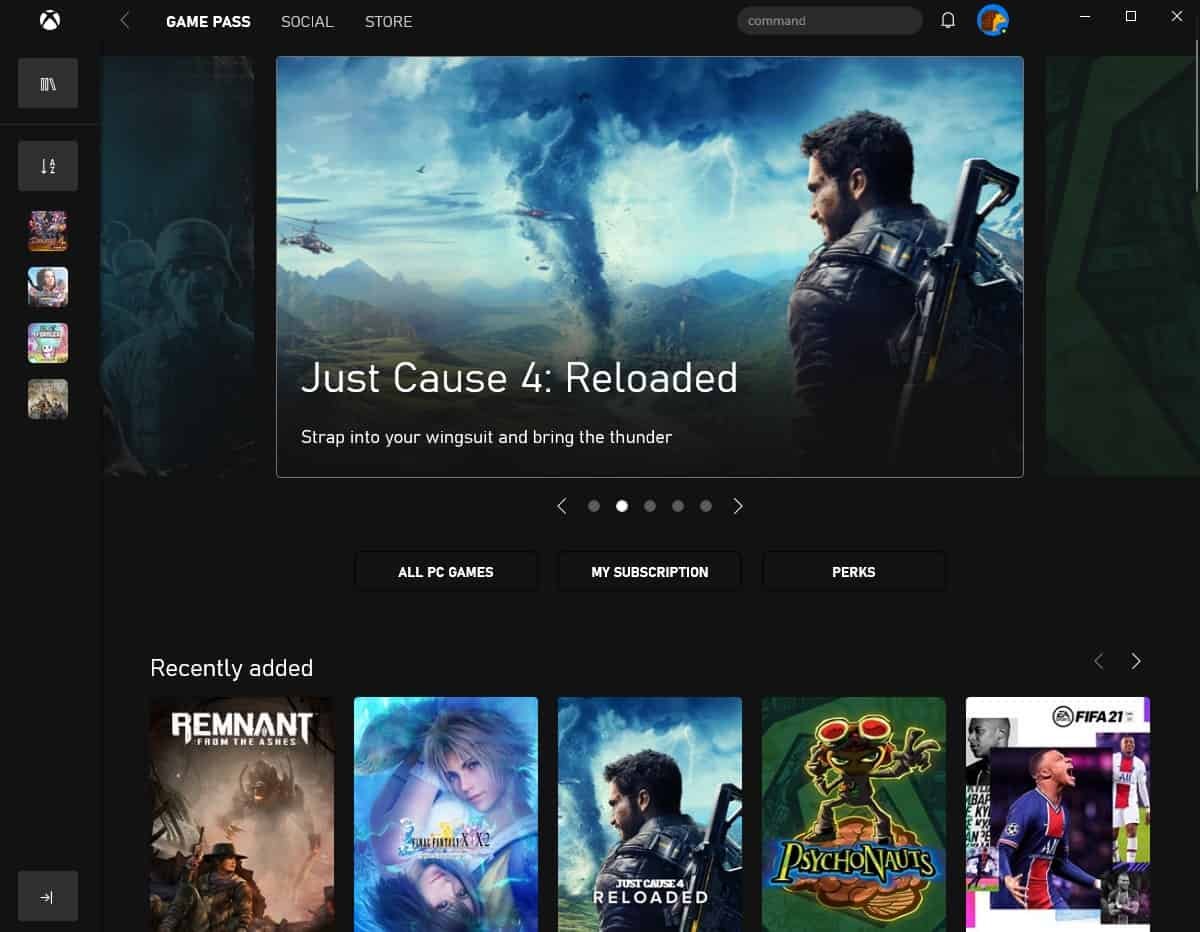
The Microsoft Store, sometimes accessed through the Xbox App on PC, has some sharing possibilities, particularly through Xbox Game Pass subscriptions. Microsoft calls this home sharing and it does have a number of benefits, but also some limitations.
Game Pass Sharing:
- Home Console Designation: For console, you must designate a console as a “home console”. On PC, the Xbox App will register it automatically as the “home” PC.
- Game Pass Benefits: When someone else logs in, they can access Game Pass games on that PC. However, to access the games on another PC, the account that made the Game Pass purchase must be the one logged into the Xbox App.
- Limitations on Multiple PCs: You can’t have two people playing Game Pass games on separate PCs using the same subscription at the same time.
How to Setup Xbox App Game Sharing
- Log into your account on the PC you will be sharing from, that is, the PC where you want others to play your games.
- Make sure that your Microsoft Account is tied to the Xbox App.
- Make sure that your subscription is active.
- Log out of your account.
- The other person can log into the Xbox App with their account and they will have access to your library.
Sharing Physical Game Copies
If you’re old-school or just have a collection of physical game discs, sharing them is pretty straightforward. However, you do have to be careful and ensure that you’re not violating any licenses.
Lending Your Game Discs
The simplest way to share physical game copies is to lend them to a friend. It works just like lending a book. This option is not available with every game and depends on the developers of those games. Here are things to consider when sharing your games on disc.
- Installation Requirements: When your friend installs the game, they may need the disc to start playing, as some games use the disc as verification.
- No Simultaneous Play: Because only one person has the disc at a time, only one person can play.
- Game Keys: Some games come with a one-time-use game key. This is typically for online play and does not restrict the game itself. But it means that only one person can use the key and play online.
Sharing Disc Images (ISOs)
Creating an ISO image of a game disc allows you to make a digital copy of the game. This can be useful for backing up your games, but it also presents some ethical and legal issues.
Ethical and Legal Considerations of Sharing ISOs:
- Copyright Issues: Sharing ISOs of games you own with others is often considered copyright infringement, especially if you do not also lend the original disc.
- Piracy Concerns: Sharing digital copies of games can be seen as piracy, which can lead to legal trouble for you.
- No Proper Licenses: Just because you have a physical copy of the game does not mean you can create unlimited digital copies for others to play. Each copy is technically sold for one person.
Important Note: Be very careful and knowledgeable about copyright laws. Sharing ISO images can have serious consequences.
Alternative Methods for Sharing Games
Sometimes, the standard methods don’t quite fit your needs, and you have to think outside the box. These alternative methods may not be ideal but could suit specific situations.
Screen Sharing and Remote Play
While not technically “sharing” the game, screen-sharing via platforms like Discord, Steam Remote Play, or Parsec can be a way for someone else to view and even control your gameplay. This could be good for co-op play or helping someone else learn how to play the game.
How Screen Sharing Works:
- Remote Access: One person hosts the game and shares their screen with others.
- Interactive Gameplay: Depending on the platform, the remote player can sometimes control the game using their keyboard and mouse or a gamepad.
- Lag and Connection: The success of screen-sharing depends heavily on the internet connection quality and will always be limited in the sense that you both cannot access and play your own game at the same time.
Using Cloud Gaming Services
Cloud gaming services let you play games on powerful remote servers and stream the gameplay to your device. This can be a way to share a game experience without needing to have a copy of the game.
Cloud Gaming Options:
- Subscription Required: You typically need a subscription to use cloud gaming services.
- No Sharing of Accounts: You can’t share accounts, but you can play with someone using the same online game.
- Internet Connection: Cloud gaming requires a strong and consistent internet connection.
Troubleshooting Common Sharing Issues
When you try to share your games, you might encounter some problems. Here are a few common issues and ways to fix them:
Steam Family Sharing Issues
- Locked Games: If a game is locked, make sure that the user authorized to access the shared library is not playing another game. Only one person can play a game in a shared library at one time.
- Ineligible Games: Not every game can be shared. If you have a game that cannot be shared, it could be due to a decision by the game’s developer.
- Authorization Problems: If a computer is not authorized, make sure to log into the account on that computer to add it to the authorized list.
Problems with Physical Copies
- Missing or Damaged Discs: A damaged or lost disc can make the game unusable. If the disc is damaged, you may have to purchase a new copy of the game.
- Installation Errors: If you encounter installation errors, check to make sure that the disc is not damaged and that the system is compatible with the game.
- Game Key Issues: The game key is a code that allows access to online features, so make sure to use it when installing. You can only use this code once.
General Tips for Troubleshooting
- Restart: A computer restart can fix many common problems.
- Update Drivers: Ensure all your graphics card drivers are up to date.
- Check Internet: Make sure you have a stable internet connection for digital downloads and online play.
- Consult Forums: Look for solutions on community forums or ask for help in the appropriate places.
Sharing games on PC can be a great way to enjoy your collection with friends and family. Whether you’re using a platform’s sharing feature, passing along a physical copy, or exploring a cloud service, remember to be ethical and respectful of the developers’ work. Always check licensing agreements and copyright information before sharing digital files. By keeping these things in mind, you can share the fun of PC gaming while making sure everyone stays within the rules!
How to Game Share on PC!
Final Thoughts
Ultimately, sharing games involves using Steam’s Family Sharing, or alternatives like game-specific launchers with sharing options. These methods allow you to grant access to your library. You could also copy game files directly, though this isn’t always simple.
Remember, game licenses are crucial. Always respect publisher’s policies when sharing your games. Understanding the limitations helps with successful game sharing. How to share games on pc becomes clearer with these practices.

