
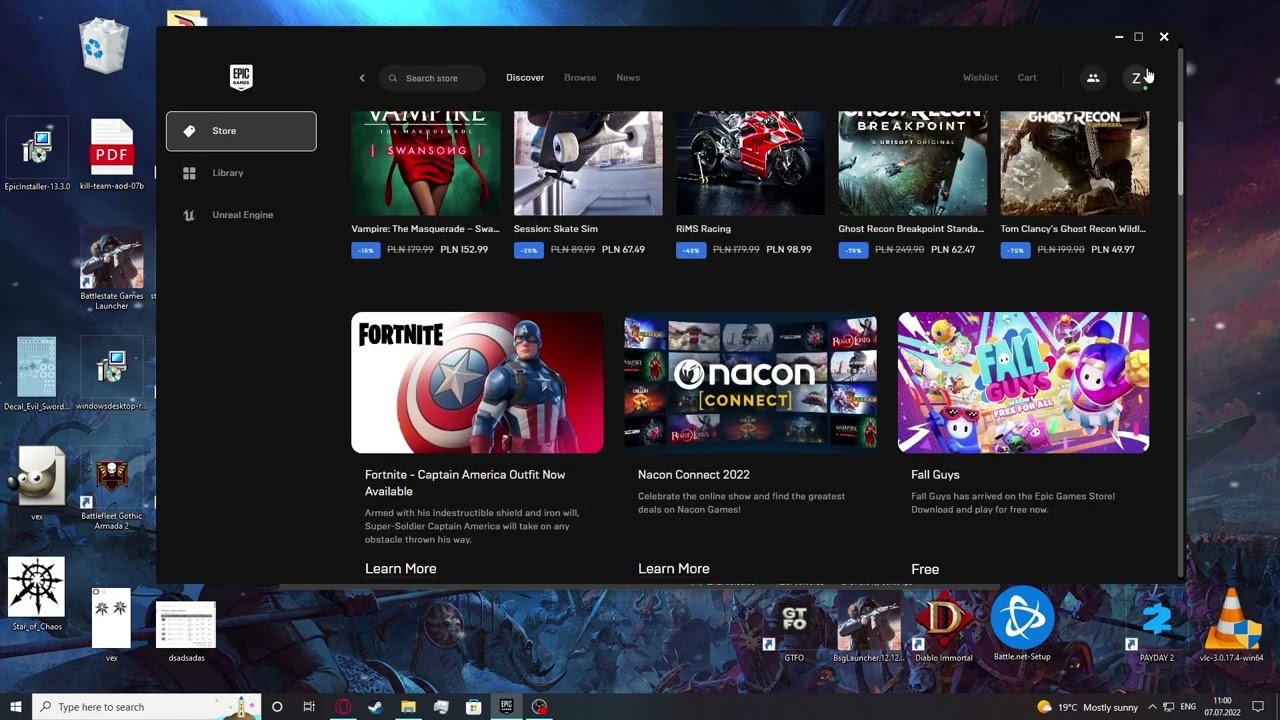
To sign out of Epic Games, click on your profile icon in the launcher and then select “Sign Out.”
Ever found yourself needing to quickly step away from the Epic Games launcher or perhaps switch to a different account? It happens all the time and that’s why knowing how to sign out of Epic Games is a handy skill. The process is actually quite simple, ensuring you can manage your gaming sessions without hassle.
Whether you’re sharing your computer or just prefer to keep your accounts separate, logging out is a necessary feature. Let’s make the process straightforward, so you can move through your digital world with ease.

How to Sign Out of Epic Games: A Complete Guide
Sometimes you need to step away from your games, or maybe you want to switch accounts. Whatever the reason, knowing how to sign out of Epic Games is important. It’s a simple process, but it can be a little different depending on where you’re playing. Let’s explore all the ways you can sign out of your Epic Games account, whether you’re on your computer, console, or mobile device.
Signing Out on Your Computer
The most common place people use Epic Games is on their computer, and it’s easy to sign out there. Here’s how:
Using the Epic Games Launcher
The Epic Games Launcher is the program you use to access and play your games on a computer. Here’s the process:
- Open the Epic Games Launcher: First, find the Epic Games Launcher icon on your desktop or in your applications menu. It looks like a white “E” on a blue background. Click on it to open.
- Go to Your Profile: Once the launcher is open, look for your profile icon in the lower-left corner. It often displays your initials or your chosen avatar. Click on it.
- Select “Sign Out”: A small menu will appear after you click your profile icon. You’ll see several options, including “Sign Out.” Click on “Sign Out.”
- Confirmation: The Epic Games Launcher will ask to confirm that you want to sign out. Click “Sign Out” again to proceed.
That’s it! You are now signed out of your Epic Games account on your computer. You’ll see the login screen appear, and you’ll need to enter your credentials again to get back into your account.
Things to Note about Signing Out on PC
- Account Switching: Signing out is the first step in switching to a different Epic Games account on your computer.
- Shared Computers: If you’re using a shared computer, always sign out of your account after you finish playing to protect your personal information and game progress.
- Automatic Sign-in: If you previously checked “Remember Me” option while logging in, signing out will not erase these credentials. You can easily log back in using them. If you want to stop this behavior, clear stored credentials in the account settings or re-login without choosing “Remember Me” option.
- Troubleshooting: If you encounter problems signing out, restarting the Epic Games Launcher or your computer could help resolve the issue. Sometimes programs can get stuck, so a fresh start will often fix the problem.
Signing Out on PlayStation
If you are playing Epic Games titles on your PlayStation, the process is slightly different compared to doing it on a computer. Here’s what you need to do:
Through the PlayStation Network Settings
This method focuses on unlinking your PlayStation Network account from your Epic Games account:
- Go to Settings: On your PlayStation console, go to the main menu and select “Settings.” It’s usually represented by a toolbox or gear icon.
- Navigate to Account Management: In the settings menu, find “Account Management” and select it.
- Select Linked Services: Under “Account Management,” look for an option like “Linked Services” or “Services.” Choose this option.
- Find Epic Games: You should see a list of accounts linked to your PlayStation account. Find “Epic Games” or the relevant name associated with your Epic Games account.
- Unlink the Account: Select “Epic Games” and choose the option to “Unlink” or “Disconnect” the account. Your PlayStation will ask you to confirm. Select “OK” or “Unlink” to complete the process.
This process does not actually sign you out from an Epic Games account currently signed in the PlayStation device, but it breaks the link between the PlayStation and Epic Games, so that a different Epic Games account can be linked to your PlayStation Network profile.
Signing out within the Game
Some Epic Games titles that you play on PlayStation also have sign-out features built into the game. Here is how that process usually works:
- Start the Game: Launch the Epic Games title you are playing. For example, Fortnite.
- Access the Game Menu: Look for the main game menu or settings panel within the game. Usually, it’s accessible by pressing the “Options” button on your controller.
- Find “Account Settings” or “Logout”: Inside the game’s menu, look for an option like “Account Settings,” “Profile,” or “Logout.” The exact wording can vary.
- Choose the “Sign Out” option: Click on this “Sign Out” option, your game will ask for a confirmation. Select “OK” or “Sign Out” to proceed.
This way, you are logged out of your Epic Games account inside that specific game you are playing. However, this doesn’t disconnect your Epic Account with PlayStation Network, for that you have to use the PlayStation network Settings method to unlink your accounts.
Things to Note about Signing Out on PlayStation
- Game Dependent: The in-game sign-out option is game-specific, so not all Epic Games titles on PlayStation will have it.
- Account Link Status: If you are not seeing the logout option in your game, you have probably not linked your Epic Games and PlayStation Network accounts yet.
- Alternative Method: If you are playing on PlayStation 4 or PlayStation 5 and are not using the console actively, then you can simply restart your console and it will effectively log out of the currently logged in Epic Games account.
Signing Out on Xbox
The process of signing out of your Epic Games account on Xbox consoles is similar to PlayStation. You’ll mostly focus on unlinking your accounts. Here’s how:
Through the Xbox Account Settings
Here’s how to disconnect your Epic Games account from your Xbox account:
- Go to Settings: On your Xbox console, go to the main menu and then navigate to “Settings.” You’ll usually find it at the bottom of your profile menu or by pressing the Xbox button on your controller.
- Navigate to Account: In the settings menu, find the “Account” options and choose it.
- Select Linked Accounts: Under account settings, look for options like “Linked Accounts,” “Linked Social Accounts,” or similar.
- Find Epic Games: You will see the list of accounts that are linked to your Xbox profile. Find “Epic Games” in that list.
- Unlink the Account: Choose the “Epic Games” option, and then choose the option to “Unlink” or “Disconnect.” Your Xbox will ask you to confirm the action, select “OK” or “Unlink” to complete the process.
After unlinking accounts, your Epic Games account will not be linked to your Xbox profile any more. However, you are not logged out of the Epic Games account. You can use the method below, if you want to log out of an Epic Games account inside a particular game that you are playing.
Signing out within the Game
As with PlayStation, some games on Xbox will also have the functionality to log out of your Epic Games account directly inside the game you are playing. Here’s how to use this functionality:
- Start the Game: Start the game of your choice on Xbox that is linked with Epic Games account, for instance, Fortnite.
- Access the Game Menu: Find the main menu options in your game, these are usually accessible using the “Menu” button on your controller.
- Find “Account” or “Logout”: Locate the option that resembles “Account,” “Profile,” or “Logout” within the menu. The specific wording may differ depending on the game.
- Choose the “Sign Out” option: Click the “Sign Out” option. Your game will ask you for a confirmation. Select “OK” to proceed.
This method signs you out of your Epic Games account within the specific game you are playing, but doesn’t unlik your Epic Games and Xbox accounts. Use the above method to unlink the account on Xbox.
Things to Note about Signing Out on Xbox
- Game Variation: Similar to PlayStation, the sign-out option inside a game is game-specific, and all games may not have this feature available.
- Account Link Status: If you don’t find the option to sign out in your game’s settings, your Epic Games and Xbox accounts are probably not linked yet.
- Restarting the Console: Just like with PlayStation, you can restart the console if you do not want to use it for a while, so that the currently signed-in account logs out.
Signing Out on Mobile Devices (Android and iOS)
Playing Epic Games titles on your phone is also very common. Here’s how to sign out on Android and iOS devices, the process is generally the same:
Within the Game App
Usually the games on mobile devices have a logout option inside their settings. Here’s how to log out:
- Open the Game: Start the Epic Games title you wish to log out from. For example, Fortnite.
- Find the Menu: Look for the main game menu. Usually this can be accessed through a button that has three horizontal lines or some other symbol.
- Go to Account or Settings: In the menu, look for an option like “Settings,” “Account,” or “Profile.”
- Select the “Sign Out” Option: Find the “Sign Out” or “Logout” button and select it. The game will probably ask for a confirmation, select “OK” or the confirmation option to proceed.
With this you will be logged out of your Epic Games account on your mobile device for the particular game you signed out from.
Things to Note about Signing Out on Mobile
- In-Game Logout Only: On mobile, the logout process is primarily through the game itself. There isn’t a system-wide Epic Games sign-out option on the device’s settings.
- Account Remembered: If you are logged in using the “Remember Me” or similar option, you will probably get logged back in next time you open the game, even after you logout.
- Data Considerations: On mobile, signing out won’t typically clear game data, but it’s a good habit to sign out if you’re sharing your phone or tablet with others.
Why is Signing Out Important?
Signing out of your Epic Games account is a simple step, but it’s crucial for several reasons:
Protecting Your Account
- Security: When you’re on a shared computer, console, or mobile device, signing out prevents others from accessing your account and any linked payment information.
- Unauthorized Access: If you forget to sign out, someone else could potentially play under your account, change settings, or even make purchases without your permission.
Account Management
- Switching Accounts: Signing out allows you to quickly change between different Epic Games accounts without complication, if you have more than one account.
- Troubleshooting: If you face issues with your account, signing out and back in can be a useful step in resolving such issues.
Preventing Accidental Purchases
- Shared Devices: If you’re using your family’s game console, someone else might accidentally make a purchase on your account if you are signed in all the time.
In short, signing out regularly is a simple habit that can keep your account secure and allow for smoother account management.
No matter where you play, signing out of Epic Games is important. By following these simple steps for each platform, you can protect your account and manage it effectively.
Epic Games Store 2022 – How To Sign Out
Final Thoughts
To summarize, you can sign out of Epic Games by navigating to your account settings within the launcher or website. The specific steps might vary slightly depending on the platform, but generally, it involves finding the profile section. This action ensures your account is not accessed without your knowledge.
Therefore, knowing precisely how to sign out of Epic Games is must for account security, especially on shared computers. Remember to always sign out whenever you are not actively using the platform.

