
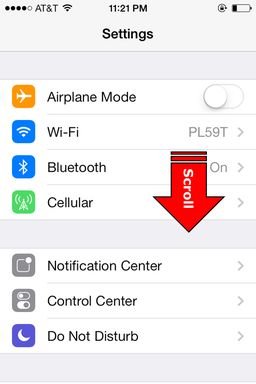
To sign out of Game Center, navigate to the Settings app on your device, tap on “Game Center,” and then toggle the “Game Center” switch to the off position.
Ever found yourself wanting a break from the gaming world, or maybe you share your device? Knowing how to sign out of Game Center becomes really useful in these situations. This simple action lets you manage your privacy and account settings. It’s not always obvious where to find that logout, so let’s make it clear. We’ll guide you through the process of how to sign out of Game Center quickly and easily.

How to Sign Out of Game Center
Have you ever wanted to play a game on your iPhone or iPad without all your achievements and friends popping up? Maybe you’re letting a friend borrow your device, or you just want some quiet gaming time. Game Center, while fun for connecting with friends and tracking progress, sometimes needs a little break. This section will show you exactly how to sign out of Game Center, so you can game your way. We will explore this in depth, covering all the necessary steps and scenarios. This guide will be easy to follow and will help you get exactly where you need to be.
Why Sign Out of Game Center?
Before diving into the “how,” let’s talk about the “why.” There are several reasons why someone might want to sign out of Game Center:
- Privacy Concerns: Maybe you don’t want your gaming activity linked to your Apple ID. You might be sharing your device with someone else and don’t want them to see your games or scores.
- Avoiding Distractions: Game Center notifications can be bothersome, especially when you’re trying to focus on something else. Turning them off doesn’t prevent friend requests and invitations coming in, signing out is the only full-stop to this.
- Troubleshooting: If Game Center is acting up, signing out and back in again can sometimes fix the problem, like a little reset button.
- Using a Different Apple ID: Perhaps you have multiple Apple IDs, and you want to use a different one for gaming.
- Giving Your Device Away: If you are selling, giving away, or trading your Apple Device, signing out of Game Center (and all accounts) helps ensure your privacy.
Signing Out on iPhone and iPad (iOS and iPadOS)
The process for signing out of Game Center is pretty much the same on both iPhones and iPads. Here’s how you do it:
Step-by-step Guide to Sign Out
Follow these simple steps to log out of Game Center:
- Open Settings: Find the Settings app on your device (it looks like a gray gear icon) and tap it to open it.
- Scroll Down to Game Center: Once in the Settings app, scroll down until you find the “Game Center” option. It should be near the middle or bottom, usually grouped with other Apple app settings. Tap “Game Center.”
- Find Your Apple ID: At the top of the Game Center settings screen, you’ll see your Apple ID or nickname that you are logged in with. If you’re signed in you’ll see the option for “Apple ID” and underneath that the username you are logged in with. Tap on your user name / Apple ID shown.
- Sign Out: On the next screen, you will see all your details, and a sign out button at the bottom. Tap “Sign Out.” It might ask you to confirm your choice by tapping the button again. This confirms you’re intentionally signing out of Game Center.
- You’re Signed Out: Game Center will then be logged off. You’ll see the screen will look different. It may now prompt you to sign in instead of display your user information. Your sign-out is complete.
Visual Guide
Sometimes, seeing it helps! Let’s break down these steps with some visual help.
Start by locating and tapping the Settings icon on your home screen.
Once inside Settings, gently scroll until you spot “Game Center” and tap it to open.
Tap your Apple ID or username located at the top of the Game Center screen.
Finally, Tap “Sign Out” located at the bottom of the user details screen. Your logout is complete!
What Happens After Signing Out?
Once you’ve signed out of Game Center, a few things will happen:
- No More Game Center Features: You won’t be able to see your achievements, leaderboards, or friend lists. Games that use Game Center might not work as usual, or some features may be inaccessible.
- No Notifications: You won’t receive Game Center notifications or friend requests. This can be a relief if you find them distracting.
- Games May Act Differently: Some games use Game Center for saving progress or syncing between devices. Without being logged in, this might not work, and you may not be able to access cloud saves.
- You’re Still Logged into iCloud: Signing out of Game Center doesn’t sign you out of your main iCloud account. Your photos, contacts, and other data are still safe and synced. It is just the gaming related information.
- You can still game: You can still use and enjoy all your games, but without using Game Center features.
Signing Back In
When you’re ready to use Game Center again, it’s very simple to log back in:
Steps to Log Back In
- Go back to Game Center settings: Repeat the first couple steps to get back to “Settings” then “Game Center.”
- Tap “Sign In”: You’ll now see a “Sign In” option instead of your Apple ID. Tap “Sign In”.
- Use your Apple ID: If you haven’t signed out of your Apple ID, it should sign you back in right away. If you have signed out of Apple ID, it will now ask you for your username and password to sign in.
- Welcome Back: Once you’re signed in, your game progress, friends, and achievements will reappear.
What to do if you’re having problems?
Sometimes, technology can be a little stubborn. Here are a few steps to try if you run into trouble signing out:
Troubleshooting Game Center Sign-Out Issues
- Check Your Internet Connection: A poor internet connection can cause issues with signing out. Make sure your Wi-Fi or cellular connection is working well.
- Restart Your Device: Sometimes, simply restarting your iPhone or iPad can resolve minor glitches. Turn it off and then turn it back on again.
- Check for Updates: Make sure your device’s software is up-to-date. Go to “Settings” > “General” > “Software Update” to check for any updates. Sometimes a bug fix is already available.
- Sign Out of iCloud: If you are still having issues, try signing out of your iCloud account (Settings > Apple ID > Sign Out), then sign back in. Be aware this will sign you out of all apple services.
Game Center and Family Sharing
If you’re using Family Sharing, there are a few things to keep in mind:
- Individual Accounts: Each family member has their own Game Center account and settings. Signing out of Game Center on your device won’t affect anyone else’s.
- Game Sharing: Family Sharing lets you share some apps, but it doesn’t affect Game Center logins or achievements.
Game Center Alternatives
If Game Center isn’t meeting your needs, there are other ways to play games on your device. For example, some games have their own account system built-in. These systems will be separate from Game Center.
- Game-Specific Accounts: Many games have their own account systems, allowing you to save progress independently of Game Center. Look for a “sign in” or “account” option within the game itself.
- Guest Mode: Some games offer a guest mode, allowing you to play without creating any kind of account at all. This is ideal when you want to keep things as simple as possible.
Security
Your privacy is important. Always be mindful of security when using online services.
- Always sign out: If you are letting someone else use your device. It only takes a few seconds to log out of your gaming account.
- Use strong passwords: For your Apple ID. This helps make sure no one else can access your account without permission.
Signing out of Game Center is a simple task, but it can be very useful for managing privacy and personalizing your gaming experience. By following the steps outlined in this guide, you can easily switch between using Game Center and taking a break whenever you need it. Remember that logging out is not a permanent measure and that logging back in is also easy. This flexibility is great for sharing your device, or keeping a low profile while gaming.
iPhone 14/14 Pro Max: How to Sign Out Of Game Center
Final Thoughts
To sign out of Game Center, you must navigate to your device’s settings. Then locate and tap on the “Game Center” option. There, you will find a sign out button; tapping it will immediately log you out.
Confirm your choice to sign out when prompted. This simple action effectively disconnects your account from the Game Center. Now, you have learned how to sign out of game center.

