
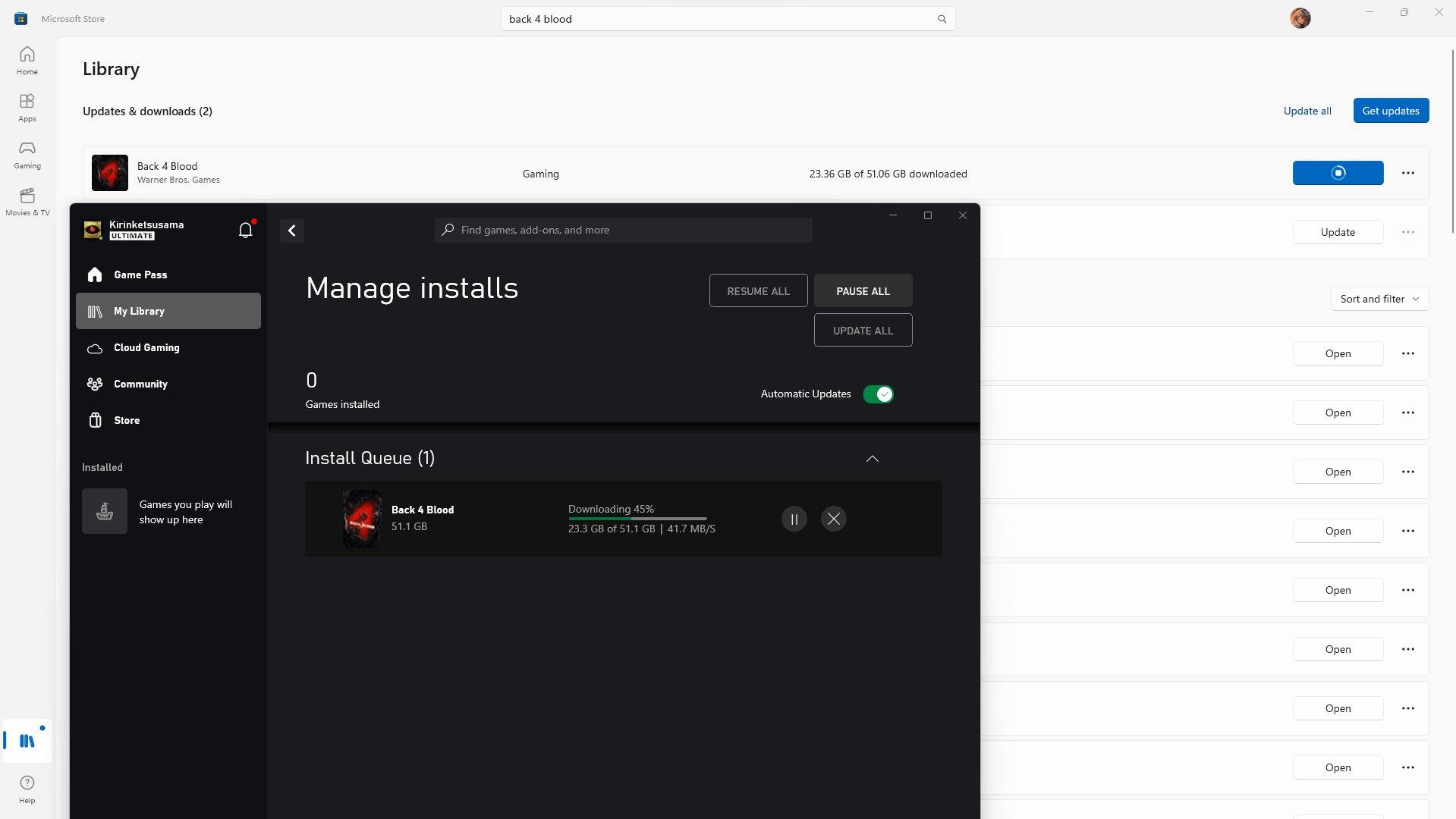
To speed up Xbox Game Pass downloads, prioritize a wired internet connection, close background applications and other downloads, and consider changing your DNS settings.
Waiting for a game to download can feel like an eternity, especially when you’re eager to jump into a new adventure on Xbox Game Pass. It’s frustrating, but there are definitely some simple tricks you can use. If you’re wondering how to speed up Xbox Game Pass downloads, you’re not alone; many players face this issue.
We’ll cover easy tweaks you can make to get those games downloaded faster. By optimizing a few settings, you can greatly improve your download speeds and start playing sooner.

How to Speed Up Xbox Game Pass Downloads
Waiting for your favorite Xbox Game Pass titles to download can feel like watching paint dry, right? You’re excited to jump into a new adventure, but that progress bar seems to crawl at a snail’s pace. Don’t worry; you’re not alone! Many gamers face this frustration. The good news is, there are actually a lot of things you can do to significantly increase your download speed and get back to playing faster. This guide will walk you through all the effective techniques to make sure those games load up quickly.
Understanding Factors Affecting Download Speed
Before we dive into the fixes, let’s understand why your downloads might be slow. It’s like trying to fill a bucket with a small pipe – it just takes longer! Several key factors contribute to download speeds, and knowing what they are helps us tackle the problem head-on.
Internet Connection Speed
This one is the most obvious. Think of your internet connection as a highway for data. If your internet plan is slow, it’s like having a tiny one-lane road. Data can only move so quickly. Your plan’s maximum download speed is the absolute limit. Even if your Xbox is ready to download super fast, it can’t exceed what your internet provides. To check your current speed, use a free online speed test like speedtest.net. Compare this speed with what your internet service provider (ISP) promises. If there’s a big difference, contacting your ISP might be your first step.
Network Congestion
Even if you have a good internet plan, congestion can slow things down. Imagine a highway during rush hour – everyone’s trying to use it at once, and that causes slowdowns. Similarly, many devices using your network simultaneously can make downloads take longer. Streaming videos, playing online games, or even someone using a smart speaker, all use up your bandwidth. The more devices active, the less bandwidth available for your Xbox downloads.
Xbox Server Load
Sometimes, the problem isn’t on your end. The Xbox servers themselves can get overloaded, especially when a popular game is released or a big update is available. When this happens, downloads can slow down for everyone trying to get the game. It’s like many people all trying to get through the same door at the same time – it causes a bottleneck.
Wi-Fi vs. Wired Connection
A Wi-Fi connection is convenient but can be less stable and slower than a wired connection. Imagine Wi-Fi as sending data through the air – sometimes it has to navigate around walls and other obstacles. A wired connection, using an Ethernet cable, is like a direct pipe – it’s more stable and provides a more consistent flow of data, which means faster and more reliable downloads.
Background Downloads
Your Xbox may be downloading other things in the background, even if you’re not aware of it. Game updates, app updates, and even system updates can all use up bandwidth, leading to slower downloads for your main game. Think of it like trying to fill your bucket while someone else is also using the pipe. The flow will be divided.
Practical Steps to Boost Your Xbox Download Speed
Now that you understand the factors at play, let’s look at what you can actually do to speed up your Xbox Game Pass downloads. These are practical steps that anyone can take to see an improvement.
Prioritize Your Xbox on Your Network
Many routers allow you to prioritize certain devices on your network. This basically tells your router, “Hey, give this device more bandwidth.” It ensures your Xbox gets the data it needs first, leading to faster downloads. Here’s how you might do it:
- Access Router Settings: Type your router’s IP address into your browser. This address is usually printed on the router itself or can be found in your router’s manual.
- Look for QoS: Find the Quality of Service (QoS) settings in your router’s admin panel. The name of the setting may differ depending on the brand.
- Prioritize your Xbox: Add your Xbox using its MAC address or device name to the priority list, giving it preference over other devices.
Use an Ethernet Cable
As we mentioned earlier, a wired Ethernet connection is generally much more stable and faster than Wi-Fi. If your Xbox is currently using Wi-Fi, try plugging it directly into your router using an Ethernet cable. This direct connection eliminates signal interference and provides a much more reliable data flow. It’s a simple step that makes a big impact.
Pause Other Downloads
Sometimes, you just need to clear the path. If you have multiple downloads happening at once on other devices (or even on your Xbox in the background), pause them. This will free up bandwidth and allow your Xbox to use more of your internet’s capacity for the Game Pass download. This ensures that the bucket filling is only focused on what you want.
- Pause Downloads on Other Devices: Pause downloads on your computers, phones, tablets, or other game consoles on your network.
- Pause Xbox Background Downloads: Go to “My Games & Apps” -> “Queue” on your Xbox and pause any pending updates.
Close Background Apps on Xbox
Just like on a computer, running apps in the background on your Xbox can consume valuable processing power and bandwidth. Closing unused apps will free up resources and may contribute to slightly faster downloads. To do this:
- Go to the Guide: Press the Xbox button on your controller.
- Highlight Open Apps: Select the multi-window icon (it looks like stacked squares) to see the list of open apps.
- Close Apps: Highlight the apps that you are not using and press the menu button. Then select quit to close them.
Restart Your Router and Xbox
This is a classic troubleshooting step for a reason – it often works! A simple reboot can clear any minor glitches and improve network connectivity. Think of it like restarting a computer that has been running slow. To do this:
- Restart your Router: Unplug your router from the power outlet. Wait for about 30 seconds, then plug it back in. Give it a few minutes to fully restart.
- Restart your Xbox: Press and hold the Xbox button on your console for about 10 seconds until it shuts down. Then press the Xbox button again to turn it back on.
Change Your Xbox DNS Settings
Your Xbox uses DNS (Domain Name System) servers to translate website addresses into numerical IP addresses. Sometimes, using a public DNS server from providers like Google or Cloudflare can improve download speeds compared to using your ISP’s default DNS servers. Here’s how:
- Go to Settings: Press the Xbox button, go to “Profile & System” > “Settings” > “General” > “Network Settings”.
- Advanced Settings: Select “Advanced Settings”.
- Select DNS Settings: Select “DNS Settings” then select “Manual”.
- Enter Primary and Secondary DNS: Enter one of the following DNS settings:
- Google DNS: Primary: 8.8.8.8 and Secondary: 8.8.4.4
- Cloudflare DNS: Primary: 1.1.1.1 and Secondary: 1.0.0.1
- Save and Test: Save your settings and test your network connection.
Consider an Internet Upgrade
If you’ve tried all the above steps, and your download speed is still disappointing, it might be time to consider upgrading your internet plan. Your current plan might simply not be fast enough to meet your needs, especially if you are downloading large game files regularly. Check with your ISP about other available speeds and bundles. An upgrade could solve your download speed problems.
Avoid Peak Hours
Internet speeds can fluctuate throughout the day. When everyone in your area is online (typically during the evening), the network can become congested, slowing down speeds. Try downloading games during off-peak hours, such as early mornings or late nights, when fewer people are likely to be using the internet. This can help you get more consistent and faster download speeds.
Check for Xbox Service Outages
Sometimes, the issue might not be your internet or your Xbox. The Xbox Live service can sometimes experience outages. Microsoft usually posts any service issues on their website. Check for any announcements or known issues before pulling your hair out and this can let you know the problem is not on your end. Visit the official Xbox support site to check for any service issues.
Manage Storage Space on Your Xbox
A full storage drive can also have a small impact on overall performance, which includes download speeds. If your Xbox is getting full, consider deleting games you no longer play. By ensuring there’s enough free space, you are giving the system room to perform better.
Advanced Tips for Tech Savvy Users
If you’re comfortable tinkering with your network and router settings, these advanced tips can potentially further boost your download speeds. Be careful with these, as incorrect settings can negatively impact your network.
Router Firmware Update
Like any piece of software, routers need to be updated regularly to fix bugs and provide better performance. Outdated firmware can cause slowdowns. To update your router’s firmware, check your router manufacturer’s website for the latest version. Consult your router’s manual for specific instructions on how to update. This procedure may differ between routers.
Check for Port Forwarding
Port forwarding can sometimes help with Xbox download speeds. You would need to do research for your router make and model and the ports that are used by Xbox Live services, this would be specific for different model and brands. Incorrect forwarding may affect connection to other devices in your network.
Adjust MTU Settings
MTU (Maximum Transmission Unit) refers to the size of the largest data packet that can be transmitted over a network. While rarely necessary, adjusting this setting can sometimes resolve specific networking issues. However, you should only do this if you’re comfortable experimenting. Incorrect MTU settings can cause further network problems.
Using Third Party Software
While most download issues can be addressed by following the steps above, some third-party software solutions claim to improve download speeds. Be cautious when using third-party software for this purpose. Some solutions may not be effective, and others may pose security risks. Always research thoroughly and use trusted programs if you decide to try them.
By taking the time to follow these tips, you can ensure your Xbox Game Pass download speeds are as fast as possible, allowing you to get back to gaming quickly. Try these suggestions one by one, checking after each one to see how your download speed has improved. Don’t get disheartened if one tip doesn’t help. The solution is often a combination of several factors.
Enjoy your faster downloads and have fun playing your favourite games!
How to fix Slow download speed with Xbox App PC
Final Thoughts
To speed up Xbox Game Pass downloads, use a wired connection instead of Wi-Fi. Close other applications and pause any other ongoing downloads. Changing your DNS settings can also improve speeds. These simple changes help significantly.
Another effective technique to try is to ensure your console’s storage is not almost full. A congested hard drive often impacts download speeds. Knowing how to speed up Xbox Game Pass downloads involves these basic practices. These tips often give substantial improvement.

