
To start iMessage games, open a conversation, tap the App Store icon, select a game from your downloaded apps or the store, and then send the invitation.
Want to spice up your iMessage chats? It’s really easy to learn how to start iMessage games and add a playful element to your conversations. The process is simple and takes only a few taps.
Once you know where to look, you will be competing with your friends in no time. There are so many great games available directly within your iMessage app, ready for you to use.

How to Start iMessage Games: Your Ultimate Guide
Ready to add some fun to your text conversations? iMessage games are a fantastic way to connect with friends and family, whether you’re near or far. They offer a quick and easy way to compete, laugh, and spend quality time together. But, how do you actually get started playing these games? Don’t worry, it’s simpler than you think! This guide will walk you through everything you need to know, from finding the games to sending your first challenge.
Finding Games on the App Store for iMessage
The first step is discovering the games available. iMessage games aren’t actually part of the regular Messages app; instead, they are mini apps you get through the App Store, but specifically for iMessage. Think of it like finding extra apps just for your messaging window! Here’s how to find them:
Opening the App Drawer in iMessage
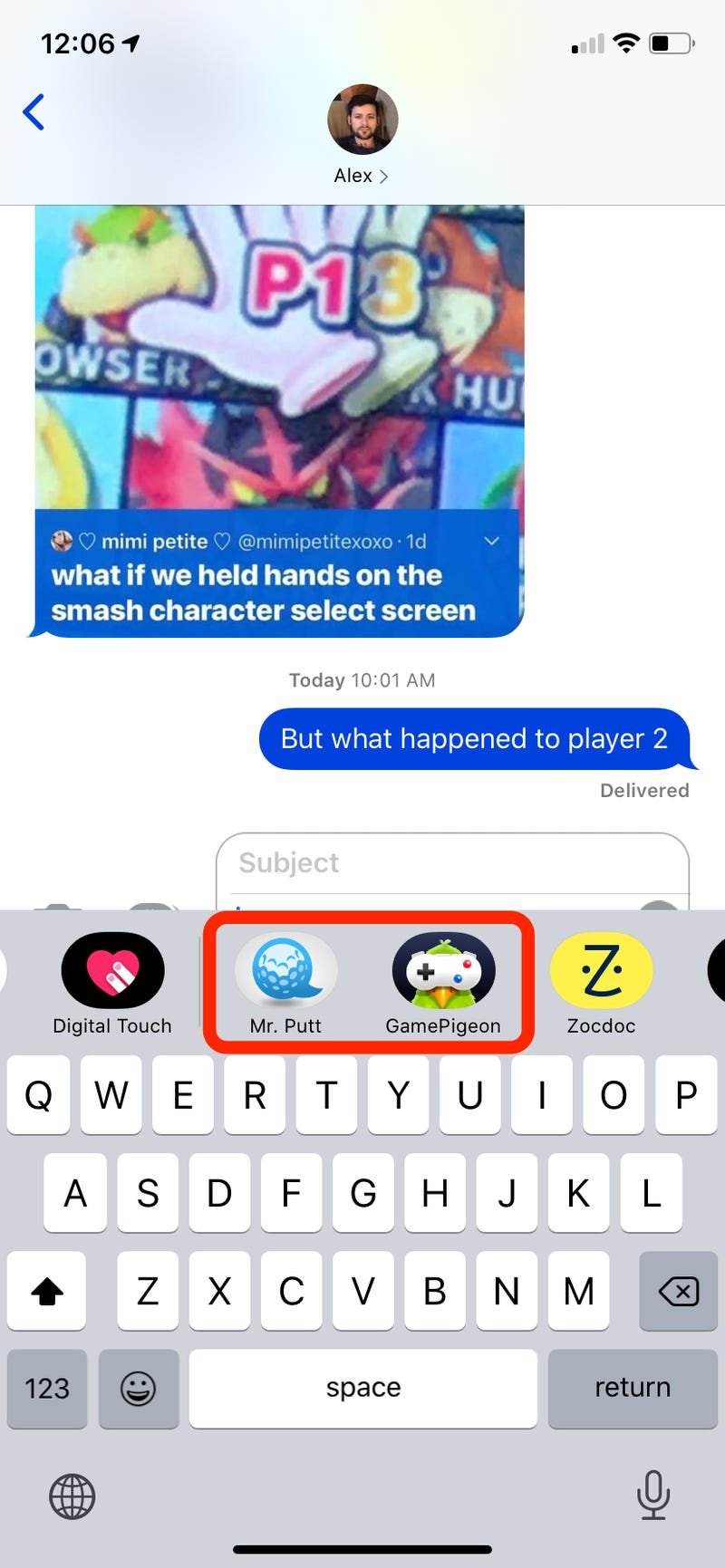
When you have an iMessage conversation open, look for the app drawer. It’s a line of icons right above your keyboard, next to the text box where you type your messages. If you don’t see any icons, there might be a small gray arrow or a “+” sign; tap that to reveal the apps. It’s sort of like having a little shelf of tools inside your message screen.
Accessing the iMessage App Store
Once you’ve found the app drawer, you’ll notice the icon for the App Store. It often looks like a blue “A” inside a circle, sometimes with a small line coming out. Tap this icon, and voila! You’ve opened the iMessage App Store, which is slightly different than the regular one you use on your phone.
This special store is filled with all sorts of apps made just for iMessage. You will find games, sticker packs, and other small tools. It is like a toy store but for your iMessage screen!
Browsing and Searching for Games
Now the fun part! You can browse through the apps in the App Store, looking for the games. The store is typically divided into sections, making it easier to find what you are looking for. You’ll probably see categories like “Games,” or “Top Free.” You can also use the search bar at the top of the screen. If you are looking for a particular type of game, you can search for that directly. For example, type in “puzzle game” or “word game” and see the apps that appear.
Downloading and Installing iMessage Games
After finding games that look interesting, it’s time to add them to your messages. The process is quick and straightforward:
Selecting Your Game
When you see a game you want to try, simply tap on it. This will take you to the game’s page in the App Store. There you can read a description of the game, look at screenshots, and see what other people have to say in the reviews. Make sure you like the game before you download it! Look at the star rating to know how much other people liked it and pay attention to comments too.
Downloading the Game
If you like the game, you need to download it. Look for a button that says “Get” or a small cloud icon with a down arrow. Tap this button and the game will start to download and install in your iMessage app. This process is similar to downloading a regular app on your phone.
Finding the Installed Game
After the download is complete, the game icon will now appear in your app drawer inside the message window. You might have to scroll to the side in the app drawer to find it if you have many apps. You’ll see the icon just like you saw it in the store. The games are ready to be played whenever you want to have some fun!
Starting a Game in an iMessage Conversation
Now comes the really fun part: actually starting a game with your friends!
Opening the App Drawer in the Message Conversation
First, open the iMessage conversation where you want to play the game. This could be a message with one friend or a group message. Make sure you are in the correct chat. Just like before, look for the app drawer above the keyboard. If the apps are hidden, tap the “+” sign to expand and see them.
Selecting the Game App
Once the app drawer is open, find the icon for the game you want to play. Tap the game’s icon. The game’s screen will appear inside your message window. It will probably show you the start screen of the game.
Inviting Your Friends to Play
Most iMessage games will have a button that lets you invite your friend or group to play. It usually says “Send” or “Play” or something similar. Tap that button, and the game will be sent as a message to your friend(s). They’ll receive an invitation to play with you, and the game will be waiting for them in their chat.
Playing Your First Turn
Once your friend accepts the invitation, the fun starts! Most games will allow each of you to take turns. Usually, whoever sends the game gets to go first. Pay attention to the game’s instructions because each game has a unique way to play. Usually you just need to tap on the right things on the screen or swipe in the correct way.
Types of iMessage Games You Can Play
There’s a huge variety of games available on iMessage. Here are a few popular types:
Word Games
These games are perfect for people who enjoy words and language. Some examples include:
- Word Hunt: You search a grid of letters to make words.
- Anagram Games: You rearrange letters to form different words.
- Guess the Word: Your opponent gives you clues to guess a hidden word.
Puzzle Games
If you like a challenge, puzzle games can be a great choice. These include:
- Sliding Puzzles: Move tiles to create a picture or number sequence.
- Match 3 Games: You have to match three or more similar objects to score points.
- Logic Puzzles: Solve riddles and puzzles using clues.
Strategy Games
These games require a bit of thinking and planning. Examples include:
- Checkers: A classic board game where you move pieces to capture your opponent’s.
- Chess: Another classic board game that involves complex strategies.
- Connect 4: Try to connect four of your tokens in a row before your friend does.
Quick Arcade Games
If you are looking for quick games to pass some time, these are perfect for it:
- Mini Golf: Play small rounds of golf using your finger to swipe the ball.
- Basketball: Throw virtual basketballs into hoops.
- 8-ball Pool: Play a quick game of pool with friends.
Drawing Games
These games bring out your creative side:
- Draw Something: You have to draw a picture based on a given word and your friend guesses it.
- Pictionary: Very similar to Draw Something, you draw an object and others guess it.
Tips for a Great iMessage Gaming Experience
To make sure everyone has fun, consider these tips:
Choose Games Everyone Enjoys
Talk to your friends about the type of games everyone would like to play. If someone doesn’t enjoy a certain type of game, it is okay to try others. Finding a game that matches everyone’s interests is important.
Keep the Games Light and Fun
iMessage games are about having a good time and connecting with friends. Avoid becoming too competitive and focus on fun. It is a game, and the main goal should be to have fun.
Be Patient and Respectful
Remember that everyone might not be equally good at all games. Be patient and kind to your friends as you all learn. If your friend is not good at a game, don’t make fun of them; instead encourage and help them. Keep a good spirit of sportsmanship.
Explore New Games Regularly
Don’t be afraid to explore the App Store for new games. There are always new games coming out so trying new games is a good way to keep things interesting. Variety is the spice of life, right?
Make it a Regular Activity
Schedule some time each week to play games with friends or family. It can become a new way to keep in touch and have fun regularly. Maybe you can start a weekly iMessage game night with friends.
Check for Updates
Sometimes, app updates come with new features or bug fixes. Make sure you’ve got the most recent version of your iMessage games, to keep everything working in best condition. Keep the apps up to date.
Troubleshooting Common iMessage Game Issues
Sometimes things don’t go as smoothly as planned. Here are a couple of common issues and how to fix them:
Game Not Loading
If the game is not loading, first try closing the app and starting it again. You can also try restarting your phone. If those things didn’t work, check if your app is up to date. if the problem persists, consider contacting the app developer to seek help.
Not Seeing Game Invitations
If you are not seeing invitations to the game from your friends, check that you have the game downloaded on your phone. Also, make sure that you are using the latest version of iOS. Sometimes a restart can also fix these small problems.
Game Freezing or Crashing
If the game suddenly stops responding or crashes, it’s time to close the game and start it again. You can try to restart your phone. If the problems still continue, try to check for updates to the game app.
Slow Performance
If the game is running slowly, try to close the other apps that you have running on your phone. Check if your phone has enough storage space available and maybe delete some old files you don’t need.
Problems with Purchases
If you have problems with in-game purchases, check your purchase history on the App Store. You may need to contact Apple support for assistance. Make sure you always ask for your parents’ permission before making purchases in the app.
Staying Safe While Playing iMessage Games
While playing games is fun, it’s essential to stay safe:
Playing with Friends and Family
Only play games with people you know and trust. This makes sure you don’t face any problems. Avoid playing games with strangers.
Avoiding Sharing Personal Information
Do not share your personal information in the game, like your address, phone number, or the name of your school. Keep your private information safe and secure.
Being Aware of In-App Purchases
Some games may offer in-app purchases, but make sure to ask for a parent’s permission before purchasing anything. Be very careful about buying things in games.
Setting Limits
It is good to take breaks while playing games. Don’t forget to take care of your body and mind while having fun. Remember to get some outside time too.
Reporting any Inappropriate Behavior
If you see anything inappropriate or if someone is making you feel uncomfortable, tell a trusted adult immediately. It is important to stay safe while having fun online.
Starting iMessage games is a great way to have fun with friends and family and connect. Now that you know how to find the games, invite your friends, and even troubleshoot common issues, you are ready to have a blast playing many fun games together. Go on and explore the world of iMessage games today! Remember to keep things fun and lighthearted. Happy gaming!
How To Play Games On iMessage!
Final Thoughts
To start, simply open a message thread and tap the App Store icon. Then, scroll through available apps or use the search bar to find games. Select your desired game and tap the “get” icon.
The game will now appear in your message thread. Tap on the game icon to start a match with your friend. It is that simple to start playing!
These steps are the basics, but many games have unique startup instructions. Therefore, always read in-game prompts for the specific game you want to play. Now you know how to start imessage games.

