
Several methods exist to stop ads in games, including using ad-blocking apps, disabling internet access while playing offline, or purchasing a premium ad-free version of the game.
Tired of those annoying interruptions during gameplay? It’s a common frustration, and many gamers are searching for answers on how to stop ads in games. These frequent, often unwanted, videos can really break the flow and take away from your fun.
Luckily, there are several straightforward methods to address this issue. We’ll guide you through practical steps and options. So, you can get back to enjoying your gaming experience, uninterrupted.

How to Stop Ads in Games
Okay, so you love playing games on your phone or tablet, right? But then, BAM! An ad pops up, ruining your high score or interrupting a super important moment. It’s like a tiny monster that just won’t go away. You’re not alone; tons of people feel the same way. Luckily, there are ways to fight back and get rid of those annoying game ads! This article will show you lots of different methods, from simple tricks to more advanced techniques, so you can get back to enjoying your games without those interruptions. Let’s dive in!
Understanding Why Ads Appear in Games
First, let’s quickly talk about why those ads show up in the first place. Most of the time, the games you play are free. Game developers need to make money somehow, and that’s where ads come in. It’s their way of keeping the lights on, creating more games, and offering those games without charging you directly. So, while the ads can be annoying, they’re part of how the gaming world works. But, we don’t have to just accept them! Knowing why they are there can help us understand why these methods work and why some methods don’t work as well.
Simple Tricks to Minimize Game Ads
Before we get into the more technical stuff, let’s start with some super easy things you can try right now. These aren’t guaranteed to remove every single ad but they can make a noticeable difference.
Turning Off Your Wi-Fi or Cellular Data
This is probably the easiest method. Many ads in free games need an internet connection to load. If you switch off your Wi-Fi or cellular data, they can’t connect, and no ads will appear! Think of it like closing the door on the ad monsters. You’re cutting off their route to your device. Here’s how to do it:
On an iPhone or iPad: Go to the “Settings” app, then tap on “Wi-Fi” and slide the switch to turn it off. Do the same for “Cellular” if you want to turn off your mobile data too.
On an Android phone or tablet: Swipe down from the top of the screen to bring up the quick settings panel. Tap on the Wi-Fi icon and the mobile data icon to turn them off.
Important note: this method will only work for games that don’t require an internet connection to play. Some games need the internet to run. If you turn off the internet, these games might not work.
Using Airplane Mode
Airplane Mode is like a super version of turning off Wi-Fi and cellular data. When you turn it on, it cuts all wireless connections. This means no internet, no Bluetooth, nothing. It’s a great way to stop all ads that need a connection. Here’s how to use it:
On an iPhone or iPad: Swipe down from the top-right corner of your screen (or swipe up from the bottom on older models) to bring up Control Center. Tap the Airplane Mode icon (it looks like a plane).
On an Android phone or tablet: Swipe down from the top of the screen to see the quick settings panel. Then, just tap the airplane icon.
Remember, this also means no texts or calls until you turn it off. So, don’t use this if you’re expecting important messages.
Looking for an In-App Purchase to Remove Ads
Many games have an option where you can pay a small amount of money to get rid of ads. This is called an in-app purchase. Think of it as buying an ‘ad-free’ upgrade. Look around in the game’s settings or store. Often, there’s a button that says something like “Remove Ads,” “Ad-Free,” or “Upgrade.” While it costs money, it’s a great solution if you play the game a lot and really hate the ads. It’s like a one-time purchase for a much better experience.
Muting the Game Audio
This isn’t removing ads, but it can make them less annoying. If ads have sound, it can be very jarring. By turning off the game’s sound, you can at least avoid hearing those blaring ad noises. Just find the game’s settings, usually represented by a gear or settings icon, and look for the audio controls, then simply mute it. This is a good way to make ads a little more tolerable while you look for better methods to block them.
More Advanced Techniques for Blocking Ads
Now, let’s move into some more advanced ways to block those pesky game ads. These might require a little bit more effort, but they can be very effective.
Using a VPN to Block Ads
VPNs (Virtual Private Networks) are usually used to keep your browsing private and secure. But, they can also be used to block ads! Some VPN apps have a special feature that blocks ads as they try to come in. These VPNs often achieve this by blocking the specific internet addresses where ads come from. Here is how this usually works:
Find a reliable VPN: Go to your device’s app store and search for a VPN. There are many free and paid options. You might need to try a few to find one you like. Some popular names that provide ad-blocking features include NordVPN, Surfshark, and ExpressVPN. Check reviews and see if they provide ad blocking.
Install the VPN app: Download and install the VPN app on your device.
Turn on the VPN and its ad-blocking feature: Once installed, open the app and choose to connect to a server. Then, find the setting that lets you block ads and enable it. This is often called “Ad Blocking,” “Anti-tracker,” or something similar.
Play your games as normal: With the VPN on and ad-blocking enabled, your games will hopefully have fewer to no ads.
VPNs can be very effective, but they can also slow down your internet connection a little bit, so be aware of that. You might also need to pay a monthly fee for the best VPNs.
Using a Private DNS Server to Block Ads
A DNS (Domain Name System) server is like a phonebook for the internet. It translates website names (like google.com) into the numerical addresses that computers use to find websites. Instead of using the default DNS from your internet provider, you can switch to a private DNS that blocks ads. Here’s how this usually works:
Find a private DNS server: There are some popular public DNS servers that also provide ad-blocking features, such as AdGuard and Cloudflare.
Go to the Network Settings: On most Android devices, you need to navigate to the ‘Settings’, then to ‘Network & internet’, then to ‘Private DNS’ options.
Choose Manual Configuration: Select “Private DNS” and then enter the hostname that you have from your selected DNS provider (for example, dns.adguard.com for AdGuard)
Save the changes: after putting the private DNS hostname, just tap the ‘Save’ button and your DNS will be changed.
iOS (iPhone and iPad) users: You usually need to download and install an app from your desired DNS provider that can change your DNS settings. After installing the app from your DNS server, follow its provided instructions to set up a private DNS server for your device.
Using a private DNS server can block ads quite effectively. However, you might need to experiment to find the best one for your needs, and in some cases, setting this up is not easy. The other problem with DNS is that it will not work on some mobile networks.
Blocking Ads Using an Ad Blocker App
There are special apps designed just for blocking ads. These ad blocker apps are more complex than just using a VPN and are specially designed to target ads. These apps use filters to identify and block ads before they even load on your screen. Here’s the common process:
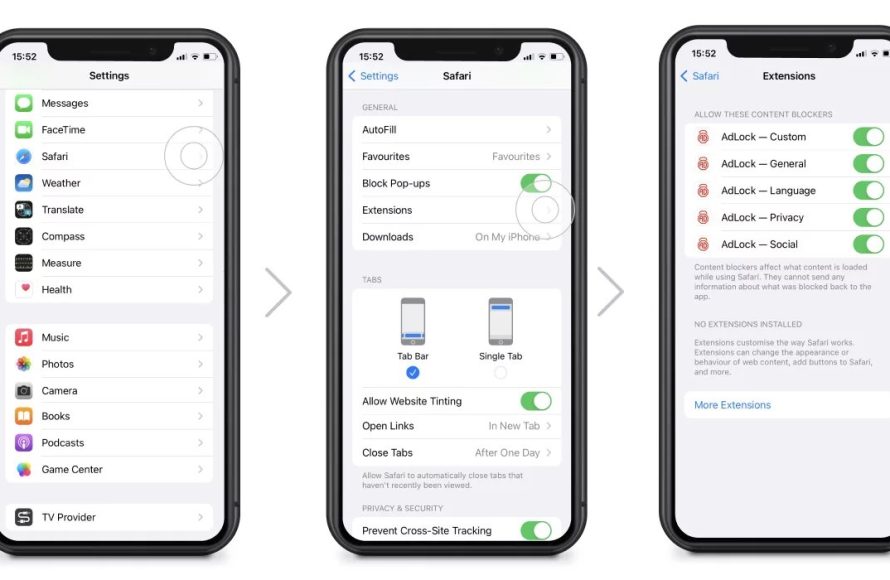
Go to the App Store (Apple) or Play Store (Android): Search for terms like “ad blocker,” “ad blocker browser,” or “content blocker”. Be cautious and choose an app with good reviews. Some popular ad blocker apps include AdLock, Blokada, and AdGuard.
Download and install the app: Install the ad blocker app on your phone or tablet.
Follow the app’s setup instructions: Open the app and follow its instructions. These often involve giving the app special permission to filter internet traffic and block ads.
Start playing your games: After setting up the app, the game ads should now be much lower or completely blocked.
Ad blockers work very well, but remember that not all apps are the same and some might work better than others. Some might also cost a small fee, but many free apps provide good ad blocking too.
Using an Ad Blocker Browser
Another simple solution is to play games inside a browser that has a built-in ad blocker. These browsers are designed to stop ads while you are browsing the web, and they also work well with games that are played through the browser. Here’s how to do this:
Download and install a browser with ad-blocking: Go to your device’s app store and search for a browser that has an ad blocker. Many popular browsers have a built-in ad blocker, such as Brave Browser and DuckDuckGo Privacy Browser.
Launch the browser: Open the browser on your phone or tablet.
Play your games through the browser: If your game can be played inside a web browser, then you can enjoy it with ad blocking enabled.
This method is great if you play games that work in a web browser. This option is also very simple to set up.
Specific Considerations for Different Devices
The method for blocking ads can vary a little bit depending on the device you are using. Let’s go through a few device-specific considerations:
On Android Devices
Android is a very flexible operating system, and you can find many great methods to block ads. Most methods we talked about will work on your android device, for example, the ad blocker apps, the DNS option, VPN apps, or even using an ad blocking browser. However, you also have the option of installing third party apk files if that is needed, but you need to be careful before doing this.
On iOS Devices (iPhone and iPad)
iOS is very restricted, so you cannot install third party apk files. But still, the methods of blocking ads we talked about such as using VPN apps, ad blocker browser, ad blocker app, or changing DNS settings, all will work.
On Game Consoles
Blocking ads on game consoles like PlayStation, Xbox, and Nintendo Switch is more complex. Generally, ads on these consoles are from within the games. You can often use the methods we described earlier, like setting up a private DNS on your home network. However, this might cause the console to experience some network issues, so you need to be careful with this option.
Things to Keep in Mind
As we are talking about blocking ads, it’s important to understand that not all methods are perfect. Here are some things you should keep in mind while trying to block ads in games:
Effectiveness Can Vary
One method might work really well for one game but not so well for another. Some games have better ways of showing ads, and they are difficult to block. Be patient and ready to try different ways if the first method doesn’t work perfectly.
Updates Can Change Things
Game developers are also trying to find new ways to show ads, so what works today might not work tomorrow. You might need to update the ad blocker apps you use and be ready to switch to other methods.
Security and Privacy
Be careful when using ad blocker apps and private DNS servers. Some bad apps can even cause harm to your device and can steal your information. Always try to read reviews, check what permissions the app needs, and stick with trusted companies when choosing a tool to block your ads.
Sometimes Ads are Part of the Game
Some games are designed to show ads as part of their core design and not as a part of a third party ad platform. If that is the case, these games are difficult to block ads for, and the game will likely not work if you turn off the internet connection. In these cases, you might need to buy an in app purchase to remove the ads, if this option is available.
Balance Between Blocking Ads and Supporting Developers
Game developers have to get income somehow. If we all block all ads, game developers might have no choice other than charging a price for playing games, which will not be desirable for many users. A balance needs to be struck between enjoying games without interruptions and also supporting the people who make the games you like. Some people choose to pay for the ‘remove ads’ option in games to directly support their favorite game developers, rather than blocking ads from the developers they like.
Troubleshooting Common Issues
Sometimes, even when you use a method to block ads, some ads still get through. Don’t worry; that’s normal. Here are some common problems and their solutions:
Ads Still Appearing: If ads still appear, try a different blocking method. It is also possible that the game you are playing may be using a new method for displaying ads which is not yet known by the apps that block ads.
Slow Internet Connection: VPNs and other ad-blocking methods can sometimes slow down your internet. Try switching to a different server in your VPN or choosing a different private DNS server.
App Not Working Correctly: If an ad blocker app isn’t working as expected, check for app updates or try uninstalling and reinstalling the app. Also, try out the other ad blockers on the store to find the one that suits your needs better.
Battery Drain: Ad blocking apps can sometimes drain your battery more quickly. If you see that this is happening, try to adjust the app settings or turn it off when not playing games.
Games Don’t Load: Sometimes, ad blockers can interfere with game loading. Try turning off the ad blocker temporarily to see if that’s the issue, or you can also try adding game apps in whitelist to ensure they load.
Remember, blocking ads can sometimes be a process of trial and error, so don’t give up. With the right tools and a bit of patience, you can finally enjoy your games without being bombarded with unwanted ads!
In the end, dealing with ads in games can be frustrating, but there are many ways to fight back and get rid of them, from simple tricks to more complex apps. Try out different methods, and see what works best for you, and eventually, you’ll be able to play your games in peace, just the way you deserve!
Block Ads on ALL Games (FREE and FAST) #shorts
Final Thoughts
To stop ads in games, you can try airplane mode, although it limits online features. Another common method involves using ad-blocker apps or customized DNS settings. These block ad servers.
Premium versions of games often remove advertisements entirely. Consider buying the game to have an ad-free experience. These methods provide a way on how to stop ads in games, giving users more control.

