
To stop desktop notifications during game, enable “Do Not Disturb” or “Focus Assist” mode in your operating system settings.
Picture this: you’re locked into an intense gaming session, the final boss fight is underway, and then BING! A notification pops up, ruining your focus. We all know that feeling of frustration. It’s a common problem for many gamers.
This article provides simple solutions on how to stop desktop notifications during game, so you can keep your focus where it matters, in the game! We will cover the easiest methods to block out those pesky interruptions.

How to Stop Desktop Notifications During Game
Okay, gamers, let’s talk about something super annoying: those pesky desktop notifications that pop up right in the middle of your epic battles or crucial moments. You know the ones – a message from a friend, an email alert, or even a system update reminder that ruins your focus and maybe even costs you a win! It’s like the game is trying to fight you from the inside. But don’t worry, there are easy ways to keep those distractions away. We’re going to go through how to get rid of these notification interrupters and keep your gaming experience smooth and uninterrupted. It’s all about taking control and making your digital world work for you, not against you.
Understanding Why Notifications Pop Up
Before we dive into turning them off, let’s understand why these notifications appear. Your computer is designed to keep you updated on everything, from emails to app activity. This is usually helpful, but when you’re in the middle of a game, it’s like having someone shout important information at you while you’re trying to concentrate on something else. Think of it like trying to listen to your favorite song, and then the phone starts ringing loudly. You’d want to stop that ringing, right? We need to do the same with the notifications.
Common Culprits: Apps and System Alerts
The most frequent notification offenders are:
- Email Applications: Programs like Outlook, Gmail, and Thunderbird constantly check for new messages and send alerts.
- Messaging Apps: Platforms such as Discord, Skype, WhatsApp, and Telegram notify you when you receive messages.
- Social Media Apps: Facebook, Twitter, Instagram – they’re constantly vying for your attention.
- System Notifications: Windows and macOS also send alerts for updates, app installations, and other system-related events.
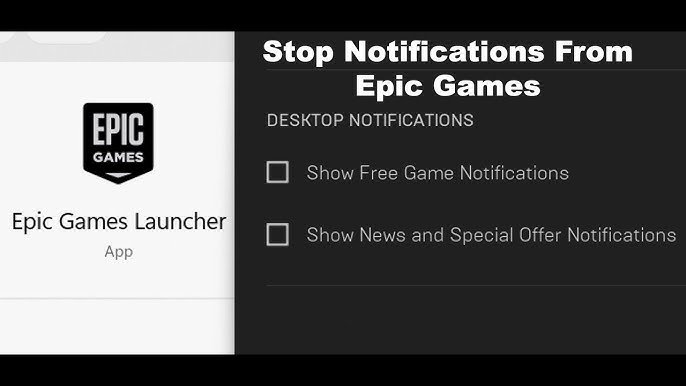
- Game Launchers: Steam, Epic Games, and other game platforms sometimes notify you of updates, friend activity, or new games.
Identifying where these pop-ups come from is the first step to silencing them. Now that we understand where they come from, let’s tackle the solutions.
Using Windows’ Focus Assist to Block Notifications
Windows has a built-in tool called Focus Assist that’s designed exactly for times like these. You can customize it to block certain types of notifications during specific activities. It’s like having a digital “Do Not Disturb” sign for your computer.
Setting up Focus Assist
- Open Settings: Click on the Start button and then the gear icon for Settings.
- Go to System: In Settings, click on “System”.
- Find Focus Assist: In the left menu, click on “Focus assist”.
- Choose Your Mode: Here, you’ll find three options:
- Off: This means you’ll get all your notifications.
- Priority only: This option lets you pick which notifications to still see, like calls or important messages from specific apps.
- Alarms only: This one blocks all notifications except alarms, so it’s the quietest of the three.
- Set Up Automatic Rules: The best part is you can set Focus Assist to turn on automatically. Click on the “Automatic rules” section.
- During these times: You can schedule Focus Assist to be on during specific hours.
- When I’m playing a game: The smartest option for gamers. When Windows detects that you’re playing a game, it can turn on Focus Assist automatically.
Using “When I’m playing a game” option is usually the easiest way for most gamers to get things blocked. It does the work for you automatically!
Customizing Priority Notifications
If you chose “Priority only” in Focus Assist, you can pick which app notifications you still want to see, even when Focus Assist is on. This could be useful if you are waiting for an important message from someone or specific application.
- Inside Focus Assist settings, click on “Customize your priority list” to pick which apps are allowed to push through notifications.
- You will see a list of apps, choose which ones you want to include or exclude.
Focus Assist is fantastic way to silence most of your common notifications that can ruin your gaming experience.
Adjusting Notification Settings for Specific Apps
Sometimes, you don’t want to block all notifications, just the ones from certain applications that are constantly causing a disturbance. Let’s look at how to control individual app notifications.
Disabling App Notifications on Windows
- Go to Settings: Click on the Start button and then the gear icon for Settings.
- Select System: Click on “System”.
- Choose Notifications & actions: Click “Notifications & actions” on the left side.
- Toggle Notifications Off for Specific Apps: Scroll down to the “Get notifications from these senders” list. You will see a list of apps that send you notifications. You can simply toggle the notifications off for each app. Find the apps you don’t want to hear from and switch them off.
This way, you are not turning off all notifications system-wide but you’re in control of individual apps that are bothering you. It’s like having a volume knob for each app.
Disabling Notifications on macOS
- Open System Settings: Click on the Apple logo in the top-left corner, and then click on “System Settings.”
- Go to Notifications: Find and click on “Notifications” in the sidebar.
- Select the App: You’ll see a list of applications. Click on the app whose notifications you want to control.
- Customize Notifications: You’ll see options to turn off notifications completely or to customize things like how notifications appear (banners, alerts, or none) and where they show up.
Like Windows, macOS allows you to fine-tune notifications on a per-app basis, so you have complete control over what gets to interrupt your gameplay.
Muting Specific Programs and Channels
Sometimes, you want to stay connected but limit the interruptions. Many apps allow you to silence specific channels or chats within the app itself.
Muting Discord Channels and Servers
- Right-Click the Channel or Server: Find the channel or server that is bothering you. Right-click on it.
- Select “Mute”: From the menu, select the “Mute Channel” or “Mute Server” option. You can choose to mute them for a specific time or until you turn the setting off. You’ll still be in the channel but you will no longer see notification.
Silencing Messaging Apps
- Look for “Mute” or “Do Not Disturb” settings: Messaging apps like WhatsApp, Telegram, and Slack usually have a “Mute” option for chats and groups. Find it by right-clicking on a specific chat or group, or by looking through their settings.
- Customize Mute options: Most apps give you the option to mute for specific time periods (like an hour or until the next day) so you don’t need to worry about forgetting to turn it back on.
Using these “mute” options within the apps is a great way to keep up with conversations without having those pop-up notifications bothering you in the middle of the game.
Using Game Mode or Dedicated Gaming Software
Some computers and gaming hardware come with built-in “Game Mode” options that automatically reduce distractions while you play. This mode can improve performance and block notifications.
Windows Game Mode
- Open Settings: Click the Start button and then the gear icon for Settings.
- Select Gaming: Click on “Gaming”.
- Enable Game Mode: In the left menu, click on “Game Mode”. Toggle the “Game Mode” switch to the “On” position.
Game Mode works to reduce notifications while you play and sometimes it also gives you better overall gaming performance too. A good setting to keep enabled whenever you are gaming!
Gaming Software Features
Many brands of gaming equipment come with software that offers similar features to Windows Game Mode. These can help you optimize your performance and reduce distractions.
- Look for gaming software features: If you have gaming software installed (like software for a specific brand of keyboard, mouse or headset), look through settings. Many of them offer gaming focused options that can reduce background notifications and improve overall gaming performance.
- Configure notification settings: Use this software to tailor the notifications settings to your needs, especially for when you’re playing games.
Temporarily Disabling Notifications Through Browser Extensions
If you get a lot of notifications from your web browser, there are browser extensions that can help you stop them temporarily. This is useful if you play browser games.
Popular Browser Extensions
- Focus apps: Apps like StayFocusd or Freedom help limit your time on websites, reducing the chance of getting distracted by website notifications
- Notification blockers: There are specific browser extensions that block website push notifications, these are a good way to stop website from interrupting your games.
How to Use Browser Extensions
- Install an Extension: Search for the desired extension in your browser’s extension store (like Chrome Web Store or Firefox Add-ons).
- Enable the Extension: Once installed, enable the extension.
- Configure the Settings: Configure it to your needs; either block all notifications or specify which sites you want to block notifications from.
Using a browser extension is very convenient way to keep web notifications at bay when you are playing games on a browser.
Troubleshooting Common Issues
Sometimes, even with all these settings, notifications might still sneak through. Here are some things to check if you are still getting notification pop-ups during gaming.
Check Application Specific Settings
- Double-check notification settings for applications: Make sure you have turned off notifications in the application directly and not just through windows settings. Some programs have their own notification settings you need to check.
- Review recent updates: An update to an app might sometimes reset your settings.
Review Focus Assist Settings
- Check your Focus Assist rules: Make sure you have selected “when I’m playing a game” rule and it is turned on. Sometimes, it may accidentally be switched off.
- Adjust priority settings: If you are using the “Priority” setting, make sure you are not getting notifications from apps that you thought were blocked.
Examine Third-Party Software
- Disable other notification apps: Some other third-party apps can send notifications, especially older or unused programs. Examine if anything like this is installed and try disabling them temporarily.
- Conflict with other programs: Sometimes, another program can interfere with focus assist settings. Try closing unneeded programs to see if that solves the issue.
System Updates and Reboots
- Update your operating system: An up-to-date operating system might fix a potential notification-related issue.
- Restart your computer: Sometimes, simply restarting can solve the problem. A restart clears temporary files and process which might be interfering with notifications.
If you’re still facing problems, it is a good idea to look at online help forums or contact the customer support for the application you are experiencing the notification issue.
Controlling desktop notifications while gaming is all about setting things up just how you need them. You should have all the tools now to silence those annoying interruptions. This means, with a bit of setup, you can really dive deep into your games without a bunch of pop-ups taking you out of the experience. Now, you can game peacefully and have a much better experience. The goal is to create the perfect distraction-free gaming session, and with these tips you can make it happen!
Disable All Notifications While Playing Games & Presentation in Windows 10
Final Thoughts
To stop desktop notifications during game, utilize focus assist in Windows or equivalent settings on other OS. Most gaming platforms offer built-in do-not-disturb modes, activate them. Check individual app notification settings too.
These adjustments will prevent unwanted pop-ups interrupting your gameplay. This way, you can concentrate fully. Remember, managing these settings is vital for uninterrupted fun.

