
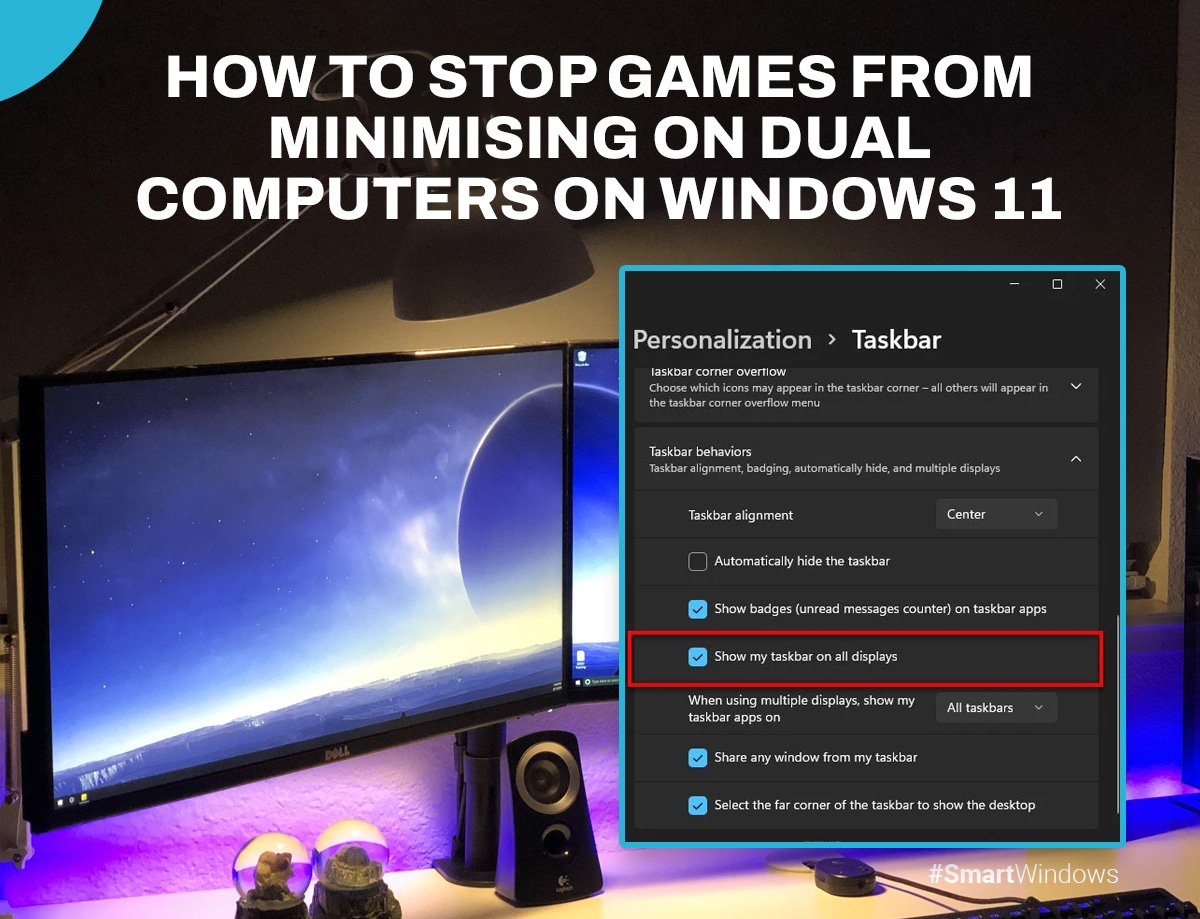
To stop a game from minimizing, ensure no other applications are stealing focus, update your graphics drivers, and run the game in fullscreen mode.
Is your favorite game constantly minimizing at the worst possible moments? It can be incredibly frustrating when you’re about to win, and suddenly you’re staring at your desktop. We’ve all been there, and it’s time to tackle the issue of how to stop game from minimizing.
This problem often stems from other applications demanding focus, outdated software, or incorrect display settings. We’ll guide you through a few simple steps that can help your game stay front and center where it belongs.

How to Stop Game from Minimizing
It’s super annoying when you’re in the middle of an awesome game and suddenly, bam!, it minimizes to your desktop. It’s like the game is saying, “Okay, playtime is over, back to work!” But don’t worry, we’re here to help you figure out why this happens and, more importantly, how to make it stop. This guide will walk you through all the common reasons for game minimizing and provide some simple fixes so you can get back to gaming without interruptions. Let’s jump in!
Understanding Why Games Minimize
Before we get into the solutions, let’s talk about some of the reasons your game might be minimizing. Knowing the “why” helps you fix it properly. It’s like being a detective, but instead of solving a crime, you’re solving a gaming mystery! Here are some frequent culprits:
Background Applications
Think of your computer like a busy city. Lots of apps are running at the same time, even when you don’t see them. Sometimes, another program needs your attention urgently (it’s like a phone ringing), and your game gets pushed to the back. This can be notifications from messaging apps, updates from other software, or even background processes that just get a little too bossy. These background applications can steal the focus and cause your active game window to minimize. Common offenders include:
- Messaging and social media apps like Discord, Slack, or WhatsApp.
- Update utilities that may download or install software updates in the background.
- Antivirus software running scans.
- Cloud storage programs doing synchronization tasks.
Outdated Drivers
Your computer’s video card (GPU) is a bit like the engine of your games; it needs the right tools to work correctly. These “tools” are called drivers. When these drivers are outdated, they can get confused and cause problems like your game minimizing. These drivers help your computer understand the game’s graphics and they need to be up to date, much like your game needs updates.
Accidental Key Presses
Sometimes, it’s just a simple mistake. Hitting the Windows key or the Alt+Tab keys by accident can make your game go poof into the taskbar. These shortcuts are designed to help you switch between windows, but they can be a pain during a game. A lot of folks accidently press these shortcuts while gaming due to their position on the keyboard. It can happen to even the most careful gamers!
Game Compatibility Issues
Not all games play nicely with every computer. Some games just don’t work well with your computer’s system or have bugs that cause them to minimize. This is like trying to fit a square block into a round hole – it just won’t work! Sometimes it’s just a compatibility issue, maybe the game wants a different operating system version, or certain settings and it causes unexpected minimizing.
Full Screen Issues
The way you’re running your game—full screen or windowed—can also be part of the problem. Some games, especially older ones, don’t like being in full screen and might minimize if they get confused. A game’s full screen mode must be set correctly in the game settings, otherwise it might not respond the way you expect it to. Even the resolution settings play an important role, sometimes the resolutions that don’t support your monitor can also cause these problems. Also, certain applications can interfere with exclusive full screen, causing the game to minimize.
Simple Solutions to Stop Minimizing
Now that we’ve gone through the reasons, let’s get into the how-to part. Here are some easy things you can try to make your game stay put:
Closing Unnecessary Programs
One of the simplest yet most powerful things you can do is close all those extra apps that are running in the background. Think of it like decluttering your room – getting rid of the extra stuff makes space for the important things, in this case, your game. Close everything you’re not actively using and then see if your games behave better. Here is how you can do that:
- Press Ctrl + Shift + Esc on your keyboard. This will open the Task Manager.
- Click on the “Processes” tab.
- Look at the list of applications and see what all is running.
- Select any app you are not using, and click on “End Task.” Be careful not to end necessary system processes.
- Try running your game again to see if that fixed the issue.
By only running the essential software, you are freeing up resources and giving your game priority which in turn helps with these minimizing problems.
Updating Your Graphics Drivers
Keeping your graphics drivers updated can help avoid these problems. It’s like giving your GPU a fresh new instruction manual that helps it understand new games. Here’s how you can do this:
For NVIDIA Graphics Cards:
- Right-click on your desktop and select “NVIDIA Control Panel.”
- Navigate to “Help” and then “Updates.”
- Follow the prompts to download and install any available updates.
For AMD Graphics Cards:
- Right-click on your desktop and select “AMD Radeon Settings.”
- Click on the “Updates” tab.
- Check for updates and install them if available.
For Intel Graphics:
- Search for “Intel Graphics Command Center” from the Start Menu.
- Click on “Driver Updates” option and follow the prompts to update your drivers.
Restart your computer after the updates to make sure everything is working properly. Sometimes updating drivers can resolve compatibility issues as well.
Adjusting Fullscreen Settings
If your game keeps minimizing in full screen mode, try changing the setting to windowed or borderless windowed mode and check if that resolves the issue. Here’s how you can usually find that setting: Go to your game’s “Options” or “Settings.” and usually you will find graphics or video section. You will find the “Fullscreen” or “Display Mode” options, try switching from “Fullscreen” to “Windowed” or “Borderless Windowed” mode to see if that fixes the issue.
- Fullscreen: The game takes up the entire screen. Some games don’t like this mode and might minimize.
- Windowed: The game runs in a window on your desktop, like any other application.
- Borderless Windowed: It looks like fullscreen but is actually running in a window, which can help avoid some minimizing problems.
Disabling Notifications
Notification pop-ups can be a big reason why games minimize. To stop these interruptions, you can disable notifications while gaming. Here’s how:
Windows Notifications:
- Click on the Start button and then click on “Settings” (the gear icon).
- Go to “System” and then click on “Notifications & actions.”
- You can either toggle the “Get notifications from apps and other senders” off completely or customize by turning off notifications for individual apps.
Specific App Notifications:
For apps like Discord or Steam, you may need to disable notifications within those applications directly by going into the app settings.
By turning off all the unnecessary notifications, you avoid those annoying pop-ups and your game will have a higher chance of staying on the screen.
Checking for Game Updates
If a game is minimizing unexpectedly, it might be due to a bug in the game. Always make sure your game is updated to the latest version as these updates often contain bug fixes and improvements. Here’s how you can usually check for updates:
- Steam: In your Library, right-click on the game and select “Properties.” Go to “Updates” and check if there are any downloads available.
- Epic Games: The launcher usually downloads the updates automatically, but you can check the “Library” to ensure they are updated.
- Other Game Launchers: Each launcher might have their specific method. usually a “Downloads” or “Updates” section should be available.
Always check that the game has installed the latest updates, and this can often fix the unwanted minimizing problem.
Using Game Mode in Windows
Windows has a special feature called “Game Mode” designed to help your games run better. It prioritizes your game over other apps, which can help with minimizing issues. You can use the following steps:
- Click on the Start button and then click on “Settings” (the gear icon).
- Go to “Gaming” and then click on “Game Mode.”
- Turn “Game Mode” on by toggling the button to the “On” position.
Turning game mode on can give your games more attention and power, which can help it to minimize less.
Avoiding Unnecessary Keyboard Shortcuts
Sometimes, it’s an accidental press of the Windows key that causes problems. There are a few things you can try to prevent accidental key presses:
- Using Game-Specific Keyboard Shortcuts: If a game has its own shortcut settings, try reassigning keys to prevent accidental presses of the windows key or Alt+Tab.
- Key Locking Software: There are different software programs available online which can disable keys or combinations of keys that can be used in case you have a problem with this.
Being mindful of keyboard shortcuts and taking the above actions can reduce game minimizing incidents.
Checking for Hardware Issues
If none of the above solutions work, it might be a good idea to check your hardware. Sometimes overheating or faulty RAM can cause these issues. Make sure your computer has proper cooling, and all of the hardware components are working properly. Consulting with a computer expert is a good idea if you have these types of problems as well.
- Overheating: Make sure your computer has enough cooling and that the fans are working as intended. Clean out dust which can prevent proper airflow.
- RAM Issues: Try to diagnose your RAM. You may need a computer repair expert for this.
Clean Boot your PC
A clean boot starts your computer with only the most essential services and startup applications. It can help identify if a third party program is causing these types of problems. It is easy to follow these steps:
- Press the Windows key + R key to open the run dialog box.
- Type in “msconfig” and press enter.
- Under the “General” tab, click on “Selective startup” and make sure that “Load system services” and “Load startup items” is not checked.
- Switch to the services tab. Check the box that says “Hide all Microsoft services” and then click on “Disable all”.
- Go to the startup tab and click on “Open Task Manager”. In the Task Manager, disable all startup items.
- Close Task Manager and click “Apply” and “Ok” on the System Configuration window.
- Restart your PC.
Once you have clean booted, you can try running the game to see if the issue still persists. If it does not then you can try enabling startup services and startup apps one by one to see which is causing this minimizing problem.
By keeping your hardware in good shape, you are ensuring they run your games better and minimize less.
Advanced Troubleshooting
If simple fixes don’t work, it might be time to look at some more advanced troubleshooting steps. These usually involve diving deeper into your system.
System File Checker
Windows has a tool called System File Checker (SFC) which can help you check for and fix corrupted system files. Corrupted files can cause unexpected issues like your games minimizing. Use the following steps:
- Open Command Prompt as administrator. You can do this by going to the start menu and typing in “cmd”, right click on it and select “Run as Administrator”.
- Type in “sfc /scannow” and press Enter.
- Wait for the scan to complete and follow any prompts that it may give you.
If Windows detects any corruption it may fix them, which can help in resolving game minimizing problems.
Checking System Logs
Your system keeps track of errors and events that are happening on your computer in system logs. These can sometimes tell you what’s causing the minimizing issues. Here’s how you can access the system logs:
- Press the Windows Key and type “Event Viewer” and press enter.
- Go to “Windows Logs” and look at “Application” and “System” logs.
- Look for errors or warnings that happen around the time when your game minimized. These entries might help you identify the cause.
These system logs might provide you an insight into why you are facing this minimization issue and help with fixing them.
Reinstalling the Game
Sometimes, the problem is with the game itself. There might be a corrupted game file or another problem. Reinstalling the game can help in case of these types of problems. First, fully uninstall the game, making sure you delete all associated files and folders, and then reinstall again from the launcher or platform you bought it from.
Checking for Malware
Malware can cause various issues with your computer, including game minimization. Run a full system scan with your antivirus software to make sure there are no viruses. You can also try using third-party malware removal tools if you have a bad virus issue.
By taking these more detailed steps, you will gain a better understanding of how your system is running, and fix these frustrating game minimizing issues.
We have covered many common ways to stop the annoying minimizing issues while gaming. We began by trying to understand the reasons behind the minimizations, and explored solutions. We hope you have a better understanding on what might be happening and you can now enjoy uninterrupted gameplay.
Games automatically minimizing? No problem! Try these easy fixes! 😎😎
Final Thoughts
To stop a game from minimizing, ensure no other applications steal focus. Check for background processes or notifications. Try running the game in fullscreen mode rather than windowed.
Updating graphics drivers can also prevent minimizing issues. You might need to disable any overlay programs. These often interfere with the game’s display.
Therefore, to understand how to stop game from minimizing, manage background programs and try different display settings. These steps address most reasons for game minimizing.

