
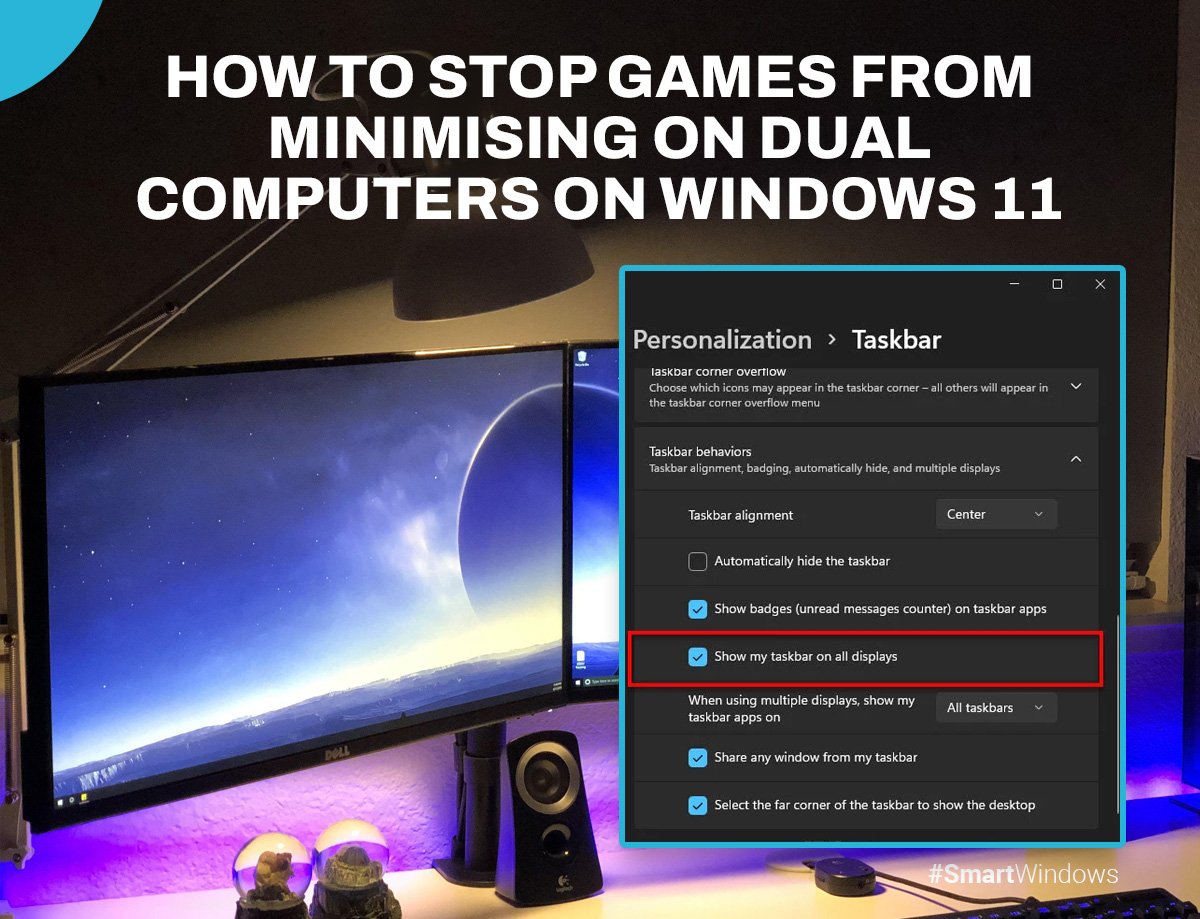
To stop games minimizing on dual monitors, switch to borderless windowed mode within the game settings.
It’s frustrating when you’re in the middle of an intense game and it suddenly minimizes because you clicked on your second monitor, isn’t it? Many gamers face this issue, a disruption caused by games not playing nicely with dual monitor setups. Finding a consistent solution to this can be irritating. How to stop games minimizing dual monitors is a common question that plagues many users with multiple screens.
Thankfully, there is a simple fix for this, involving a common setting that most games have these days. The most effective way is to change your game’s display settings. This action prevents the game from losing focus when your mouse moves to another display.

How to Stop Games Minimizing on Dual Monitors
It’s super annoying, right? You’re in the middle of an awesome game, fully immersed in the action, and then BAM! Your game decides it wants to hide away on your main screen, leaving you staring at your desktop on your second monitor. This problem, where games minimize when you have dual monitors, is a common headache for gamers. But don’t worry, you’re not alone, and more importantly, there are ways to fix it! We’ll look at why this happens and walk you through all the different fixes you can try to keep your games happily playing across your monitors.
Understanding Why Games Minimize
First, let’s try to understand why this happens. Games minimizing with dual monitors usually boils down to how Windows handles different screen modes and how the game itself was designed. Here are a few typical culprits:
The Fullscreen Fiasco
Many games use a “fullscreen” mode, which essentially takes over your entire screen. When a game is in this mode, Windows treats it as the only thing needing your attention. When you click on something on your second monitor, Windows can get confused. It interprets this as you wanting to move away from the game. This often results in the game minimizing, which is super frustrating.
- How it Happens: When you click outside the game window, Windows thinks you’ve switched tasks.
- Why it’s annoying: It interrupts gameplay and can be jarring.
The Alt-Tab Troubles
We’ve all done it – the famous “Alt+Tab” to quickly switch to another app. While useful, this keyboard shortcut can also trigger the minimization of your game. If you’re playing on one monitor and accidentally hit Alt+Tab, your attention is directed to something else, often causing the game on your other screen to minimize. Even if you are not actually intending to move to the second screen.
- What it does: It switches between open windows.
- Why it matters: It often minimizes games, especially in fullscreen mode.
Application Focus and Priority
Sometimes, when a new application takes focus, especially if that application is not a program you regularly use, the game window may lose focus which causes the game to minimize. This is especially true if the game itself is also struggling with resources. The program you just focused on might ask for more attention of your CPU or RAM and as a result, windows puts that app in a priority mode over the game on your other screen.
- How focus is managed: Windows decides which application is currently active.
- The issue: Other apps can “steal” focus, causing the game to minimize.
Outdated Drivers
Outdated or buggy graphics drivers can sometimes be the reason behind game minimization issues. If your graphics card’s driver is old, it might not be working well with the latest games or with multiple monitor setups. Drivers are like little instruction manuals that tell your computer how to use its different pieces of hardware. When those manuals are old or bad, things don’t work as well as they should.
- What are drivers: Software that enables the hardware to work with software.
- Why they matter: Bad drivers can cause many issues, including game minimization.
Game Settings
The way a game is configured can also lead to minimization on a dual monitor setup. Some games don’t play nicely in full-screen mode with more than one monitor. Or, they could have display settings which, if not set correctly, may cause unexpected behavior.
- How games are configured: Settings within the game affect how it displays.
- What to check: Look for display mode options, resolution settings and fullscreen vs windowed modes.
Solutions to Stop Games Minimizing
Now that we have explored why the issue happens, let’s get into the nitty-gritty of how to fix it. Here’s a list of solutions to try. I suggest going through these step-by-step and seeing which one works for you:
Switching to Borderless Windowed Mode
One of the easiest and most common solutions is changing your game from fullscreen to borderless windowed mode, or often referred to as windowed fullscreen mode. This mode makes the game appear fullscreen but runs it in a window without borders. This tricks windows into not minimizing the game when you click on something on your other monitor.
- What it is: The game appears fullscreen but is technically running within a window.
- How it helps: It allows you to interact with your other monitor without minimizing the game.
- How to do it:
- Open the game you are having trouble with.
- Go to the game’s settings menu, normally found under graphics or display.
- Look for a setting for display mode or similar.
- Change it from “Fullscreen” to “Borderless Windowed” or “Windowed Fullscreen”.
- Apply the settings.
- Restart the game.
Adjusting Your Monitor Settings in Windows
Windows itself has some settings that can affect how games behave with multiple monitors. A misconfigured display setup can also be the cause. Let’s look at a couple of settings you can adjust. You need to check if your displays are configured properly.
How to check and adjust Windows Display Settings
- Access display settings:
- Right-click on your desktop.
- Select “Display settings.”
- Check monitor arrangement:
- Make sure that the arrangement of your monitor icons matches the physical arrangement of your monitors.
- If you need to change it, click and drag the display icons to move them around.
- Identify primary monitor:
- The primary monitor is usually where you see your taskbar and start menu.
- Select the monitor you want as primary and check “Make this my main display”.
- Scale and Layout settings:
- Check for scaling settings. Make sure that both displays are at their recommended scales to prevent strange behavior.
- Try matching the resolution of both displays as well for better consistency.
Updating Your Graphics Drivers
As we mentioned before, old drivers can cause all sorts of problems, including game minimization. Updating them is a very important step to make sure your games run smoothly.
- How to update drivers:
- Go to your graphics card manufacturer’s website (NVIDIA, AMD, or Intel).
- Find the “Drivers” or “Support” section.
- Enter your specific graphics card model.
- Download the latest driver for your operating system.
- Run the downloaded file and follow the steps to install them.
- How to know which driver you have:
- Right-click on the start menu
- Select “Device Manager”.
- Expand “Display adapters”.
- You’ll see your graphics card listed there. Right-click it, and select “Properties”.
- Go to the “Driver” tab, and you’ll see information about the current version you have installed.
- Tips:
- Sometimes uninstalling the old drivers and then installing the new ones can fix issues.
- Make sure to restart your computer after updating drivers.
Using Third-Party Applications
There are also applications created to help manage multiple monitors and handle games better. These apps can give you more control over how Windows deals with your different screens. A couple of example apps that can help are:
- DisplayFusion: A very popular paid app with lots of features for controlling multi-monitor setups, including game profiles and settings.
- Actual Multiple Monitors: Another paid app that offers tons of settings, including features that help with game minimization.
- Borderless Gaming: This free app specifically forces games to run in borderless windowed mode.
Important Note: Be cautious when using third-party software. Only download from trusted sources and always read reviews before installing. Always make sure the software is compatible with your OS and that the source is reputable. Some of these programs can sometimes cause conflicts if not configured properly.
Checking Game Settings
Often, the solution can be inside the game’s settings. Each game has its own options for display, and these can sometimes cause the minimization problem. Take some time to check the display options for your game.
- How to check:
- Open the game.
- Go to the “Settings” menu, then “Graphics” or “Display” settings.
- Look for resolution settings, display mode, and multi-monitor options.
- What to look for:
- Make sure that the game resolution matches that of the monitor that is running the game.
- Look for an option to force the game to run on your primary monitor. Some games offer a setting to specify which monitor they run on.
- If the game supports a specific multi-monitor setup, try setting it to that option.
- Pro Tip: Try playing with these settings to see if any changes stop the minimizing issue. Sometimes a simple tweak is all that you need.
Disabling Game Overlay Software
Game overlays can sometimes cause conflicts that lead to minimizing. Software like Steam Overlay, Discord Overlay, and others can sometimes cause issues with game display and performance, or could be the reason for your minimization problem.
- How to disable overlays:
- Steam Overlay: Go to Steam settings -> In-Game and uncheck “Enable the Steam Overlay while in-game”.
- Discord Overlay: Go to Discord settings -> Overlay and toggle the “Enable in-game overlay” to off.
- Other Overlays: Check the settings for any other programs that could be running overlays while you game.
- Why to try it: Overlays can conflict with games, especially in fullscreen mode. Turning them off might solve minimization problems.
- Test: After disabling, try playing the game and see if the issue is gone.
Run the Game as Administrator
Giving your game administrator permissions can sometimes help with display issues like minimizing on a dual monitor setup. This gives the game the ability to bypass certain windows restrictions. This method may not work for all games, but it may be worth trying if the other solutions have not worked.
- How to do it:
- Right-click on the shortcut for your game.
- Select “Properties”.
- Go to the “Compatibility” tab.
- Check the box “Run this program as an administrator”.
- Click “Apply”, then “OK”.
- Things to know: This can sometimes solve problems with game compatibility and permissions.
- Extra note: Be careful when giving programs administrator permissions as it allows them a great deal of access and control over your system.
Closing Unnecessary Applications
If you are experiencing game minimization, try closing all the programs you are not currently using. This will ensure that the focus stays with the game. When your computer is trying to do a lot of things at once, it can become more likely that a game will lose focus. Closing all of those un-used programs frees up system resources and could help.
- How to do it:
- Open “Task Manager” (Ctrl+Shift+Esc).
- Go to the “Processes” tab.
- Look for any apps you don’t need and click “End task”.
- Why this helps: Reduces the amount of work your computer has to do, and can stop other apps from trying to take focus.
By going through these solutions, hopefully you will be able to find one that solves your annoying game minimization issues. Remember to test the game after each solution to see what works best for you!
It can be incredibly frustrating when your game keeps minimizing on dual monitors. But by understanding why it happens and working through these troubleshooting steps, you should be able to get your games working perfectly on your multi-monitor setup. Remember to start with the easiest fixes, like switching to borderless windowed mode and updating your drivers, and then move on to more advanced solutions if needed. Happy gaming!
Stop Full screen Games From Minimising 2020 ! When using 2 monitors or alt tab !!
Final Thoughts
To stop games minimizing on dual monitors, try running the game in borderless windowed mode. This setting often prevents focus loss which causes minimizing. Check your game settings for this option.
Another approach is to ensure your graphics drivers are up to date. Outdated drivers can create issues with dual monitor setups. Sometimes, simply restarting your computer can solve this.
Ultimately, learning how to stop games minimizing dual monitors involves experimenting with settings and drivers. Try these steps, and hopefully your gaming experience will improve.

