
Ensure your computer meets Dolphin’s minimum system requirements, adjust graphics settings within the emulator, and try different backends like OpenGL or Vulkan to stop your Dolphin emulated game from being choppy.
Experiencing choppy gameplay with Dolphin emulator? It’s frustrating when your favorite GameCube or Wii titles don’t run smoothly. You’re not alone, many struggle with performance issues, and wonder how to stop my Dolphin emulated game from being choppy. This article will guide you through simple solutions.
We will explore ways to adjust settings and ensure your computer can handle the load. Getting the best experience is about tweaking the correct areas. By implementing these steps, you’ll enjoy much smoother gameplay on Dolphin.

How to Stop My Dolphin Emulated Game From Being Choppy
So, you’re excited to play your favorite GameCube or Wii games on your computer using the Dolphin emulator, but instead of smooth, flowing gameplay, you’re getting a frustrating, choppy mess? Don’t worry, you’re not alone! Many people run into this problem. Choppy gameplay, also called stuttering or lag, can ruin the fun. The good news is, there are many things you can try to get your games running smoothly. Let’s dive into the reasons why your Dolphin game might be choppy and how you can fix it!
Understanding Why Your Game is Choppy
Before we jump into fixes, it’s helpful to understand why games can get choppy on Dolphin. It usually boils down to a few key things:
Your Computer’s Power
Emulating a game, especially one from a more powerful console like the Wii, takes a lot of work from your computer. If your computer isn’t strong enough to handle the demands, you’ll likely experience choppy gameplay. This means your CPU (the computer’s brain), your GPU (the graphics card), and even your RAM (short-term memory) all need to be up to the task. Think of it like trying to run a race car with a go-kart engine. It just won’t work well.
Here’s a simple breakdown:
- CPU: The Central Processing Unit handles most of the calculations involved in running the game and the emulator itself. If your CPU is older or not very powerful, it can struggle.
- GPU: The Graphics Processing Unit takes care of all things visual. If your graphics card isn’t very strong, the game might not be able to display the graphics smoothly.
- RAM: Random Access Memory is like your computer’s short-term memory. If you don’t have enough RAM, your computer has to work harder which leads to slowdowns and stuttering.
Dolphin Settings
Dolphin has a lot of settings that you can adjust. These settings can significantly impact performance. If you have the wrong settings, even a powerful computer can have trouble running games smoothly. Sometimes, the default settings may not be the best for your specific system.
Some key settings to consider include:
- Graphics Backend: Dolphin supports different ways to draw graphics (like DirectX or OpenGL). Some backends work better on different computers.
- Internal Resolution: This determines how sharp the graphics look. Higher resolution puts more stress on your computer.
- Anti-Aliasing: This setting smooths out jagged edges but can also slow things down.
- Vsync: This tries to make the game’s frame rate match your monitor’s refresh rate but can sometimes cause issues.
- Enhancements: These options can make games look better but at a cost to performance.
Game-Specific Issues
Sometimes the problem isn’t with your computer or Dolphin settings. Some games are simply more demanding than others, or they might have bugs that can cause choppy gameplay. For instance, some very complex games push even the strongest computers to their limit. This means that your experience can change from game to game, depending on the game’s requirement and optimization.
Troubleshooting Choppy Gameplay: Step-by-Step
Now that we know some of the reasons why games get choppy, let’s walk through the steps you can take to fix them. We’ll start with easy adjustments and move toward more technical solutions.
1. Check Your Computer’s Specs
First, let’s make sure your computer meets the basic requirements to run Dolphin. Dolphin’s website has a list of recommended specs. You can usually find this by searching for “Dolphin emulator requirements”. If your computer falls short, you might have to adjust expectations. Here’s a general idea of what you need:
- CPU: A modern quad-core processor is recommended. Older or weaker dual-core processors may struggle with some games.
- GPU: A dedicated graphics card (not just the graphics built into your CPU) is highly recommended.
- RAM: At least 8GB of RAM is suggested, but 16GB or more is even better.
If you are unsure how to check your computer’s specs, here’s how:
- On Windows, you can search “System Information” in the start menu. This will show you information about your processor, RAM, and operating system.
- On Windows, you can search “Device Manager” in the start menu to see your GPU under “Display Adapters”.
- On macOS, you can go to “About This Mac” from the Apple menu. This shows you specs for your system.
2. Update Your Graphics Drivers
Old graphics drivers can cause lots of problems with games. Make sure you have the latest drivers for your graphics card. You can get these from the website of the company that made your graphics card (NVIDIA, AMD, or Intel). Updating your drivers can often lead to significant performance boosts.
- Go to NVIDIA’s website if you have an NVIDIA card.
- Go to AMD’s website if you have an AMD card.
- Go to Intel’s website if you have an Intel integrated graphics.
3. Tweak Dolphin’s Graphics Settings
This is where you can make the biggest difference. Dolphin has several settings that you can adjust to make games run smoother.
Change the Graphics Backend
Go into Dolphin’s graphics settings and try changing the “Backend”.
- If you are using Windows, try both “Direct3D 12” and “Vulkan”. Sometimes one runs better than the other.
- If you’re on macOS, try “Metal” or “OpenGL”.
- Experimenting is key here, as each system reacts differently to each backend.
Reduce the Internal Resolution
High internal resolution makes games look very sharp but puts a huge strain on your system. Try lowering it.
- Start by trying 1x Native resolution (which is the original GameCube or Wii resolution).
- If you can play smoothly at this resolution, try increasing it little by little to find a good balance between performance and visual quality.
Turn Off Anti-Aliasing
Anti-aliasing makes jagged edges smoother but can slow the game down. Turn it off or down to a lower setting to see if it helps. Try different Anti-Aliasing levels like none, 2x, 4x or 8x MSAA to see which level offers the best performance for your system.
Disable Enhancements
Dolphin has some other options to make games look better. These are called “enhancements”. Turn them off to see if it improves performance.
- Look for settings like “Texture Filtering” and disable it for testing purposes. If that works, you can then try different filtering options for a balance of performance and visual quality.
- Check for “Anisotropic Filtering” and disable it. Similar to Texture Filtering, you can test with other levels after testing the performance without it.
- Turn off “Post-processing effects” for the moment.
Experiment with Vsync
Vsync can sometimes cause issues, but it can also help with screen tearing (where the image on screen looks broken). Try turning it on and off to see if it improves your game performance.
4. Adjust CPU Settings
Sometimes, changes to the CPU settings within Dolphin can help too. In Dolphin’s configuration panel, look for the “CPU Emulation” settings.
Emulated CPU Clock
The emulated CPU clock can sometimes be lowered for slightly better performance.
- It’s usually best to leave it at 100%, but if your CPU is not very strong, you can try lowering it gradually to see if it makes a difference.
- Lowering this too much can cause slowdowns in the game, so it’s very important to test carefully.
Enable “Enable Dual Core”
If your processor has multiple cores, make sure this is turned on. This setting allows Dolphin to make better use of your CPU’s resources.
Set “CPU Thread” to “Main Thread”
Try changing the “CPU Thread” option from “Auto” to “Main Thread”. This setting can improve performance if other options didn’t work.
5. Change the Power Management Plan
If you are running on Windows, make sure your computer is set to “High Performance” in the Power Management settings. By default, Windows might try to save energy by limiting your computer’s performance. Changing to “High Performance” makes sure that your computer uses its full power to run the game.
- Search for “Power Options” in the Start Menu.
- Choose “High Performance” as the power plan.
6. Close Background Programs
Too many programs running in the background can slow your computer down. Close any unnecessary programs while you’re playing Dolphin.
- Close web browsers, document editors, and any other applications that you’re not using.
7. Consider Overclocking
If you’re familiar with computers, you can try to overclock your CPU or GPU. This makes them run faster. But please be careful, as this can also cause problems if not done properly. You should only try this if you know what you are doing.
8. Game-Specific Settings
Some games benefit from different settings than others. Check out Dolphin’s wiki or forums for specific tweaks for your game. Here’s how you can find information.
- Search the specific game on the Dolphin wiki page. This will show information about that particular game and special adjustments that are beneficial to make the game work.
- Search the game name with “Dolphin settings” or “Dolphin performance”. Many forum threads contain specific advice about different games.
9. Try Different Dolphin Versions
Sometimes older versions of Dolphin run some games better than newer versions. It’s worth trying a few different versions to see if one performs better with a game you are having trouble with. Older versions can be downloaded from the official Dolphin website under the development section.
10. Check for Overheating
If your computer is overheating, it can cause performance issues. Make sure your computer’s fans are working correctly and that there is enough airflow. Check also if there is any dust buildup inside your computer. A can of compressed air can be helpful to remove dust.
By working through these steps, you should see some real improvement with your Dolphin games. The key is to test and adjust one setting at a time to see what works best for you.
Remember, patience is key! Figuring out the perfect settings for your computer can take some time. Don’t get discouraged if you don’t see results immediately. Try a few different settings, and eventually, you’ll find a combination that works for you. It’s also important to understand the specific requirements of each game; a game like “The Legend of Zelda: Twilight Princess,” for example, can be significantly more demanding than other less complex games.
If you’ve gone through all the steps and are still experiencing issues, your computer might be simply not powerful enough to run the game at the desired performance, in that case, you might need to consider upgrading your PC’s hardware. But before jumping to that conclusion, double check that you have followed all of the previous steps and carefully test different configurations. It’s worth repeating that the optimal settings will vary from one system to another, even when using the same hardware specifications.
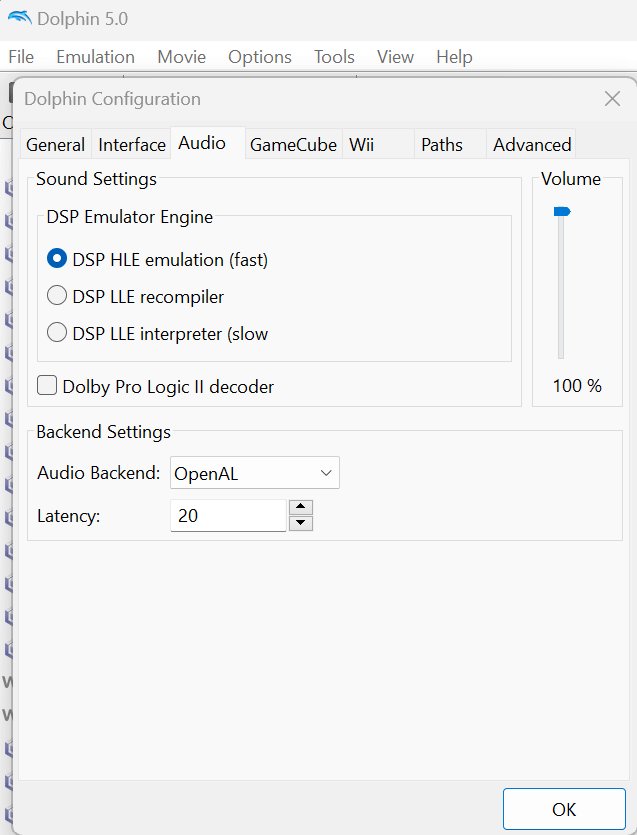
My low end PC settings for dolphin Emulator (v5.0)
Final Thoughts
To improve choppy gameplay, experiment with Dolphin’s graphics settings. Lowering the resolution, disabling enhancements, or trying different backends can help. Vsync settings within the emulator and your graphics card control panel also have an impact.
Tweaking game-specific configurations sometimes reduces choppiness. Consider checking online guides for specific game titles. Sometimes, hardware limitations are the cause if your system can’t properly emulate the game.
Ultimately, how to stop my dolphin emulated game from being choppy involves trial and error. Performance must improve with adjustments. System specs, game choice, and emulator configurations all affect your experience.

