
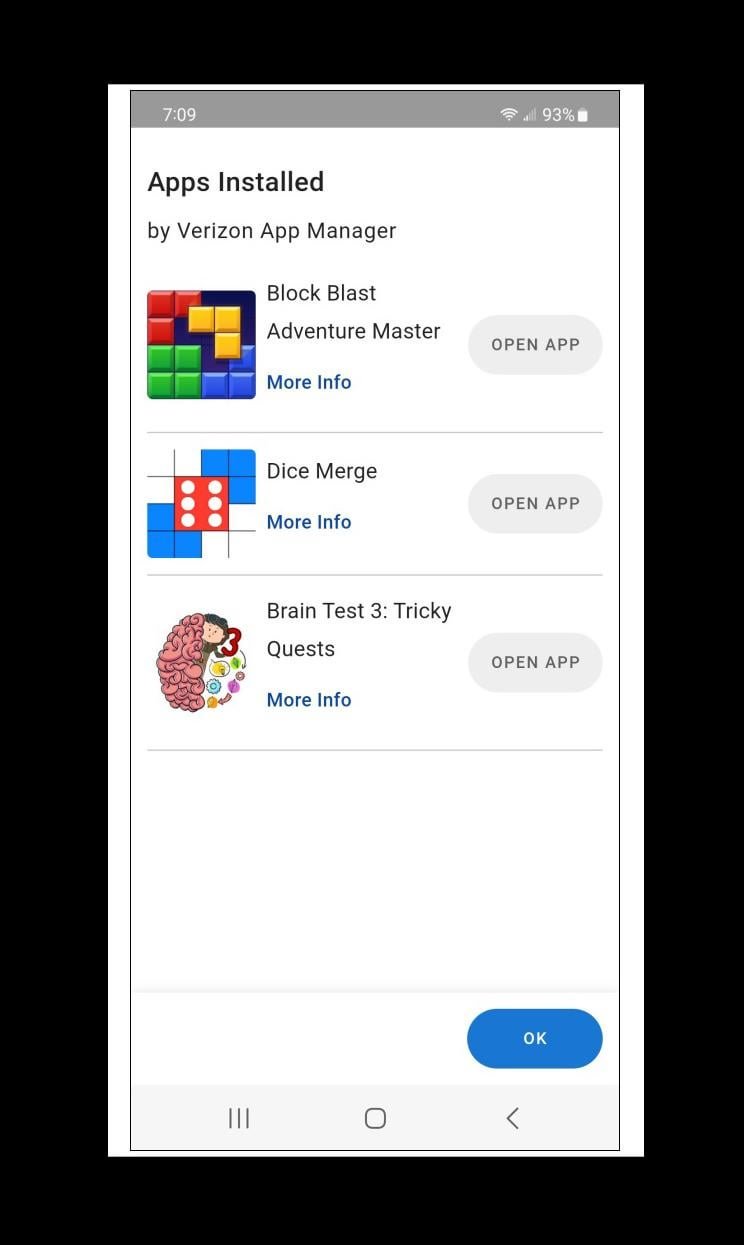
You can stop Verizon from downloading games by disabling automatic app downloads in your device’s settings, and also by restricting cellular data usage for the relevant app stores.
Are you noticing unwanted game downloads appearing on your phone? It’s frustrating when your device takes it upon itself to grab content you didn’t request, especially from a service provider. Many users find themselves asking, how to stop verizon from downloading games? This article provides simple steps to regain control.
We will explore how to adjust your settings on your mobile device to prevent such unwanted downloads. This ensures your data plan and storage are being used only for the apps you choose.

How to Stop Verizon from Downloading Games
Have you ever picked up your phone or tablet and been surprised by a game you didn’t ask for? It can be a bit annoying, especially if you didn’t want it! Sometimes, Verizon, like other mobile carriers, might push pre-loaded apps, including games, onto your device. This can take up space and sometimes lead to unexpected data usage. Let’s talk about how you can take control and stop these unwanted game downloads.
Understanding Why Verizon Might Download Games
Before diving into solutions, it’s helpful to know why this happens. Mobile carriers, including Verizon, sometimes pre-install apps on devices they sell. These are often part of deals with app developers. While some pre-installed apps are useful, games can seem like bloatware if you’re not a gamer. Another reason might be system updates that sometimes bundle new or recommended applications. This is how you might suddenly find a game you don’t recognize on your device.
Pre-installed Apps: The Common Culprit
When you get a new phone from Verizon, it often comes with a bunch of apps already installed. Think of it like buying a new toy that comes with extra accessories you didn’t necessarily ask for. These pre-installed apps, sometimes called “bloatware,” may include games. Verizon may do this to promote certain apps or make a little extra money from partnerships. It’s not always something that’s easy to remove, but we can explore ways to handle them.
System Updates and Recommended Apps
Sometimes, when you update your phone’s operating system (like Android or iOS), the update can include suggested applications. These might be from Verizon or other partners. While system updates are important for keeping your phone secure and running smoothly, they might also bring along extra apps, including games, that you don’t want. This isn’t always predictable, but understanding it helps you anticipate and deal with unwanted downloads.
Methods to Prevent Game Downloads
Now, let’s get to the important part: how to stop these game downloads! There are several approaches you can take. Some are easier than others, so let’s go through them one by one.
Checking for Download Restrictions in Settings
One of the first things to do is to explore your phone’s settings. Sometimes, there are options that can control the kind of downloads your device does automatically. These settings vary a little depending on your device, but the general idea is the same.
For Android Devices:
- Open your phone’s Settings app.
- Look for something called Apps & Notifications or just Apps.
- Look for an option such as “Special access” and then “Install unknown apps”. Here you can control what apps are allowed to install other apps.
- Here you can also manage permissions that apps have and you can disable those permission if you don’t want that apps to be running in background and download any kind of file.
- Look for any option related to automatically updating apps and disable automatic updates.
For iOS (iPhone) Devices:
- Open your Settings app.
- Tap on App Store.
- Make sure that the toggle button beside “Automatic Download” is turned off, to prevent apps from downloading automatically.
- Here, you can also see the option like “offload unused app”. This option will automatically delete the app but it will keep the app data and when you reinstall this app your data will be still there.
Going through these settings can give you some extra control over what is installed on your phone and when it’s installed.
Disabling Pre-installed Games
Now, if you’ve got pre-installed games you don’t want, you have options. You may not be able to delete them completely, but you can often disable them.
For Android Devices:
- Open Settings and go to Apps & Notifications (or just Apps).
- Find the game you want to disable.
- Tap on the app, and you’ll see options to “Disable” or “Force Stop.” Try “Disable” first. Sometimes, it may have an “uninstall” button. If you don’t find disable option, tap on “Force Stop” and clear data.
- If you can’t disable it, tap on “Force Stop” . This might also stop any background activities of the apps and also stop them downloading any file.
- If you still see unwanted notification from that app then find the option of notification and stop the notification.
For iOS (iPhone) Devices:
- Find the app icon on your home screen.
- Press and hold on the app icon until a menu pops up.
- Choose “Remove App”.
- If you see the option to offload the app and remove app, then it’s better you choose the option of offload the app, to keep your app data saved.
- If the “remove app” option is not available then that app cannot be removed. But if you still see the notification from that app, then you can manage the notification from the settings and disable the notification for that particular app.
Disabling or removing an app is not always a permanent solution. Sometimes, after an update, they reappear. However, it does stop the app from being active and from taking up space, and also stop the notification from those unwanted apps.
Using Third-Party App Management Tools
If you want more power over managing apps, consider using third-party tools. These apps can give you more control, and sometimes let you delete the apps that you can’t remove through your phone’s regular settings. Remember, it’s important to choose trustworthy apps that come from reputable developers.
Popular Options:
- Package Disabler (Android): For Android devices, these apps often allow you to fully disable apps that the phone normally doesn’t allow you to. Before using these apps, be careful and do some research.
- App Managers (Android & iOS): There are various app managers on the Play Store and App Store. These apps usually offer tools to freeze, remove or manage the apps on your phone. Remember to read the reviews of the application and choose the good one.
Be careful when using third-party apps. Always check app reviews before installing and only use apps that come from trusted developers. If an app asks for too many permissions, it’s best to avoid it. Always give permission to apps carefully.
Managing Data Usage
Sometimes, even if you’ve stopped new games from downloading, you may have games already installed that are using data. Here’s how to handle that:
Checking Data Usage:
- Go to your phone’s Settings.
- Find Network & Internet or similar.
- Look for Data usage.
- Here you can see which apps are using data and how much data they are using. If you find that unwanted game is using more data, then you can restrict it.
Restricting Background Data:
- While viewing data usage for specific apps, you can find an option to restrict background data.
- This will prevent that particular app from using data while you’re not actively using it.
Using Wi-Fi: If you use Wi-Fi instead of mobile data whenever possible, you’ll keep your data usage low. This is a simple way to save data, especially if you have games that might try to update in the background.
Contacting Verizon Support
If you’ve tried the steps mentioned and are still facing issues with game downloads, it might be worth contacting Verizon’s customer support. They may be able to provide specific instructions or assist you in stopping unwanted downloads from their end.
How to Contact Verizon:
- Visit the official Verizon website.
- Call the customer service number.
- Chat with them through their website or app.
- Explain your problem clearly and ask for help to stop unwanted downloads.
Remember to be polite but firm and ask them specific questions about blocking these downloads. You pay for the service, so you have the right to ask for assistance.
Using a Firewall App
For more tech-savvy users, firewall apps can be useful. These apps can control which applications are allowed to connect to the internet. This can prevent games from trying to download data or updates when you don’t want them to. There are several firewall applications available in the play store. If you want to use them, then always read the reviews first and give the appropriate permission to the application. Before using those apps always do research and take necessary precautions.
Regularly Checking Your App List
It’s a good idea to occasionally check the apps installed on your device. This way, you can catch any new additions you did not intend to install. It allows you to keep your device cleaner and more organized.
- Go through your app list at least once a month.
- Look for any games you don’t remember installing.
- Disable or remove them as needed.
Staying Updated
Software updates are important for security. However, they can sometimes introduce unwanted apps. Always check what changes a new update includes before installing. This information is often available on the phone itself, and on the carrier website.
- Check change logs of the update to see what new things are being added.
- Be cautious and make sure you have enough free storage before downloading any updates.
Using Airplane Mode and Wi-Fi
If you’re concerned that a game may be trying to download something without your permission, you can turn on airplane mode on your device. Then, you can turn on Wi-Fi separately. This will disconnect your phone from mobile data. So, only Wi-Fi will be working. This method lets you use other parts of your phone without the risk of game downloads. This is a temporary measure, but it can be helpful in situations where you want to avoid any unwanted data usage.
Steps to Enable Airplane Mode and Wi-Fi:
- Swipe down from the top of your screen to open the quick settings.
- Tap the airplane mode icon to enable it. This disables all wireless connections.
- Then, tap the Wi-Fi icon to enable Wi-Fi.
Consider Rooting or Jailbreaking (Advanced Users)
For more advanced users, rooting (Android) or jailbreaking (iOS) can provide a lot more control over their device. This can enable you to remove system apps that are normally not allowed to be removed. However, these actions can cause a security risk or even damage your device if not done carefully, and they may void your warranty. So, before doing such things, make sure that you have done all the research. So, for normal users, it’s usually better to use the other methods we’ve talked about.
Things to Consider:
- It could void your device warranty.
- It could increase the risk of malware.
- It requires technical knowledge and expertise.
Reset Your Phone (Last Resort)
If you’ve tried everything else and the games still keep coming back, consider resetting your device to factory settings. This will delete everything, including unwanted games. But it will also remove your other data, so make a backup first!
Important Reminders:
- Back up all your photos, videos, and important files before resetting.
- Remember your login details for your accounts.
- This method should be used only if all other methods have failed.
By understanding why these downloads occur and trying the steps mentioned above, you will find a solution to control the game downloads on your device. Remember that managing your device is about having control and choosing what you want on it. Don’t be afraid to try different things until you find what works best for you.
By taking these steps, you can regain control of your device and stop those pesky game downloads. It might seem like a lot at first, but once you have these processes down, it becomes much easier to manage your device how you want. Remember, it’s your phone, you should have the final say on what’s on it!
Verizon's Ultimate Mobile Gaming Bundle helps taking video games on-the-go affordable & easy
Final Thoughts
To stop Verizon from downloading games, disable app preloads during setup or in settings. Check your device’s specific instructions for precise steps. Removing bloatware manually is another way to address the problem.
You might also try limiting background data usage for unwanted applications. Adjusting app permissions will also control what is downloaded. This can help prevent unwanted game downloads.
Ultimately, you have options for how to stop verizon from downloading games. By managing app settings and permissions, you control your device’s downloads.

