
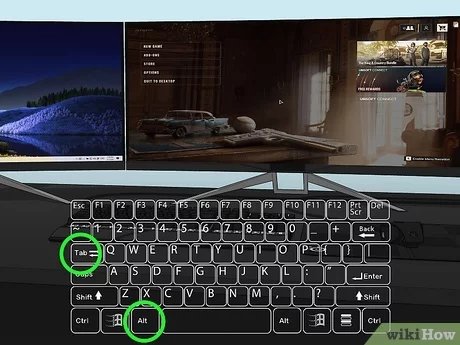
You can swap a game to another monitor by pressing Windows key + Shift + Left or Right arrow keys.
Ever found yourself wanting a game on a different screen, perhaps to share gameplay or just enjoy a change of scenery? It happens, and it’s easier than you might think. Knowing how to swap game to other monitor can save you lots of frustration.
Many games don’t automatically start on your preferred display. Fortunately, the process to move them is usually quick. This guide will help you manage your game windows across multiple displays.

How to Swap Game to Other Monitor
Playing games is super fun, right? But what if you have more than one monitor and want to move your game from one screen to another? It might sound tricky, but it’s actually quite easy once you know how! This guide will walk you through the different ways you can move your game display to a different monitor, no matter what kind of setup you have. We’ll talk about different methods, what might cause problems, and how to fix them. Get ready to learn how to make your gaming setup even cooler!
Understanding Your Display Setup
Before we jump into moving games around, it’s good to understand how your computer sees your monitors. Think of it like your computer has a map of where all your screens are. You might have one monitor on the left, one on the right, or maybe even one on top! This map helps your computer know where to show different things. To make sure everything works smoothly, we need to make sure this map is set up correctly.
Checking Your Display Settings
Let’s see how your computer sees your monitors. If you use Windows, you can check the display settings by:
- Right-clicking on your desktop.
- Selecting “Display settings”.
You’ll see a picture of all your monitors. Each one will probably have a number, like 1, 2, or 3. Make sure the numbers match up to where your monitors are physically. If not, you can click and drag them around to put them in the right place.
The Importance of Primary Monitor
One of your monitors is marked as your “Primary” display. Usually, this is where all your normal stuff shows up – your taskbar, icons, and where new windows open. When you start a game, it often goes to your primary monitor by default. To change which screen is primary:
- In your Display settings, select the monitor you want as primary.
- Scroll down a little and check the box that says “Make this my main display”.
This can be helpful if you have a specific monitor you want all your games to start on, but for swapping games mid-play, it isn’t the most flexible option.
Quick Methods for Swapping Games
Now, let’s get to the fun part: moving your game while you’re playing! There are some easy ways to do this.
Using the Windows Key and Shift Key Shortcut
This is often the quickest way to move a window, including most games:
- Make sure your game is in “windowed” mode or “borderless windowed” mode. This won’t work with “fullscreen” mode, we’ll explain that later.
- Press and hold the Windows key and Shift key at the same time.
- Press the arrow keys (left or right) to move the game to the next monitor. Each press moves the game to the next monitor in your display settings.
This method is very fast and you can easily swap between different screens with few keystrokes.
Dragging the Game Window
Another very simple method is dragging, and it is very helpful for any user, here is how:
- Make sure your game is in “windowed” or “borderless windowed” mode.
- Click and hold the very top part of the game window (where the title of the game is).
- Now, drag the window to your other monitor, then let go.
This method feels a bit more natural, especially for beginners. It’s like moving a regular window.
Understanding Game Display Modes
It’s crucial to know that these methods work best when games aren’t running in full screen mode. Fullscreen games have a specific way of interacting with your monitor, which can lock the game to a single display. Let’s talk about different display modes.
Full Screen Mode
When a game runs in full-screen mode, it usually takes over your whole monitor. This might give you the best performance and visual experience, but it can also make it hard to switch to a different screen. The shortcuts we mentioned may not work, or they might cause the game to minimize. If you are in full screen and want to quickly change to a different monitor, the below method is perfect.
Windowed Mode
In windowed mode, your game runs inside a regular window, just like other programs. This makes it very easy to move the game around, resize it, and swap between different monitors using dragging or shortcuts. It’s like having a window inside your desktop.
Borderless Windowed Mode
Borderless windowed mode is a kind of a best of both worlds option. It looks like fullscreen mode because it covers the entire screen, but the game is still running as a window in the background. This gives you the smoothness of fullscreen, with the flexibility of windowed mode. This mode allows you to easily move the game between monitors and also provides access to other applications without closing your game.
Changing Your Game’s Display Mode
Most games will let you choose your display mode inside their settings. Here is how to change the display mode.
- Open the game you wish to change the display mode.
- Look for game settings, this might be in a menu often called “options” or “settings”.
- Find display or video settings.
- Look for an option for “Display mode”.
- Select either “windowed” or “borderless windowed”.
- Save your settings and try moving your game with the keyboard shortcuts.
If you cannot find the display setting, it is good idea to search it on the web by simply typing “[Game name] display mode change”. This helps you to change the display mode in any game.
Troubleshooting Common Problems
Sometimes things don’t go as smoothly as we want. Here are a few common problems you might encounter, and how to fix them.
Game Won’t Move
If your game doesn’t move when you try the Windows key + Shift + arrow shortcut or dragging the window, here’s what you can check:
- Check display mode: Make sure your game is not in fullscreen mode. If the game is still in fullscreen mode, it will not move to the second screen, so you need to change it.
- Verify multi monitor setup: Confirm that your display settings are correct and the computer detects the other monitor correctly.
Game Only Shows Up on One Monitor
Sometimes your game may only be showing up on one of your monitors. If this happens check these below things.
- Make sure no windows are overlapping: A window might be hiding under the edge of the monitor. Check that there is no other window on the same side of your monitors.
- Try restarting the game: If your game window is not appearing, then restart the game. Sometimes, this helps.
- Update drivers: Sometimes graphics card drivers can cause monitor and game issues. Make sure that your graphics drivers are up-to-date.
Game Resets Position
If you move your game, and it moves back to original position here are a couple of solutions.
- Check in-game settings: Some games have an option to automatically adjust or remember window positions. Check if this setting is enabled. If it is, disable that setting.
- Check your primary display: Check the primary display setting, sometimes the game is trying to return to the main display.
Special Cases: Games with Unique Settings
Some games might have special settings or behaviors that can impact how you move them between monitors. Here are a few examples:
Games that force full screen
Some older games might not have an option for windowed or borderless windowed mode. For these, you may need to look for specific workarounds online. Sometimes pressing ALT+ENTER can make the game windowed.
Games with specific display options
Some games will have an in-game option for a display setting that lets you choose which monitor the game will play on. This is sometimes called “Display output” or something similar. This provides a more direct way to control where your game appears. It is always a good idea to check the game setting if you want more precise control over the game screen.
Additional Tips for Multi-Monitor Gaming
Moving games is just the first step! Here are a few extra tips to make your multi-monitor setup even better:
- Use a different background on each monitor: This helps you quickly tell which monitor you’re looking at. You can do this in Windows settings.
- Arrange your monitors in a logical way: Having your monitors in the same configuration as they are physically makes moving windows easier. You can adjust this in display settings
- Try gaming on one monitor and using another for other things: For example, you can play your game on the primary display and you can have your chats or streaming on another monitor.
Advanced Techniques (For More Experienced Users)
For those who like to get a bit more technical, here are a few more advanced things you can do:
Using Third Party Tools
There are some software programs made specifically for managing multiple monitors. These can help with window placement, resizing, and making the process smoother. Some tools even have features for swapping windows on multiple displays with custom shortcuts, or hotkeys.
Graphics Card Control Panel
Your graphics card (like Nvidia or AMD) will have its own control panel software. These often offer extra settings and options related to monitor management and display configurations. These can be useful if your game is having issues with moving between monitors.
Swapping your games between monitors can make your gaming experience so much better, and with the techniques we talked about, you should have an easier time now. Remember to check your display settings, make sure that your games are in the correct display mode, and use shortcuts to quickly move them. Have fun!
CPU Swap while in Sleep Mode??
Final Thoughts
Swapping your game to another monitor is simple. Typically, pressing Windows Key + Shift + Left/Right Arrow keys will move the active window. This is the easiest method for most games.
Alternatively, some games allow display settings changes directly from their menus. You can select the preferred monitor within these options. Remember to apply the changes.
Therefore, how to swap game to other monitor essentially uses keyboard shortcuts or in-game settings. Experiment with both methods to quickly find your suitable process.

