
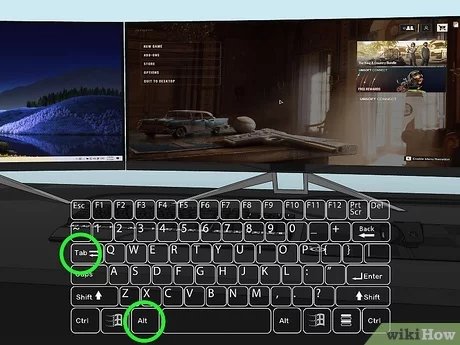
To switch a game to another monitor, use the Windows key + Shift + Left/Right arrow keys, or adjust display settings in your game or operating system.
Ever found yourself wanting that immersive gaming experience on your larger display? Perhaps you’re working on one screen and need that game action on another. It’s a common scenario for many gamers. We’ll walk you through the simple methods for how to switch a game to another monitor. The solution is often easier than you might think.

How to Switch a Game to Another Monitor
Having multiple monitors can be super useful! You can have your game on one screen and your chat or a walkthrough on another. But sometimes, the game doesn’t start on the monitor you want. Don’t worry, it’s not magic, and you can easily move your game to the screen you prefer. Let’s explore how to make your games jump from one monitor to another!
Understanding Monitor Configurations
Before we dive into the steps, let’s chat about how your computer sees your monitors. Your computer thinks of your monitors as numbers, usually “1” and “2,” and sometimes more if you have a bunch of them! The “primary monitor” is the main screen where things like your start menu and desktop icons show up. This is where new programs often open. To switch a game, you need to know which monitor is which.
Identifying Your Primary Monitor
Here’s how to find out which monitor is set as your primary screen:
- For Windows:
- Right-click on your desktop and select “Display settings.”
- Look for the box labeled “Identify.” Click it. A big number will show up on each screen. That’s how Windows names them.
- The monitor with the text “This is your main display” below its box is your primary one. You can change this using the dropdown if you want.
- For macOS:
- Click on the Apple menu and go to “System Settings.”
- Click on “Displays.”
- Click the “Arrange” tab. The monitor with the white menu bar at the top is your primary one. You can drag and drop the screen icons to arrange how your screens are positioned (left to right or up and down.)
Extending vs. Duplicating Your Display
You can set up your monitors in different ways:
- Extend: This makes your monitors act like one giant desktop space. You can move your mouse from one screen to the next. This is the best option for having a game on one screen and other things on another.
- Duplicate: This shows the exact same thing on all your screens. Good for presentations, not so much for gaming.
Make sure your monitors are set to “Extend” if you want to move your game to a different screen.
Simple Methods to Move Your Game Window
Once you know your monitors, it’s time to move your game! Here are a few easy ways to do it.
Using Windows Key + Shift + Arrow
This is a super-fast way to move any window, including your game, to another monitor.
- Make sure your game is running in windowed mode or borderless window mode. Fullscreen mode might not let you move the window so easily. We’ll talk about that in the next section.
- Click the game window to make it active.
- Hold down the Windows key + Shift key at the same time.
- Press the left or right arrow key to move the game window to the next monitor.
Try this a few times, it will get very easy. Each press moves the window to the next screen in the direction of the arrow.
Dragging the Game Window
This is the most straightforward method and always works, but only if your game window is not in full-screen mode:
- Make sure your game is in windowed mode or borderless window mode.
- Click and hold the top bar of your game window, the one where the close, minimize and maximize buttons are.
- Drag the window to your desired monitor. When the mouse cursor goes over the edge of the screen, you are now dragging your game window on the another monitor.
Game Display Settings
Many games have their own settings to control which monitor they display on.
Finding Display Options within the Game
Here’s how to explore game display options:
- Open the game.
- Find settings or options section in the game main menu or options section.
- Look for display, graphics, or video related settings.
- Look for display screen or monitor selection dropdown in that menu.
- Choose the monitor you want the game to be on.
- Save and exit the game display settings.
Windowed, Borderless Windowed, and Fullscreen Modes
Here’s a little more about those game display modes and how they affect switching monitors:
- Windowed Mode: The game runs in a window, like any other application. Easy to drag around or move with the Windows key trick.
- Borderless Windowed Mode: The game looks like it is full screen, but it’s really just a window with no borders. This is usually the easiest for switching monitors.
- Fullscreen Mode: The game takes up the entire screen. It can give the best performance, but it is trickier to move to another monitor. It sometimes even needs some special setting in the game itself or with external tools to move it to other monitor.
Borderless Windowed is often your best bet for smooth monitor switching.
Troubleshooting Common Issues
Sometimes, things don’t go perfectly. Here are some common problems and how to fix them.
Game Always Starts on the Wrong Monitor
If your game keeps starting on the same monitor, try these tips:
- Set the Correct Monitor as Primary: Go back to your display settings and make sure the monitor you want the game to start on is set as the primary display. The next time game starts, It should start on primary screen.
- Check Game Settings: Make sure that monitor you want to start the game on is chosen in the display settings in the game.
- Save Game Window Location: Some games remember the last location of the game window. If you moved the game to another screen, it should start there next time.
- Update Drivers: Make sure your graphic card drivers are up to date. Outdated drivers can sometimes cause weird display issues.
Game Window Won’t Move
If the game window is stubborn and won’t move:
- Check the Display Mode: If the game is in Fullscreen, switch it to Borderless Windowed or Windowed mode, then try moving it with Windows key + shift + arrow method.
- Restart Game: If the game has been running for too long and got stuck, close and restart the game, it might start in windowed mode.
- Restart computer: Sometimes a fresh restart of the computer solves the problems, especially if display settings were changed recently.
Game Screen is Too Big or Too Small on the Second Monitor
Sometimes the resolution settings do not match from one monitor to another.
- Check Game Resolution: Make sure resolution in game matches the resolution of the monitor.
- Check Scaling: Sometimes Windows scaling (display settings) is the culprit. If your two screens have different scaling, then games look bigger or smaller on another screen. Keep all monitor’s scaling same or set different scaling for each monitor, so that resolution matches perfectly in the games.
Using Third-Party Tools
For gamers that have very particular needs, some programs are there for help. These tools add extra features to manage your game windows and screens.
DisplayFusion
DisplayFusion is a powerful application with tons of cool features for multi-monitor setups.
- Window Management: It lets you easily move windows between monitors. It has shortcuts to move the windows to another monitor easily.
- Monitor Profiles: You can save and load different monitor setups. Very helpful for quickly changing your setup.
- Game Specific Settings: It can remember different settings for different games. Your game will always start on the monitor you choose.
Other Useful Tools
- Actual Multiple Monitors: This is an app like DisplayFusion with several useful window and screen management features.
- LittleBigMouse: Helps with problems when your different monitors have different resolutions and scaling.
Keyboard Shortcuts
A very easy trick is to use keybord shortcuts:
- Windows Key + Shift + Left/Right Arrow: Quickly moves the game to another monitor (as explained earlier).
- Windows Key + P: Opens the display projection menu. This allows you to switch between different display modes (Extend, Duplicate, etc.)
Learning these shortcuts can make switching screens much faster!
Advanced Techniques
For gamers who want even more control, there are some more advanced techniques.
Editing Configuration Files
Some games have configuration files that store details about how the game looks and runs. Sometimes you can tweak the display monitor settings in these configuration files manually. Please be careful while editing these files because this is not an officially recommended method and might break your game. Here’s how:
- Find the configuration file of the game. Most configuration files are present where game files are stored or in documents folder.
- Open the file with a text editor like notepad.
- Search for text like “monitor”, “screen” or “display”.
- Change any numerical values for screen numbers to desired number. For example, if display monitor value is “0”, try to change that to “1” for another monitor.
- Save the file and restart the game.
This method is very advanced and you should always create a backup of the configuration file before changing anything.
Using Nvidia/AMD Control Panel
Both Nvidia and AMD graphics cards have control panels with display settings:
- Nvidia Control Panel: Right-click on your desktop and choose “Nvidia Control Panel.” Look for “Set up multiple displays” or similar. Here you can control the arrangement of your monitors.
- AMD Radeon Settings: Right-click on the desktop and choose “AMD Radeon Settings.” Then find display section. There you can set display settings and configure monitor order.
You can sometimes set your primary display and manage monitor settings from there.
Best Practices for Multi-Monitor Gaming
To have a great multi-monitor experience, consider these practices.
Monitor Placement
How you place your monitors can make a difference:
- Put your main monitor in front of you and other monitor to your side.
- Make sure you have enough space between the monitors, so that you can have an easy time looking at either of them.
- Adjust the height so your eyes are level with the monitor when gaming for long hours.
Cable Management
A clean setup is a happy setup:
- Keep your monitor cables neat and out of the way. Cable ties or zip ties can help.
- Hide the extra cables under the desk with holders.
Keeping Your System Up-to-Date
Make sure everything is updated to reduce problems:
- Install latest graphic card drivers.
- Update your computer’s operating system to the latest version.
Following these suggestions will make sure your multi-monitor setup is smooth and enjoyable. You can easily play your favorite games on the monitor that you want with just a few tricks.
Moving your game to the desired monitor doesn’t have to be tricky. You can use easy keyboard shortcuts, drag and drop, or adjust settings within the game itself or through system settings and third party tools. With these steps, you can have a perfect multi-monitor gaming experience. Enjoy your game on the monitor you want!
How to Move a Fullscreen Game Window to Another Monitor in Windows 10 [Tutorial]
Final Thoughts
Ultimately, switching your game to another display is straightforward. You can use Windows settings by pressing Windows + Shift + Left/Right arrow keys. Game settings often provide monitor selection too.
Remember, sometimes restarting the game after changing display is a must for the change to fully take effect. These simple actions show you how to switch a game to another monitor.

