
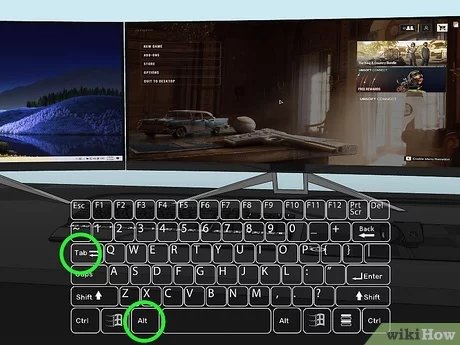
To switch a game to another monitor, use Windows display settings to change your primary monitor, or within the game settings, select the desired display output option.
Ever found yourself wanting to enjoy that intense game on a different screen? It can be a bit annoying when your game doesn’t appear where you expect it. Many players face this issue and seek simple solutions. Learning how to switch game to other monitor enhances your gaming experience. Let’s make this transition seamless, so you can quickly get back to playing.

How to Switch Game to Other Monitor
Playing games on multiple monitors can be super cool! Imagine having your game on one screen and a walkthrough or your chat on another. It’s like having a superpower for gaming! But, sometimes the game just doesn’t show up on the screen you want it to. It can be a little confusing, but don’t worry, we’ll guide you through how to move your game to a different monitor. This process will work whether you have a Windows PC or a Mac computer.
Understanding Display Settings
Before we jump into moving the game, it’s important to know how your computer sees all the monitors connected to it. This is where display settings come in. They tell your computer which monitor is which, and how they all work together.
Accessing Display Settings on Windows
If you have a Windows PC, finding your display settings is easy. Here’s how you do it:
- Right-click on an empty part of your desktop.
- Click on “Display settings” (or sometimes just “Display”).
This will open a window where you can see all your monitors. Each monitor is shown as a rectangle. You’ll usually see a number on each rectangle, telling you which monitor is “1”, which is “2” and so on. Make a mental note of the number on the monitor where you want your game to be.
Accessing Display Settings on macOS
For those who have a Mac, the process is slightly different:
- Click on the Apple icon in the top-left corner of the screen.
- Select “System Settings” (or “System Preferences”).
- Click on “Displays”.
Similar to Windows, you will see a representation of your monitors. They might not have numbers written on them, but you can see how they are arranged. You can also click on the “Arrange…” button to better understand the monitor layout.
Primary Display vs. Secondary Display
Your computer has one monitor that it thinks of as the “main” or primary screen. Usually, this is where the game will start. The other monitors are considered “secondary”. You can change which monitor is your primary display. Here’s how:
Setting the Primary Display in Windows
- Go to the display settings as we showed you before.
- Click the rectangle that represents the monitor you want to use for your games.
- Scroll down and check “Make this my main display”.
- Click Apply or OK.
Setting the Primary Display in macOS
- Go to your display settings in system preferences.
- Click on the Arrangement tab.
- Drag the white bar (it looks like a menu bar) to the monitor you want as your main screen.
After this, your new primary display will become the place where new programs open. However, this may not directly move games already running. We’ll cover how to do that in the next sections.
Using Game Settings
Many games have their own built-in settings to choose which monitor they should use. This is often the easiest way to get your game on the right screen. How to do this differs from game to game, but usually, you will find these settings in the game’s graphics or display options. Here’s what to look for:
Locating Display Settings Within a Game
First, start the game you want to switch to another monitor.
- Look for a menu labeled “Options”, “Settings”, or “Preferences”. This is commonly found on the game’s main menu.
- Within that menu, find a section for “Graphics”, “Display”, or “Video”.
- In that section, you should see a drop-down menu or list of your monitors. It will usually say something like “Monitor”, “Display”, “Output device”, etc. It might list your monitors by number (e.g., Monitor 1, Monitor 2) or by their names (if you have named them in your display settings).
Select the monitor where you want the game to appear. After selecting, don’t forget to save the changes, and the game should move to your chosen display. Now this method depends on if the game has it, so let’s explore other methods for moving your games.
Using Windowed Mode
Sometimes, the game starts in “full screen” mode, which makes it harder to move. Switching to “windowed” mode or “borderless windowed” mode can make it easier.
Switching to Windowed Mode
Similar to the display settings, every game has its own specific locations. Here’s a general guide, most games operate similarly:
- Go to the Options or Settings menu.
- Find the Graphics or Display section.
- Look for a dropdown for “Display Mode” or similar. You may find options such as “Full Screen”, “Windowed”, and “Borderless windowed”.
- Select “Windowed” or “Borderless Windowed”.
- Click on “Apply” or “Ok”.
Once you’re in windowed mode, you can usually drag the game’s window to a different monitor with your mouse. If the window is maximized, it can be helpful to press the “Restore Down” button(middle button in the top right of the game window, to move the game easily.
Keyboard Shortcuts for Moving Windows
Keyboard shortcuts are a fast way to move a game window from one screen to another, whether in windowed or borderless windowed mode. These are very helpful when a game is being difficult about going to another monitor.
Using Windows Keyboard Shortcuts
Here are the primary keyboard shortcuts for shifting game windows:
- Windows Key + Shift + Left Arrow: Moves the window to the monitor on the left.
- Windows Key + Shift + Right Arrow: Moves the window to the monitor on the right.
- Windows Key + Arrow Keys: Some games work better with just the arrow keys after pressing the windows key, instead of holding shift.
Using Mac Keyboard Shortcuts
Macs have slightly different, but very similar shortcuts:
- Control + Left/Right Arrow Key: Use the control key instead of the windows key, as well as holding down shift and using the arrow keys to move the window.
Pressing these keys will instantly move your game to another monitor, and will work when the game is running in full screen, but it depends on the game.
Specific Scenarios and Troubleshooting
Sometimes things don’t always go as planned. Let’s explore some common issues and how to fix them.
Game Stuck on the Wrong Monitor
If your game keeps opening on the wrong monitor, try these steps:
- Check the game settings first: Make sure you’ve selected the right monitor in the game’s own display options. This is the most common solution.
- Make the desired monitor as the main display: Ensure the monitor where you want to play is set as your primary monitor in your system’s display settings.
- Try windowed mode: If it is still in fullscreen, try changing to windowed mode, and then back again to full screen.
- Update graphics drivers: Sometimes, old graphics drivers can cause issues. Visit the website of your graphics card maker (like NVIDIA or AMD) to download and install the newest drivers.
- Restart the game and computer: Sometimes, a simple restart can fix many issues. Turn off the game completely and then start it again after restarting your computer.
Game is too big or small on the other monitor
This can happen if the monitors have different resolutions.
- Change the game’s resolution settings: Within the game’s settings, try to match the game’s resolution with the resolution of the monitor the game is running on.
- Change system resolution: It can be helpful to make both monitor resolutions the same in the display settings to ensure games work across different monitors.
Game won’t move between monitors
Here is what you can try:
- Verify that the monitors are recognized: Make sure your computer recognizes all your monitors. The display settings can help you check this. Sometimes, you might have to click “detect” so your system detects the different monitors.
- Check cables and connections: Make sure the cables connecting your monitors to your computer are securely connected and working correctly.
- Force quit game and restart: In some cases, it might be helpful to force quit the game by opening the Task manager (Ctrl+Shift+Esc on windows, or Activity Monitor in mac), and then restarting the game.
Switching your game to another monitor is usually pretty simple once you know how. By going through display settings, using game’s in-game settings, and sometimes windowed mode you can get your games up on the monitor you want to. By understanding these basic tips, your dual monitor gaming experience will be much smoother.
How To Move Full Screen Game To Other Monitor – Full Guide
Final Thoughts
Switching game display is simple with these methods. Use Windows key + Shift + Arrow keys to quickly move the game window. Alternatively, the game’s settings menu often provides display output options to choose the desired monitor.
Many games offer a specific full-screen or windowed mode. Adjusting these settings allows you to achieve the desired screen transfer. Remember, how to switch game to other monitor might slightly vary depending on game.

