
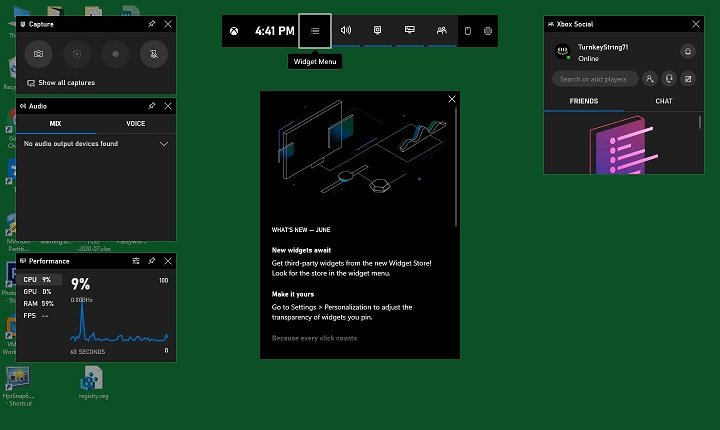
Game Bar won’t open because it’s disabled in settings, the Xbox app isn’t running, or there are conflicting software issues.
Frustration bubbles up when you try to capture that epic game moment and nothing happens, right? It’s incredibly annoying when the game bar refuses to appear. You hit the key combination, expecting the familiar overlay, but get nothing, leaving you wondering: why wont game bar open?
This common issue often stems from a few simple causes. We’ll take a look at these culprits to get your game bar working again.

Why Won’t Game Bar Open? Let’s Fix It!
It’s super frustrating when you’re ready to play your favorite game and the Game Bar just decides not to show up. You press the Windows key and the “G” key (that’s the shortcut), but nothing happens. This little toolbar, the Game Bar, is supposed to let you record your gameplay, take screenshots, chat with friends, and even check how your computer is doing. When it’s not working, it can feel like you’re missing out on all the fun. So, why does this happen? Let’s dive into the most common reasons and how to fix them.
Game Bar is Not Enabled
Sometimes, the simplest explanation is that the Game Bar is turned off in your Windows settings. It’s like a light switch – if it’s off, the light won’t turn on. Let’s check if that’s the case.
How to Check if Game Bar is Enabled:
- Click the Start button (that’s the Windows logo in the bottom-left of your screen).
- Click the gear icon, which takes you to Settings.
- In Settings, click on “Gaming”.
- On the left side, choose “Game Bar”.
- Look for the switch that says “Record game clips, screenshots, and broadcast using Game Bar”. Make sure this switch is turned “On”. It should be blue or some other color, depending on your Windows theme.
If the switch was off, turning it on might be all you need to do. Try opening the Game Bar with the Windows Key + G shortcut again. If it still doesn’t work, keep reading!
Incorrect Game Bar Keyboard Shortcut
Another easy fix is checking the keyboard shortcut itself. Maybe you accidentally changed it? Let’s make sure you have the right keys set.
How to Check and Change the Game Bar Shortcut
- Go back to the “Gaming” section in your Windows Settings.
- Select “Game Bar” on the left.
- You should see “Keyboard shortcuts”.
- Check the shortcut listed for opening the Game Bar. It should say “Win + G”.
- If it’s something different, you can change it by clicking on it. Then, press your preferred shortcut combination. Make sure it’s something you can easily remember and not something you usually press for other things.
- Click the Save button if you change the shortcut.
Now, try the new shortcut you set (or the default Windows key + G) and see if the Game Bar opens. If not, let’s keep exploring.
Game Bar is Not Compatible with Your Game
Not every game is created equal, and sometimes, the Game Bar might not work perfectly with every game. Usually, it works fine with most modern games, but sometimes, it just doesn’t want to play nice.
Compatibility Checks
- Older games: Games that are very old might not work with the Game Bar. They were built before this tool existed.
- Specific Settings: Sometimes, certain game settings (like running in windowed mode or a specific resolution) might interfere with the Game Bar. Try changing these settings and testing.
- Game Specific Issues: There might be a specific compatibility issue with the game itself. It’s a good idea to search online (like on the game’s forums or support pages) to see if other players have this problem with the same game.
What to do if the game is the problem? While you might not be able to make the Game Bar work with every single game, often playing the game in full-screen mode can resolve the problem. If not, you might have to explore other recording solutions.
Windows Update Issues
Sometimes, the problem lies with Windows itself. If your operating system is not up-to-date, it can cause problems with all sorts of things, including the Game Bar. Updates include bug fixes and improvements which can help these tools run smoothly.
How to Check for Windows Updates
- Click on the Start button.
- Click on Settings.
- Click on “Update & Security”.
- Click the “Check for updates” button.
- Windows will search for any new updates. If it finds some, install them.
After updating your system, restart your computer. After the restart, try to open the Game Bar again.
Graphics Driver Issues
Graphics drivers are like the special software that allows your computer to talk to your graphics card. If these drivers are old, broken or not installed properly, it can mess up the Game Bar’s function, as it relies on the graphics card for a lot of its features.
Updating Graphics Drivers
You have a few ways to update your graphics drivers:
- Device Manager: Right-click the Start button and choose “Device Manager”. Expand “Display adapters”, right-click on your graphics card and choose “Update driver” and then “Search automatically for drivers”. Windows will try to find and install the newest ones.
- Manufacturer’s Website: Go to the website of your graphics card manufacturer (NVIDIA, AMD, or Intel). They will have the latest drivers for your specific card. Download and install the correct drivers.
After updating, restart your computer and try opening the Game Bar again.
Corrupted Game Bar Files
Sometimes, the files that the Game Bar needs to run correctly become corrupted. This can happen for many reasons. If this is the case, you may need to repair or reset the Game Bar app.
Repairing and Resetting Game Bar
- Click on the Start button.
- Click on Settings.
- Click on “Apps”.
- Search for “Game Bar” in the list.
- Click on “Game Bar” then select “Advanced options”.
- Scroll down to “Reset” and click that.
- Before resetting, there is a Repair button that might be useful to try first, give it a shot!
- If the “Repair” button doesn’t work, or if the problem still persists after repairing, click the “Reset” button.
Restart your computer and try to use Game Bar again to see if that has helped.
Interference from Other Apps
Sometimes other apps can get in the way of the Game Bar, especially any kind of screen recording or overlay software. It’s like having too many people trying to talk at once – it can get confusing.
Identifying Conflicting Programs
- Think about any other apps you may have installed that have screen recording or overlay features, if you have any active. Some examples would be Discord, OBS, Steam overlay, or any other recording or overlay programs.
- Try closing these programs one by one and see if the Game Bar starts working after closing a specific one.
Running a Clean Boot
If you are unsure of which app might be interfering, you can try a “Clean Boot”. This will start Windows with only the most basic services, and will help to pinpoint a conflict.
- Press the Windows key and the letter “R” at the same time.
- In the “Run” box, type “msconfig” and press Enter.
- Click the “Services” tab.
- Check the box that says “Hide all Microsoft services”.
- Click “Disable all”.
- Click the “Startup” tab.
- Click “Open Task Manager”.
- In Task Manager, under the “Startup” tab, disable all startup items.
- Close Task Manager.
- In the System Configuration window, click “Apply” and then “OK”.
- Restart your computer.
After the restart, try running the Game Bar. If it now works, you know that one of the disabled apps was causing the issue. You can enable each app one at a time, restarting each time, until you find the problem application. Once found, uninstalling or disabling that program should fix the issue.
Antivirus and Firewall Issues
Sometimes, your antivirus software or firewall might accidentally block the Game Bar. These programs are designed to protect your computer, but they sometimes flag safe programs by mistake. Let’s check those!
Checking Antivirus and Firewall Settings
- Look through the settings of your antivirus software. See if there is a place where you can add exceptions or allow programs. Add the Game Bar there.
- Also look through Windows firewall. Open your Windows setting and click “Update and Security”. Then click “Windows Security”, “Firewall & network protection”. Scroll down until you see “Allow an app through firewall”. If Game Bar is not listed then click “Allow another app” and then find the Game Bar.
After making these changes, restart your computer and test the Game Bar.
Incorrect Registry Settings
The Windows Registry is like a very important rule book for your computer. If settings related to the Game Bar are wrong in the registry, it can stop working.
Editing the Registry
Please note: Be very careful when editing the Registry. Changing the wrong thing can cause your computer to not work correctly. If you aren’t comfortable, skip this step or ask someone who is more experienced for help.
- Press the Windows key and the letter “R” at the same time.
- Type “regedit” and press Enter.
- If a pop-up asks for permission to make changes, click “Yes”.
- In Registry Editor, go to this address:
HKEY_CURRENT_USER\Software\Microsoft\Windows\CurrentVersion\GameDVR - On the right side, find a value called
AppCaptureEnabled. - If the data column shows
0, right-click on it, click “Modify…” and change it to1. If it shows1then skip this step. - Close the Registry Editor and restart your computer.
After restarting, try opening the Game Bar again.
Hardware Issues
While not as common, it is possible that issues with your hardware could be causing the Game Bar not to work correctly. Outdated, incorrect, or faulty hardware could be the cause of some problems.
Hardware Diagnostics
- Check your hardware: Make sure your graphics card, CPU, and RAM are functioning correctly. You can use Windows performance tools or manufacturer diagnostics tools.
- Check your peripherals: Disconnect any external devices like game controllers and extra monitors. Then, try the Game Bar.
If you do find any faulty hardware, you will need to replace it. If the device is under warranty, contacting the manufacturer may be useful. If it is not under warranty, a repair or replacement is needed. If you find that all hardware is functioning correctly, you will need to continue to work through the steps above.
Hopefully, one of these solutions will help you get your Game Bar working again. Remember to go through the steps one by one, testing to see if it worked, before moving onto the next possible solution.
How To Fix Xbox Game Bar Not Opening Working in Windows 11
Final Thoughts
In short, many factors can stop the Game Bar from launching. Incorrect settings, outdated software, or conflicting applications frequently cause issues. Sometimes, a simple restart can fix it. You must check your Xbox app and related services too.
If the basic steps fail, deeper troubleshooting might become necessary. Checking for driver updates could also help. This is usually a frustrating issue, and knowing the common reasons helps. why wont game bar open is a common question users face, and the solutions require a systematic approach.

