
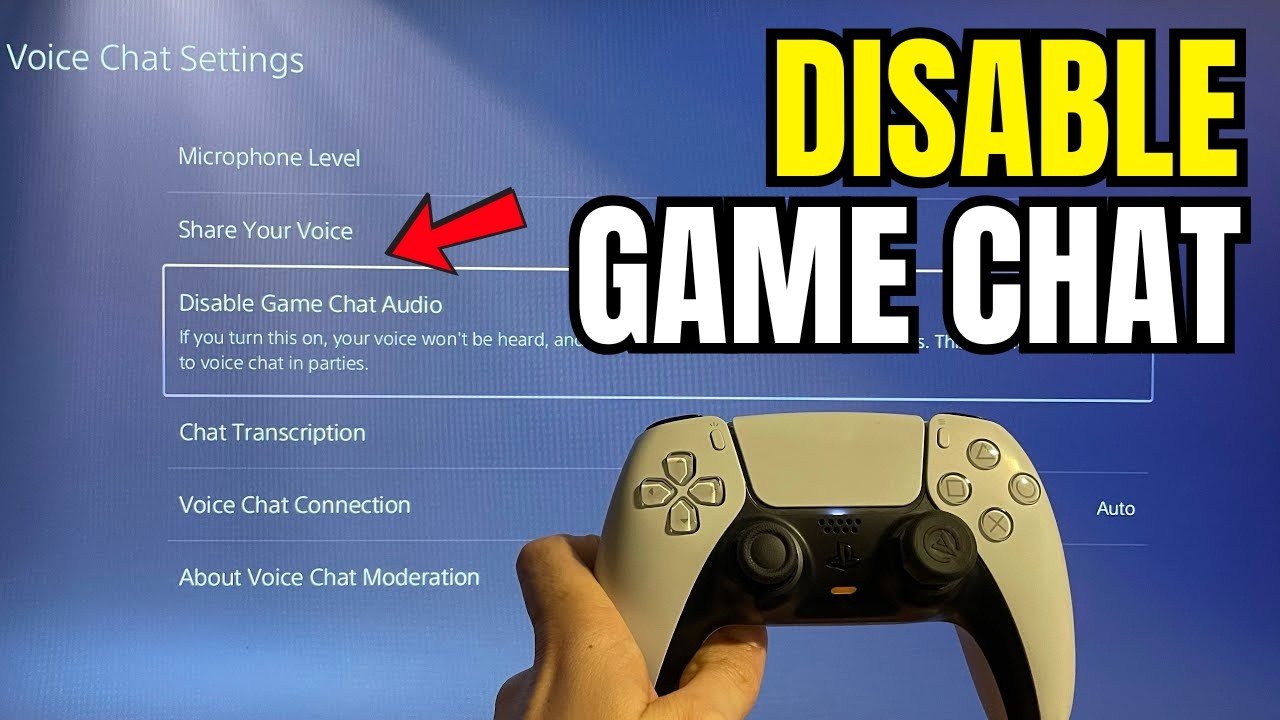
To talk in game chat on PS5, you typically need a headset connected to your controller or console, and then press the microphone button to speak.
Ever felt that silent frustration of not being able to coordinate with your teammates on PS5? It’s a game changer when you can communicate effectively. Knowing how to talk in game chat ps5 is actually pretty simple, once you know the steps involved.
This article guides you on using your microphone and controller to connect with fellow players in your favorite games. It’s a key component to a truly immersive gaming experience.

How to Talk in Game Chat on PS5
Hey gamers! Want to chat with your friends and teammates while you play on your PlayStation 5? It’s super fun and can make games even more exciting! But sometimes, figuring out how to actually talk in game chat can feel a bit tricky. Don’t worry, we’re here to help! This guide will walk you through everything you need to know about using voice chat on your PS5.
Setting Up Your Headset for Voice Chat
Before you start shouting “Victory!” into your mic, you’ve got to make sure your headset is set up right. The PS5 works with lots of different headsets, so let’s get yours ready.
Wired Headsets
Using a wired headset is usually the easiest way to connect. Here’s how you do it:
- Find the Right Jack: Look for the headphone jack on your Dualsense controller. It’s a small round hole.
- Plug It In: Simply plug your wired headset’s cable into that jack. You’ll probably hear a little “click” when it’s in.
- Check the Sound: Put on your headset and try making some noise, or play a game to see if you can hear the game sound through the headset. If not, try unplugging and plugging back. Sometimes, it helps to check if your volume is turned down.
Wireless Headsets
Wireless headsets let you move around without being attached to your controller. Here’s the deal with these:
- Bluetooth Headsets:
- Put your Headset into Pairing Mode: Usually, this means holding down a button on your headset. Your headset’s manual will tell you exactly how.
- Go to Settings: On your PS5, go to the main menu and then to “Settings”. It’s the gear icon.
- Choose Accessories: Scroll down and find “Accessories,” then select “Controller,” then “Communication” and then “Bluetooth Accessories” option.
- Pair Your Headset: Your PS5 will search for nearby Bluetooth devices. Select your headset from the list. You might have to enter a code on the screen that usually “0000” or “1234” or check your headset’s manual.
- Test: Try speaking into the mic, or play some audio to make sure everything works correctly.
- USB Wireless Headsets:
- Plug in the Dongle: A small USB stick (called a “dongle”) usually comes with the headset. Plug this into one of the USB ports on your PS5.
- Turn On your Headset: Make sure your headset is turned on.
- Usually, Connects Automatically: Usually, the headset and dongle connect automatically. If not, check your headset manual.
- Test the Sound: As always, make sure you can hear the game and speak through the microphone.
Important: Make sure your headset is charged, especially if it’s a wireless one! Nobody wants their mic cutting out in the middle of an important game.
Understanding PS5 Voice Chat Options
The PS5 gives you different ways to chat with others, and it’s good to understand what’s available.
Game Chat
Game chat is for talking to everyone else who is playing the same game as you. This is great for coordinating moves in team games or just having some fun conversation during the play. Here’s how to use it:
- Automatic Activation: In many games, voice chat will automatically turn on when you start playing online. You might see a little microphone icon near your player’s name or the game settings.
- Muting Yourself: Sometimes you might not want everyone to hear you. To mute yourself in game chat, there’s usually an option on the in-game menu or a quick button press (usually on the Dualsense controller), depending on the game. Find this mute button!
- Adjusting Volume: If other players are too loud or too quiet, most games have volume controls that you can adjust in their settings.
Party Chat
Party chat is for when you want to talk only with your friends. This is perfect when you’re all playing the same game but want to chat together privately, or even when you’re playing different games but still want to talk.
- Start a Party: Press the PlayStation button (the one in the middle of your controller), then choose “Party” and then “Start a party”.
- Invite Your Friends: You can invite your friends from your friends list. It’s like creating your own private chat room.
- Adjust Party Chat Settings: You can set up a party to be a private group (so other people can’t join) or a public group (anyone can join).
- Muting in party: Similar to Game chat, you can mute and unmute yourself within the party setting.
Game Base Voice Chat
This is another method of chatting with your friends on your PS5 system. The process is nearly similar to the party chat mentioned earlier. You can easily invite friends to this chat and talk with them. For inviting people to the chat, check the step above for ‘invite your friends’ on the party section.
Adjusting Your Audio Settings on the PS5
Sometimes, the audio settings on your PS5 need a little tweaking to make sure your voice chat sounds just right. Here’s how to find those settings:
- Go to Settings: Press the PlayStation button to go to the main menu, and then choose “Settings” (the gear icon).
- Select Sound: Find and select the “Sound” option.
- Microphone: Now you will see the “Microphone” Option, Click it.
- Adjust Input Device: Choose your headset or controller mic as your input device if you have more than one.
- Adjust Output Device: Make sure the sound is going to your headset, not your TV speakers.
- Adjust Microphone Level: You can adjust how loud your voice sounds to other people. Too loud will cause distortion, too low and they can’t hear you. There is a bar there, when you speak it moves, adjust the slider to have this bar move in the middle.
Pro Tip: If your friends say your voice is too quiet or too loud, check the microphone level setting. It’s often the main problem!
Important: Make sure the input device is set up to the correct one. If you are using a headset, and it is not selected, you will not be able to talk in the chat. Make sure you set up the correct device from which you are intending to use the mic.
Tips for Better Communication
Having the right settings is important, but using voice chat well makes gaming even more enjoyable. Here are some tips:
Speak Clearly
Try to talk in a clear voice. Mumbling or talking too quietly makes it hard for others to understand you. No one likes being told “Huh? What did you say?” over and over.
Be Respectful
Remember, there are real people on the other end of the headset. Treat them how you would want to be treated. Be polite, avoid mean words, and be a good teammate. Games are more fun when everyone is having a good time.
Avoid Loud Background Noise
If you have a TV or music on really loud in the background, it can make it tough for others to hear you. Try to keep the room quiet while you are talking. People don’t want to hear your mom shouting at you or music that’s louder than your voice.
Use a Headset With a Good Mic
While the Dualsense controller mic works, a headset with a dedicated microphone will usually give you the best quality. A good mic will reduce background noise and make your voice sound clearer.
Test Your Mic Regularly
Before heading into a crucial game, quickly test your microphone in a party or with a friend. This prevents the situation of having no mic working during important game plays.
Use Push to Talk (If Available)
Some games or applications offer the option of ‘Push to Talk’. Using this option, you don’t have to mute and unmute yourself every now and then. Rather, you can mute yourself, and the mic will only activate and make the voice chat active when you press a dedicated key. If this feature is available, then it might make communication more easy and clear.
Troubleshooting Common Voice Chat Problems
Sometimes, things don’t go exactly as planned. Here are some common problems and how to fix them:
“I Can’t Hear Anyone!”
- Check your Headset Volume: Make sure the volume dial or buttons are not turned all the way down on your headset.
- Check the PS5 Output Setting: Go to Settings > Sound > Output Device and make sure your headset is selected.
- Check the In-Game Volume: Make sure the game settings’ volume isn’t set to zero.
- Restart your PS5: Sometimes, a quick restart of the PS5 can fix strange audio issues.
“My Mic Isn’t Working!”
- Check your Connection: If using a wired headset, make sure it’s plugged in securely. If wireless, make sure it’s paired properly or the USB dongle is plugged in.
- Check the PS5 Input Settings: Go to Settings > Sound > Microphone > Input Device and make sure your headset is selected.
- Check the Mic Mute Button: Most headsets have a mute button; be sure it is not activated.
- Try a Different Game: See if the microphone works in a different game or in a party chat. This helps figure out if the problem is the game or your system.
“My Voice Sounds Echoey”
- Turn Down Your TV Speakers: If your TV speakers are on loud while using a mic, it can cause an echo. Try turning down the volume on your TV or use headphones.
- Check Your Microphone Level: If the microphone level is too high, it can also create an echo effect. Turn down the input level.
- Move your Mic: If using a headset, make sure the mic is not too close to your mouth. This can cause echoes.
“My Voice Is Cutting In and Out”
- Check Your Headset Connection: Make sure the headset is plugged in well (wired headset) or that the battery is charged (wireless headset).
- Check Wireless Connection: If using a wireless headset, make sure it is not too far away from the console. Distance and other wireless interferences can cause the mic to cut in and out.
- Update Your PS5: Ensure you have the latest system software updates installed on your console.
If you’ve tried these tips and are still having issues, it might be a good idea to check your headset’s manual or reach out to PlayStation Support. They might have extra suggestions.
And there you have it! Talking in game chat on your PS5 might have seemed a bit tricky at first, but now you are a pro! With the right setup and a little practice, you can easily communicate with your friends and teammates, making your gaming experience so much more fun. Always remember to be respectful to others and enjoy the thrill of playing with your friends.
How to Fix Game Chat on PS5 [ Easy FIX ]
Final Thoughts
To speak in game chat on PS5, you must first ensure your headset is properly connected. Then, within the game, navigate to the voice chat settings. Often, you’ll need to press a button to activate your microphone.
Remember to check game settings for push-to-talk or open mic options. Adjust volume levels to ensure clear communication. Effectively using ‘how to talk in game chat ps5’ requires understanding these basic steps.

