
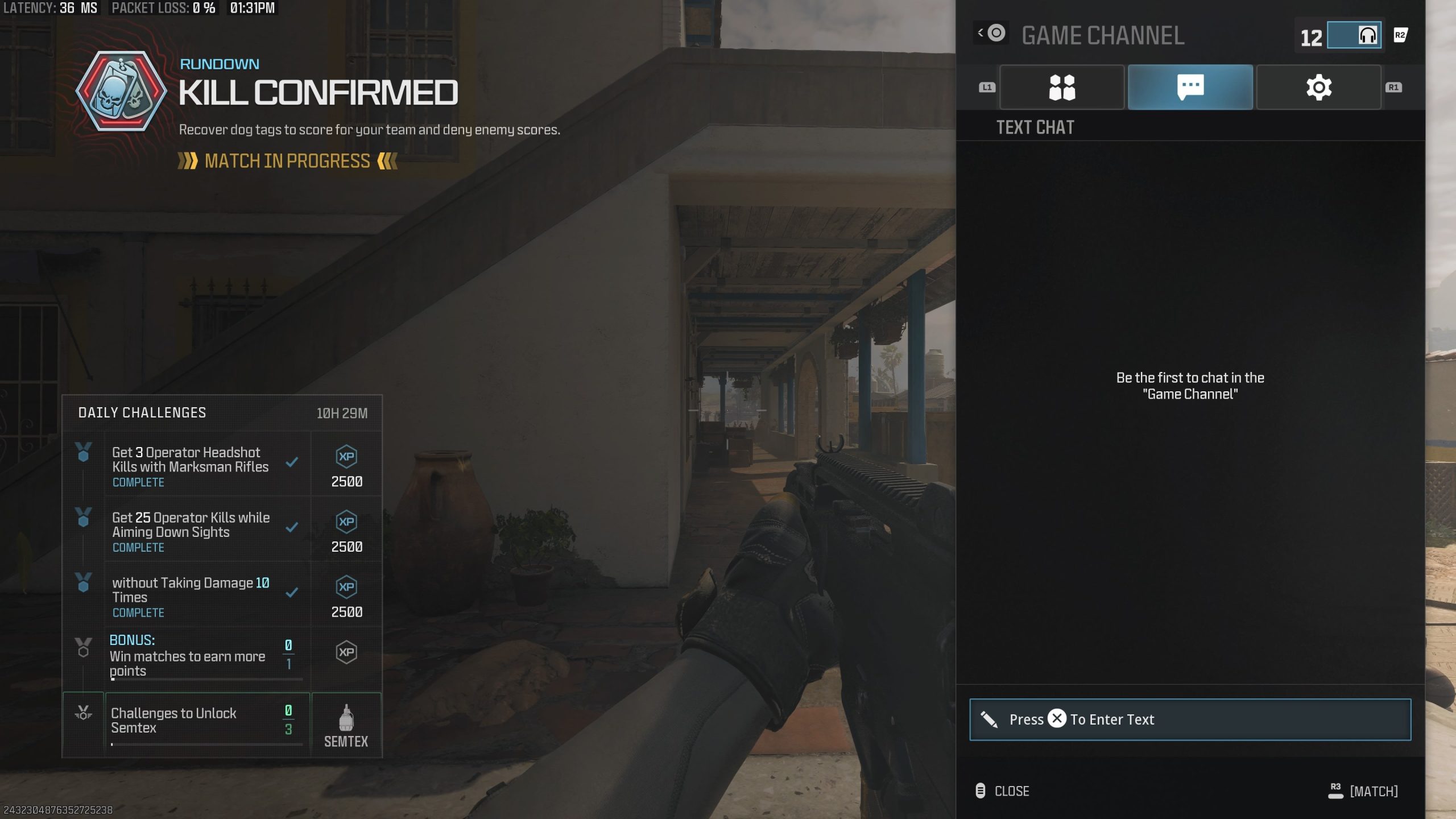
To text in game chat on MW3, press the designated button (usually ‘Enter’ on PC or the ‘Touchpad’ on PlayStation, and ‘View’ button on Xbox) to open the chat box, then type your message, and press the same button again to send.
Ever felt the need to communicate crucial strategies or share a quick joke mid-match in Modern Warfare 3? You might be wondering how to text in game chat mw3 efficiently. It’s actually quite simple once you know the right button to press.
This handy guide will get you quickly chatting with your teammates and opponents. We will cover the steps on all platforms, so you can focus on the action instead of fumbling with controls. Let’s dive into the details.

How to Text in Game Chat MW3
Okay, so you’re diving into the fast-paced world of Modern Warfare 3 (MW3) and you want to talk trash, strategize with your team, or just say “hello” to the other players. But how do you actually type messages in the game? Don’t worry, it’s easier than you think! This article will walk you through everything you need to know about using the in-game text chat in MW3, whether you are on a console like PlayStation or Xbox, or on a PC. We’ll cover the basics, troubleshoot common problems, and even give you some tips for being a great communicator in the game. Let’s get started!
The Basics: Accessing the Text Chat
First things first, you need to know how to open the text chat window. The method for doing this differs depending on whether you are playing on a PC or a console. Don’t fret; we will discuss both below!
PC Players
If you are using a keyboard and mouse, it is very straightforward to access the text chat. Usually, the “Enter” key is your friend here. Here’s the breakdown:
- During a Match: Press the “Enter” key. This will open the chat box at the bottom of your screen. You can then type your message using your keyboard. Press “Enter” again to send it to everyone in the match.
- In the Lobby: When you’re in the pre-game lobby, the process is the same. Hit “Enter” to open the chat, type, and then press “Enter” again to send.
Console Players (PlayStation and Xbox)
Console gaming is a bit different since you do not have a keyboard readily available, but do not worry, text chat is still accessible! Here is how:
- During a Match: To bring up the text chat on a console, you’ll typically need to press a button to activate it. Usually you have to press down on the d-pad to bring up the text chat. The specific button can vary, but in most cases, it’s the touchpad on a PlayStation controller or the “view” or “select” button on an Xbox controller. Once you press this button, a virtual keyboard will appear on your screen, and you will be able to type with your controller. After finishing your message, confirm it to send the message to other players.
- In the Lobby: The text chat works the same way in the pre-game lobby as it does in a match for consoles.
Understanding the Chat Channels
MW3, like most online multiplayer games, has different channels for sending your messages. Knowing which channel you’re using is important, or else you might be sending private messages to the entire lobby! Here are the common chat channels you’ll encounter:
Game Chat (All)
This is the most common chat channel that is seen in almost every lobby. When you type in the “All” chat channel, everyone in the current game, including both your teammates and opponents, will see your messages. This is the place for general conversation, trash talk, or giving a “GG” (Good Game) after the match.
Team Chat
This channel is private for you and your teammates. When you use team chat, your messages will only be seen by those on your team. This is great for discussing strategies, asking for backup, or coordinating attacks, and it keeps your plans secret from the opposing team.
Switching Between Chat Channels
You might ask how to switch between chat channels. You should be able to switch your channels by using the buttons on your keyboard or by using the virtual keyboard on your console. Usually there should be an option within the chat box where you can change the recipient of your message to either team or everyone.
Troubleshooting Common Text Chat Issues
Sometimes, things don’t work as smoothly as we want them to. Here are some common problems you might encounter when trying to use the text chat in MW3 and ways to fix them:
No Chat Box Appears
If you hit your button and nothing happens, it could be a couple of things.
- Check Your Key Bindings (PC): In the game settings menu, find the controls section. Look for the key binding associated with chat and make sure it is set to what you expect. If it is not, change the key binding to a key that you are comfortable with and try again.
- Check Controller Settings (Console): Go to your controller settings within the game and make sure the d-pad or the equivalent is set to activate chat. If it is not, try changing the setting to the button you want it to be.
- Restart the Game: Sometimes, a simple restart of the game can resolve temporary glitches. Close out of MW3 completely and re-launch the application.
- Game Bugs: If nothing else works, there may be a glitch in the game. In this instance you may have to wait for an update from the developers.
Chat is Showing But You Can’t Type
If you can see the chat box, but the keyboard does not appear or your keyboard does not type, here are a few things you can try:
- Make Sure the Chat Box is Selected: Sometimes, you might need to click within the chat box with your mouse to activate typing. Check to see if this is an issue for you.
- Keyboard Issues (PC): Try opening other applications and make sure that your keyboard functions correctly. If your keyboard does not type in other programs, this may mean that your keyboard itself is having an issue.
- Controller Issues (Console): Make sure your controller is connected and fully functional. If it is, try turning it off and back on again to see if that fixes the virtual keyboard from popping up.
Messages Not Sending
If you’ve typed your message but it’s not appearing in the chat, consider these possibilities:
- Internet Connection: A poor internet connection could prevent your messages from being sent properly. Ensure that your internet is stable. If it is not, try resetting your router.
- Check Game Settings: Sometimes there is a filter or setting within the game that might be causing your messages to not send. Double-check to make sure these settings are not interfering.
- Game Bug: Again there may be a game issue that prevents your message from being sent.
Chat is Too Small to See
If the text chat is too small for you to see, here are some ways to fix this issue.
- Game Settings: Check your accessibility settings in game to see if there is a way to make your text chat bigger.
- TV/Monitor Settings: If there is no in-game settings that address this, look at your monitor or tv to see if you can zoom in to be able to see the text chat.
Tips for Effective Communication
Now that you know how to use text chat, here are some tips to become an effective communicator within MW3:
Be Clear and Concise
When you are trying to relay information to your team, use concise and clear language so that you can relay the message quickly. You don’t have a whole lot of time in the heat of battle, so make sure that people can understand what you are trying to communicate at a glance.
Use Proper Language and Tone
While trash talk can be fun, keep it respectful. Avoid using offensive language, personal insults, or any messages that might harass other players. Good sportsmanship is very important in online games.
Coordinate with Your Teammates
The team chat is a great place to coordinate with your teammates for strategic moves. Use it to plan attacks, call out enemy positions, or ask for help when you need it. Good communication can lead to victory in the game!
Be Aware of Your Surroundings
Typing while in the middle of a firefight can be very dangerous. Try to type when you are hidden so that you do not become an easy target while your screen is filled with the virtual keyboard.
Keep it Positive
It’s great to encourage your teammates, celebrate victories, and offer helpful advice. A positive attitude makes the game more enjoyable for everyone.
Additional Text Chat Features
While the basics are enough for most gamers, MW3 also comes with other options that may interest you.
Quick Chat
Sometimes, there are preset messages that you can send to other players with a single click of a button. This can help you communicate without fully typing out a message. These quick chats are usually customizable through the in game settings, so find the options that you like best.
Voice Chat
While not text-based, it’s worth remembering that MW3 also has a voice chat feature. This feature can allow you to talk in real-time to other players. Sometimes, voice chat is quicker than typing, especially when you need to relay information in a fast paced environment.
Text to Speech
Many modern games include a text-to-speech option for accessibility. Check your accessibility settings within the game to see if this feature is available in MW3. Text to speech means that the messages you type are read aloud to other players in your lobby, so this may be an option if you prefer this.
Text Size and Customization Options
As stated earlier, check your settings within the game to see if you can change the look of your text chat. Sometimes the default size and color of the text chat isn’t easy to see, so experiment with your settings until you get it the way you like it.
So, there you have it! Using text chat in MW3 isn’t difficult at all. Whether you are playing on a console or PC, you are now able to type to communicate with your teammates and the other players. Remember to communicate clearly, and keep your cool while gaming. Go have fun out there!
How to Quickly TEXT Chat in GAME in COD MODERN WARFARE 3 (Controller Tutorial)
Final Thoughts
To text in game chat mw3, simply press the designated button on your controller or keyboard during a match. This action opens the chat interface. Type your message using the on-screen keyboard.
You must remember to confirm the text by pressing send. This transmits your message to other players within the game lobby. It’s straightforward and crucial for in-game communication.
Knowing how to text in game chat mw3 enhances team coordination and social interaction. It is an essential skill for optimal gameplay. Remember these simple steps.

