
To transfer games to another drive, you typically need to use the game platform’s built-in feature to move the installation files, or a dedicated third-party program.
Running out of space on your primary drive? It happens, especially with today’s large game installations. You might be wondering how to transfer games to another drive without losing all your progress or messing things up.
It’s a common problem, but thankfully there are easy ways to move your precious games. We’ll walk you through the process of how to transfer games to another drive, covering different game launchers and methods.

How to Transfer Games to Another Drive
So, your computer is starting to feel a bit cramped? You’ve got all those awesome games, but your main drive is yelling for some breathing room. It’s a common problem, and luckily, moving games to a different drive is easier than you might think. Whether it’s a speedy SSD for quicker loading times or a spacious hard drive for your growing library, this guide will show you several methods to get your games transferred safely and efficiently. We’ll cover how to move games on different platforms, discuss some common issues and solutions, and provide you tips to keep your gaming world organized. Let’s dive in!
Why Move Games to Another Drive?
Before we get into the ‘how’, let’s talk about the ‘why’. There are several excellent reasons to move your games to a different drive:
Freeing Up Space on Your Primary Drive
Your primary drive, often the one where Windows is installed, is crucial for your computer’s overall performance. It needs space to function correctly. When it gets too full, your computer can slow down. Games, especially modern ones, can be massive, often taking up tens or even hundreds of gigabytes each. Moving them to another drive helps keep your primary drive lean and fast.
Improving Game Loading Times with SSDs
Solid State Drives (SSDs) are much faster than traditional Hard Disk Drives (HDDs). If you have an SSD, moving your most frequently played games there can drastically cut down loading times. This means less waiting and more playing! It’s a game changer for those who want the fastest and snappiest gaming experience.
Organizing Your Game Library
Keeping your games on different drives can also help you organize your library. For example, you might put your most played games on a fast SSD and your backlog or less frequently played games on a large HDD. This can make it easier to find what you’re looking for and keep things tidy.
Dealing with Drive Failures
While it isn’t something anyone likes to think about, drives can fail. If your primary drive experiences problems, having your games stored on a separate drive helps you recover faster and keep playing. It is similar to having a backup copy, but instead you keep them separate. It gives you one layer of protection from complete loss of everything.
General Methods for Transferring Games
The specific steps for moving games will depend on the platform (like Steam, Epic Games, or others) or specific game launcher. However, some basic methods work across many games:
Using the Game Launcher’s Built-in Feature
Most modern game launchers like Steam, Epic Games Store, EA App and Battle.net offer a built-in method to move games between drives. This is the safest and most recommended method. It’s designed to handle the complicated process of moving game files and keeping the launcher’s records of your game locations up-to-date.
- They update the game configuration automatically
- They maintain the game shortcut, so you don’t have to recreate it.
- They prevent corrupted files, so you don’t need to worry about the game crashes
Copying and Pasting (Not Recommended)
While you can manually copy and paste game folders to a new location, this is not the best approach. It’s complicated and can lead to errors, causing games to not launch or work incorrectly. If you do this, the game launcher won’t know the game moved, and you’ll have to do additional steps that make the process more complicated, and prone to errors. We advise against this and recommend using built-in tools whenever possible.
Using Specialized Software
There are some third-party software programs designed to move games from one drive to another. These programs often provide a simpler experience compared to manually moving files, but may not be worth the hassle for most users. They do similar steps to the game launcher, but add an extra layer, so the game launcher is aware of changes. We still suggest to use the tool that the game launcher provides to you.
Moving Games on Steam
Steam is a very popular platform. It has a great tool that is easy to use, and it handles all the complex steps in the background.
How to move Steam games to another drive
Here’s how to move your Steam games to a new drive:
- Open Steam: Launch the Steam application.
- Go to Settings: Click on “Steam” in the top-left corner, then select “Settings.”
- Navigate to Downloads: In the Settings window, click on “Downloads.”
- Steam Library Folders: Click the “Steam Library Folders” button. This will show you a list of all locations where your Steam games are installed.
- Add a New Library Folder: Click on “Add Library Folder” and select the location of the drive where you want to transfer your games to. It can be a folder or the main directory of your new drive. Make sure to click “Select” button.
- Move the game: Find the game that you want to move, right-click it, then click “Properties…” Click on “Local Files”, then select “Move install folder…”. In the new window select the new Library Location you previously created.
- Wait for the Move: Steam will move the game files to the new location. This may take some time depending on the size of the game and your drive speeds.
- Start Playing: Once the move is finished, you can start the game.
Moving multiple steam games
You can move multiple Steam games by following the same steps for each game individually. Unfortunately, Steam doesn’t allow you to move multiple games at the same time. However, it’s usually a quick and simple process, and very safe. You don’t need to worry about damaging the game files.
Moving Games on the Epic Games Launcher
The Epic Games Launcher makes it easy to relocate your game installs. Here’s how it’s done:
How to move Epic Games games to another drive
- Open Epic Games Launcher: Open the Epic Games Launcher.
- Go to your library: Click on “Library” in the menu on the left hand-side of the screen.
- Select the Game: Find the game you want to move and click the three dots next to the game name.
- Select Uninstall: Select the “Uninstall” option to uninstall your game.
- Reinstall the Game: Select the game again, now click “Install”. In the location selection part, chose the location of your new hard drive or folder.
- Start Playing: Once the reinstall is complete, you can launch the game and play.
Why Reinstall Instead of Moving Files?
The Epic Games Launcher doesn’t have a direct “move” option for games. Instead, you must reinstall the game on the new drive. However, this is a quick process, as the program is not redownloading the game, it’s just copying the files from one location to another. The launcher will just reassign the location of the game to the new drive.
Moving Games on the EA App
The EA App, which is used for EA games (like Battlefield, Sims, etc), has its own method to move games:
How to Move EA App Games to Another Drive
- Open the EA App: Launch the EA App.
- Go to your library: Find the “Library” tab.
- Select the Game: Choose the game that you want to move.
- Manage the Game: Click the three dots next to the game and choose the “Manage” option. Then click “Move”.
- Select New Location: Choose the new location where you want to move the game.
- Start Move: EA App will move your game to the new drive. The time of the move depends on your hard drive speed.
- Play: Once the move is complete, launch the game.
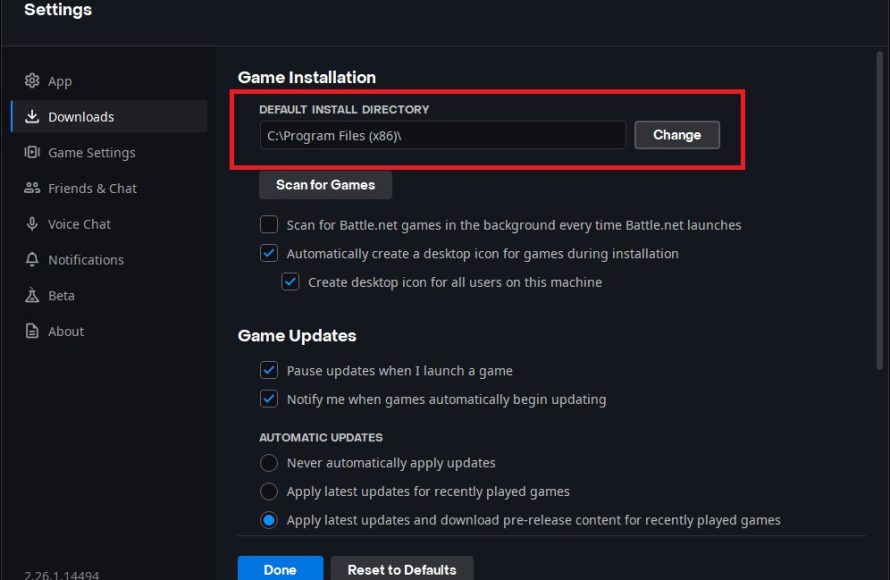
Moving Games on Battle.net
Battle.net is the platform for Blizzard games like World of Warcraft, Diablo and Overwatch. Let’s discuss how to move games on this platform.
How to Move Battle.net Games to Another Drive
- Open Battle.net: Start the Battle.net application.
- Select the Game: On the game tab, click the settings option on the game that you wish to move.
- Select Locate Game: On the drop-down menu, click on “Locate Game”.
- Select New Location: Select the new location where the game folder is.
- Confirm the Game: The Battle.net program will recognize the game files at the location, and you will have your game transferred.
Moving Games Manually (Advanced Users)
While we don’t typically recommend this method, we recognize that some people may prefer this method, or need to do it because they are using old game launchers that don’t support the move feature. This should only be done if you are comfortable with managing file locations and are ready to troubleshoot any issues that might occur. It’s best to stick to using the launcher’s methods for safety and ease.
Steps for Manual Game Transfer
- Locate the Game Folder: Locate the install directory of your game, on your current drive. This might be in a “Program Files” folder or a custom location if you set one up.
- Copy the Game Folder: Copy the complete game folder, and paste it to the new location.
- Update Game Launcher: After copying the folder, you’ll need to update the game launcher. How you do this depends on the game launcher, but usually you go to the game’s options, find an option similar to “Locate Install Folder”, and select the new location.
- Test the Game: Start the game to ensure it works correctly.
Potential Problems with Manual Transfer
- Game Configuration Issues: The game files might have configuration issues if they are not moved by the game launcher.
- Missing Libraries: The game launcher might not recognize the install, and the launcher won’t be able to update the game or make changes to it.
- Broken Game Shortcuts: Game shortcuts on your desktop or start menu will most likely not work, and will need to be updated.
- Data Loss: If you are not careful, you can damage or lose the game data.
Tips for a Smooth Game Transfer
To ensure your game transfer goes without a hitch, here are some important tips:
Check Space Requirements
Make sure you have enough free space on your new drive to accommodate the games you are moving. Always overestimate to avoid space-related problems.
Close Games and Launchers
Before starting any move, close the game and the game launcher. This will prevent any file access conflicts that may lead to an error, or even file corruption.
Use the Launcher’s Built-In Tools
As we said before, the easiest and safest way to move a game is to use the built-in tools in game launchers. It’s far less complicated and reduces potential problems. It does all the work for you.
Monitor Transfer Progress
While the transfer is happening, don’t interrupt the process, monitor it until it completes. Pay attention to the game launcher’s progress bar to ensure that everything is working correctly. This allows you to act in case there is some issue, or if the process is stuck for a long time.
Test Your Games After Transfer
After transferring, play each game for a few minutes to make sure it’s working properly. It’s better to catch issues early.
Organize Your Drives
If you have multiple drives, label them clearly to help you remember which one stores your games and other data. This will make your gaming library easier to manage.
Avoid Copying Shared Game Files
Sometimes games store some common files in a separate place. Avoid copying those manually. If there are any shared files that might cause issues when copying, the game launcher will recognize it, and it will make sure to re-download/transfer them to the new location.
Moving your games to a different drive doesn’t have to be difficult. By using the built-in tools provided by your game launchers and following the advice in this guide, you can manage your game library efficiently. You’ll also help keep your computer running fast. Remember to always prioritize the built-in launcher methods for the smoothest experience. With these tips, you can enjoy more gaming time and less time spent dealing with drive space issues.
How To Move Steam Games to Another Hard Drive (2023 Tutorial)
Final Thoughts
Moving games is simpler than you might think. You can use Steam’s built-in feature, or move game files directly using file explorer for other platforms. Ensure that you update any game shortcuts after the move.
For Steam, go to settings, downloads and then storage to choose a new location. After that, select the game and then move it. Other platforms may vary but generally involved copy-pasting files. Knowing ‘how to transfer games to another drive’ can drastically improve storage management.

