
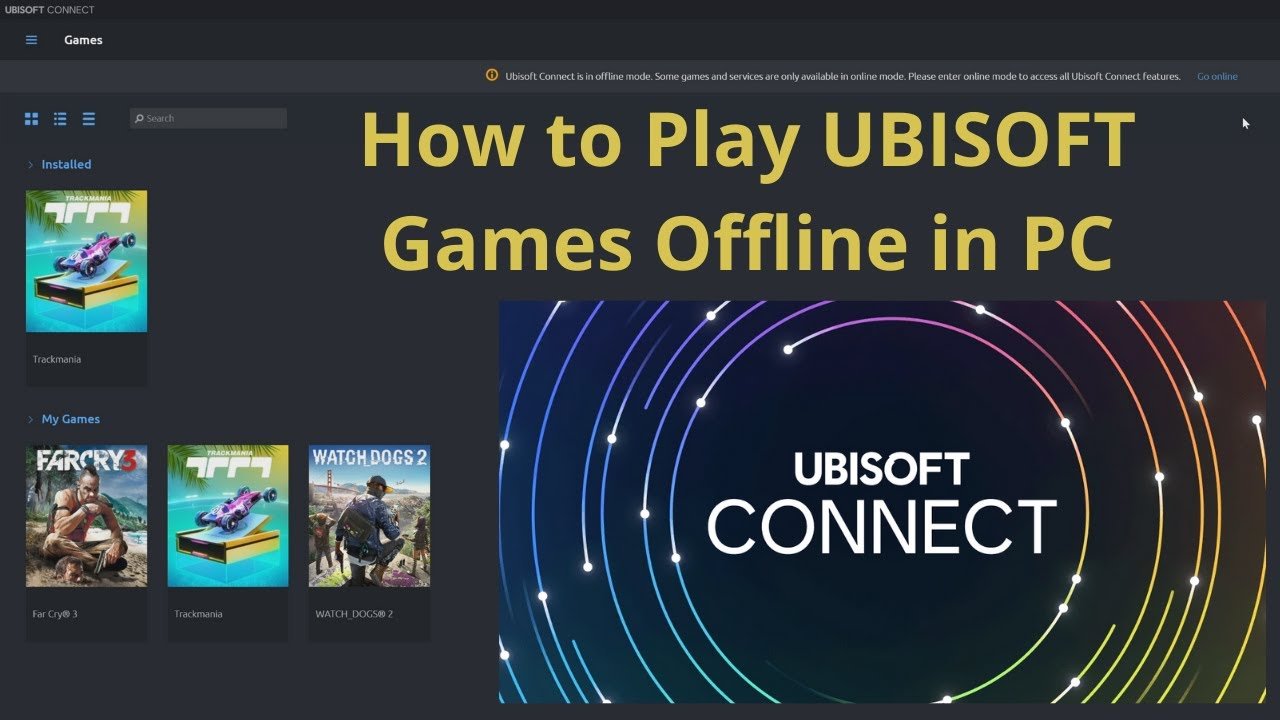
To play your Ubisoft Plus games offline, you must first launch the game while connected to the internet. The game will then be playable offline.
Frustrated when your internet dips and you can’t continue your Ubisoft adventure? It’s a common problem, but thankfully there is a solution. Many players wonder how to play their Ubisoft Plus games offline.
We’ll quickly explain the required steps to make it easy for you to enjoy your favorite Ubisoft titles without interruption. You only need an initial online launch. Afterward, you’re free to game offline.

How to Play My Ubisoft Plus Games Offline
So, you’ve got a fantastic Ubisoft Plus subscription, granting you access to a huge library of awesome games. But what happens when your internet decides to take a break, or you’re heading on a trip without a reliable connection? You might be wondering, “Can I still play my Ubisoft Plus games offline?” The good news is, yes, you can! However, it’s not quite as simple as just unplugging your modem. There are a few steps and considerations you need to be aware of to ensure your offline gaming session goes smoothly. Let’s dive into the details to help you enjoy your favorite Ubisoft titles wherever you are, even without an internet connection.
Understanding Ubisoft Plus Offline Play Limitations
Before we jump into the ‘how,’ it’s important to understand what you can and can’t do when playing Ubisoft Plus games offline. It isn’t a complete offline experience for every game, and there are certain caveats to keep in mind. Unlike some other platforms that may allow you to play games fully offline indefinitely, Ubisoft Plus utilizes a system that needs to check your subscription periodically. Think of it like a library where you borrow games. You get to enjoy them for a while, but the library needs to check that you are still a member from time to time.
The 30-Day Rule and Initial Launch
A key thing to remember is the 30-day rule. While you can play most of your Ubisoft Plus games offline, your system needs to connect to the internet at least once every 30 days. This is necessary for Ubisoft to confirm your active subscription. If you go longer than 30 days without connecting to the internet, your games might not be playable offline until you re-establish a connection. Also, the very first time you play a new game in your Ubisoft Plus library, you almost always need an internet connection so that it verifies the license and begins the initial download and installation of the game on your system.
Specific Game Requirements and Cloud Saves
Some Ubisoft titles might have specific offline play limitations due to their design. Games that rely heavily on online interactions, such as multiplayer modes or live service elements, might not offer the same full experience when you are offline. Additionally, while many of your single-player games will work offline, remember that progress may not sync properly if you are not connected to the internet when you complete the game or make significant progress on them. Also, Cloud save syncing does not work, unless you are connected to the internet. This means, if you play a game on one PC while connected, and then play on another PC offline, then the new PC will not have the progress you made on the previous system unless you connect to internet for syncing, prior to going offline.
- Multiplayer modes: Usually require an internet connection
- Cloud saves: Sync only when connected to the internet.
- Initial game launch: Requires an internet connection.
- 30-Day Validation: Requires internet connection at least every 30 days.
Preparing Your Games for Offline Play
Now that you understand the limitations, let’s get into how you can actually play your Ubisoft Plus games offline. The process is pretty straightforward once you know the steps. Here’s a breakdown to help you get everything ready.
Step 1: Download Your Games
Before you can play offline, you must have the games you wish to play downloaded and installed on your computer. If you only stream your games, then you can not play offline, as there is no game file downloaded on your system. Make sure to do this while you have a stable internet connection. Consider downloading the games you know you’ll be wanting to play offline ahead of time. Large titles can take a while to download. Check your storage beforehand to ensure you have the required space available for installation.
Step 2: Launch Each Game at Least Once
After you’ve downloaded your games, it is important to launch them all at least once while you are connected to the internet. This step is crucial to verify the game licenses associated with your Ubisoft Plus account and set up offline play. This action allows Ubisoft Connect to confirm your subscription status and permits offline access. If you’re not online, Ubisoft Connect won’t recognize your game entitlements. It’s very similar to how digital movies work, once you download and watch it first time using internet, it will keep it available to play offline for later.
Step 3: Check Your Ubisoft Connect Settings
While you’re online, take a moment to review your Ubisoft Connect settings. While there isn’t a specific “offline mode” toggle, it helps to familiarize yourself with how Ubisoft Connect operates. Make sure you have set your login credentials as saved and logged in automatically. This will save you from the hassle of entering your password each time you launch the application. You do not need to go into the settings, and you may keep playing your game while online, but this extra step will make the process a little bit easier. You can simply close Ubisoft Connect normally after checking this setting. It will continue to run in the background.
Going Offline and Playing
Step 4: Disconnect from the Internet
Once you’ve completed the steps above, you can disconnect from the internet. You can disable your Wi-Fi, unplug the ethernet cable or enable airplane mode on your system. Once you’ve disconnected from the internet, launch Ubisoft Connect, which is still running in the background, to open its main window. It will show you a message saying that it’s in offline mode. Don’t worry, this is exactly what you want.
Step 5: Launch Your Game
Now, simply choose the game you’ve downloaded and launched previously, and start playing! You should be able to get right back to your saved games or start a new game as you wish. Remember, this only works because you have already installed the game, launched the game previously while you were connected to the internet, and have your Ubisoft Connect running in the background. If you didn’t do these steps correctly, or you skipped a step then you might encounter errors. If you encounter an error, you simply need to reconnect your computer to internet and ensure all the steps mentioned above are followed properly before you disconnect.
Troubleshooting Common Offline Play Issues
Sometimes, things may not work as smoothly as we expect. If you encounter problems with playing your Ubisoft Plus games offline, here are some typical problems and quick fixes.
Ubisoft Connect Errors
If you encounter an error stating that you must connect to internet to launch the game, then it means one of the steps mentioned above is missing, or it’s been longer than 30-days since you have last connected with internet to authenticate your subscription. Make sure to launch Ubisoft Connect first, with internet and try launching the game again. If it works fine when connected to the internet, disconnect and try again to launch the game. If it is still giving you errors when offline, then try restarting your computer after reconnecting to internet for an authentication.
Game Won’t Launch
If a game refuses to start offline, make sure it has been launched successfully at least once while connected to the internet. Remember, the initial launch is crucial to verify the license. Additionally, consider restarting your computer or logging out and back into Ubisoft Connect. Also, check if the game has some specific requirements like needing an initial download or update while being connected to the internet. Make sure you have the latest Ubisoft Connect version on your system as well.
Cloud Save Issues
If you are moving between devices and notice your save files are not available, make sure you have connected to the internet with your previous device and allowed it to fully sync the save files to the cloud. Remember that cloud saves only sync when you’re online. So before you start playing offline, always make sure your cloud is up to date with your latest progress. When you complete your game offline, connect again to the internet, and Ubisoft Connect will then sync your local game save progress to cloud storage.
30-Day Validation Lockout
If your games stop launching offline, it might be due to the 30-day check. Ensure that your computer has connected to the internet at least once within the last 30 days to validate your Ubisoft Plus subscription. A simple login, once per month, will prevent this issue from arising. You should not have any issue playing your downloaded games offline after completing this step.
Tips for an Optimal Offline Gaming Experience
Here are a few extra tips to help make your offline gaming a little bit more convenient and enjoyable
Plan Ahead
Before you plan to go offline, have a quick look at your Ubisoft Connect game library and download the games you’re most likely to play offline. This will save you time later and ensure your library is ready for offline gameplay, as you can not install new games when offline.
Manage Storage
Ubisoft games are known to be large in size, so you might want to check the storage space available on your hard drive. Make sure to have adequate space before you install the games. If you know that you have limited space, then you can simply pick the few games you want to enjoy offline, rather than attempting to install every game at once. Also, if you are low on hard drive space, you may free up some space by uninstalling unused games from your hard drive, since those games will always be available to install again as long as you are subscribed to Ubisoft Plus.
Check Game Updates
Before you disconnect from the internet, launch each of the games, especially if you have not played them in a while, and verify if there are any game updates. It is important to keep your games updated with latest version, and this must be done while connected to internet. Playing older version of the games offline might cause issues with stability and the game may not launch at all.
Automatic Login
Ensure your Ubisoft Connect client is set to log you in automatically. This little change can make your experience a lot more seamless when you go offline. It will prevent you from having to go through the steps of entering your password when you launch the client in offline mode. This is a one-time setting that you just need to enable on your Ubisoft Connect application.
Playing your Ubisoft Plus games offline is a great way to enjoy them when you don’t have access to an internet connection. By following these steps, you can keep your gaming going no matter where you are. Just remember those important limitations, especially the 30-day rule, and make sure you prepare your games ahead of time for offline play.
How to Play UBISOFT Games Offline in PC? – UBISOFT Connect
Final Thoughts
To play Ubisoft Plus games offline, you must first launch them while connected to the internet. This verifies your subscription. Then, simply disconnect, and you can play those games.
Remember, some games might require an internet connection for certain features. The initial launch for license verification is a must. This method details exactly ‘how to play my ubisoft plus games offline’ effectively.

